Set up Patient Type
Who does this: hospital administrator Where: Patients › Masters › Patient Type
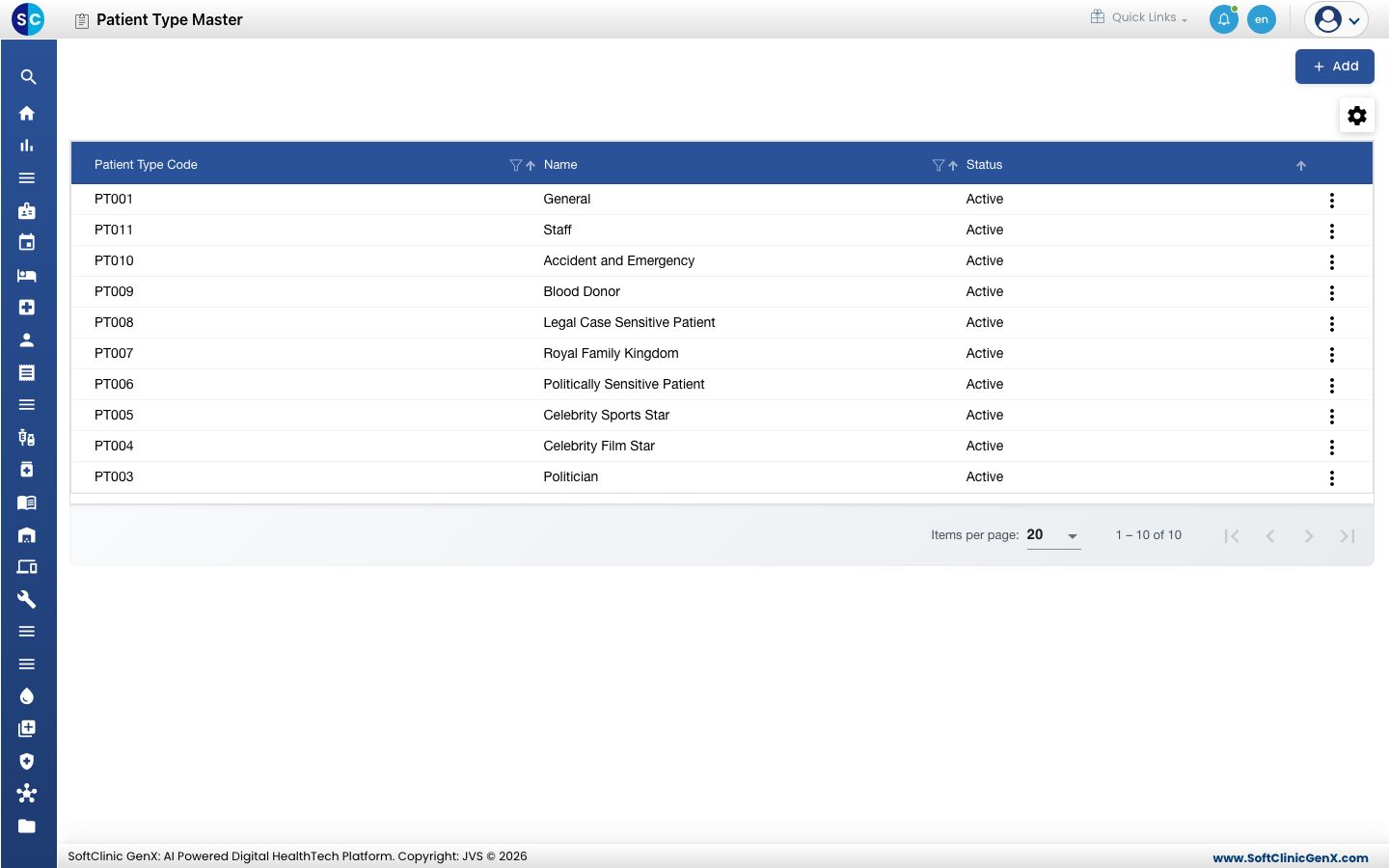
A patient type is the category a patient is registered under, such as General, Staff or Celebrity Film Star. Front-desk staff pick it on the registration form. Marking a type as New Born or VIP changes what the registration form asks for.
Add a patient type
-
Go to Patients › Masters › Patient Type.
-
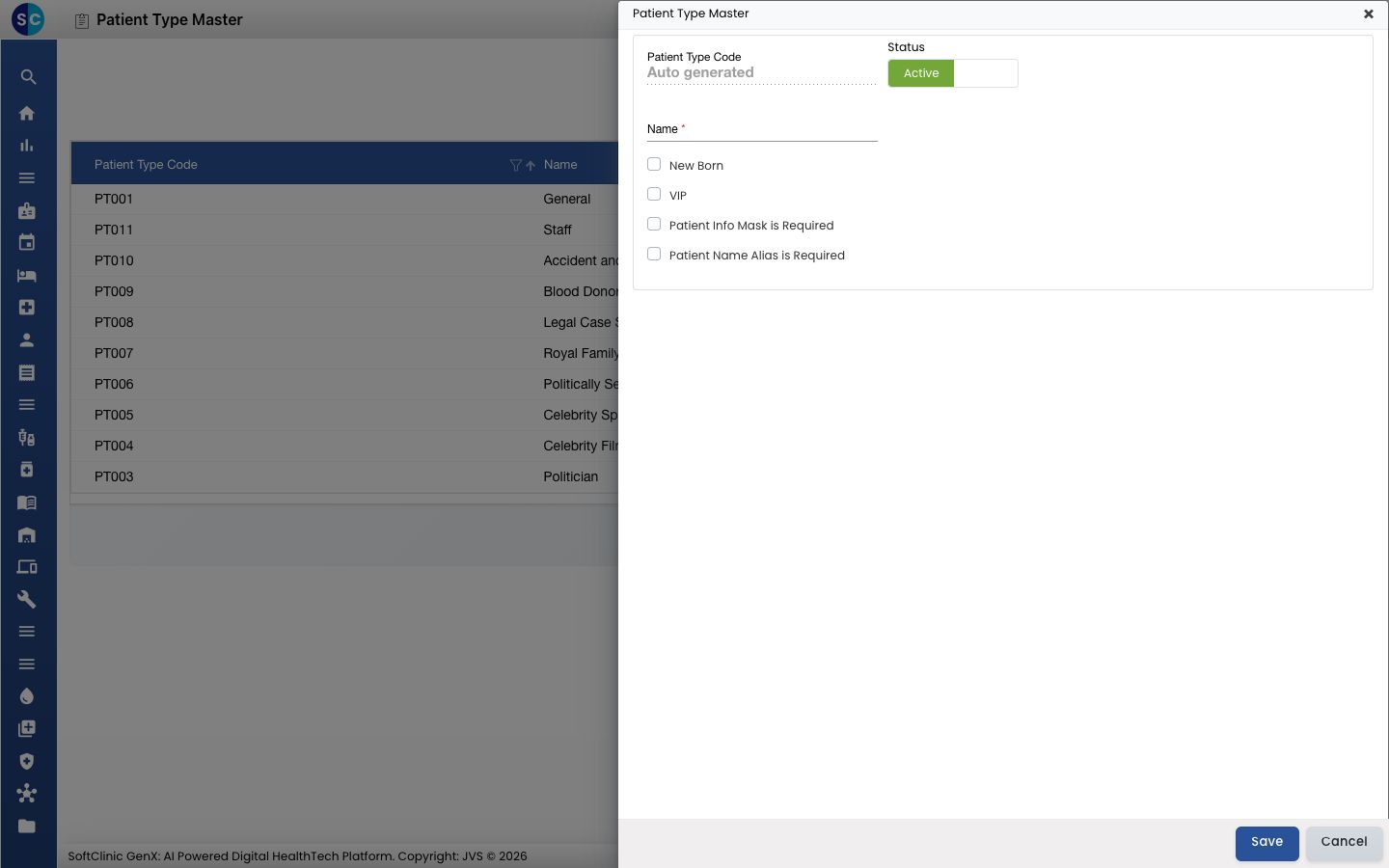
Click Add. The Patient Type Master panel opens on the right.
-
Fill in the fields:
Field What to enter Required Patient Type Code Filled in automatically when you save. — Status Leave on Active so staff can pick it. — Name The category name, for example Corporate VIP. Up to 50 characters.Yes New Born Tick for babies born in the hospital. Registration then asks for the mother's registration number. No VIP Tick for patients who need discreet handling. Registration then shows the VIP options. No Patient Info Mask is Required Tick to mark this VIP category as one whose details must be masked. No Patient Name Alias is Required Tick to make staff enter an alias name when registering a patient of this type. No 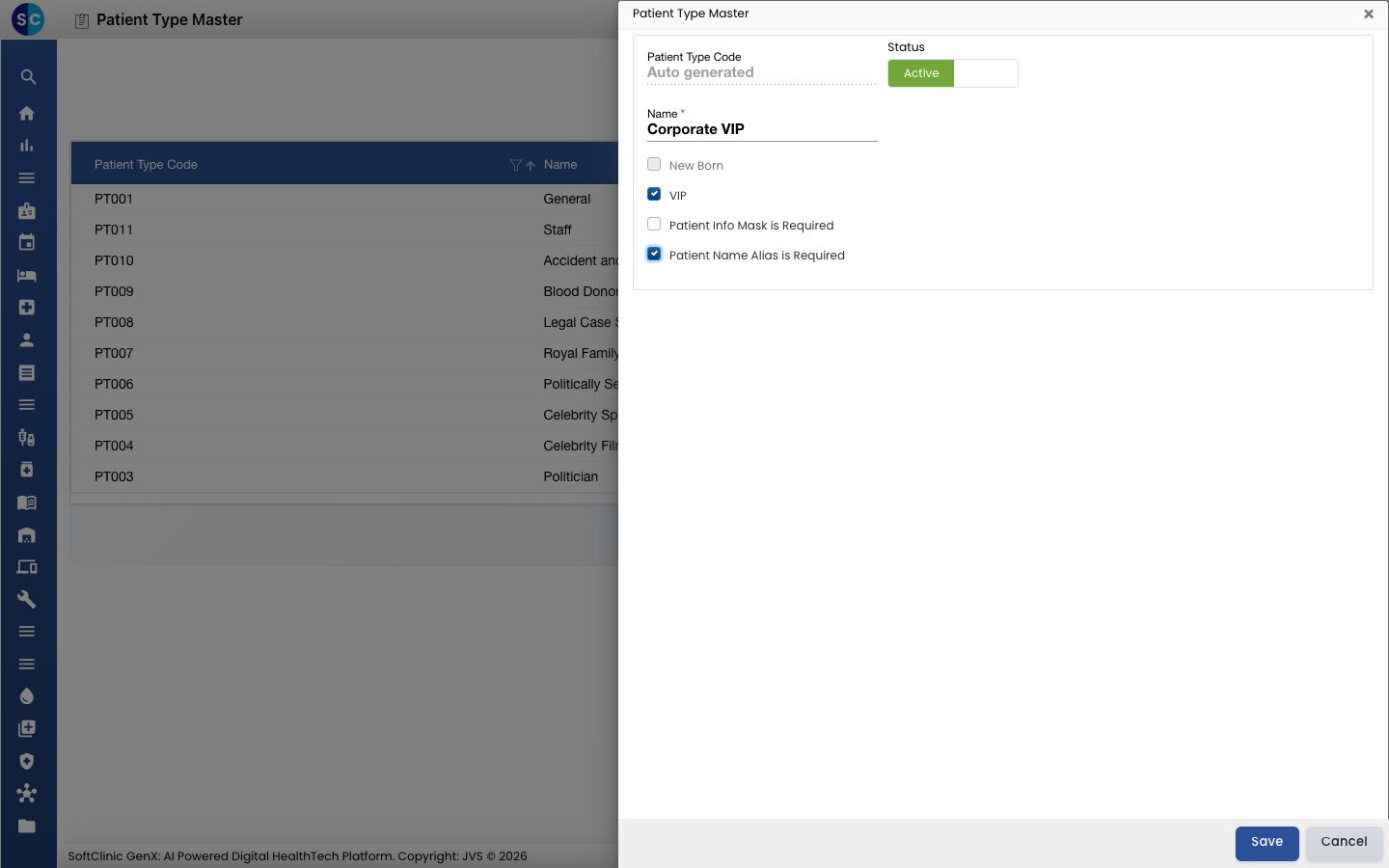
-
Click Save. The panel closes and the new type appears in the list with its code.
Change or deactivate a patient type
- In the list, click the ⋮ button at the end of the row and choose Edit.
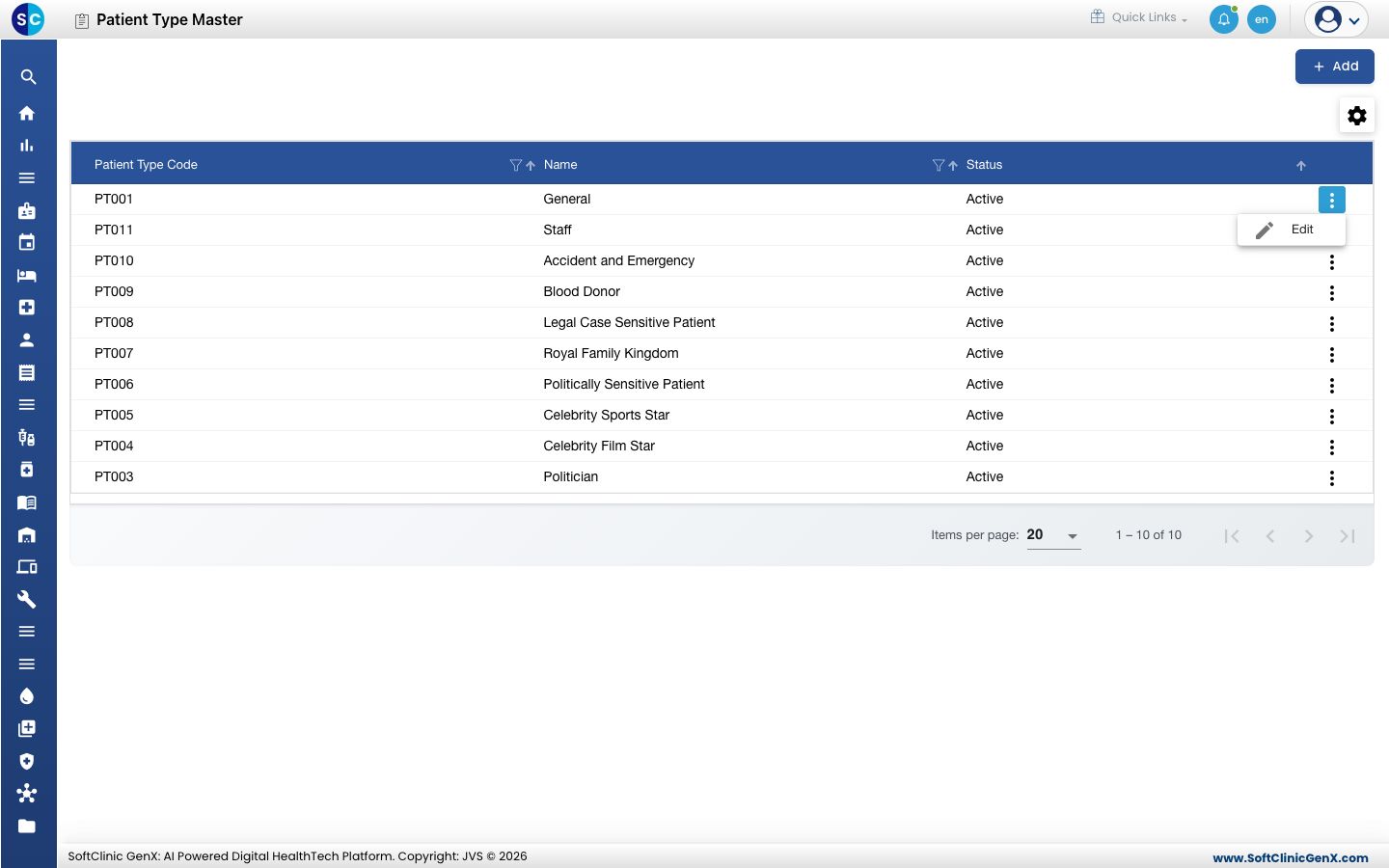
- Change the fields you need. To stop staff from picking the type, switch Status to Inactive.
- Click Save.
Patient types cannot be deleted. Make a type Inactive instead — patients already registered under it keep it.
Good to know
- Each patient type name must be unique.
- New Born and VIP cannot both be ticked on the same type. Ticking one greys out the other.
- Patient Info Mask is Required and Patient Name Alias is Required are VIP settings: tick VIP as well, or they have no effect. They are greyed out on a New Born type.
Related
- Previous: Set up Prefix
- Next: Set up Registration Type
- Patients FAQs