Upload a patient document
Attach a scanned report, consent form or other paper to a patient's record.
File Manager keeps the papers that belong to a patient, such as outside reports, consent forms and scans, in the patient's record so they can be found later.
Who does this: front desk or records staff · Where: File Manager › Document Entry
Upload a document
-
Open File Manager › Document Entry.
-
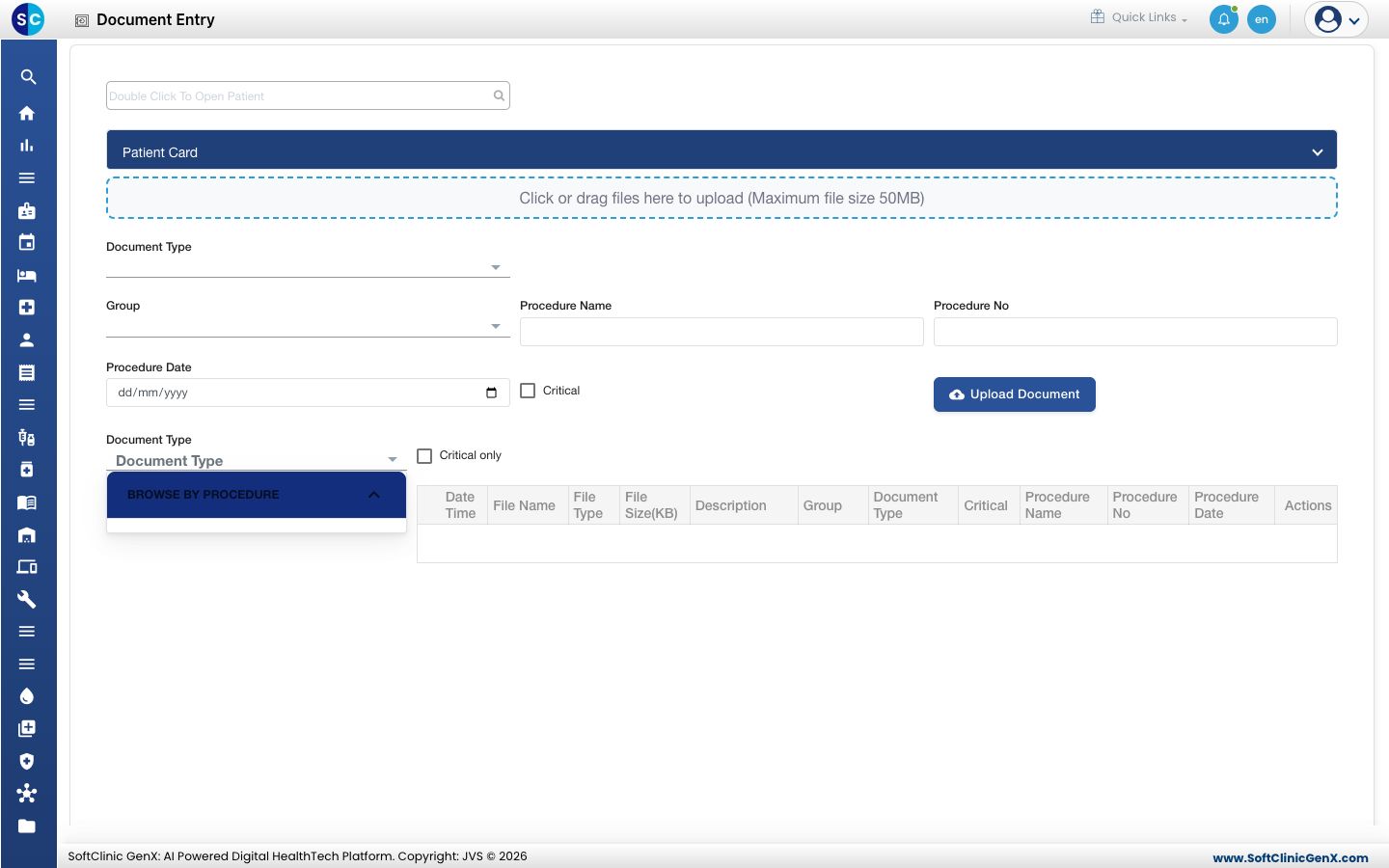
Double-click the search box at the top and choose the patient. The Patient Card section shows who you are filing for.
-
Click the upload area, or drag the file onto it. The maximum file size is 50 MB.
-
Choose the Document Type and the Group. For a procedure, enter the Procedure Name, Procedure No and Procedure Date.
-
Tick Critical if the document is important and should be easy to find.
-
Click Upload Document. The file appears in the list below with its date, name, type, size, group and procedure details.
Find documents already filed
Use Document Type and Critical only above the list to narrow it, or open Browse by Procedure to see documents grouped by procedure.
Related
- Find a patient document: look up documents for a patient later.
- File Manager FAQs: short answers about documents.