Find unbilled revenue
List services that were ordered or delivered but never reached a bill.
The Revenue Loss Report shows services that were ordered but never reached a bill, so you can recover money that would otherwise be lost.
note
Who can use this: accounts and management · Where: Home & Intelligence Dashboards › Revenue Loss Report
Find the services
-
Open Home & Intelligence Dashboards › Revenue Loss Report. Three cards show the amount and the number of services in each group.
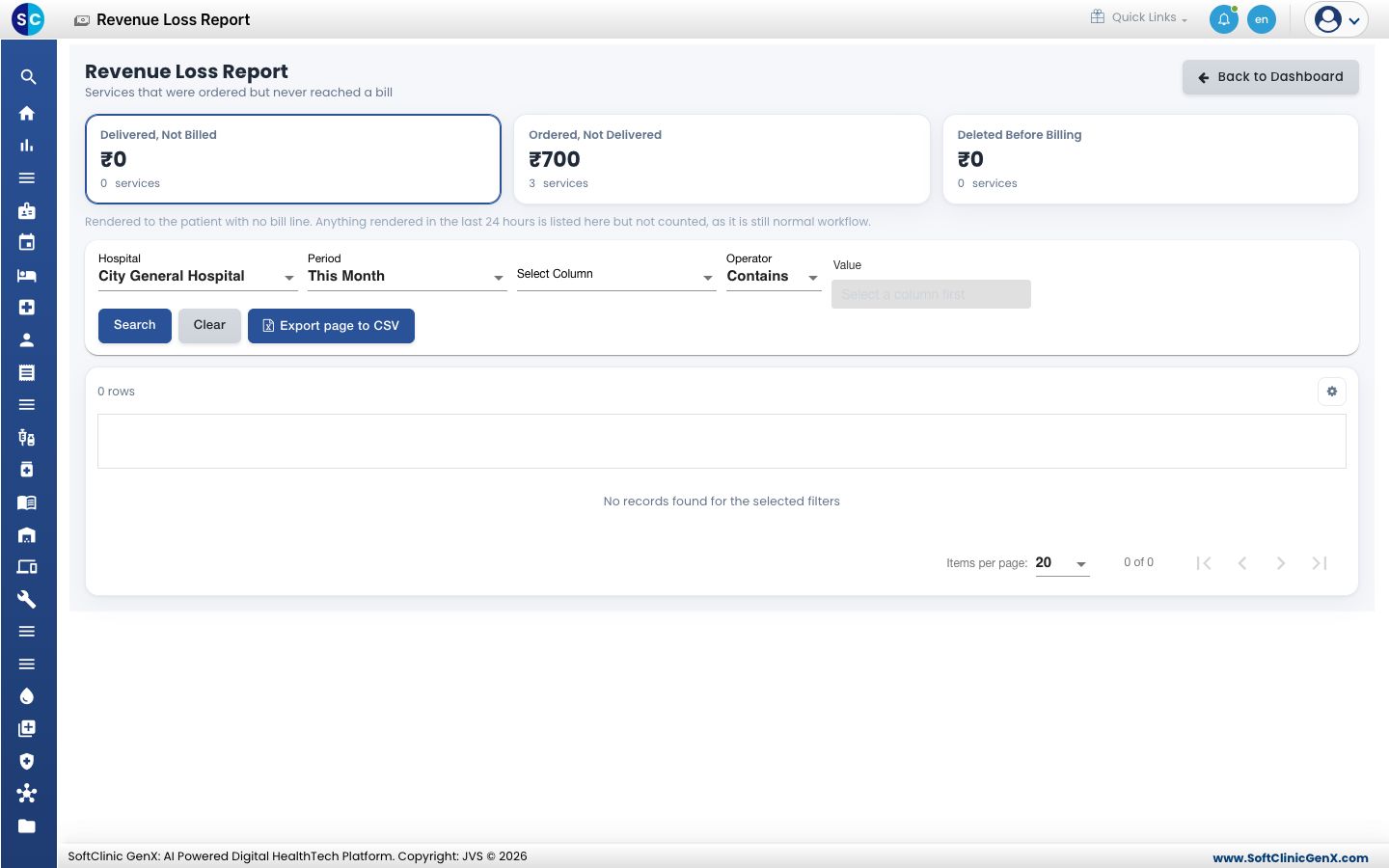
- Delivered, Not Billed: the service was given to the patient but has no bill line.
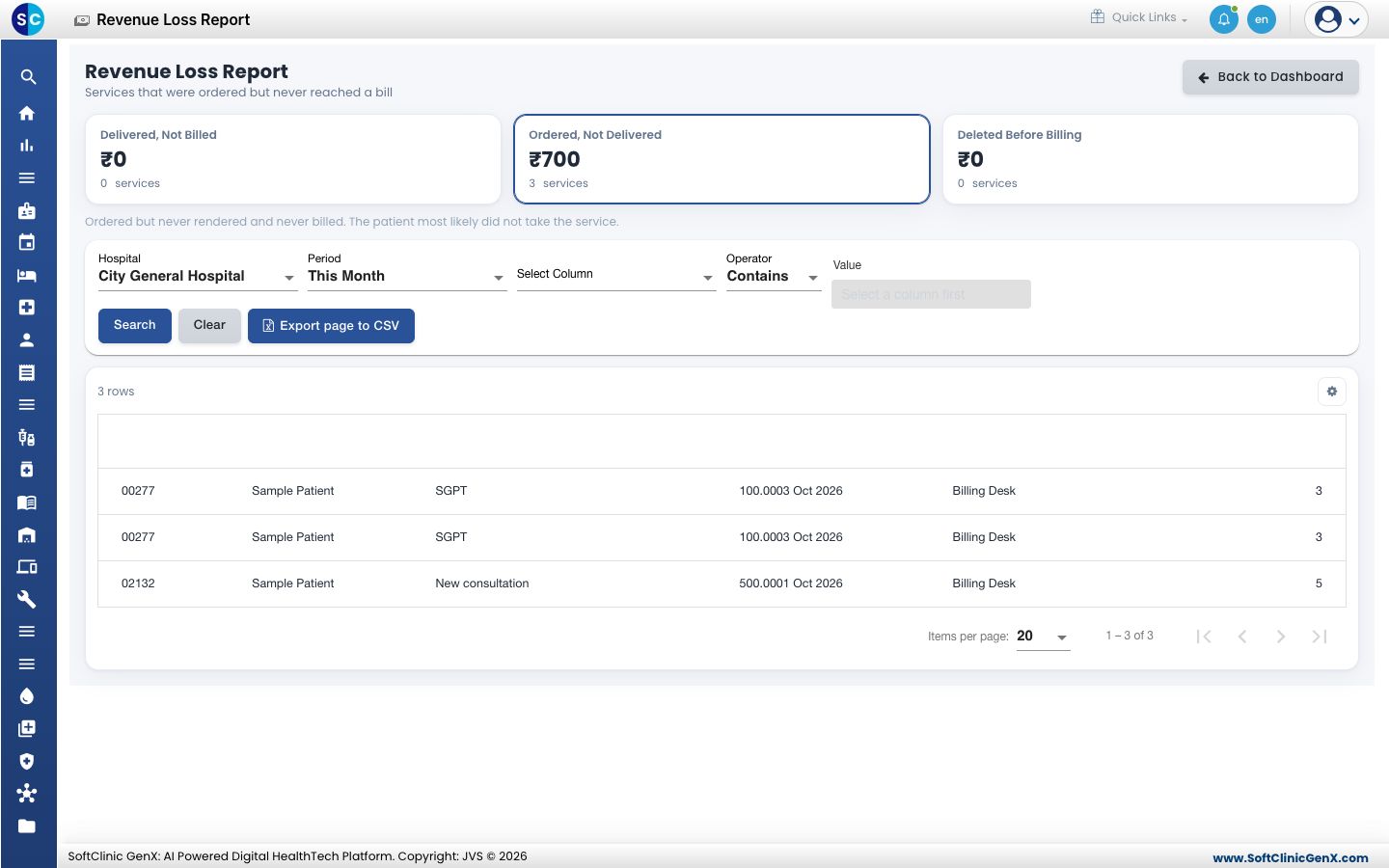
- Ordered, Not Delivered: the service was ordered but never given or billed. The patient most likely did not take it.
- Deleted Before Billing: the service was removed before it was billed.
-
Click a card to list its services.
-
Choose the Hospital and Period. To narrow the list, choose a column and an operator and enter a value, then click Search. Click Clear to start again.
-
Click Export page to CSV to download the page.
Good to know
- A service given in the last 24 hours is listed on the card but not counted in the amount, because it is still normal workflow to bill it.
Related
- View Executive Intelligence: see revenue and collections for the whole hospital.
- Home & Dashboards FAQs: short answers about this report.
Was this helpful?