Set up Specialty
Who does this: hospital administrator Where: Human Resource › Specialty
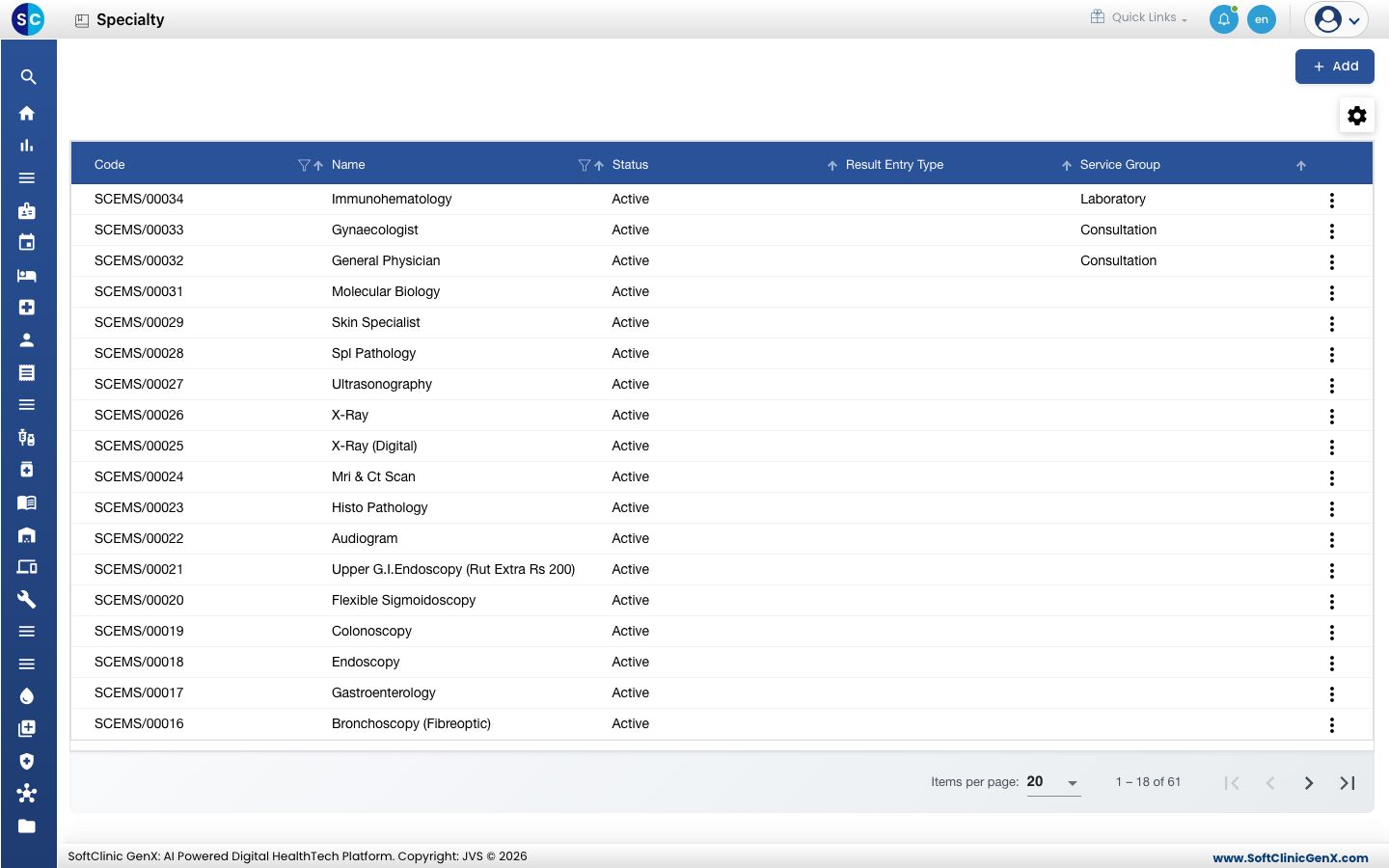
A specialty is a field of practice, such as Gynaecologist, General Physician or Immunohematology. Specialties are picked in an employee's record, on laboratory investigations and in clinical setup screens. For a laboratory specialty you also choose how its results are entered.
Add a specialty
-
Go to Human Resource › Specialty.
-
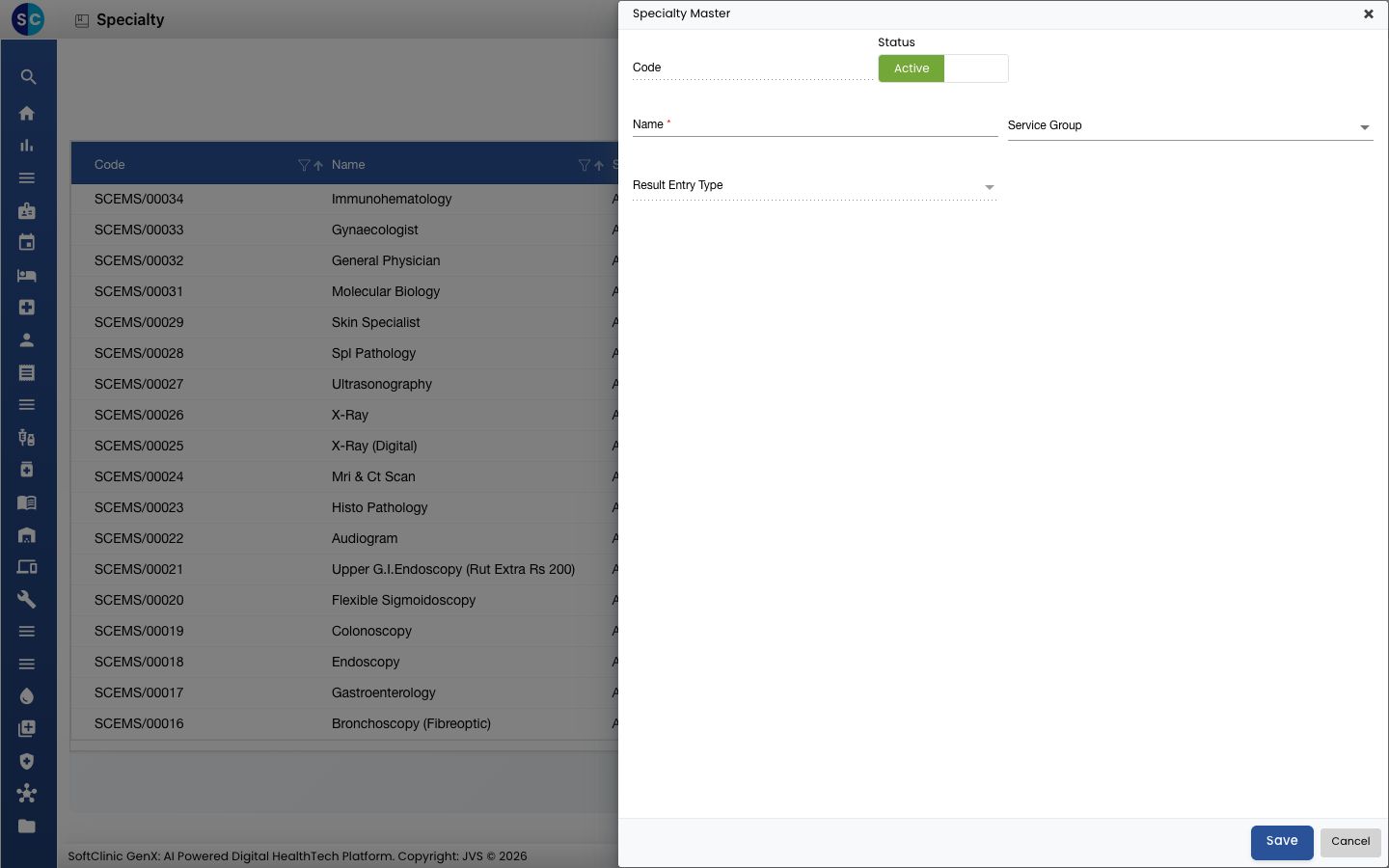
Click Add. The Specialty Master panel opens on the right.
-
Fill in the fields:
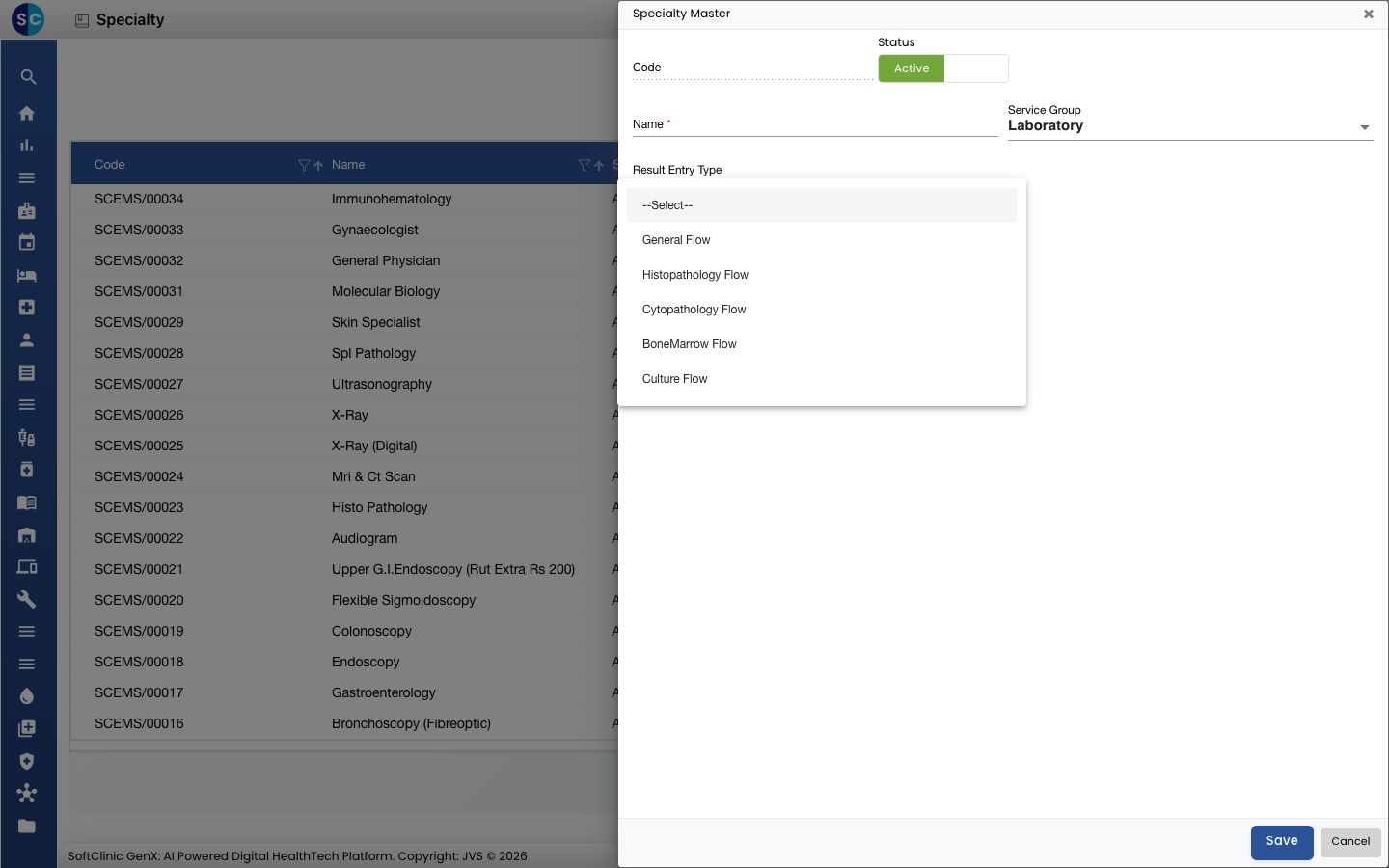
Field What to enter Required Code Filled in automatically when you save. — Status Leave on Active. — Name The specialty, for example Cardiology. Up to 50 characters. Yes Service Group The group of services this specialty belongs to, for example Consultation, Laboratory or Radiology. No Result Entry Type Only for the Laboratory service group: the result entry layout for tests of this specialty. No -
If you chose Laboratory, pick the Result Entry Type: General Flow, Histopathology Flow, Cytopathology Flow, BoneMarrow Flow or Culture Flow.
-
Click Save. The panel closes and the new specialty appears in the list.
Change or deactivate a specialty
- In the list, click the ⋮ button at the end of the row and choose Edit.
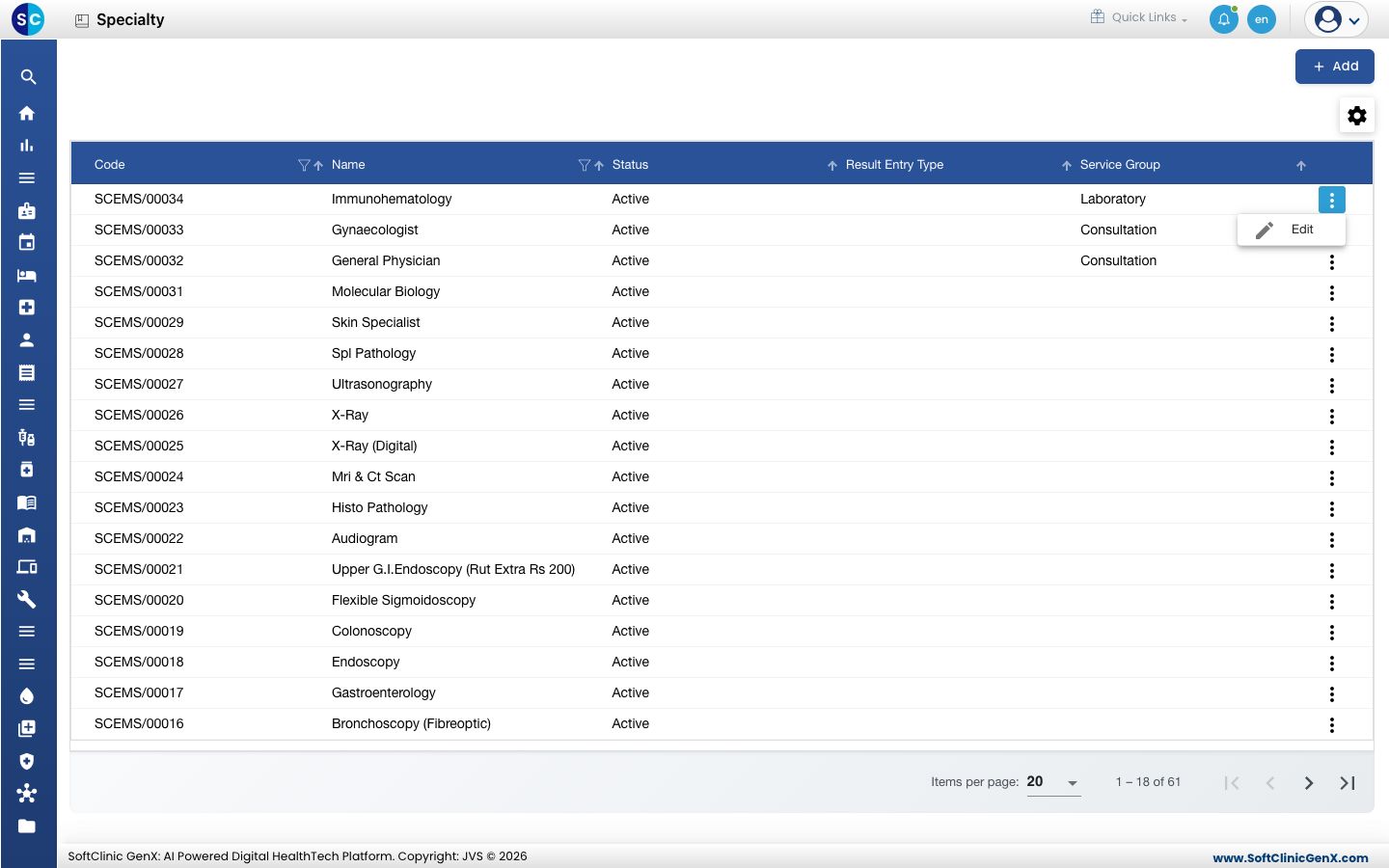
- Change the fields you need. To stop using the specialty, switch Status to Inactive.
- Click Save.
Specialties cannot be deleted from this screen. Make a specialty Inactive instead.
Good to know
- Codes and names must be unique. Saving a name that already exists shows an error.
- Result Entry Type stays greyed out until Service Group is set to Laboratory.
- Choose Histopathology Flow, Cytopathology Flow, BoneMarrow Flow or Culture Flow only for specialties whose reports need that layout; use General Flow for routine tests.
- Click Cancel or × to close the panel without saving.
Related
- Previous: Set up Designation
- Next: Set up Employee Type
- Human Resource FAQs