Set up Employee
Who does this: hospital administrator or HR staff Where: Human Resource › Employee Masters › Employee Set up before: Facility, Department, Designation, Specialty, Employee Type
An employee is anyone who works at the hospital: doctors, nurses, technicians, pharmacists, billing and support staff. Once added, a staff member can be picked wherever the system asks for a person, for example as a consultant, as the head of a department or on a duty roster.
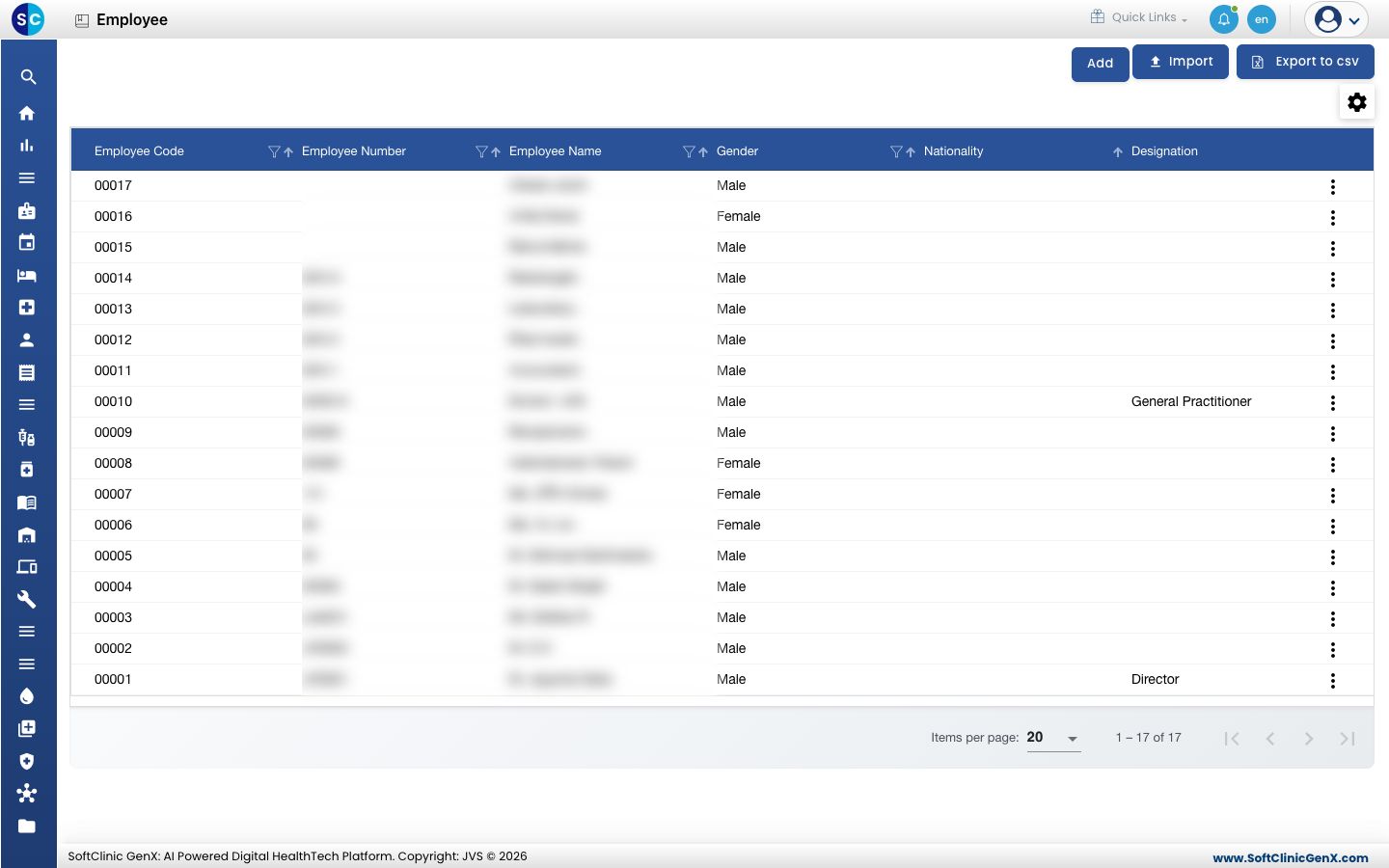
Add an employee
-
Go to Human Resource › Employee Masters › Employee.
-
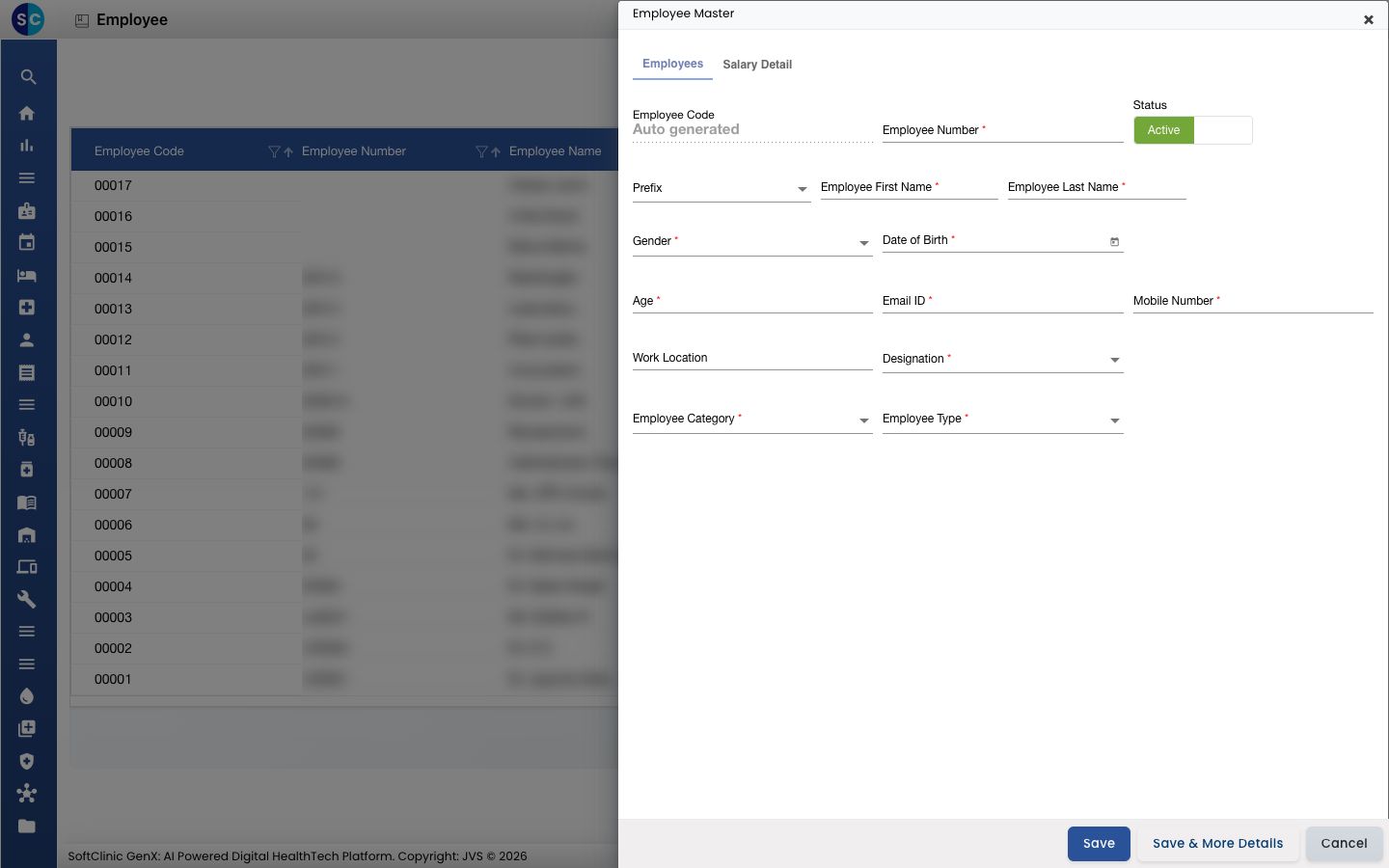
Click Add. The Employee Master panel opens on the right, on the Employees tab.
-
Fill in the fields:
Field What to enter Required Employee Code Filled in automatically when you save. — Employee Number Your hospital's own staff number. Yes Status Leave on Active. — Prefix The title, such as Dr., Mr. or Ms. No Employee First Name The first name. Yes Employee Last Name The last name. Yes Gender Pick from the list. Yes Date of Birth The date of birth. Or type the Age and the date is worked out for you. Yes Age The age in years. Yes Email ID The staff member's email address. Yes Mobile Number 4 to 15 digits. Yes Work Location Where the staff member works, in your own words. No Designation The job title. The list comes from Designation. Yes Employee Category The kind of staff, such as Doctor, Nurse, Pharmacist or Support Staff. Yes Employee Type The type within that category. Choose the category first. Yes -
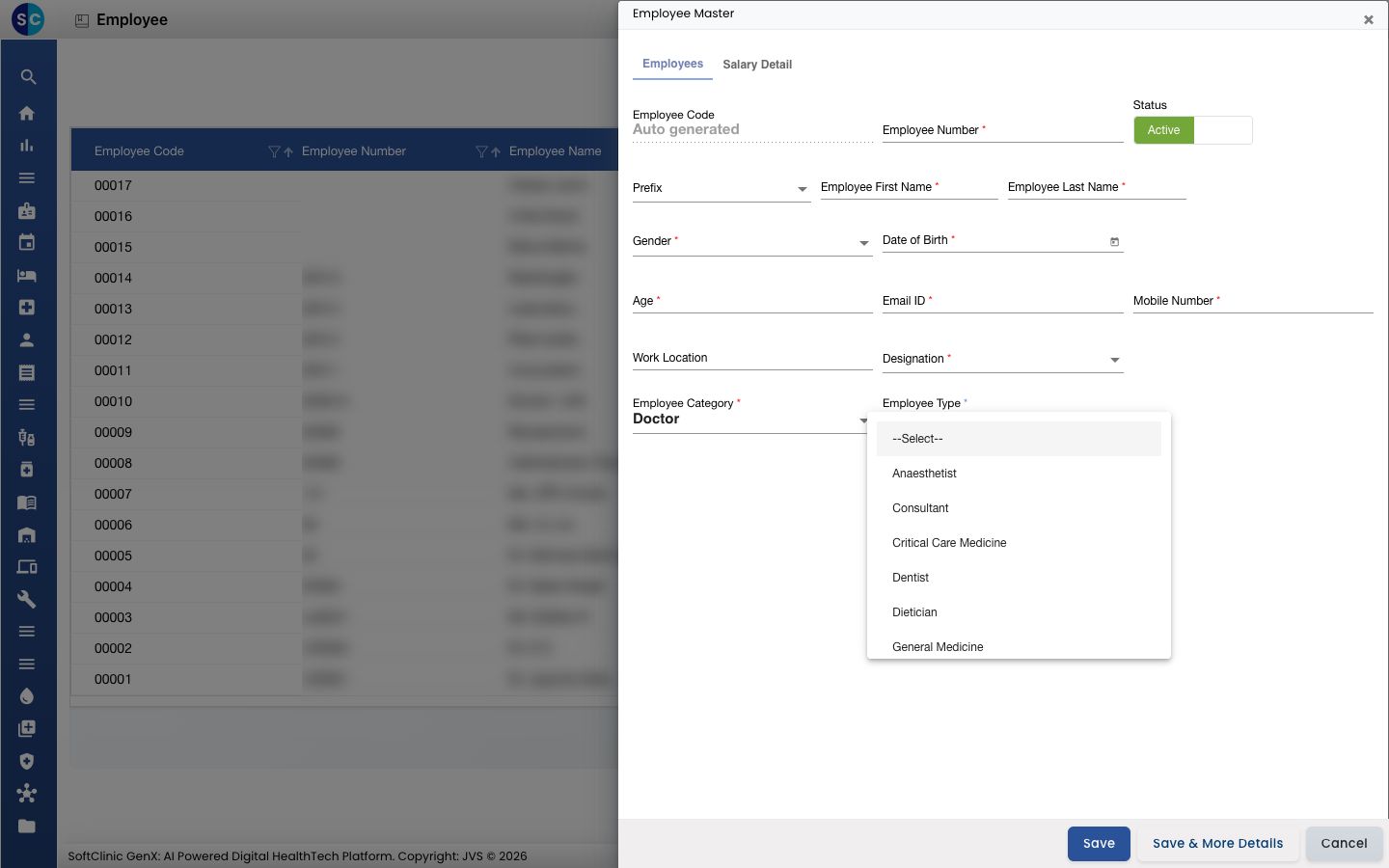
Choose Employee Category first. Employee Type then lists only the types for that category — for Doctor, for example, Consultant, Dentist or General Surgeon.
-
Click one of the save buttons:
- Save adds the employee and closes the panel.
- Save & More Details adds the employee and opens their full record, so you can add the rest of their details straight away.
Change or deactivate an employee
- In the list, click the ⋮ button at the end of the row.
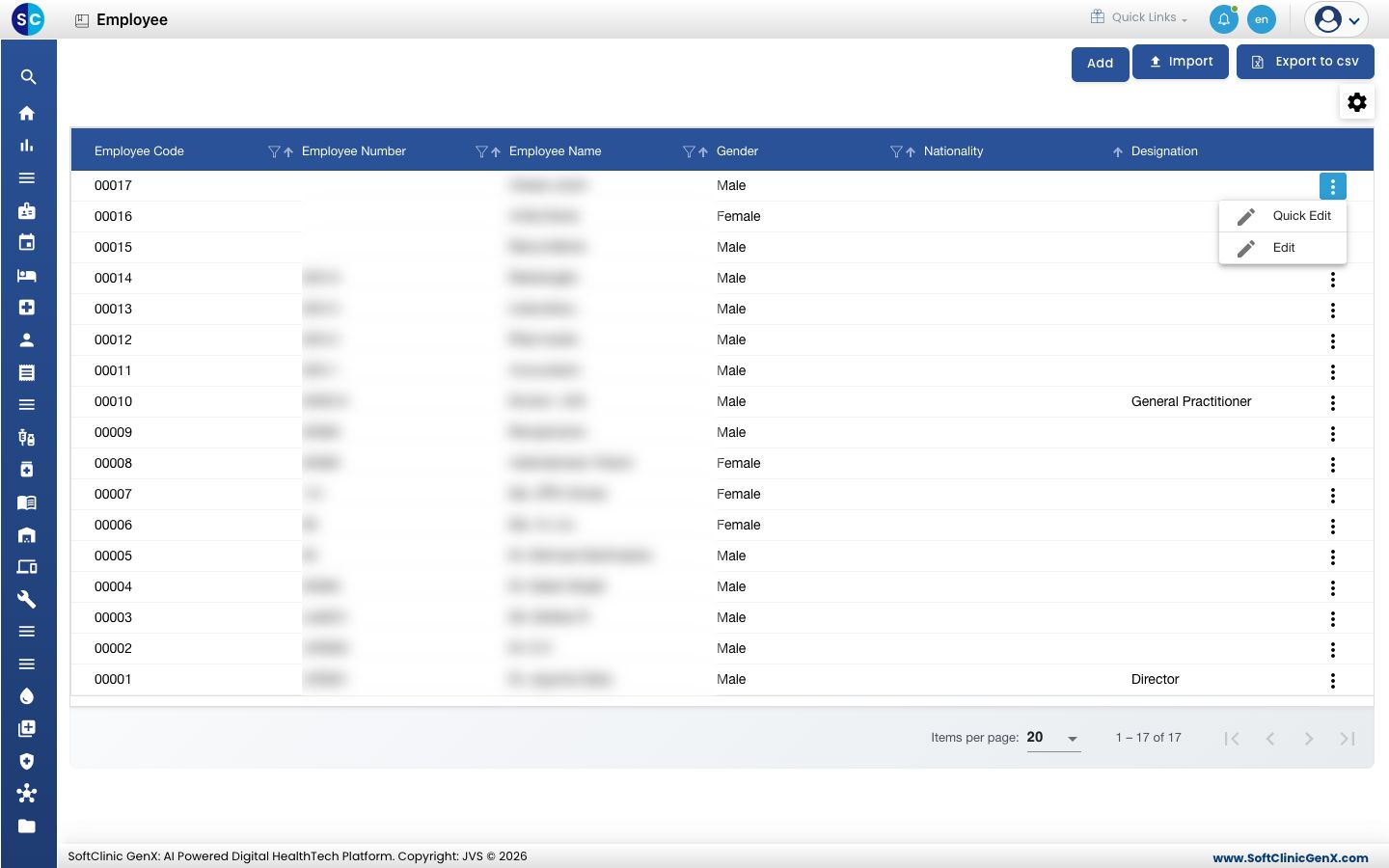
- Choose Quick Edit to change the basic details in the same short panel, or Edit to open the employee's full record.
- Change the fields you need. When someone leaves, switch Status to Inactive instead of removing them.
- Click Save.
Good to know
- Employee number, email address and mobile number must each be unique. Saving one that another employee already uses shows an error.
- The age must be between 16 and 100 years.
- If Employee Type is empty after you choose a category, no types exist for that category yet. Add them in Employee Type, then try again.
- Click Export to csv above the list to download the employee list.
- Click Cancel or × to close the panel without saving.
Related
- Previous: Set up Employee Type
- Set up Department — choose a department head from your employees
- Human Resource FAQs