Set up Employee Type
Who does this: hospital administrator or HR staff Where: Human Resource › Employee Masters › Type
An employee type is a more exact kind of staff within an Employee Category, for example General Surgeon or Sr Consultant under Doctor, or Technician Laboratory under Paramedical. When you add an employee, you choose the category first and then pick one of its types, so every category you use needs at least one type.
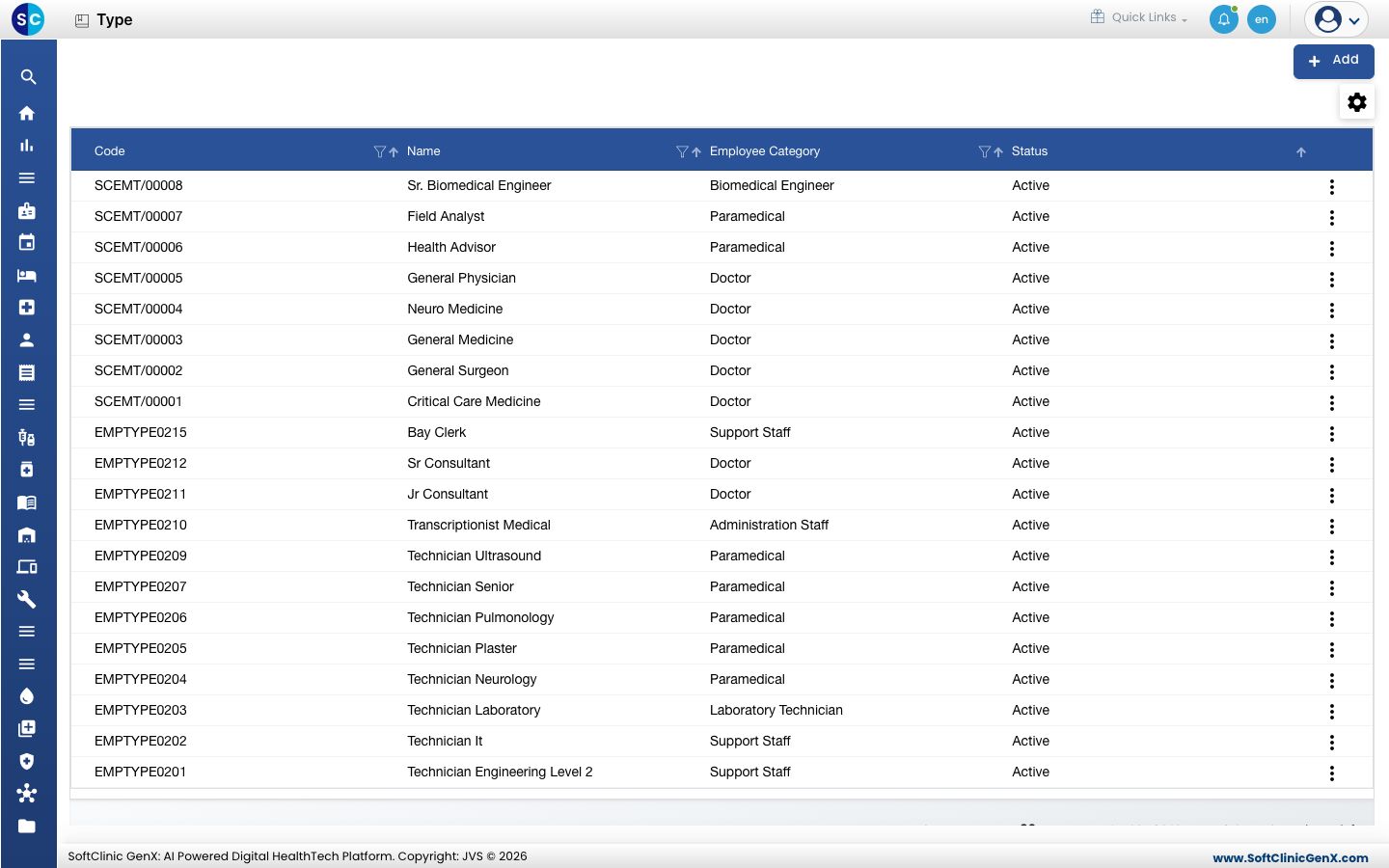
Add an employee type
-
Go to Human Resource › Employee Masters › Type.
-
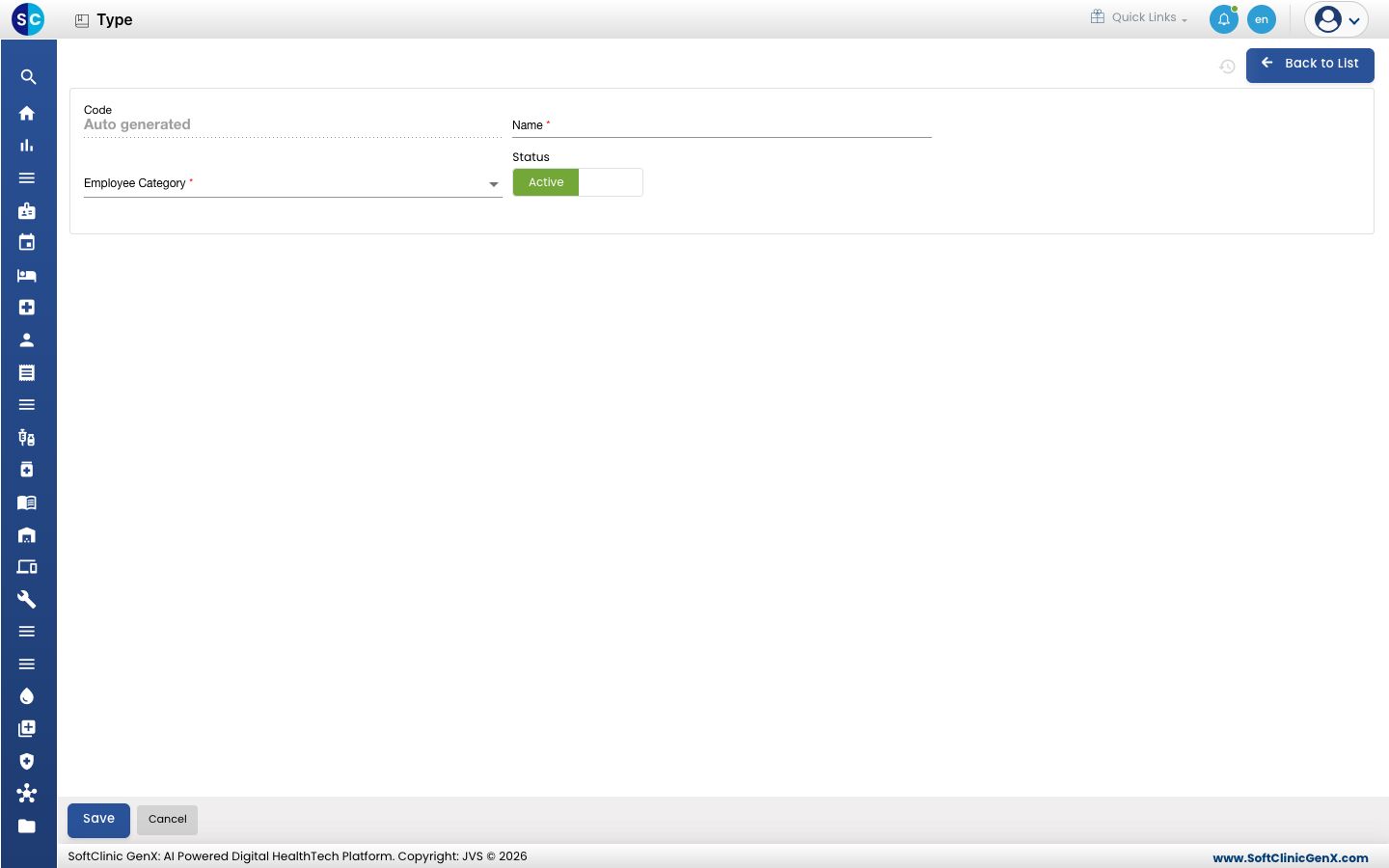
Click Add. The employee type form opens.
-
Fill in the fields:
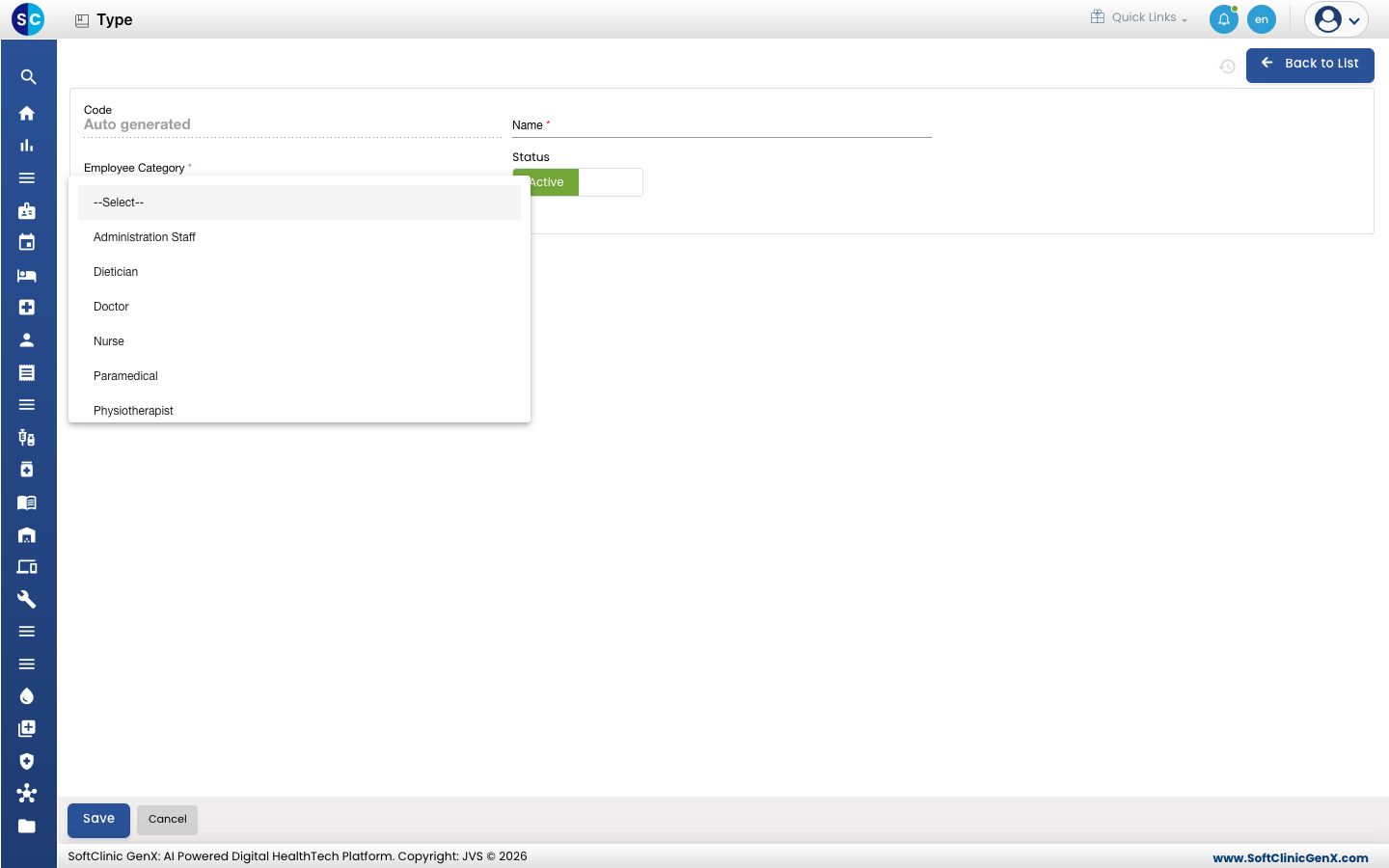
Field What to enter Required Code Filled in automatically when you save. — Name The type, for example Staff Nurse. Up to 50 characters. Yes Employee Category The category the type belongs to, such as Doctor, Nurse or Support Staff. Yes Status Leave on Active. — -
Choose the Employee Category from the list.
-
Click Save. You return to the list and the new type appears in it.
Change or deactivate an employee type
- In the list, click the ⋮ button at the end of the row and choose Edit.
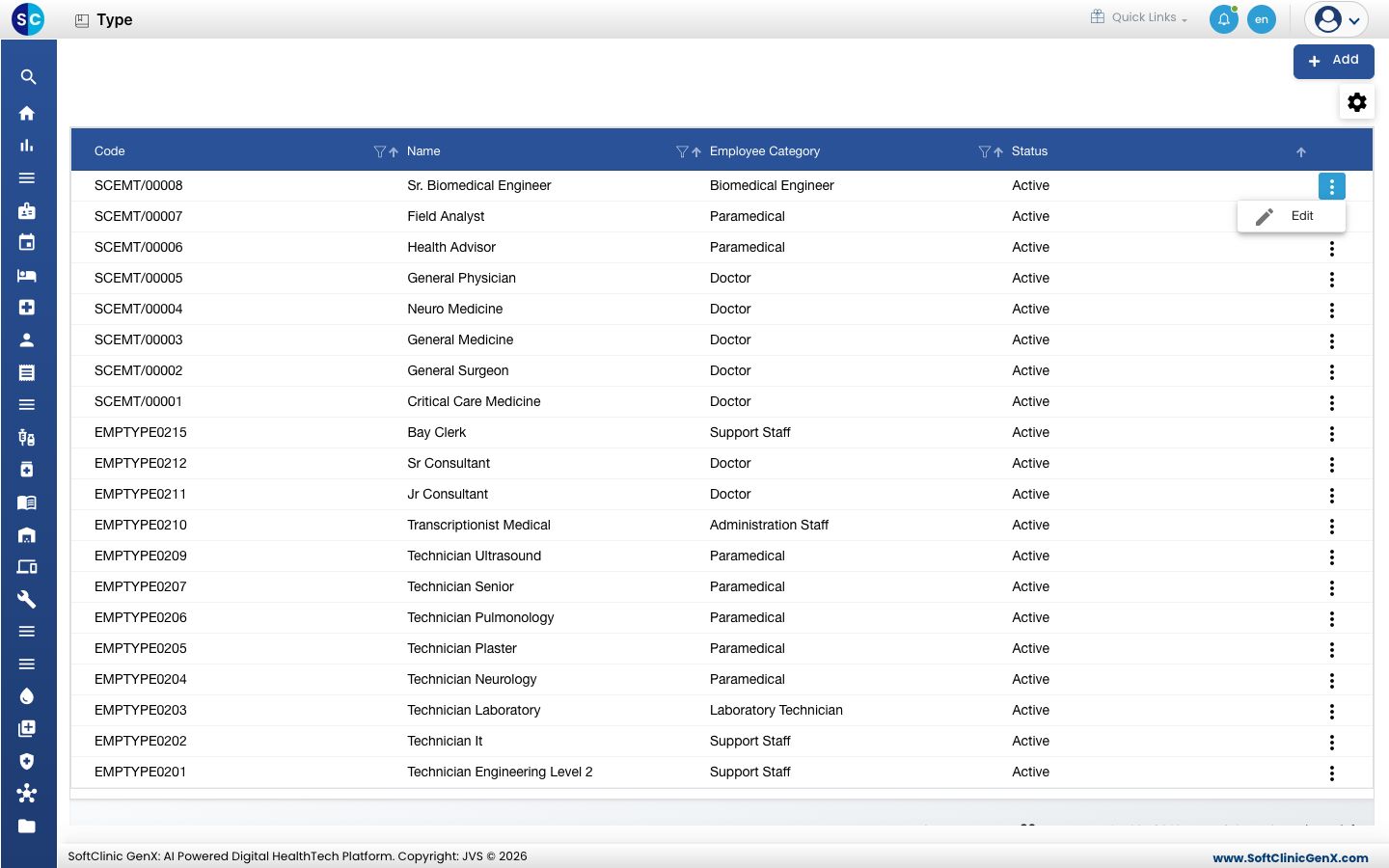
- Change the fields you need. To stop using the type, switch Status to Inactive.
- Click Save.
Employee types cannot be deleted from this screen. Make a type Inactive instead.
Good to know
- Employee categories are a fixed list that comes with the system; you do not set them up yourself. Add types under the categories you use.
- If Employee Type is empty on the employee form after you choose a category, that category has no active types yet. Add one here, then choose the category again.
- Use the filter and sort icons in the column headers to find a type quickly.
- Click Back to List or Cancel to leave the form without saving.
Related
- Previous: Set up Specialty
- Next: Set up Employee
- Human Resource FAQs