Set up Drug Classification
Who does this: hospital administrator or pharmacy in-charge Where: General Masters › Drug Masters › Drug Classification
A drug classification groups medicines by what they treat, for example Infections › Penicillins. The classifications form a tree of up to three levels: body system or organ, drug group and drug sub-group. You pick a classification on every drug generic, so set this up first.
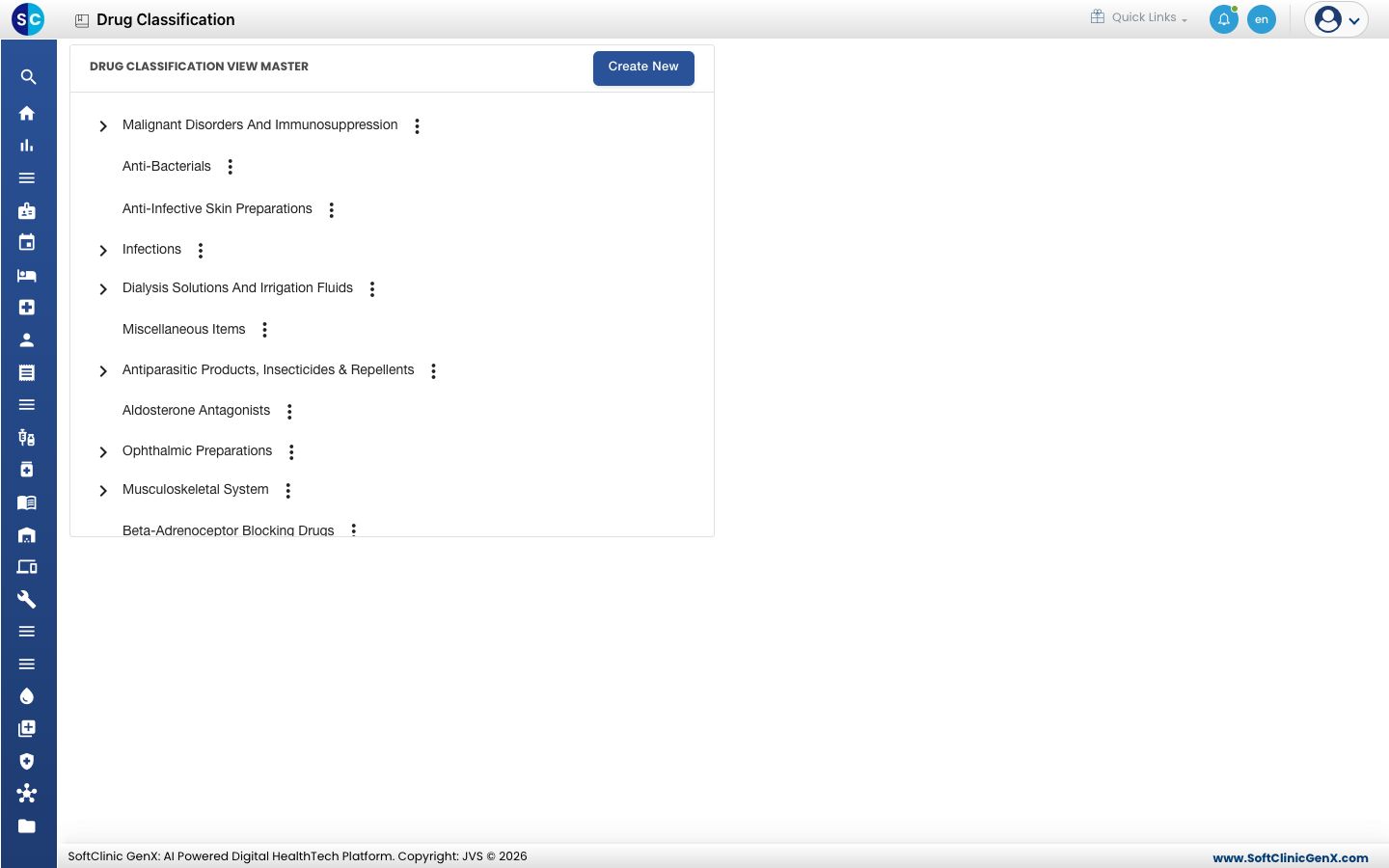
Add a classification
-
Go to General Masters › Drug Masters › Drug Classification.
-
Click Create New to add a top-level classification. To add one under an existing classification, click ⋮ next to it and choose Add instead.
-
Fill in the form on the right:
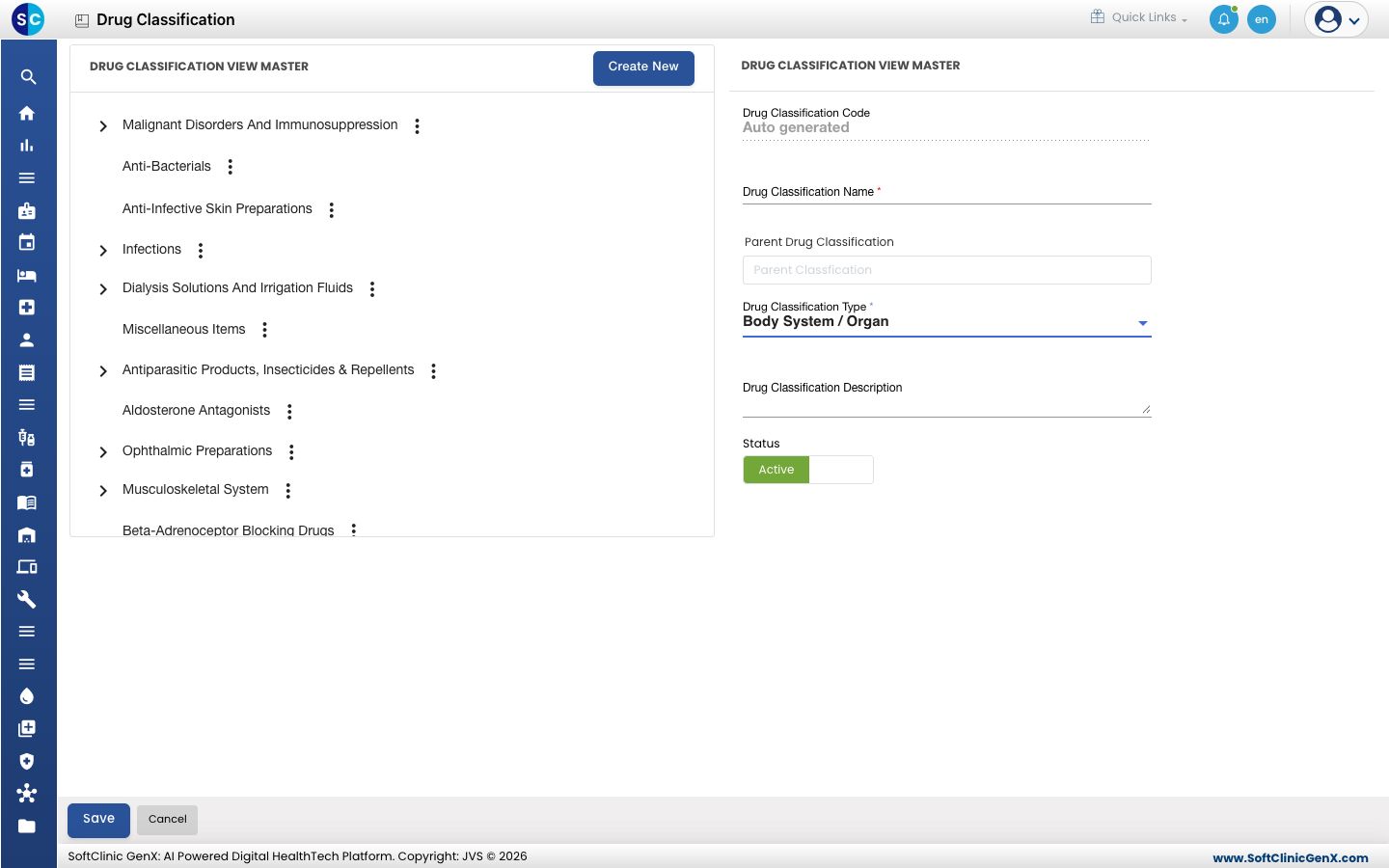
Field What to enter Required Drug Classification Code Filled in automatically when you save. — Drug Classification Name The group name, for example Penicillins. Up to 50 characters. Yes Parent Drug Classification Start typing and pick the classification this one sits under. Leave it empty for a top-level classification. No Drug Classification Type Body System / Organ, Drug Group or Drug Sub Group. Yes Drug Classification Description A short note. Letters, numbers and spaces only, up to 1000 characters. No Status Leave on Active. — -
Click Save. The new classification appears in the tree.
Change or deactivate a classification
- Click the arrow next to a classification to open the classifications under it.
- Click ⋮ next to the classification and choose Edit.
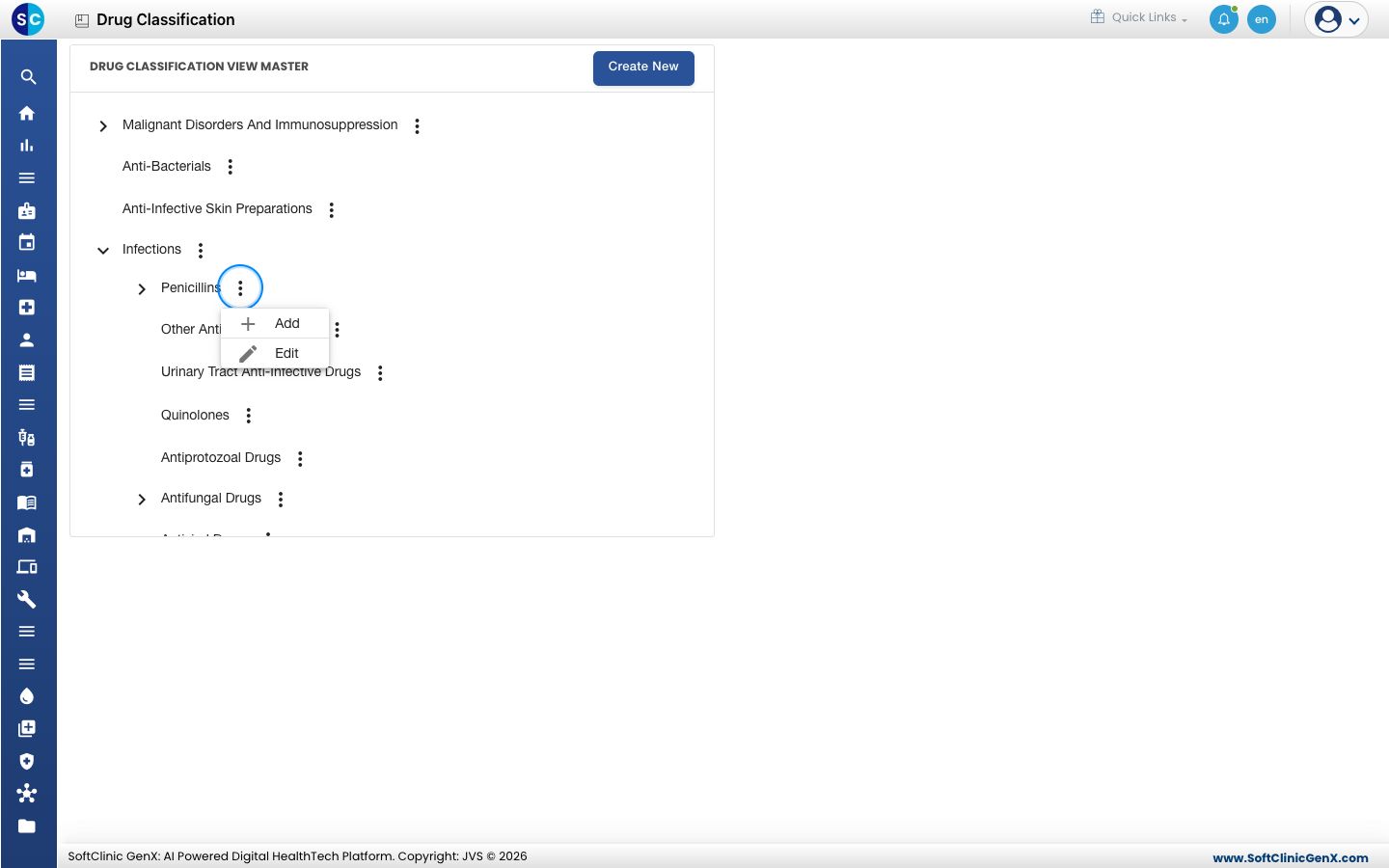
- Change the fields you need. To stop using the classification, switch Status to Inactive.
- Click Save.
Only a classification at the lowest level with nothing under it offers Delete in its ⋮ menu. Otherwise make it Inactive.
Good to know
- Classification names must be unique.
- A standard set of classifications is usually already in the tree. Add only what is missing.
- Click Cancel to close the form without saving.