Set up Appointment Slot Types
Who does this: hospital administrator Where: Appointments › Masters › Appointment Slot Types
A slot type is a session of the OPD day with a start and end time, such as Morning (09:00 AM to 12:00 PM) or Evening (06:00 PM to 09:00 PM). Every slot type appears as a session row in the doctor availability tables of Clinic and Resource Calendar, where its times are filled in for you.
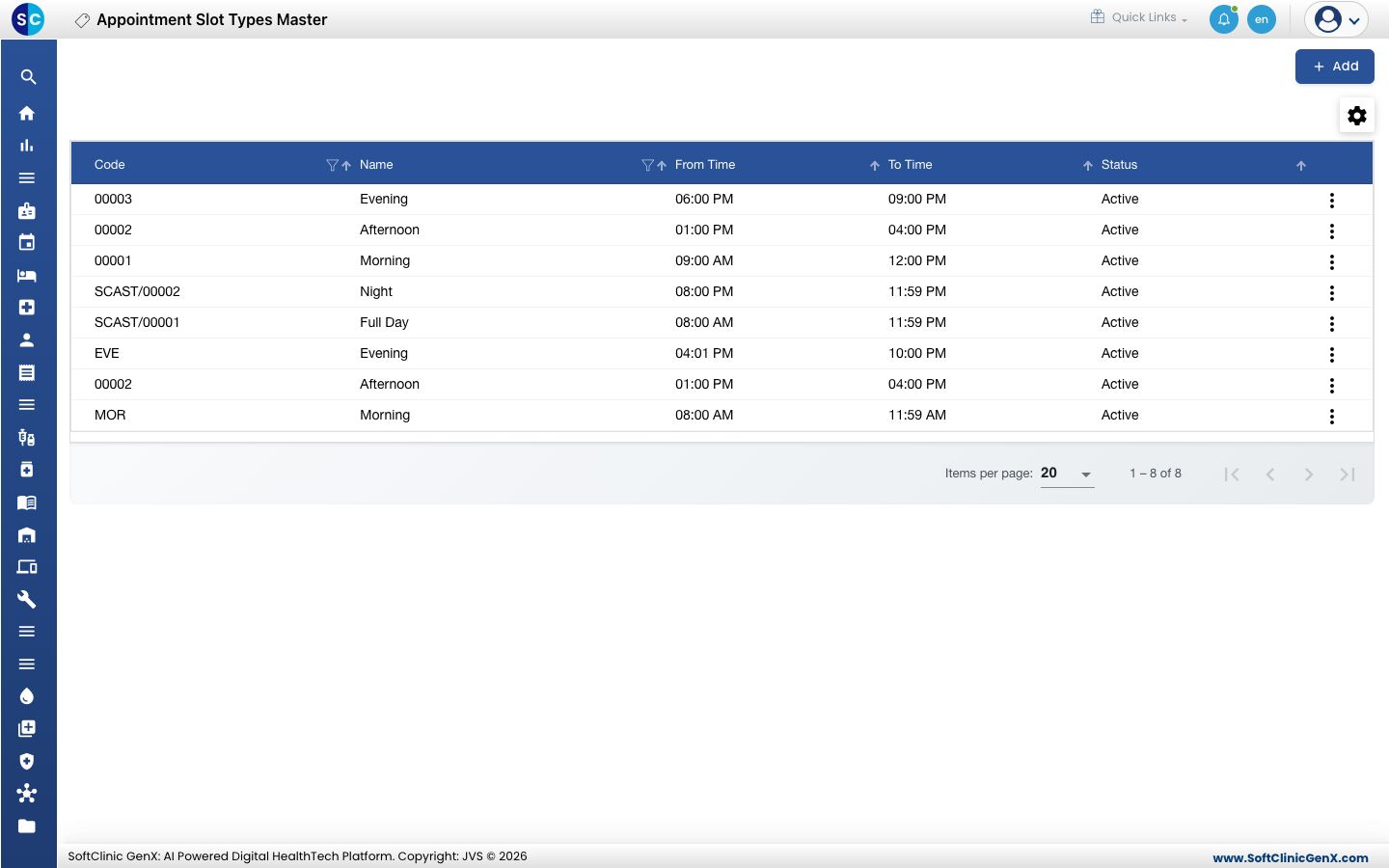
Add a slot type
-
Go to Appointments › Masters › Appointment Slot Types.
-
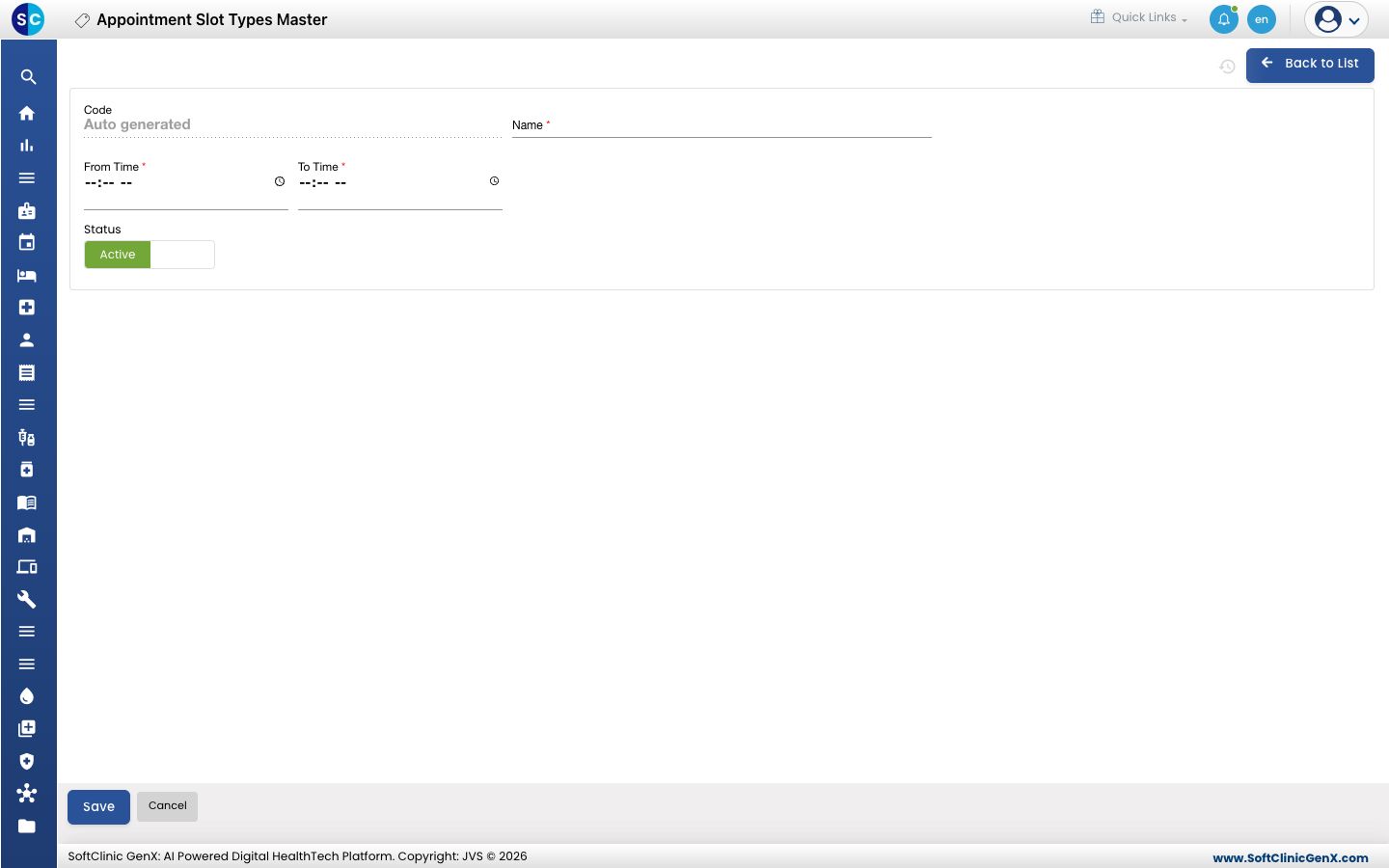
Click Add. The slot type form opens.
-
Fill in the fields:
Field What to enter Required Code Filled in automatically when you save. — Name The session name, for example Morning. Up to 50 characters. Yes From Time When the session starts. Yes To Time When the session ends. Must be later than From Time. Yes Status Leave on Active. — -
Click Save. You return to the list and the new slot type appears in it.
Change or deactivate a slot type
- In the list, click the ⋮ button at the end of the row and choose Edit.
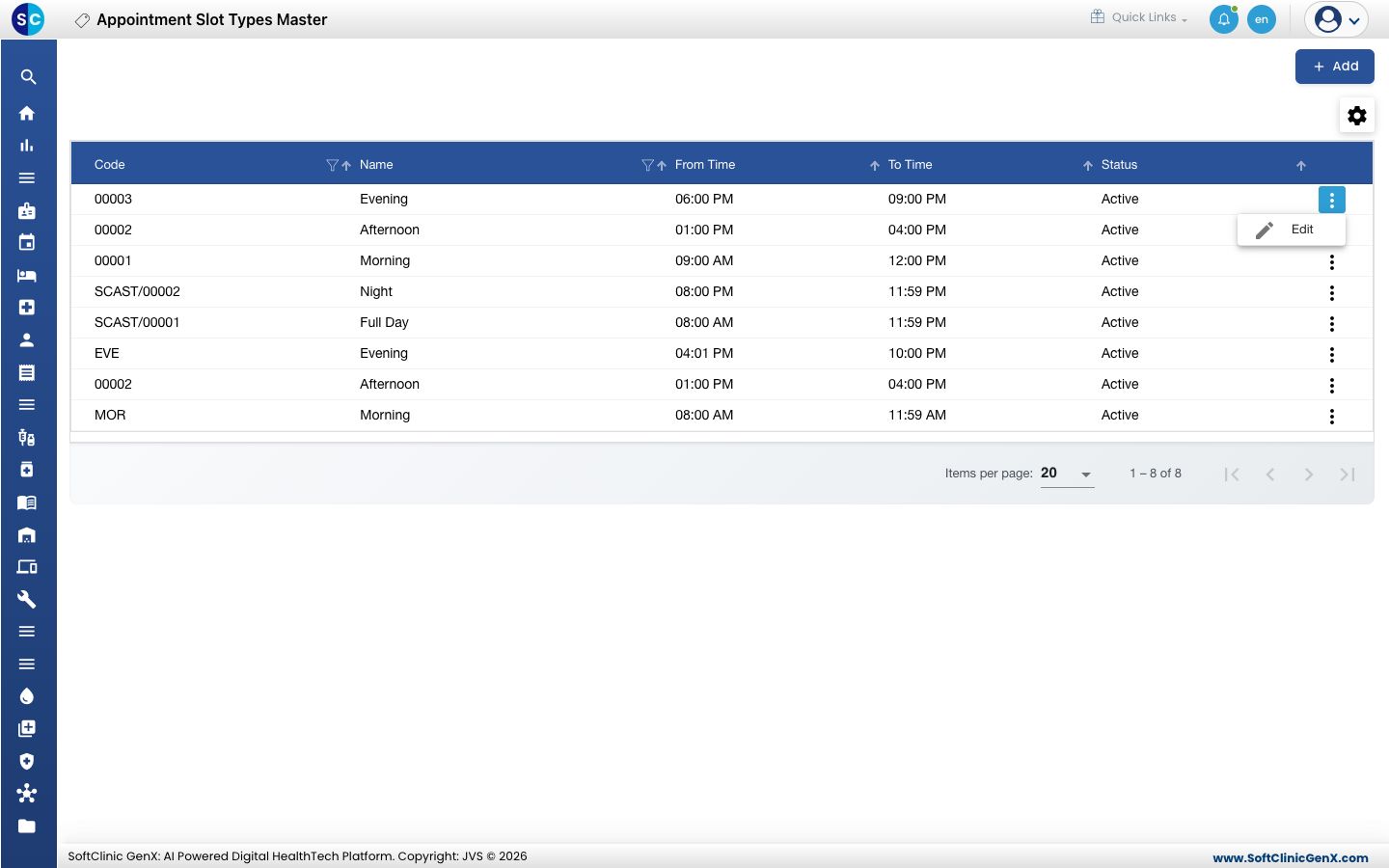
- Change the fields you need. To stop using the slot type, switch Status to Inactive.
- Click Save.
Slot types cannot be deleted from this screen. Make a slot type Inactive instead.
Good to know
- Create only the sessions your hospital really runs. Every active slot type shows as a row for every weekday in the doctor availability tables, so duplicates make those tables longer and harder to fill in.
- The times here are the defaults for the session. A doctor's own times for a session can be changed in Resource Calendar.
- Click Back to List or Cancel to leave the form without saving.
Related
- Previous: Set up Appointment Category
- Next: Set up Resource Calendar
- Appointments FAQs