Set up Resource Calendar
Who does this: hospital administrator Where: Appointments › Masters › Resource Calendar Set up before: Department, Employee for each doctor, Clinic and Appointment Slot Types
A resource calendar is the schedule of one doctor (or a clinic, operation theatre or equipment) for a date range: which days and sessions they are available, how long each appointment slot is and how many patients can be wait-listed. A doctor with no active calendar shows no free slots when you book an appointment. Saving a Clinic with doctors creates a calendar for each of them, which you then complete here.
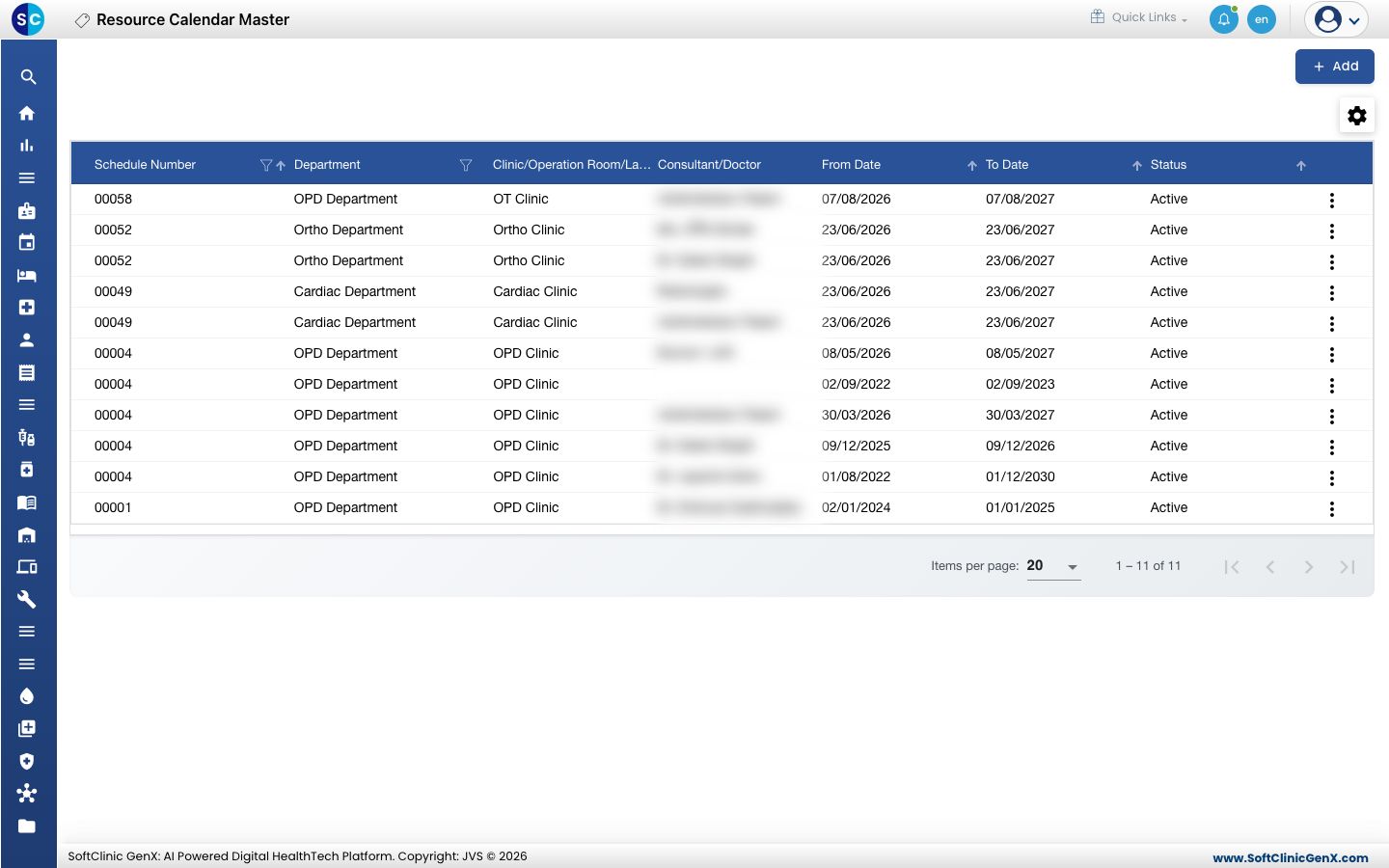
Add a resource calendar
-
Go to Appointments › Masters › Resource Calendar.
-
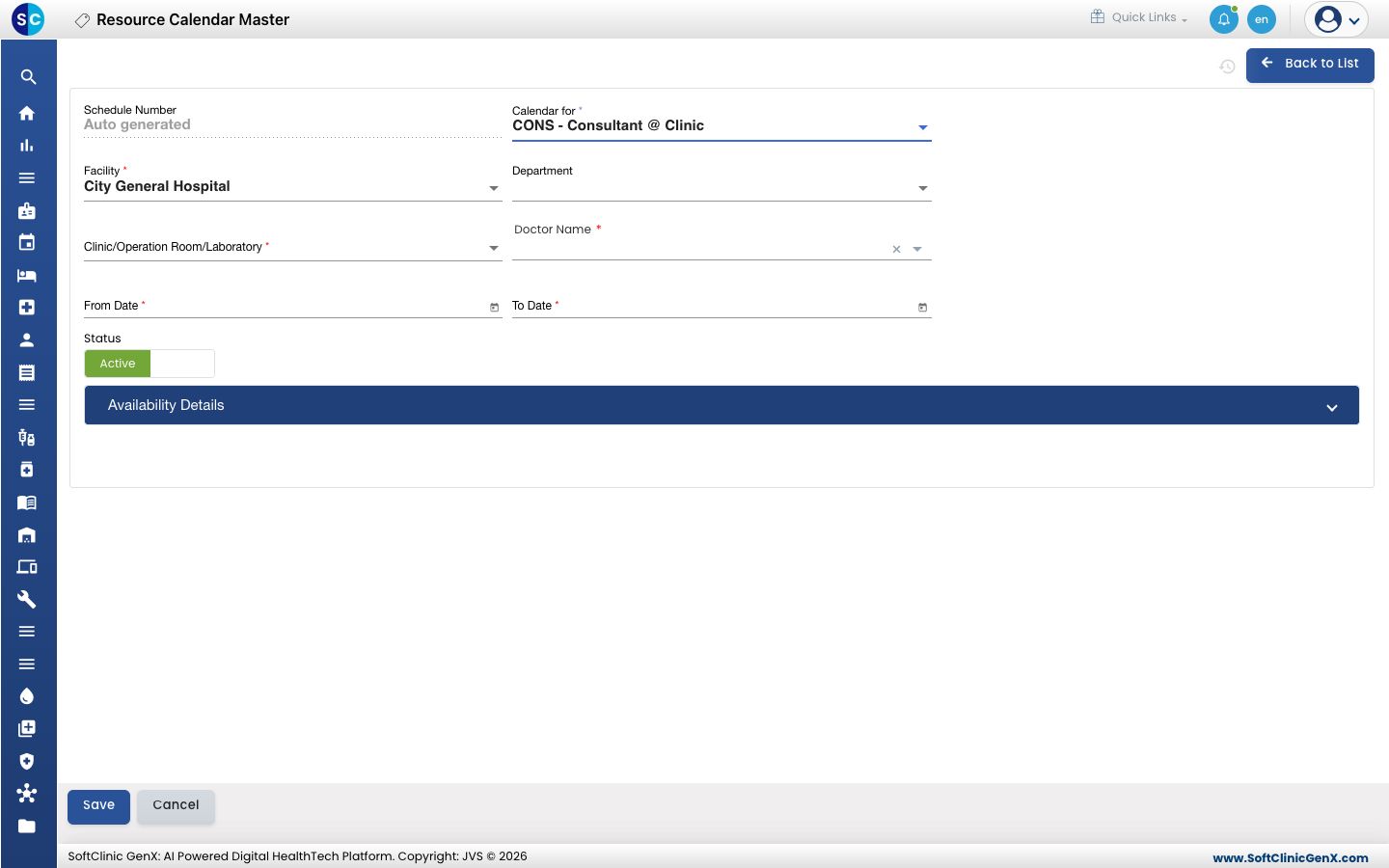
Click Add. The calendar form opens.
-
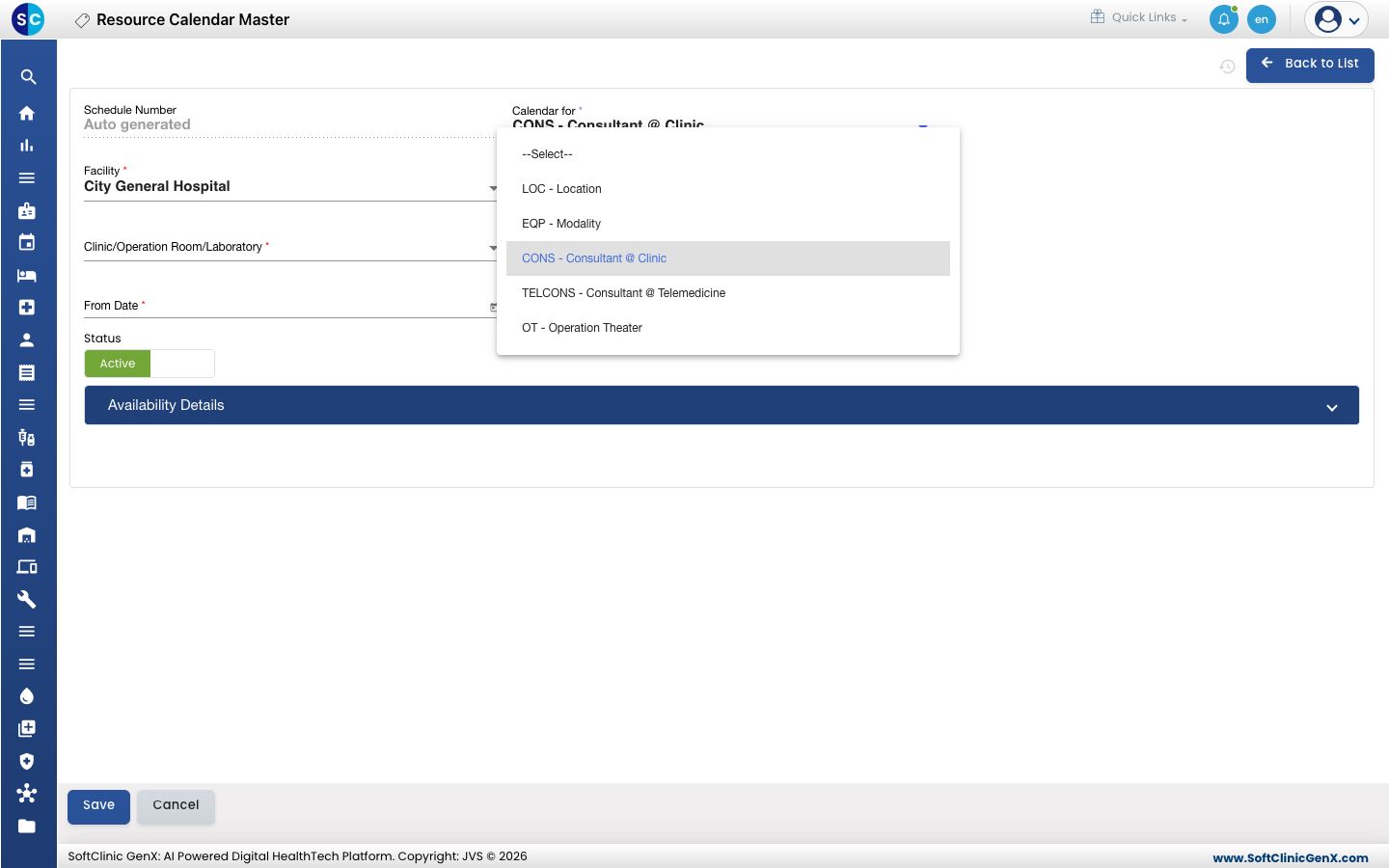
Pick what the calendar is for in Calendar for. For a doctor's OPD, leave CONS - Consultant @ Clinic.
-
Fill in the fields:
Field What to enter Required Schedule Number Filled in automatically when you save. — Calendar for The kind of resource, for example CONS - Consultant @ Clinic or TELCONS - Consultant @ Telemedicine. Yes Facility The hospital or branch. Yes Department The doctor's department. No Clinic/Operation Room/Laboratory The clinic or room where the doctor sits. Yes, for a consultant at a clinic or an operation theatre Doctor Name Pick the doctor. Yes, for consultant and operation theatre calendars From Date The first day of the schedule. Yes To Date The last day of the schedule. Must be on or after From Date. Yes Status Leave on Active. — -
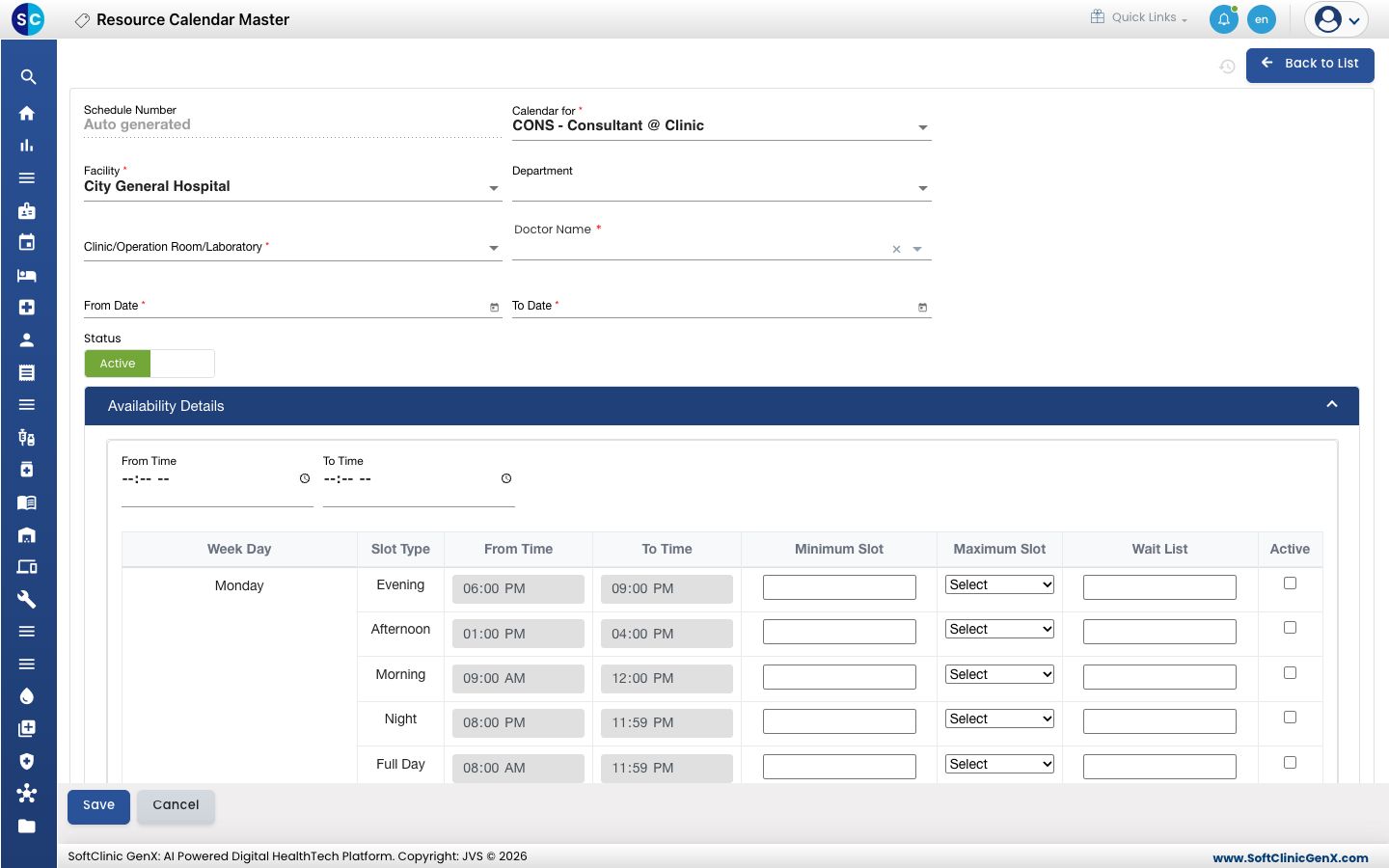
Click Availability Details to open the weekly table. It has one row for each weekday and session.
-
For every session the doctor works, fill in the row:
Column What to enter From Time, To Time Filled in from the slot type. To use different times, double-click the row and change them. Minimum Slot The smallest slot, in minutes. Maximum Slot must be a whole multiple of it, so entering the same value as Maximum Slot always works. Maximum Slot The length of one appointment slot on the booking calendar: 60, 30, 20, 15, 10, 5 or 2 minutes. Wait List How many extra patients can be put on the waiting list for the session. Active Tick to make the session bookable. -
Click Save. You return to the list and the new calendar appears in it.
Change or deactivate a resource calendar
- In the list, click the ⋮ button at the end of the row and choose Edit.
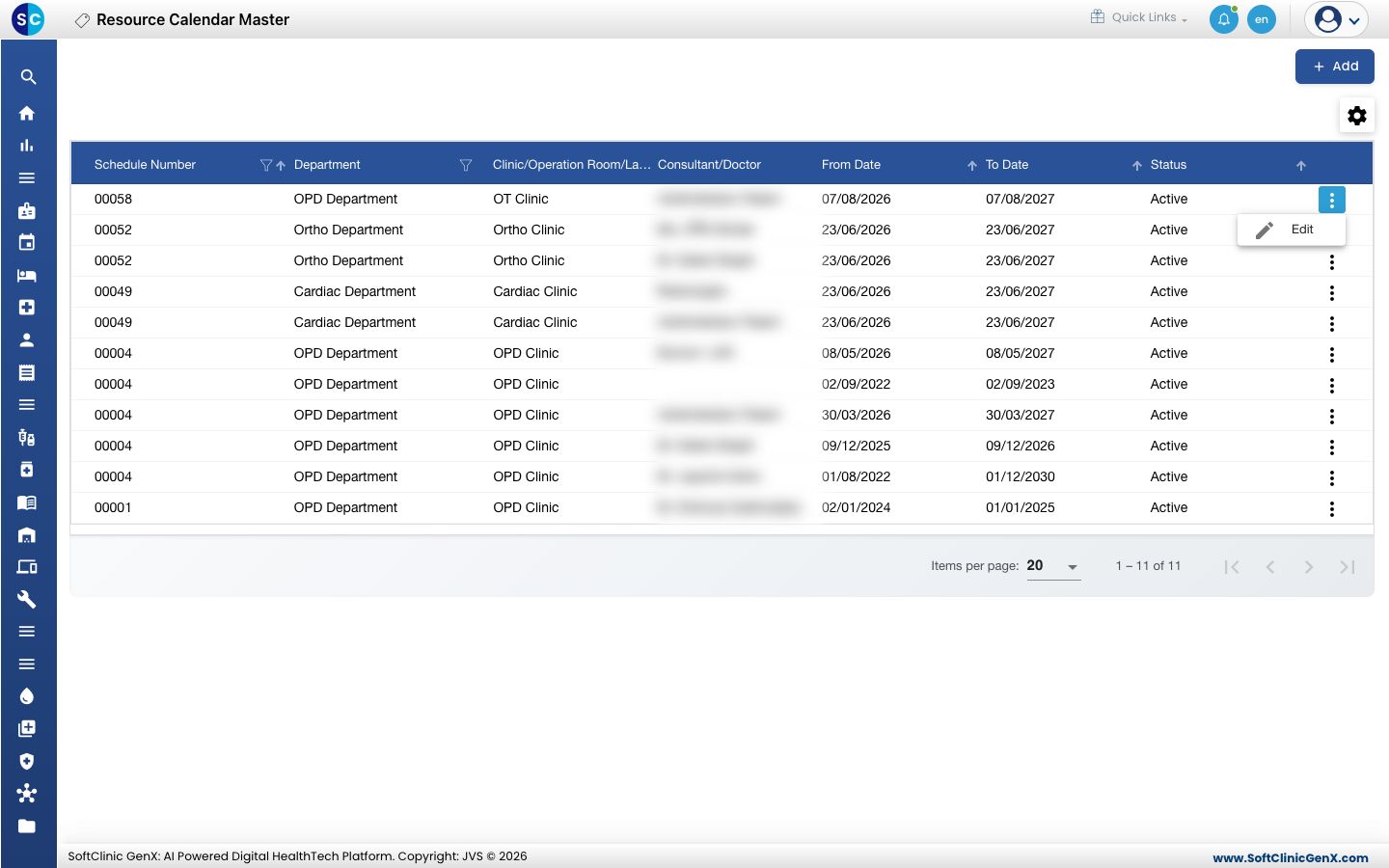
- Change the dates or the availability rows you need. To stop using the calendar, switch Status to Inactive.
- To block leave or holidays, open Unavailability Details on a saved calendar, add a row with From Date, To Date and the Reason for Unavailability, and save.
- Click Save.
Resource calendars cannot be deleted from this screen. Make a calendar Inactive instead.
Good to know
- At least one session must be ticked Active, or the calendar cannot be saved (Availability Slot is required.).
- Every active session needs both Minimum Slot and Maximum Slot. Minimum Slot cannot be more than Maximum Slot.
- A calendar covers only the days from From Date to To Date. Extend the dates or add a new calendar before it runs out.
- If a doctor has no free slots on the booking screen, check that they have an Active calendar here that covers the date, with that weekday's session ticked Active.
- Unavailability Details appears only after the calendar has been saved once.
- Click Back to List or Cancel to leave the form without saving.