Process a medical record
Open a discharged patient's case, check the documents, verify coding and complete the record.
The MRD Dashboard follows each medical record from discharge to archive. Open the case, check its documents, verify the coding and complete it.
Who does this: medical records staff · Where: Medical Records › MRD Dashboard
Open and work on a record
-
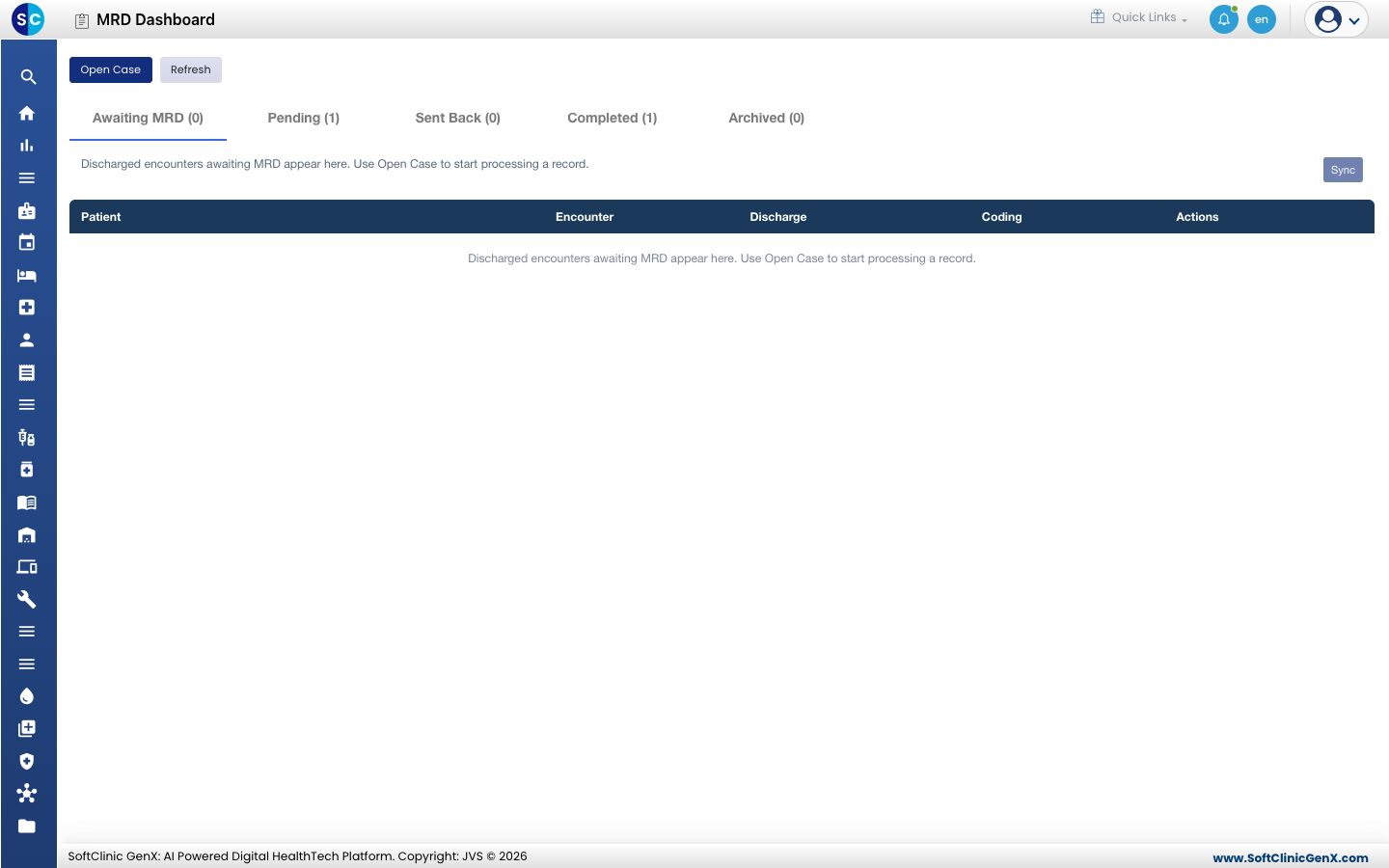
Open Medical Records › MRD Dashboard. The tabs show how many records are at each stage: Awaiting MRD, Pending, Sent Back, Completed and Archived.
-
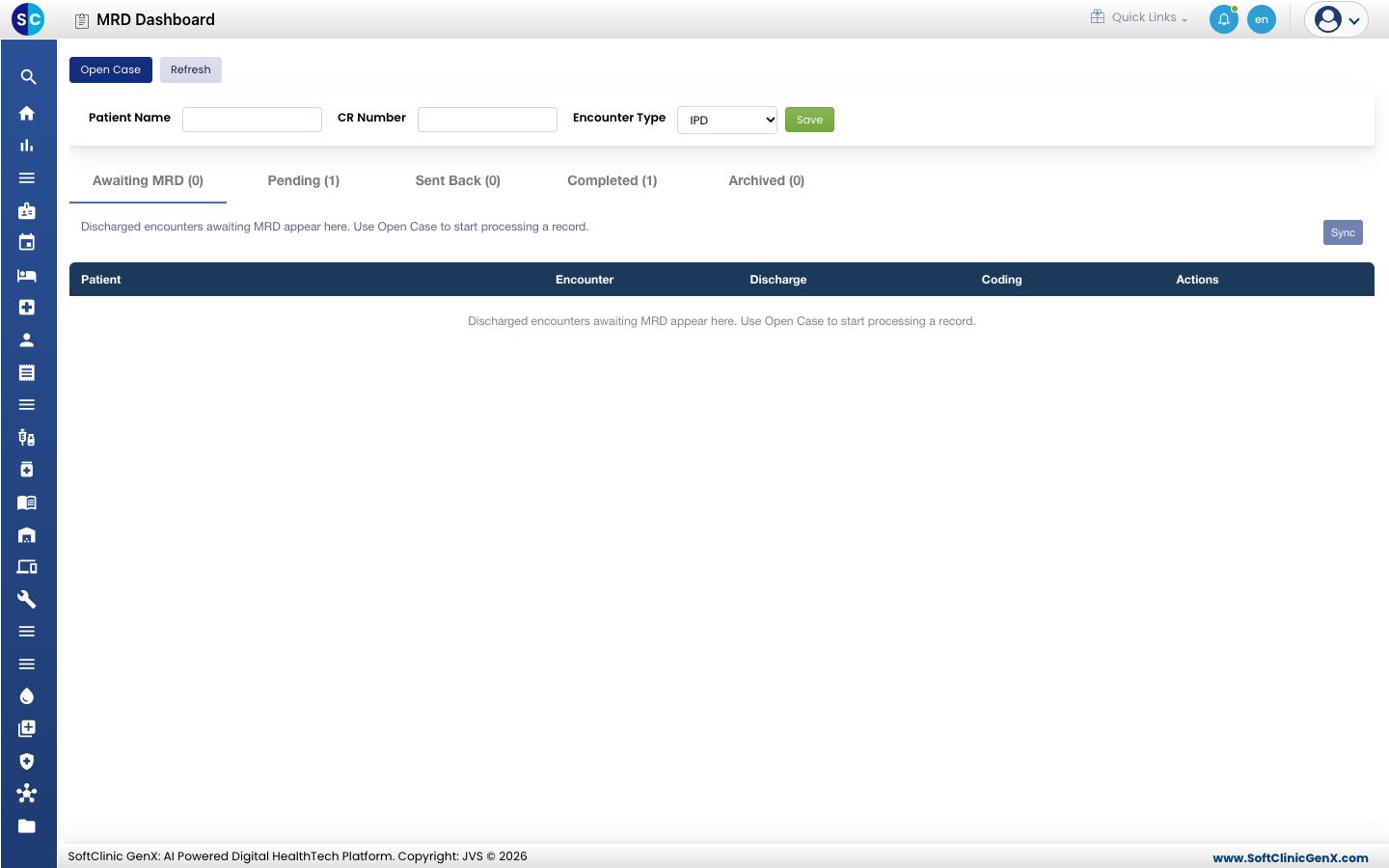
To start a record that is not in the list, click Open Case, enter the Patient Name or CR Number, choose the Encounter Type and click Save.
-
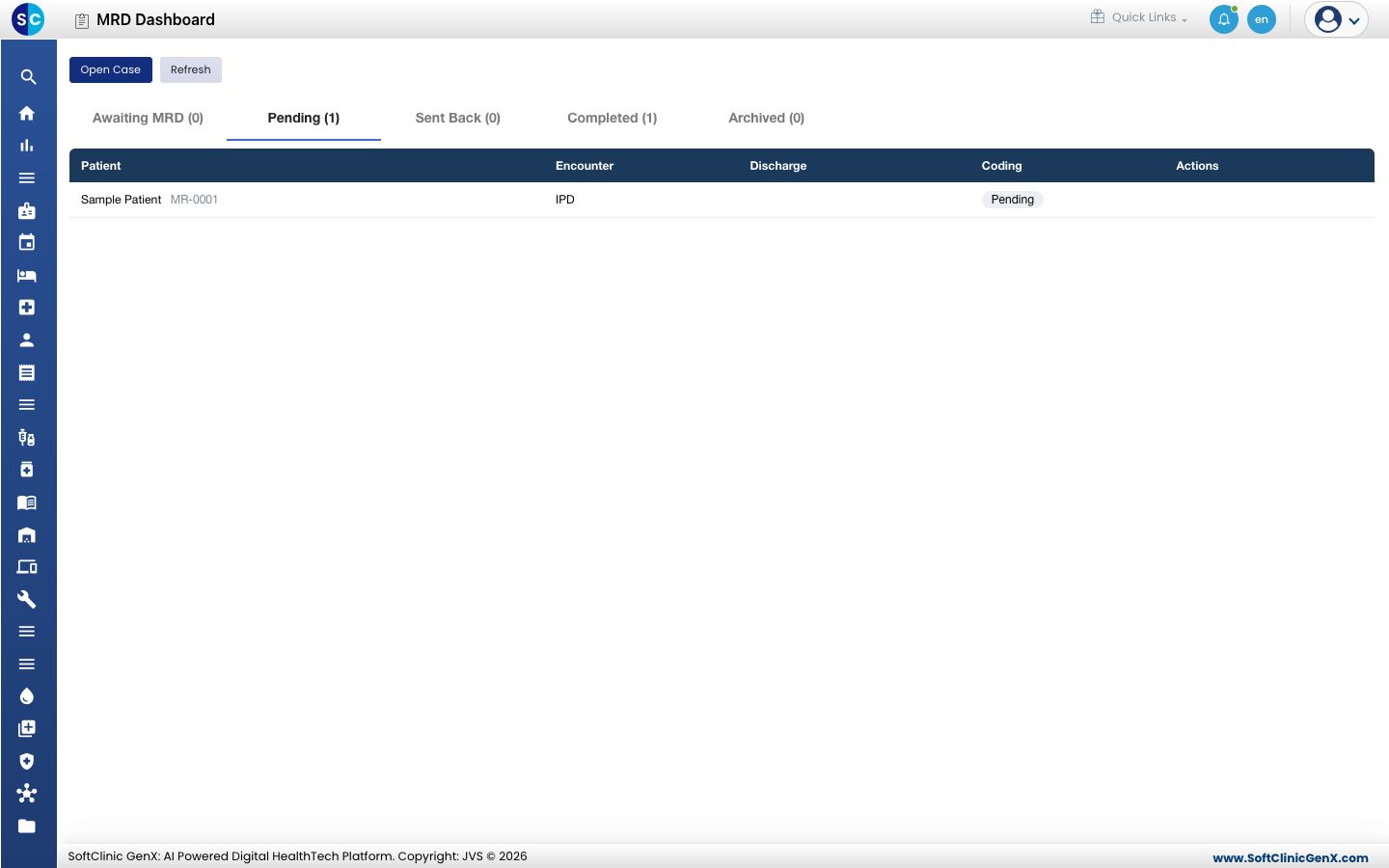
Open the Pending tab to see the records being processed. Click a patient to open the record.
-
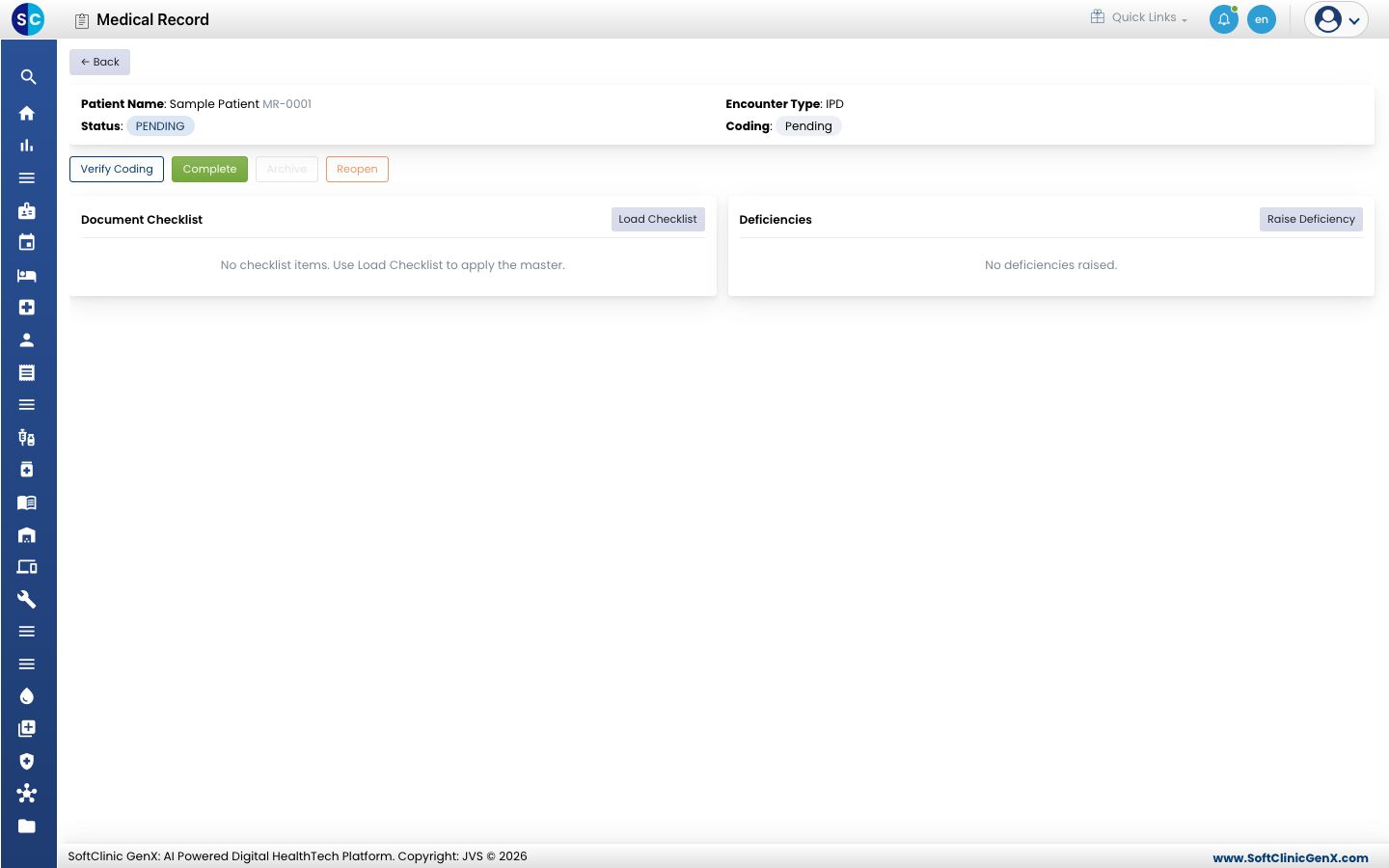
On the Medical Record screen, click Load Checklist to bring in the document checklist, then mark each document present.
-
If something is missing or wrong, click Raise Deficiency. Use Resolve when it has been put right.
-
Click Verify Coding once the coding has been checked. Click Unverify Coding to take it back.
-
Click Complete when the record is ready. Use Archive afterwards to close it, or Reopen to work on it again.
Good to know
- Archive is available only after a record is completed, and Complete is not available once it is completed or archived.
- The page tells you how many mandatory documents are still pending.
Related
- Set up the Document Checklist: decide which documents are required.
- Handle a record request: give a copy of a record to someone who asks.