View attendance
Look up an employee's attendance for the month on a colour-coded calendar.
The Attendance screen shows one employee's month as a calendar. Each day is coloured to show whether the employee was present, absent, on leave or off.
note
Who can do this: HR staff · Where: Human Resource › Employee Masters › Attendance
View an employee's month
- Open Human Resource › Employee Masters › Attendance. The current month opens with today highlighted.
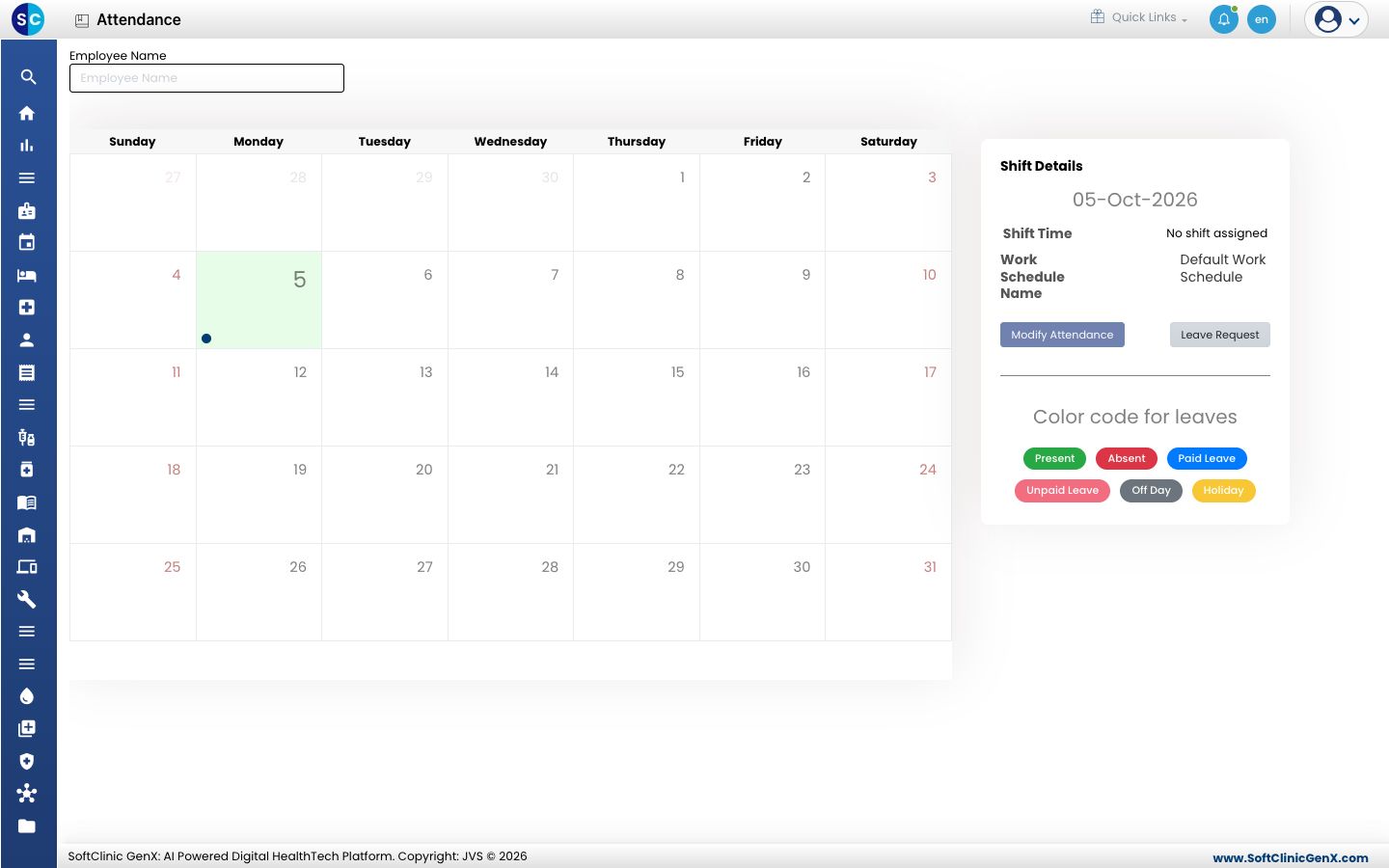
- Start typing in Employee Name and choose the employee. The calendar shows that person's days.
- Read the colours with the Color code for leaves key: Present, Absent, Paid Leave, Unpaid Leave, Off Day and Holiday.
- Read Shift Details on the right for the shift time and the Work Schedule Name of the day.
tip
Use Leave Request on this screen to record leave for the employee, or see Request leave.
Good to know
- No shift assigned means the day has no shift on the roster. Plan the duty roster to assign one.
- Holidays come from Set up Holiday.
Related
- Plan the duty roster: assign shifts to staff
- Human Resource FAQs
Was this helpful?