Request leave
Record a leave request for an employee with the dates, leave type and reason.
A leave request records the days an employee will be away and why. It starts as Pending until it is approved.
note
Who can do this: HR staff or the employee · Where: Human Resource › Employee Masters › Employee Leave Request
Before you start
- Add the leave types and leave reasons your hospital uses.
- Give the employee a leave entitlement.
Record a leave request
-
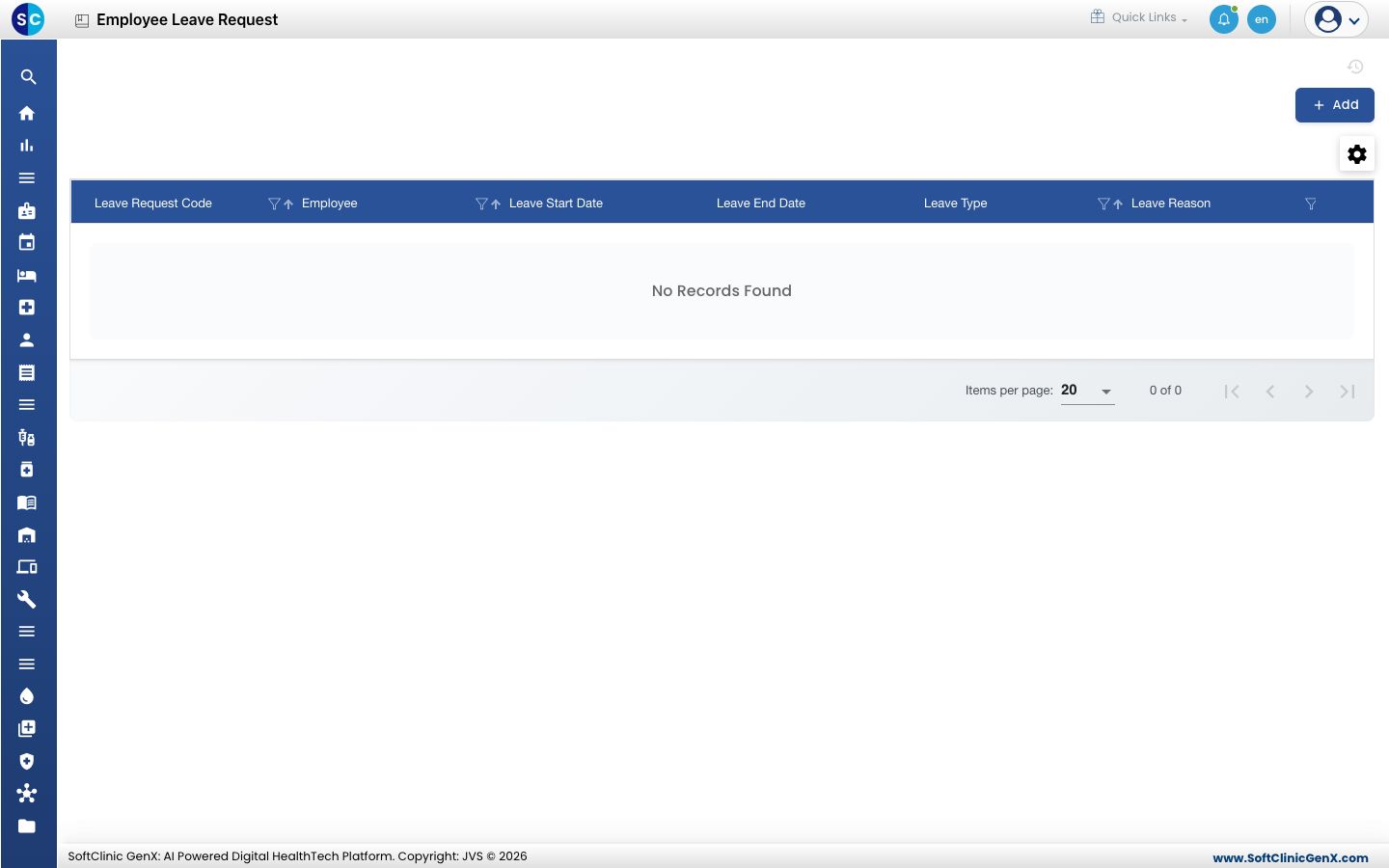
Open Human Resource › Employee Masters › Employee Leave Request. The list shows earlier requests with their dates, type, reason and Leave Status.
-
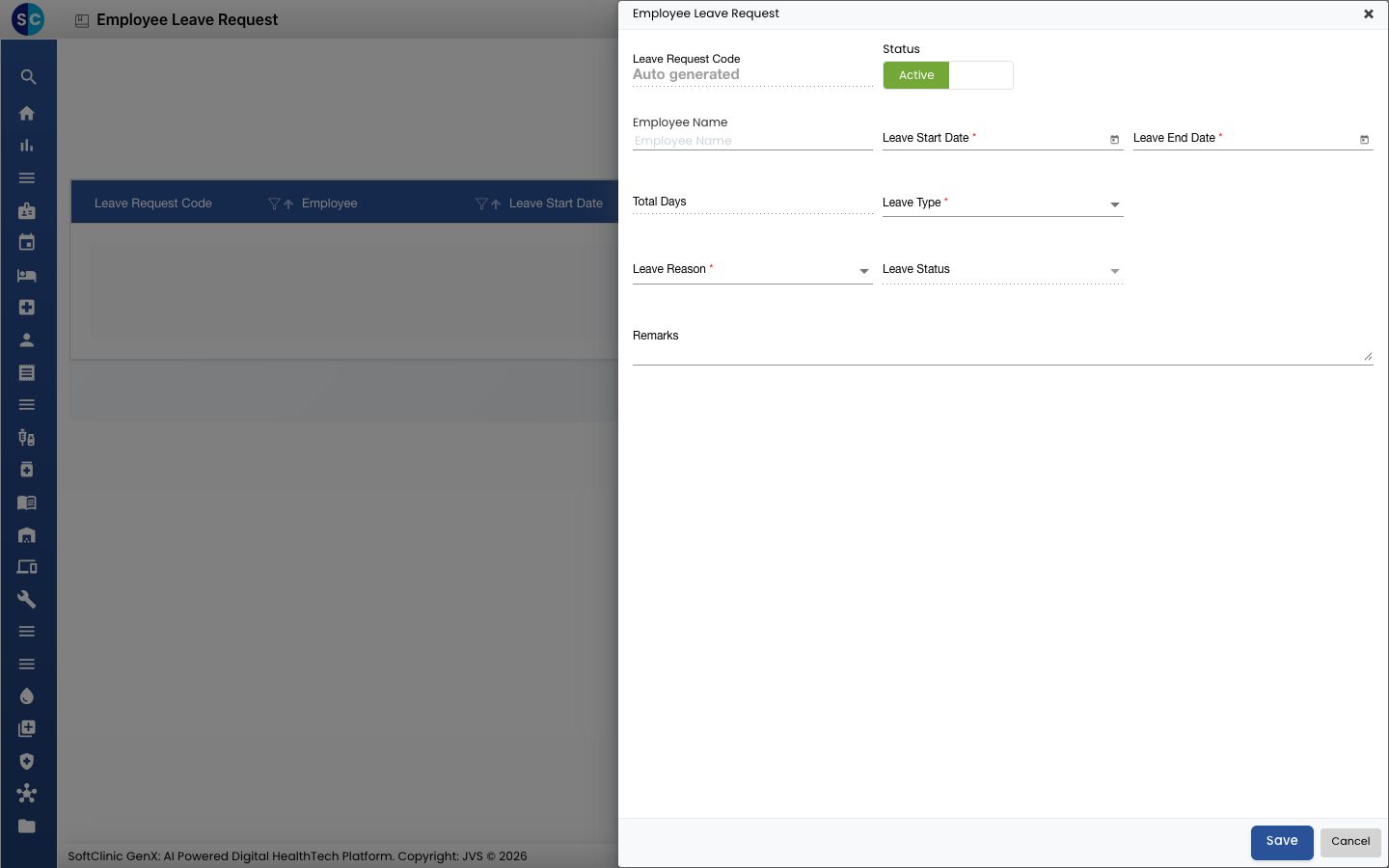
Click Add. The request form opens.
-
Fill in the fields:
Field What to enter Required Employee Name Start typing and choose the employee. Yes Leave Start Date The first day of leave. Yes Leave End Date The last day of leave. Yes Total Days Filled in for you, counting both the first and last day. — Leave Type The kind of leave. Yes Leave Reason The reason. Yes Leave Status Starts as Pending. Yes Remarks Anything the approver should know. No -
Click Save. The request appears in the list.
tip
After you choose a Leave Type, the form shows the employee's leave count for it, so you can check the balance first.
Troubleshooting
| What you see | What it means | What to do |
|---|---|---|
| Leave Type or Leave Reason is empty | No leave types or reasons exist yet. | Add them in Set up Leave Type and Set up Leave Reason. |
| A message about the dates | The end date is before the start date. | Choose an end date on or after the start date. |
Related
- Set up Employee Leave Master: give an employee a leave entitlement
- Human Resource FAQs
Was this helpful?