Set up Radiology Masters
Who does this: radiology or hospital administrator Where: Radiology › Masters › Radiology Masters Set up before: Section Master and Service
Radiology Masters lists the radiology tests the hospital performs. Each test starts as a radiology service in the service master; adding it here makes it a test that doctors and nurses can order, with its preparation instructions, LOINC code and report settings. The list shows radiology tests only; laboratory tests are set up in Investigation Masters.
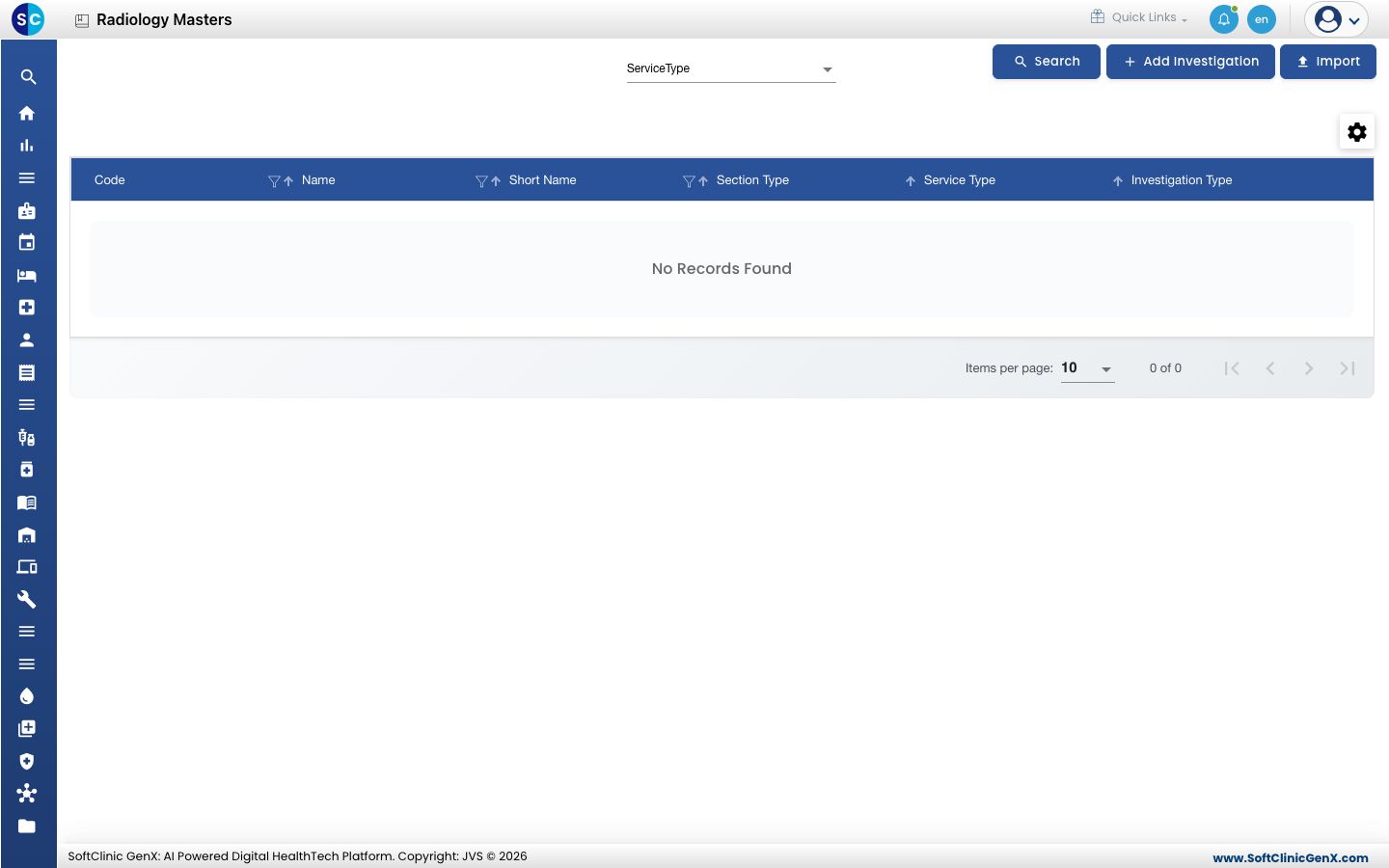
Use the ServiceType filter and Search to narrow the list.
Add a radiology test
-
Go to Radiology › Masters › Radiology Masters and click Add Investigation. The Investigation Master form opens.
-
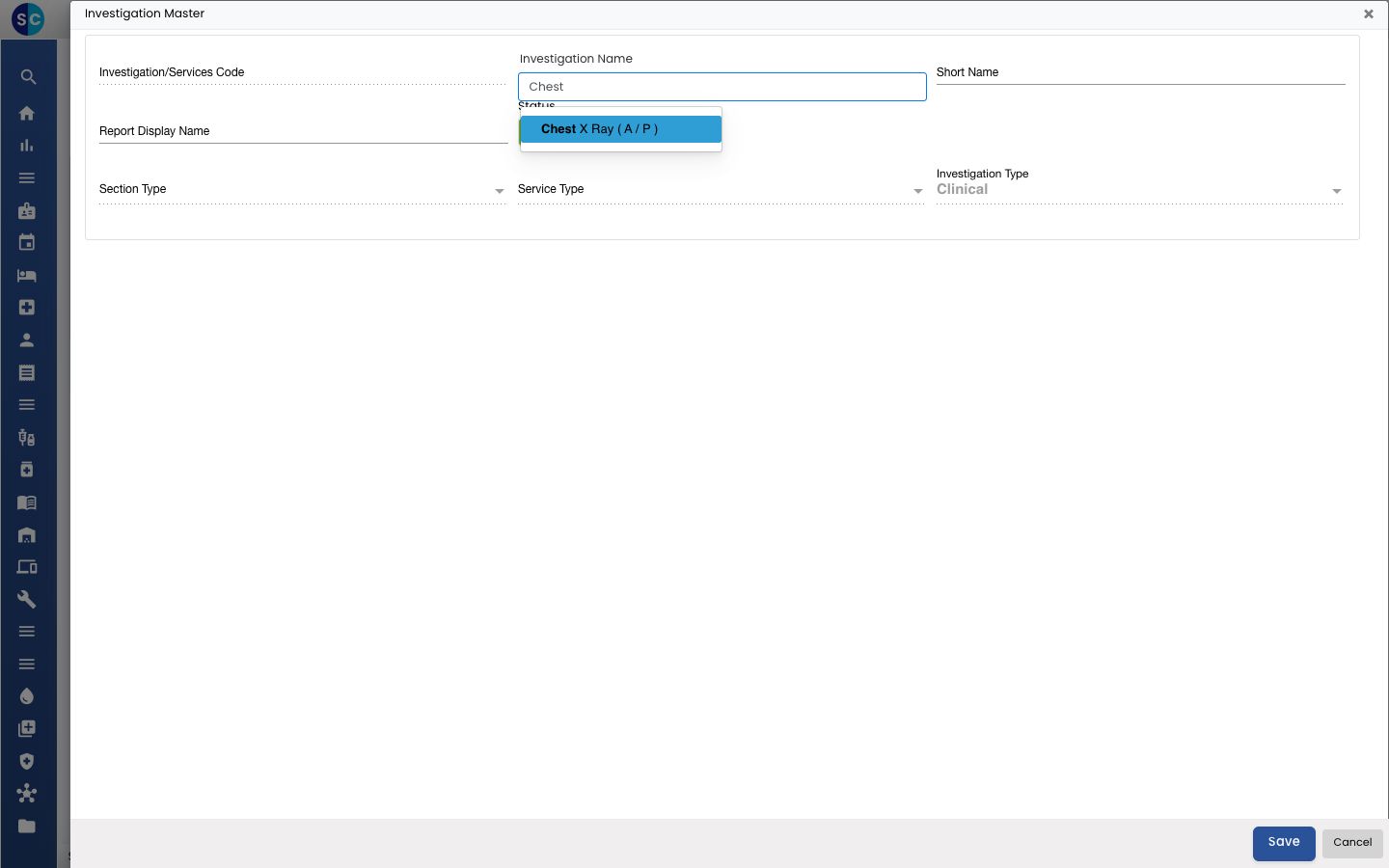
In Investigation Name, type part of the service name. The list shows radiology services that are not yet set up as a test. Pick the service.
-
The code, Section Type, Service Type and Investigation Type are filled in from the service and cannot be changed here. Fill in the other header fields:
Field What to enter Required Investigation Name The radiology service, picked from the list. Yes Short Name A short name for lists and labels. No Report Display Name The name printed on the report, if it differs from the test name. No Status Active to allow ordering. — 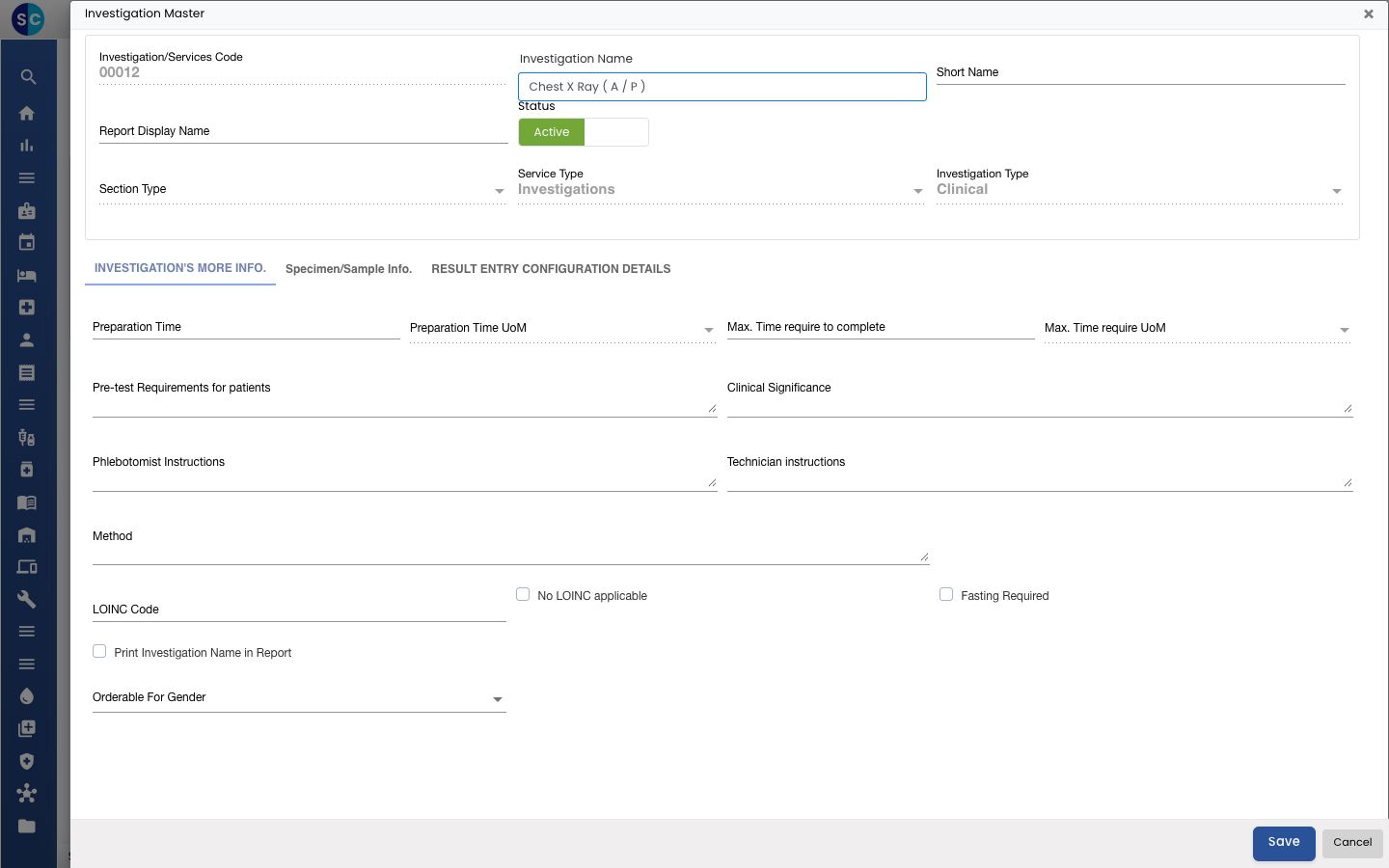
-
Fill in the tabs below the header. They work exactly as for a laboratory test; see Set up Investigation Masters:
- Investigation's More Info. — preparation and turnaround time, patient preparation (for example, fasting before an abdominal ultrasound), technician instructions, method, LOINC Code, and who the test can be ordered for.
- Specimen/Sample Info. — usually left empty for radiology; a sample is not required.
- Result Entry Configuration Details — how the result is recorded.
-
Click Save.
Change or deactivate a radiology test
- In the list, click the ⋮ button at the end of the row and choose Edit.
- Change the fields or tabs you need. To stop offering the test, switch Status to Inactive.
- Click Save.
Good to know
- Only services that already exist in the service master under a radiology service group can be picked. If a service is missing, add it in Service first; a new name cannot be created from this form.
- The section comes from the service. To change it, change the service's section in the service master. Radiology sections are set up in Section Master.
- A service that is already set up as a test is not offered again.
- A new test needs a LOINC Code, or tick No LOINC applicable and give the reason.
- Parameters are for laboratory tests only, so there is no Add Parameter button here.
- Click Cancel to close the form without saving.
Related
- Next: Set up Radiology Template Master
- Set up Investigation Masters (shared tabs)
- Radiology FAQs