Set up Radiology Template Master
Who does this: radiology or hospital administrator Where: Radiology › Masters › Radiology Template Master Set up before: Section Master
A radiology template is a ready-made report format, such as a normal ultrasound of the abdomen or a chest X-ray report, with headings and standard wording. When a radiologist writes a report in Radiology Requisitions, they pick a template and edit only what differs for the patient. Templates are offered for a test once you link them in Template & Service Link.
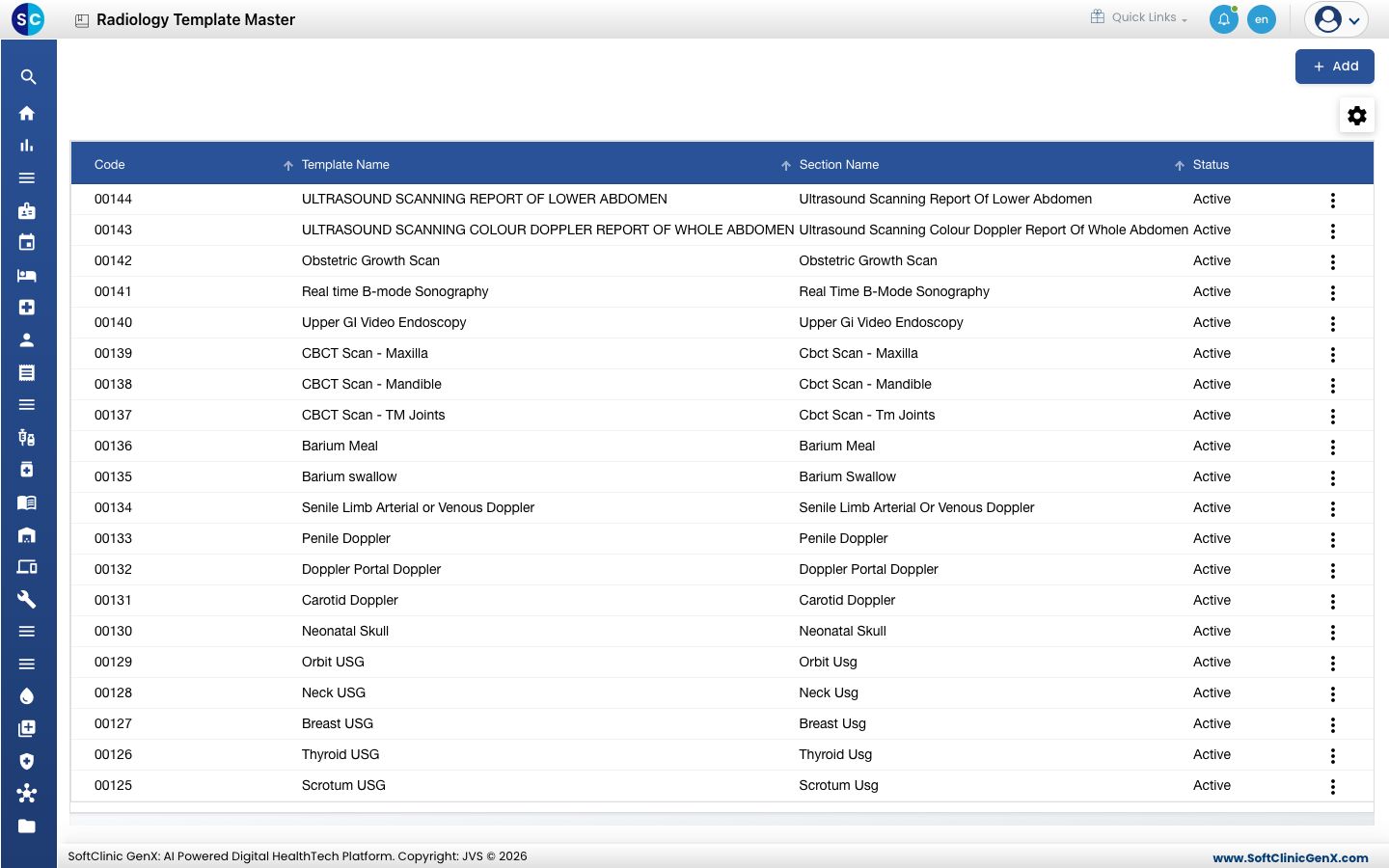
Add a template
-
Go to Radiology › Masters › Radiology Template Master and click Add. The template page opens.
-
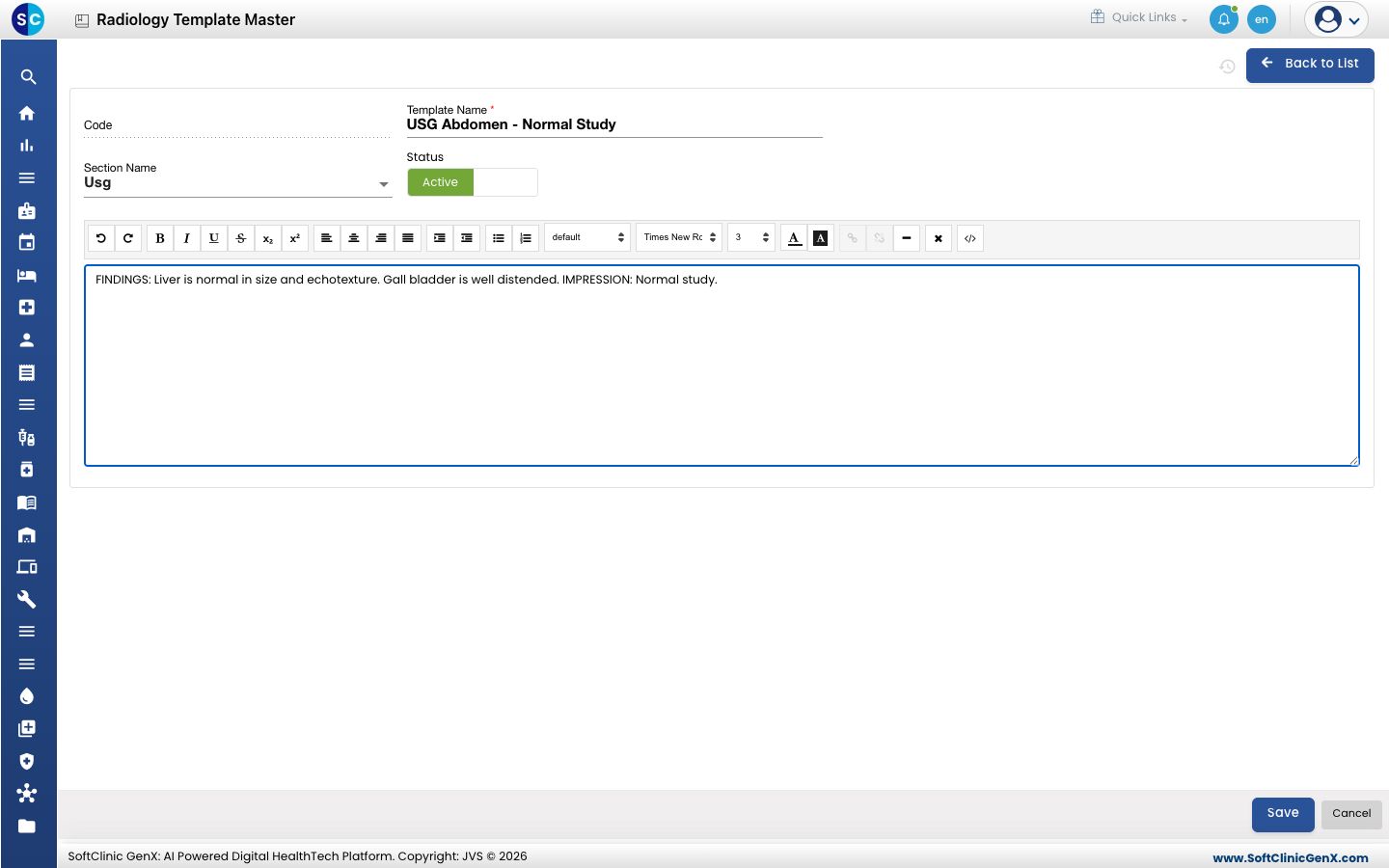
Fill in the fields:
Field What to enter Required Code Filled in by the system when you save. — Template Name A clear name, for example USG Abdomen - Normal Study. Yes Section Name The radiology section the template belongs to, such as Usg or X Ray. Yes Status Active to offer the template. — -
Type the report text in the editor. Use the toolbar for bold, lists, alignment, font and colour. Leave blanks or brackets where the radiologist fills in patient-specific findings.
-
Click Save. You return to the list and the template appears with its code.
Change or deactivate a template
- In the list, click the ⋮ button at the end of the row.
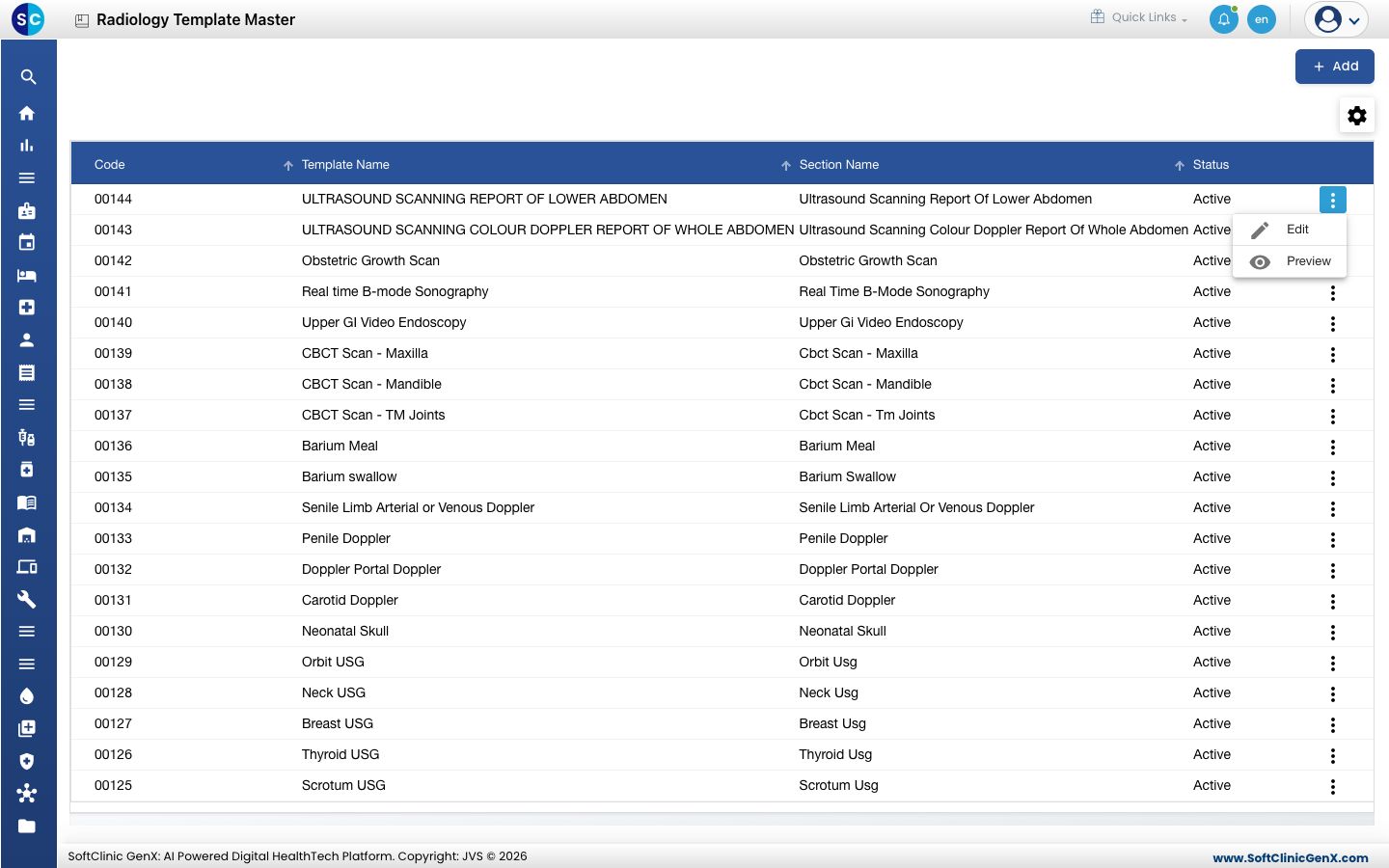
- Choose Preview to read the template without changing it, or Edit to change it.
- Change the name, section or text. To stop offering the template, switch Status to Inactive.
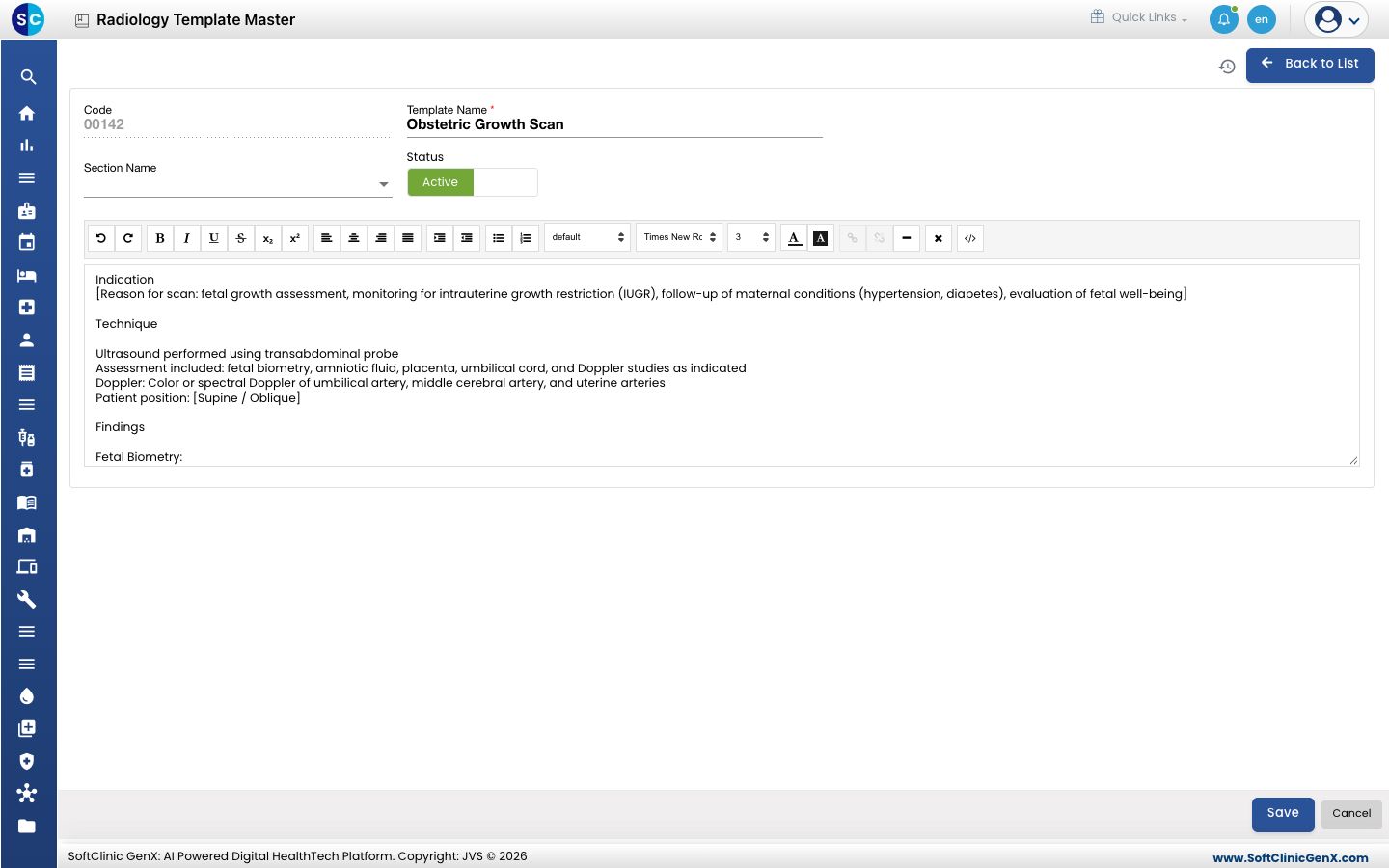
- Click Save.
Templates cannot be deleted. Make them Inactive instead.
Good to know
- A template is saved only when both Template Name and Section Name are filled in. When you edit an older template that has no section, choose one before saving.
- Give each template a distinct name; the name is what staff search for when linking and reporting.
- Pictures and videos cannot be inserted into a template.
- Click Back to List or Cancel to leave without saving.
Related
- Previous: Set up Radiology Masters
- Next: Set up Template & Service Link
- Radiology FAQs