Set up Service
Who does this: hospital administrator or billing manager Where: Billing › Masters › Service Set up before: service groups in Billing › Masters › Service Groups, Section Master (for laboratory and radiology services)
A service is anything your hospital charges for: a consultation, a procedure, a test, a bed charge or a fee. Staff pick services when they make a bill or place an order, and the price comes from the service's tariff.
Add a service
-
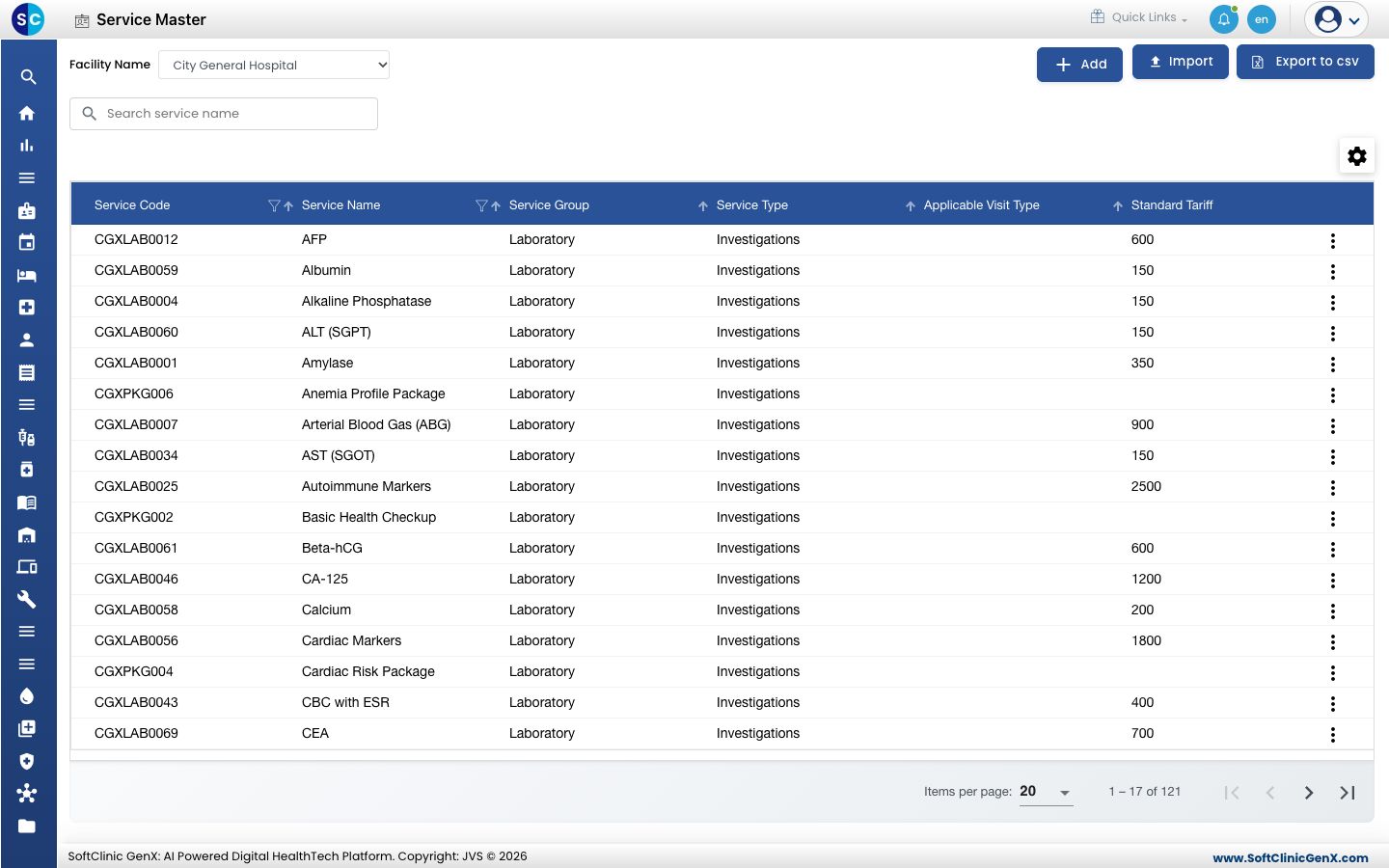
Go to Billing › Masters › Service.
-
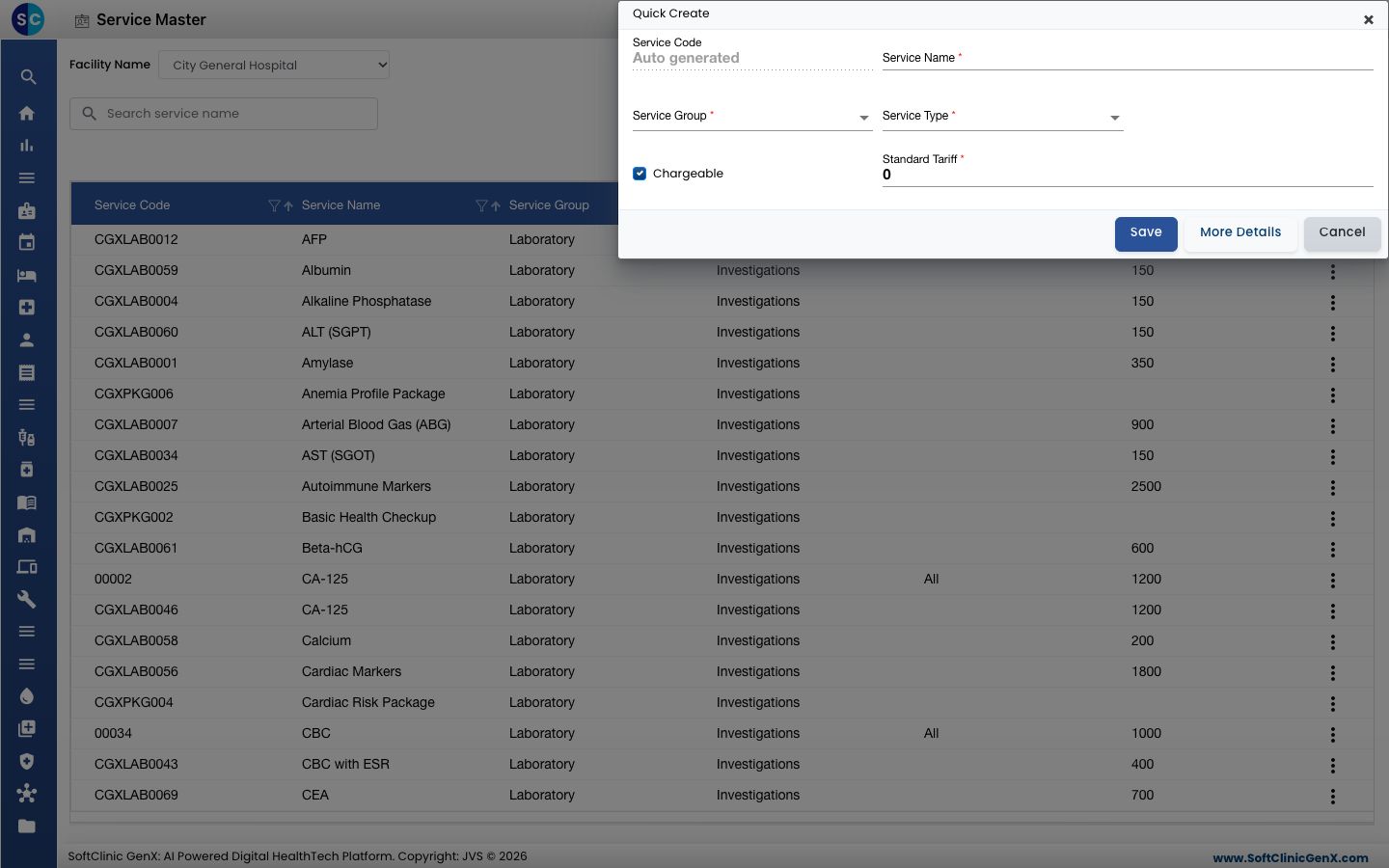
Click Add. The Quick Create form opens.
-
Fill in the fields:
Field What to enter Required Service Code Filled in automatically when you save. — Service Name The name staff and patients will see on the bill, for example Wound Dressing - Small. Yes Service Group The group the service belongs to, for example Nursing Procedure Care. Yes Service Type The kind of charge, for example Procedure or Consultations. Yes Section Type Appears for laboratory and radiology groups. Pick the section, for example Biochemistry. Yes, when shown Chargeable Leave ticked for a service the patient pays for. Untick for a free service. No Standard Tariff The standard price. Must be more than 0 when Chargeable is ticked. Yes, when Chargeable 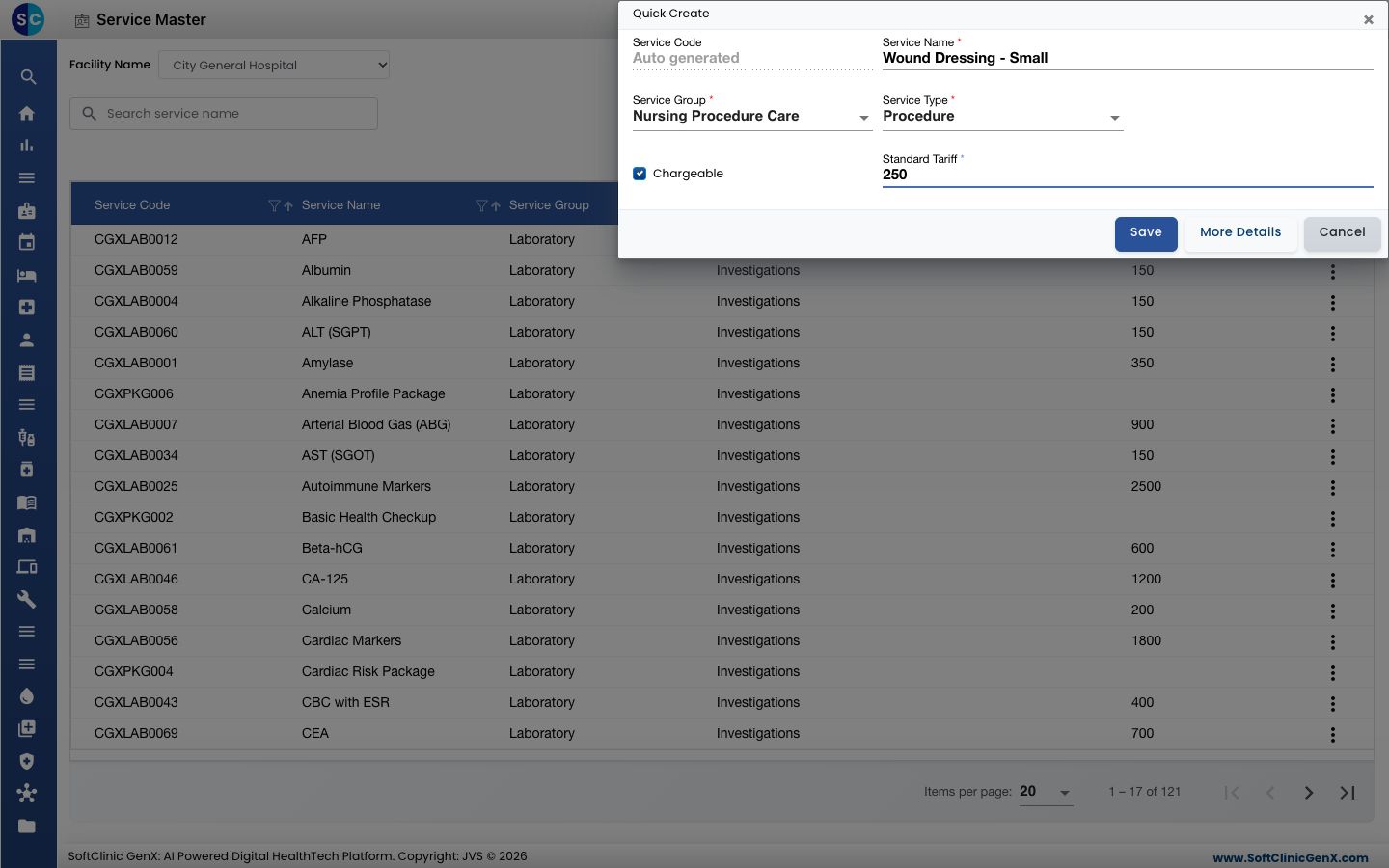
-
Click Save to add the service, or More Details to save it and open the full service form.
Change a service or its price
-
In the list, pick the facility in Facility Name, then find the service with Search service name.
-
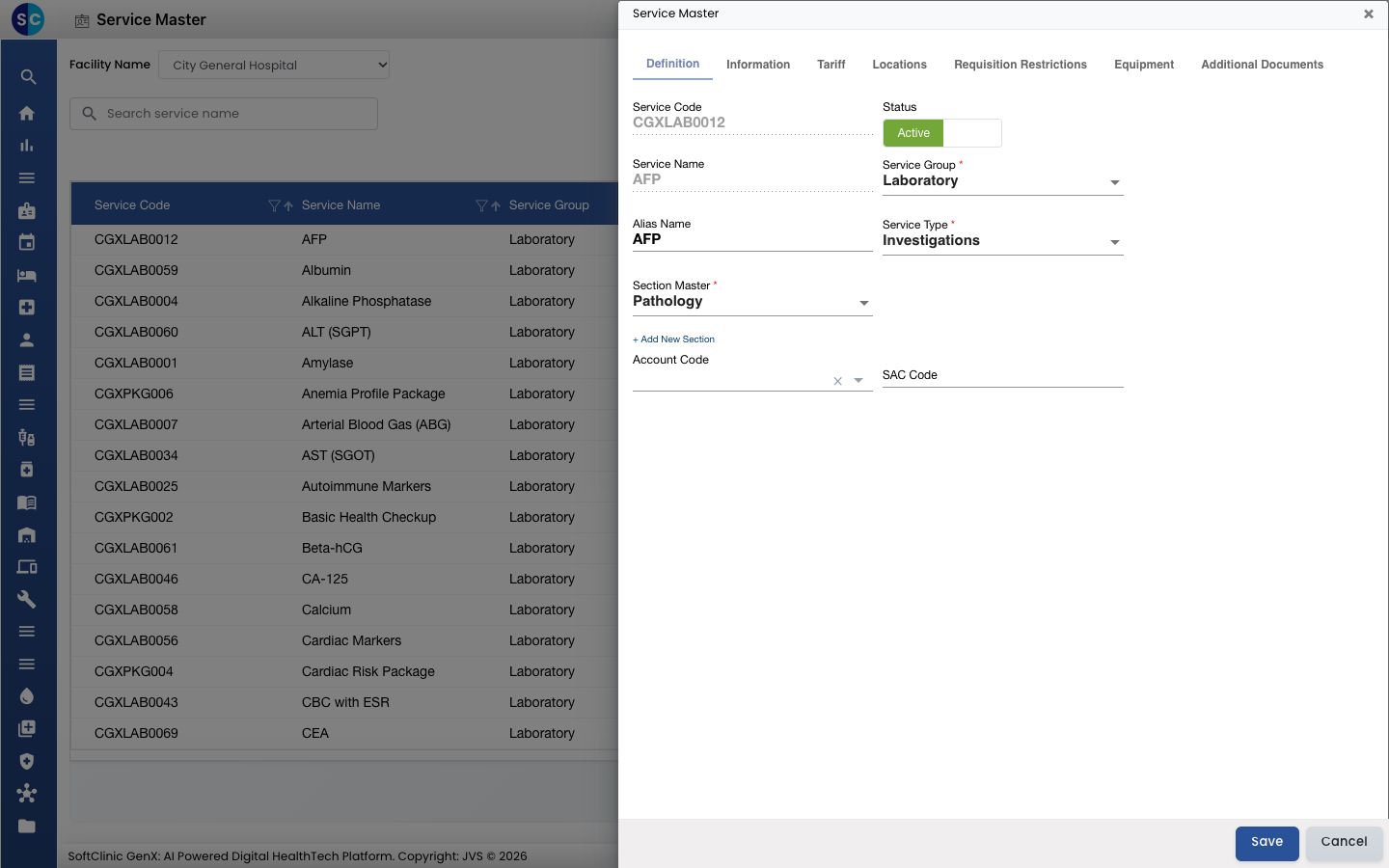
Click the ⋮ button at the end of the row and choose Edit. The full service form opens on the Definition tab.
-
Change what you need. The tabs hold:
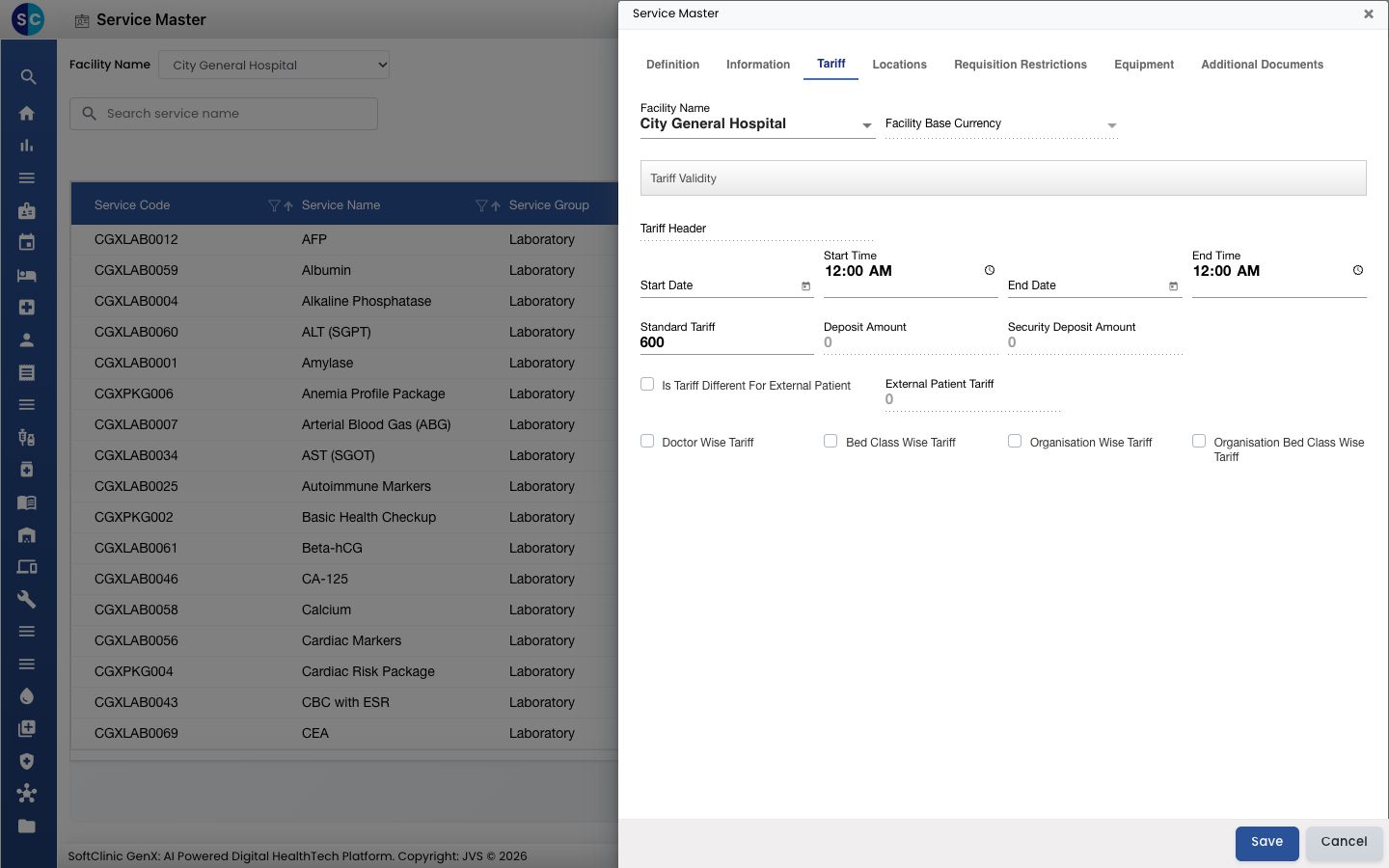
Tab What it holds Definition Group, type, section, Alias Name, Account Code, SAC Code and status. Information Which visits, genders and patients the service applies to, and other settings. Tariff The price for the selected facility, with its validity dates. Locations Where the service is performed. Requisition Restrictions Limits on ordering the service. Equipment Equipment used for the service. Additional Documents Documents attached to the service. -
To change the price, open the Tariff tab, pick the facility and change Standard Tariff. Tick Doctor Wise Tariff, Bed Class Wise Tariff, Organisation Wise Tariff or Organisation Bed Class Wise Tariff to set different prices for those cases.
-
To stop using the service, switch Status to Inactive on the Definition tab.
-
Click Save.
Services cannot be deleted from this screen. Make a service Inactive instead.
Good to know
- The service list and prices are shown for one facility at a time. Pick the facility in Facility Name first.
- Service Name cannot be changed after the service is saved. Use Alias Name for another name staff can search by.
- Search for the name before you add a service, so the list does not end up with two services of the same name.
- Import and Export to csv let you load or download the service list in bulk.
Related
- Previous: Set up Section Master
- Next: Set up Class Master
- Billing FAQs