Set up Employee Leave Master
Give an employee a yearly leave entitlement for each leave type, such as 12 days of Casual Leave.
Who does this: hospital administrator or HR staff Where: Human Resource › Employee Masters › Employee Leave Master Set up before: Leave Type
The Employee Leave Master records how many days of each leave type an employee may take. When the employee later asks for leave, the request shows the leave count for the type they choose.
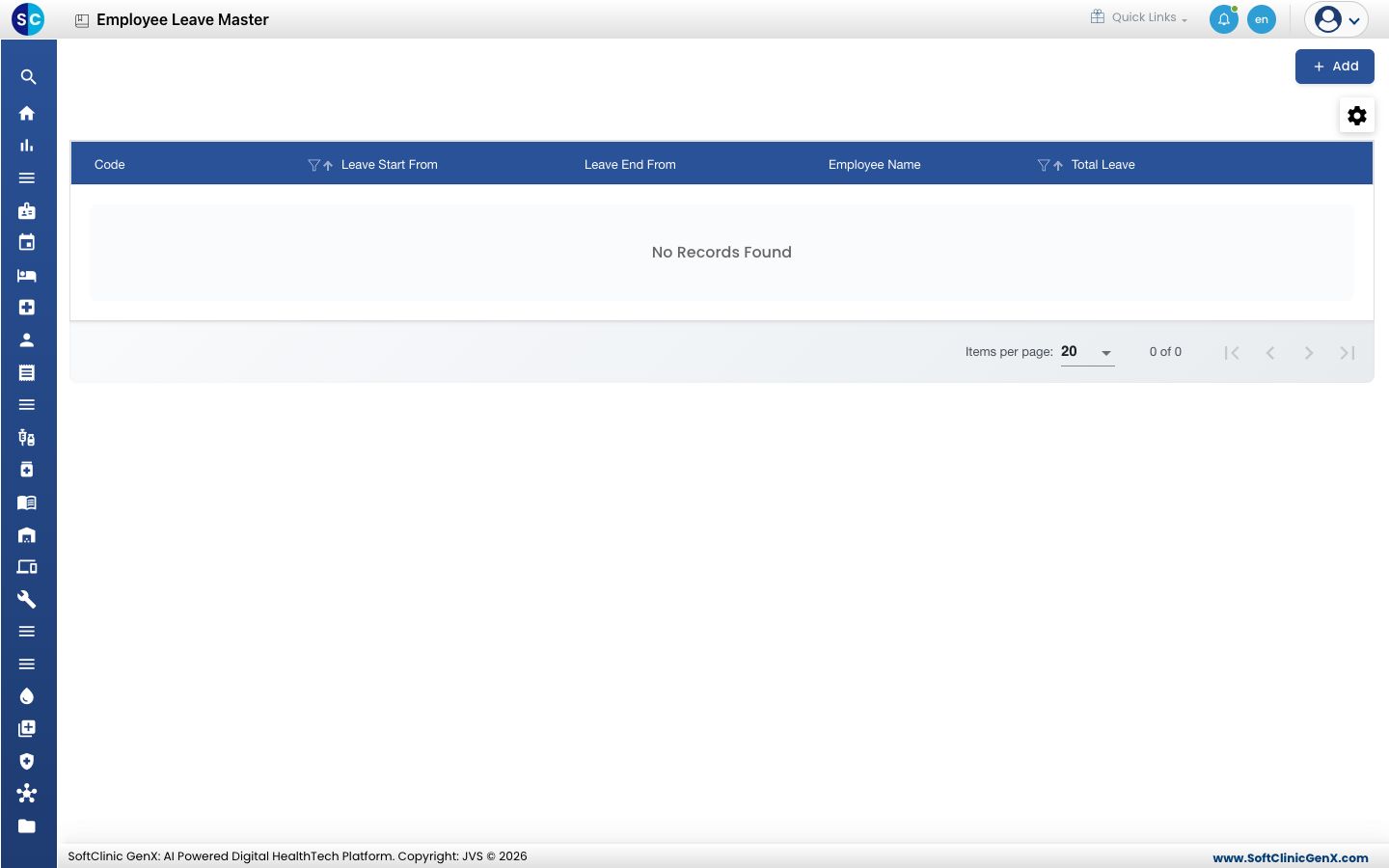
Add an entitlement
-
Go to Human Resource › Employee Masters › Employee Leave Master.
-
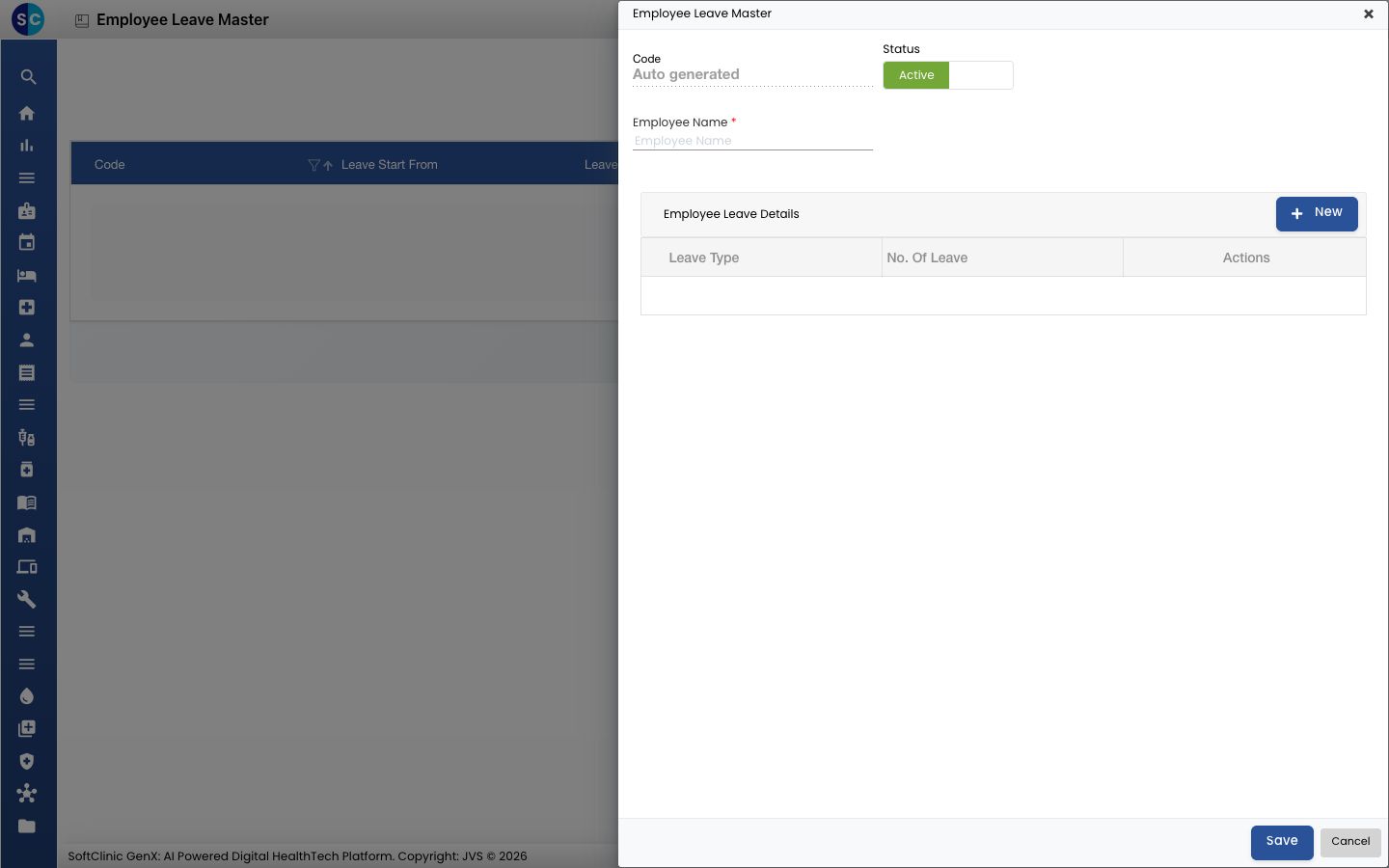
Click Add. The Employee Leave Master form opens.
-
Start typing in Employee Name and choose the employee.
-
Under Employee Leave Details, click New. A new row opens.
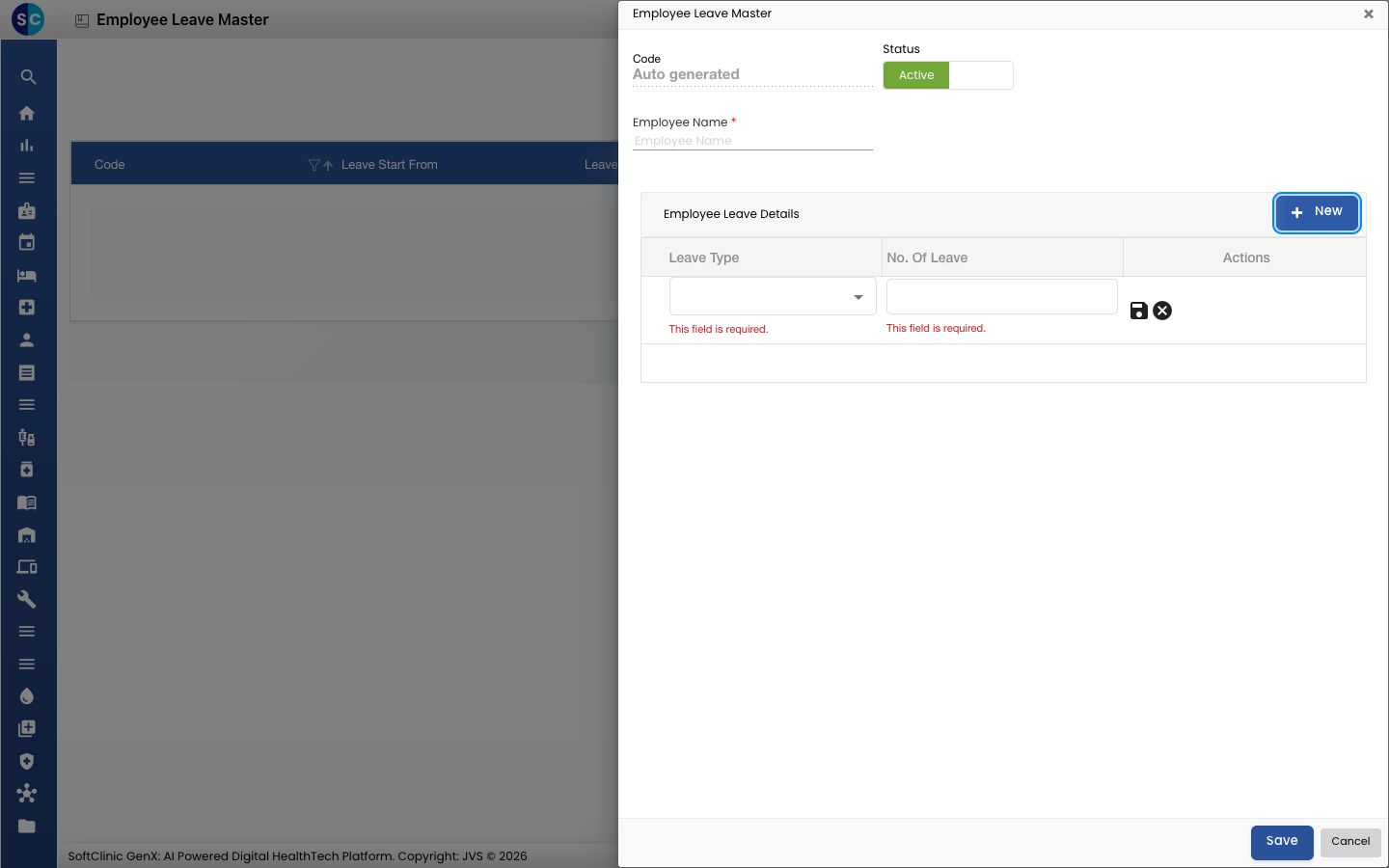
Field What to enter Required Leave Type The leave type, chosen from the list. Yes No. Of Leave The number of days. Numbers only. Yes -
Click the save icon at the end of the row. Add another row for each leave type.
-
Click Save. You return to the list and the entitlement appears in it.
Change an entitlement
- In the list, click the ⋮ button at the end of the row and choose Edit.
- Change the rows or the Status, then click Save.
Good to know
- Each leave type can appear once per employee. A repeat shows Duplicate Leave Type.
- Entering letters in No. Of Leave shows Please enter numbers only !.
Related
- Previous: Set up Leave Reason
- Next: Set up Shift
- Request leave: how staff ask for leave