Set up Leave Reason
Create the reasons staff can give when they ask for leave, each linked to a leave type.
Who does this: hospital administrator or HR staff Where: Human Resource › Employee Masters › Leave Reason Master Set up before: Leave Type
A leave reason is a ready-made reason, such as Medical appointment, that staff pick on a leave request. Each reason belongs to one leave type.
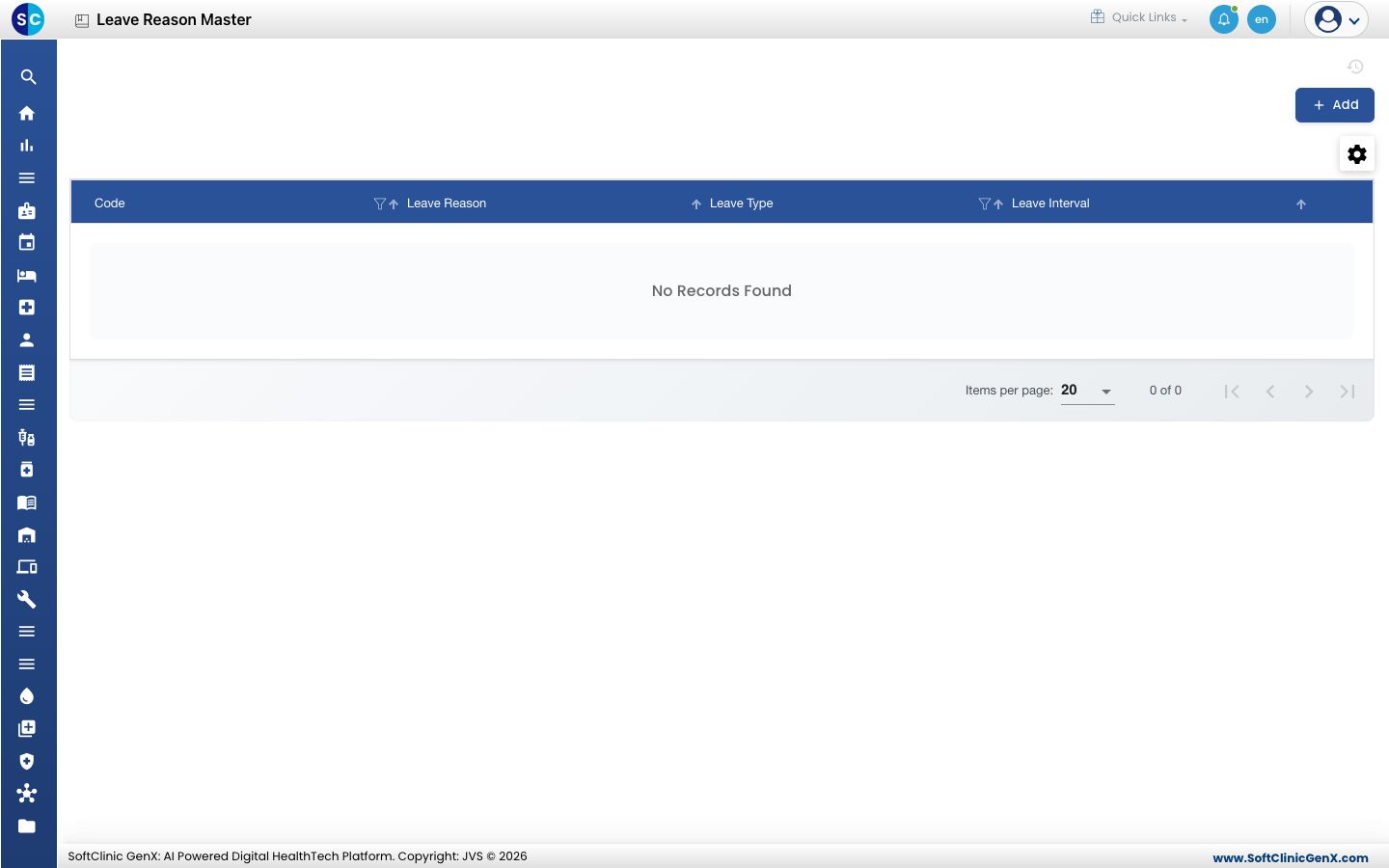
Add a leave reason
-
Go to Human Resource › Employee Masters › Leave Reason Master.
-
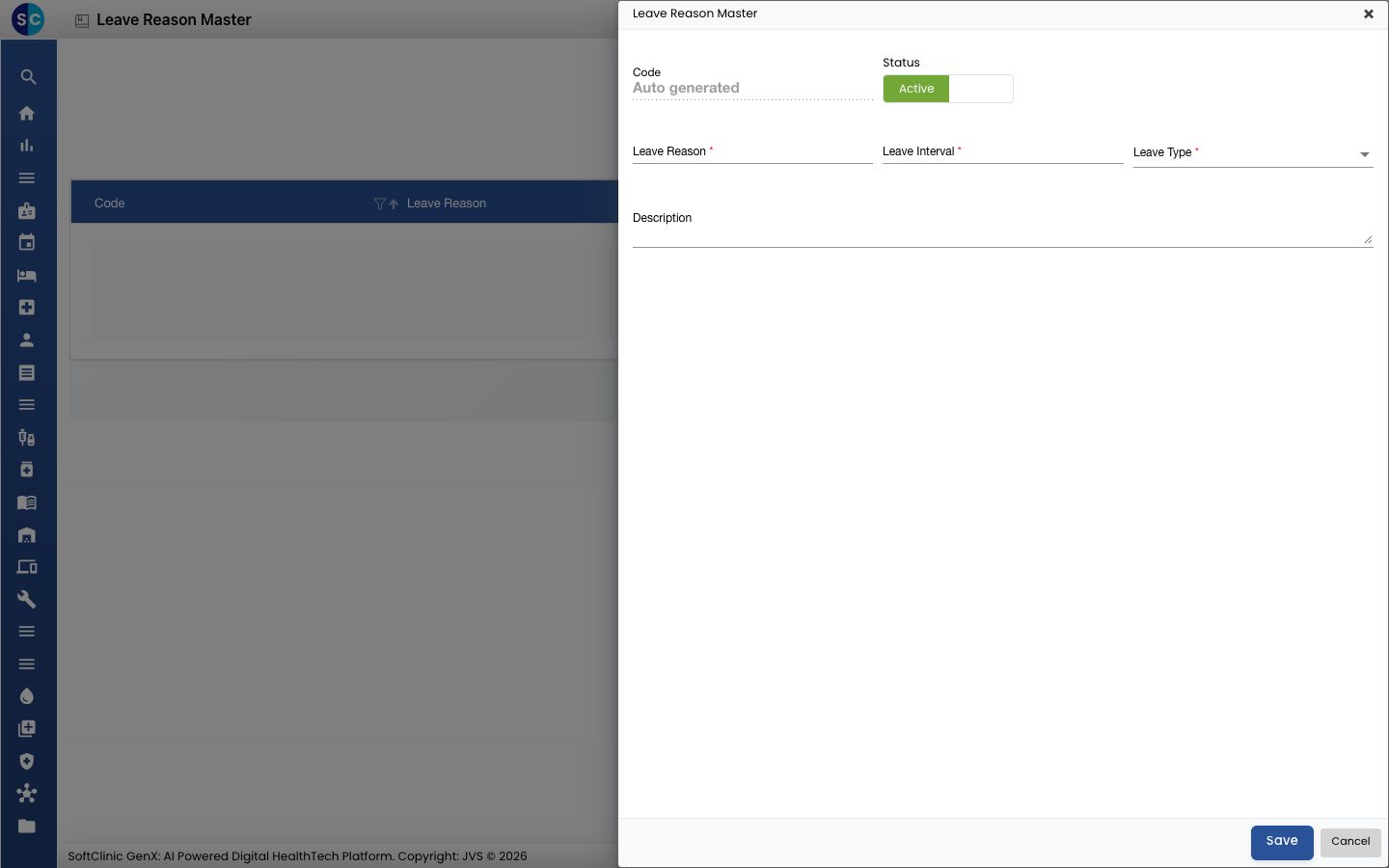
Click Add. The Leave Reason Master form opens.
-
Fill in the fields:
Field What to enter Required Code Filled in automatically when you save. — Leave Reason The reason, for example Medical appointment. Yes Leave Interval A number, up to 5 digits. Letters are not accepted. Yes Leave Type The leave type this reason belongs to. Yes Status Leave on Active. — Description A note for your own team. No 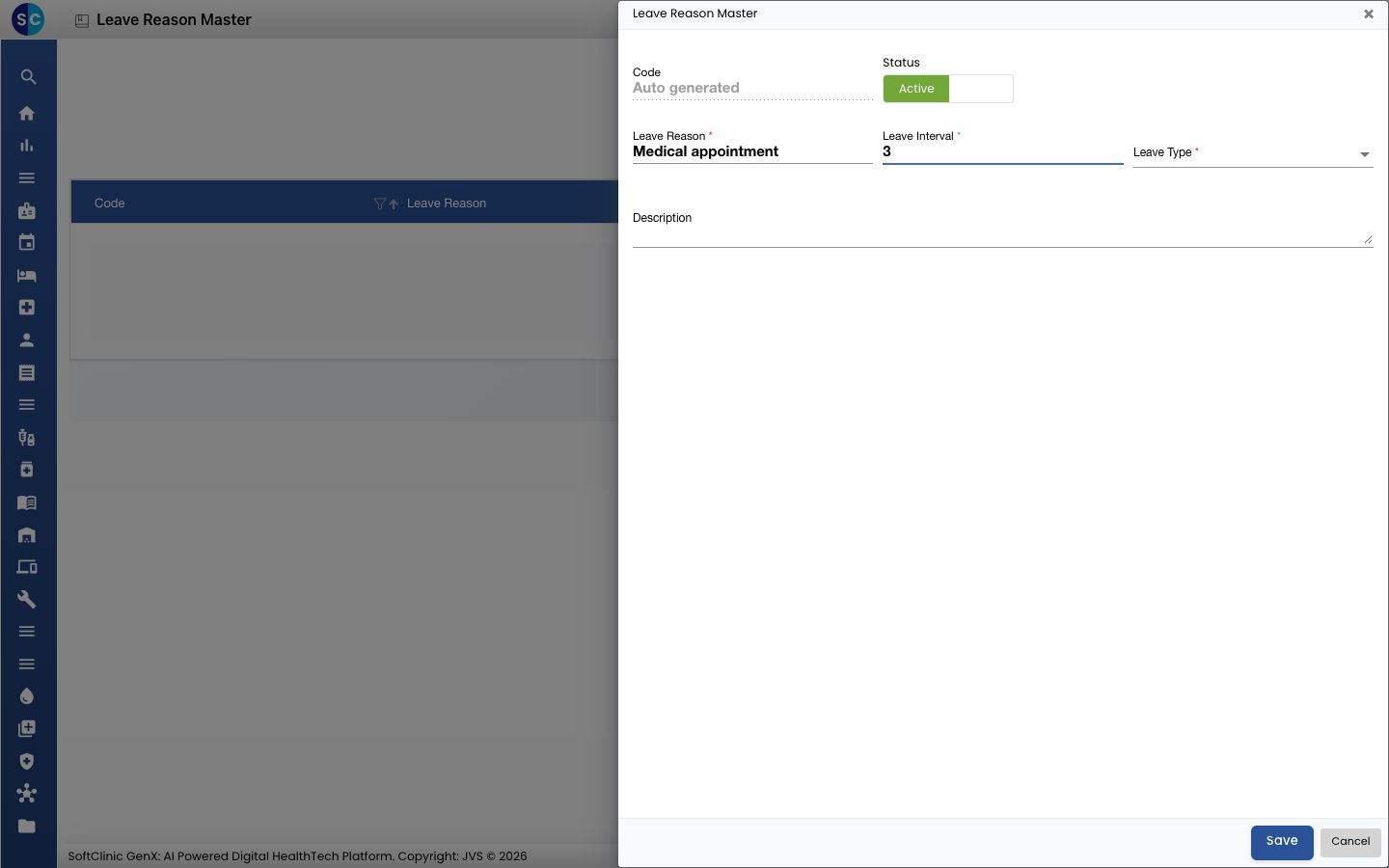
-
Click Save. You return to the list and the new reason appears in it.
Change or deactivate a leave reason
- In the list, click the ⋮ button at the end of the row and choose Edit.
- Change the fields you need. To stop using the reason, switch Status to Inactive.
- Click Save.
Good to know
- If the Leave Type list is empty, no leave types exist yet. Add them in Set up Leave Type, then open this form again.
Related
- Previous: Set up Leave Type
- Next: Set up Employee Leave Master
- Human Resource FAQs
Was this helpful?