Print a patient sticker
Print or reprint a patient's registration sticker or small barcode label from Patient List.
Every registered patient has two stickers you can print or reprint at any time: a full sticker with the patient's details, and a small barcode label for files, sample tubes and wristbands.
note
Who can do this: front desk and registration staff
Where: Patients › Views › Patient List › ⋮ › Print Sticker or Print Sticker Small
Steps
- Find the patient in Patients › Views › Patient List.
- Click the ⋮ button at the end of the patient's row.
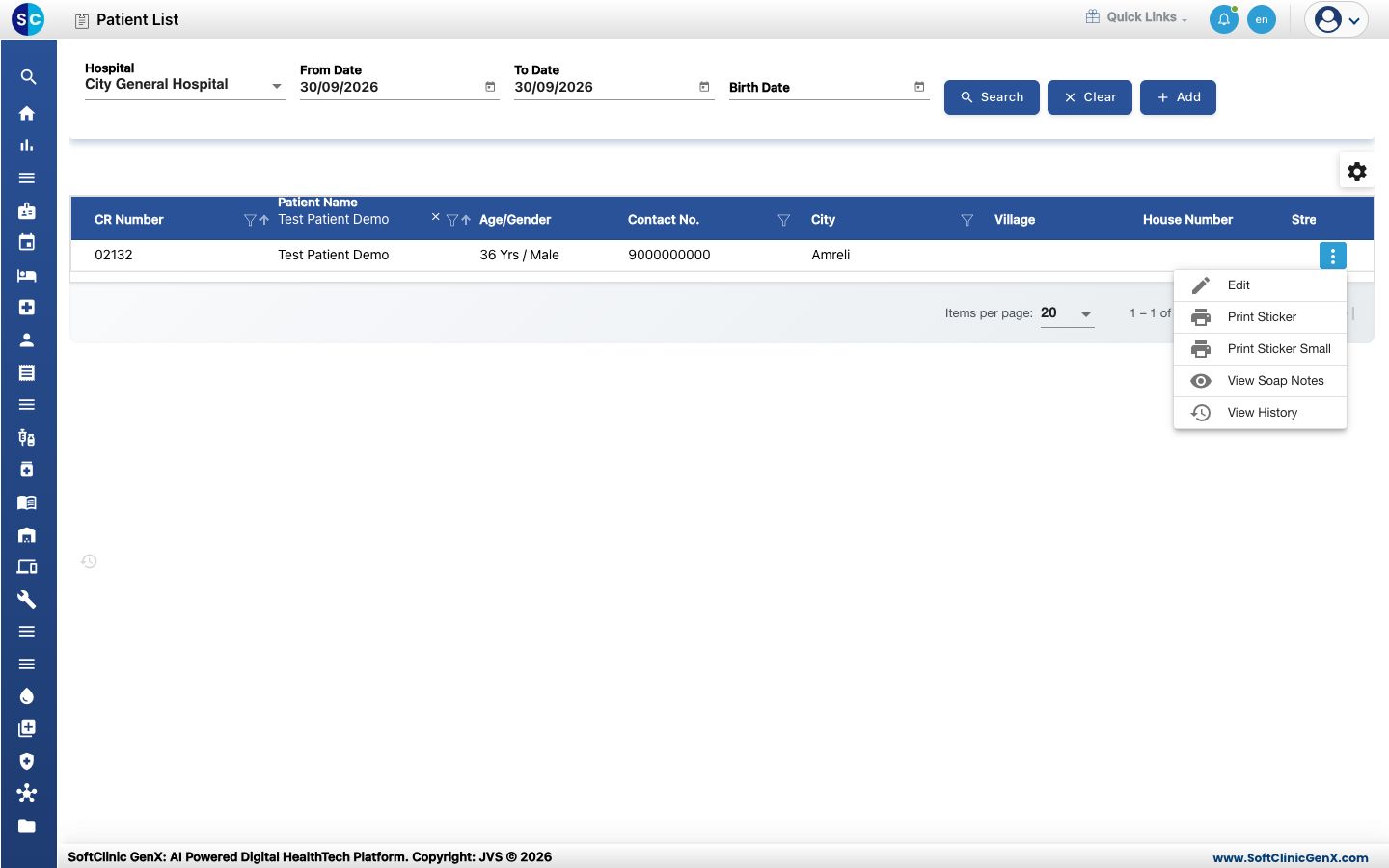
- Choose the sticker:
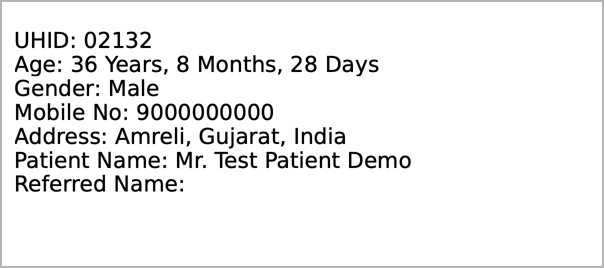
- Print Sticker — the full sticker with UHID, age, gender, mobile number, address, name and referring doctor.
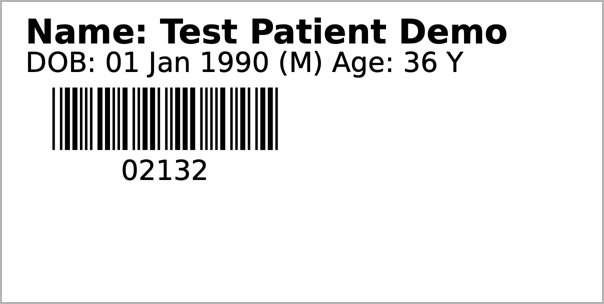
- Print Sticker Small — the name, date of birth, gender and age with a barcode of the CR number.
- Print Sticker — the full sticker with UHID, age, gender, mobile number, address, name and referring doctor.
- The sticker opens in a print preview. Choose your label printer and print it, or download it.
- Close the preview to return to the list.
Good to know
- The barcode on the small sticker is the patient's CR number, so any barcode scanner in the hospital can read it.
- Stickers use the details saved on the record. If something is wrong on the sticker, edit the patient and print again.
If something goes wrong
| What you see | What it means | What to do |
|---|---|---|
| A message that the sticker could not be printed | The sticker could not be created for this patient. | Try again after a moment. If it keeps happening, contact support with the patient's CR number. |
| The sticker prints on the wrong size of paper | The printer's paper size does not match the label. | Pick the label size in the print window before printing. |