Edit a patient's details
Correct or complete a registered patient's name, age, mobile number, address or other details.
You can correct a patient's details at any time from Patient List — for example to fix a spelling, add an email address or complete the address after a quick registration. The CR number does not change.
note
Who can do this: front desk and registration staff
Where: Patients › Views › Patient List › ⋮ › Edit
Steps
- Find the patient in Patients › Views › Patient List.
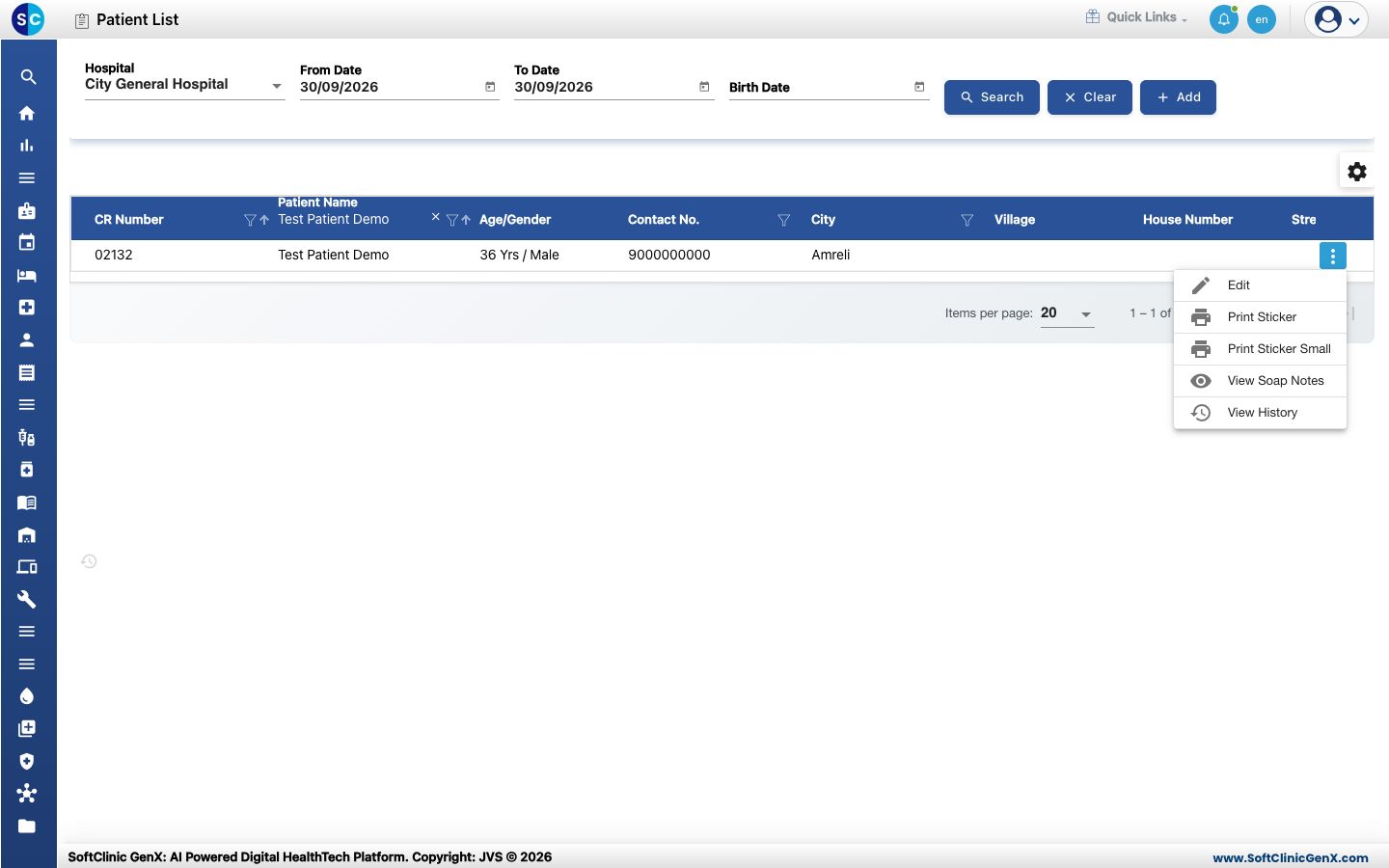
- Click the ⋮ button at the end of the patient's row and choose Edit.
- The patient's record opens on the right, with the same tabs as at registration. Change the fields you need — here an email address is added.
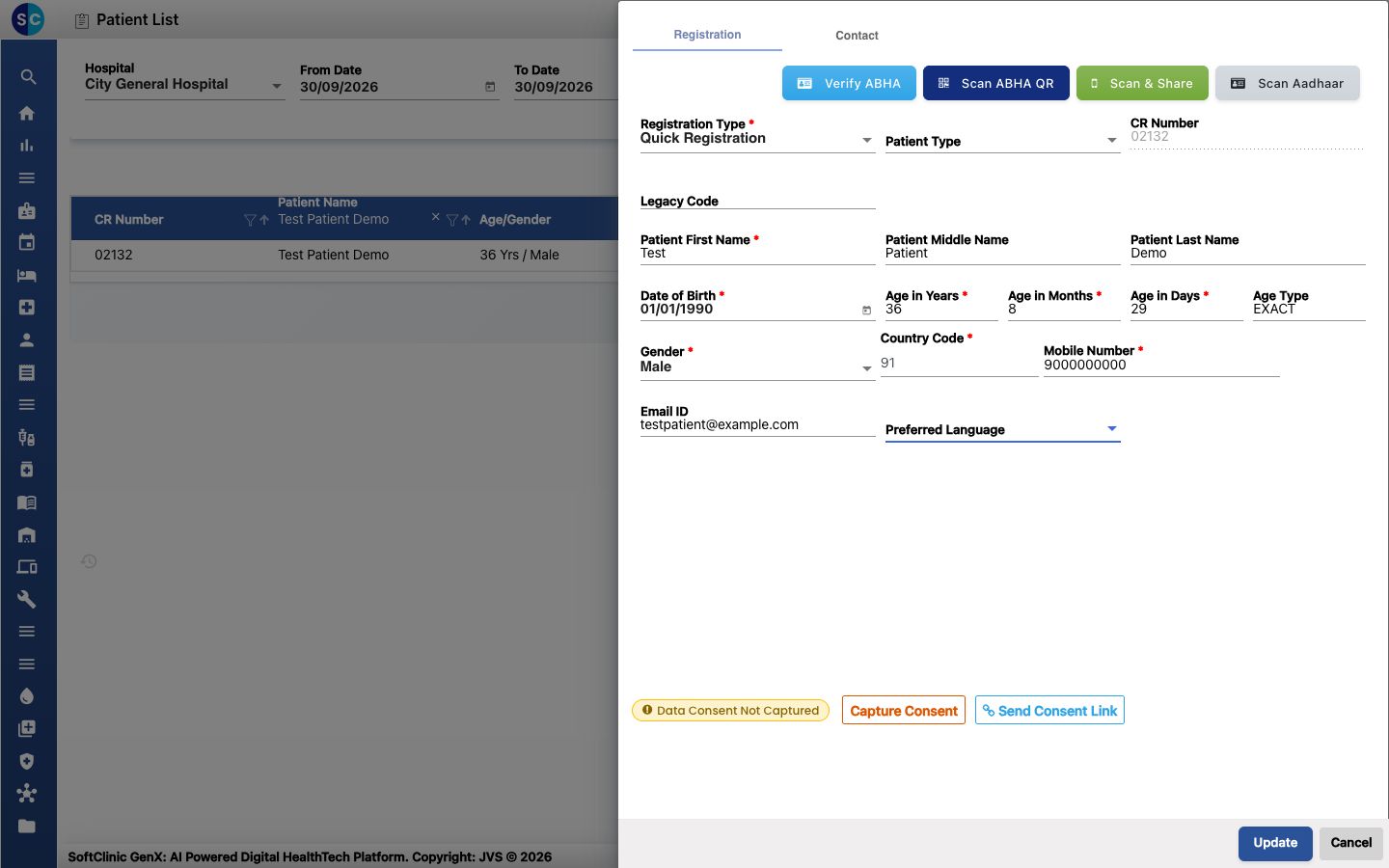
- Click Update. If a warning lists other patients with the same mobile number, check it and click Ok to go on.
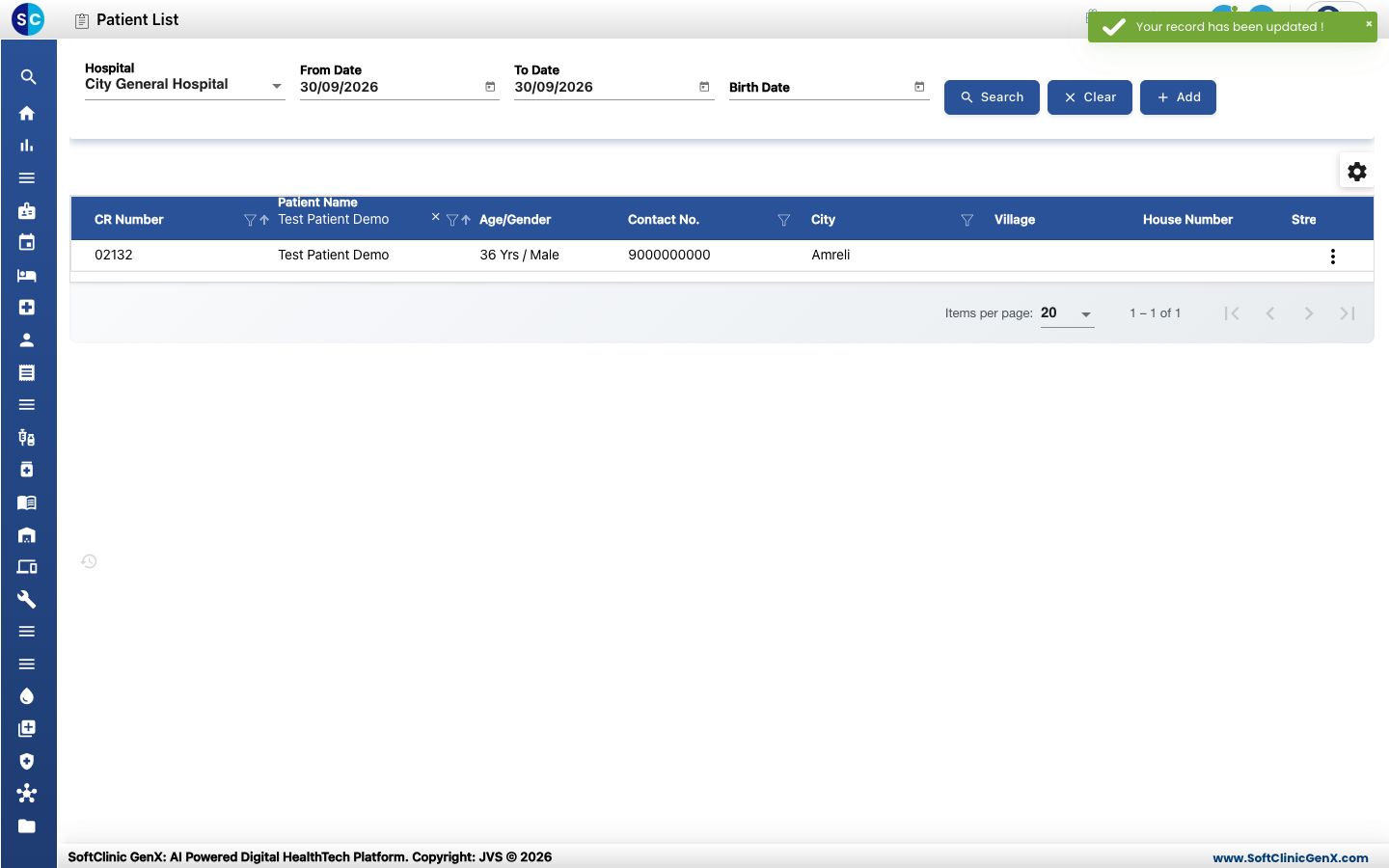
- You see Your record has been updated! and the list shows the new details.
Good to know
- To stop saving, click Cancel — nothing is changed.
- View History in the same row menu shows who changed the record and when.
- A patient registered with Quick Registration shows only the Registration and Contact tabs. Patients registered with another registration type also show ID, referral, photo and insurance tabs.
- The Capture Consent and Send Consent Link buttons at the bottom record the patient's data consent.
If something goes wrong
| What you see | What it means | What to do |
|---|---|---|
| A field is underlined in red | A required field is empty. | Fill it in and click Update again. |
| patient already exists | Another record already has the same name, date of birth, gender and mobile number. | Check whether the patient was registered twice before you change the details. |