Find a patient
Look up a registered patient by name, CR number, mobile number or registration date in Patient List.
Patient List shows every registered patient. Search it before you register someone, so the same person does not get two records.
note
Who can do this: front desk and registration staff
Where: Patients › Views › Patient List
Steps
- Go to Patients › Views › Patient List. The list opens with today's registrations.
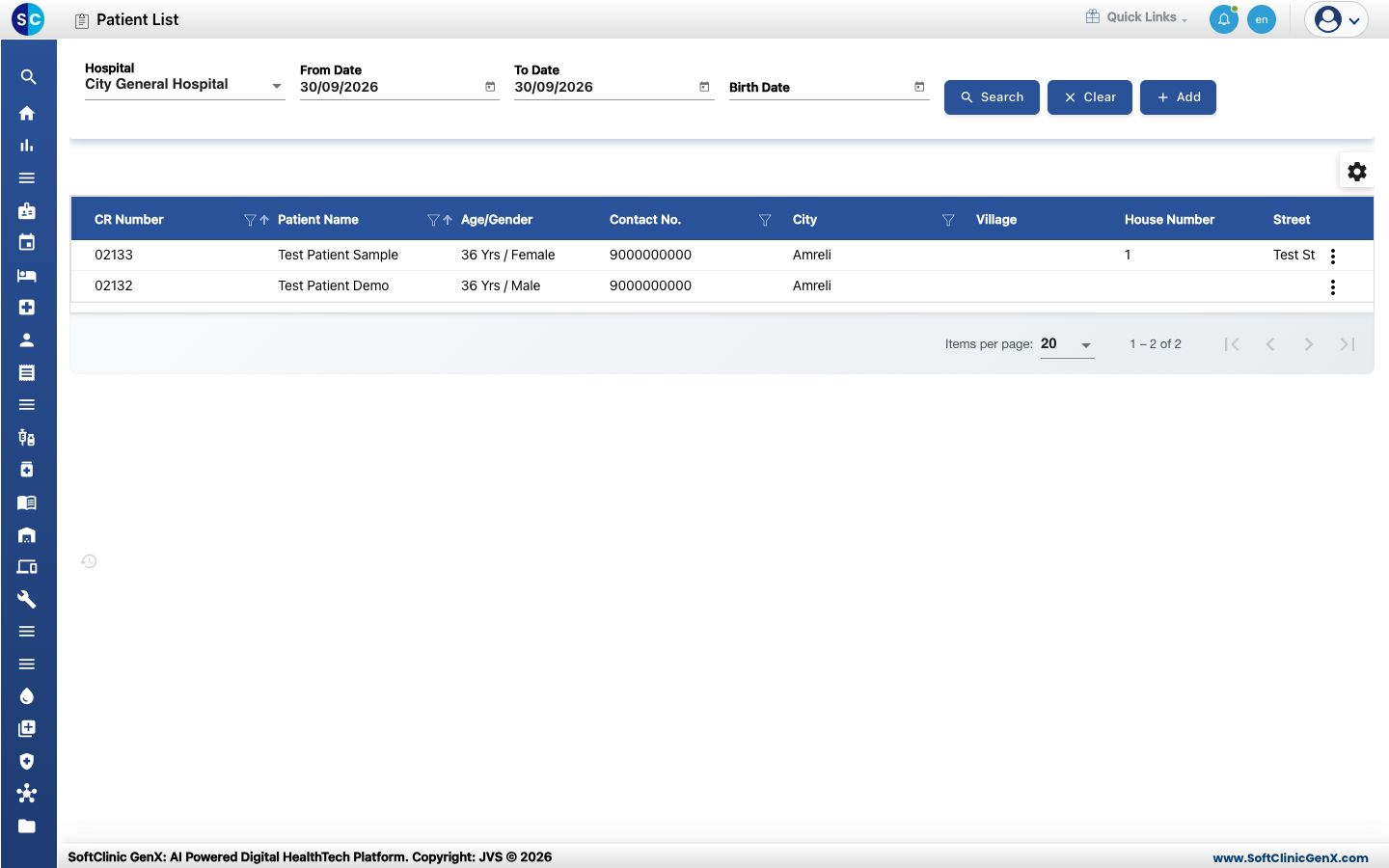
- To look further back, change From Date and To Date and click Search. To find a patient by date of birth, fill in Birth Date and click Search.
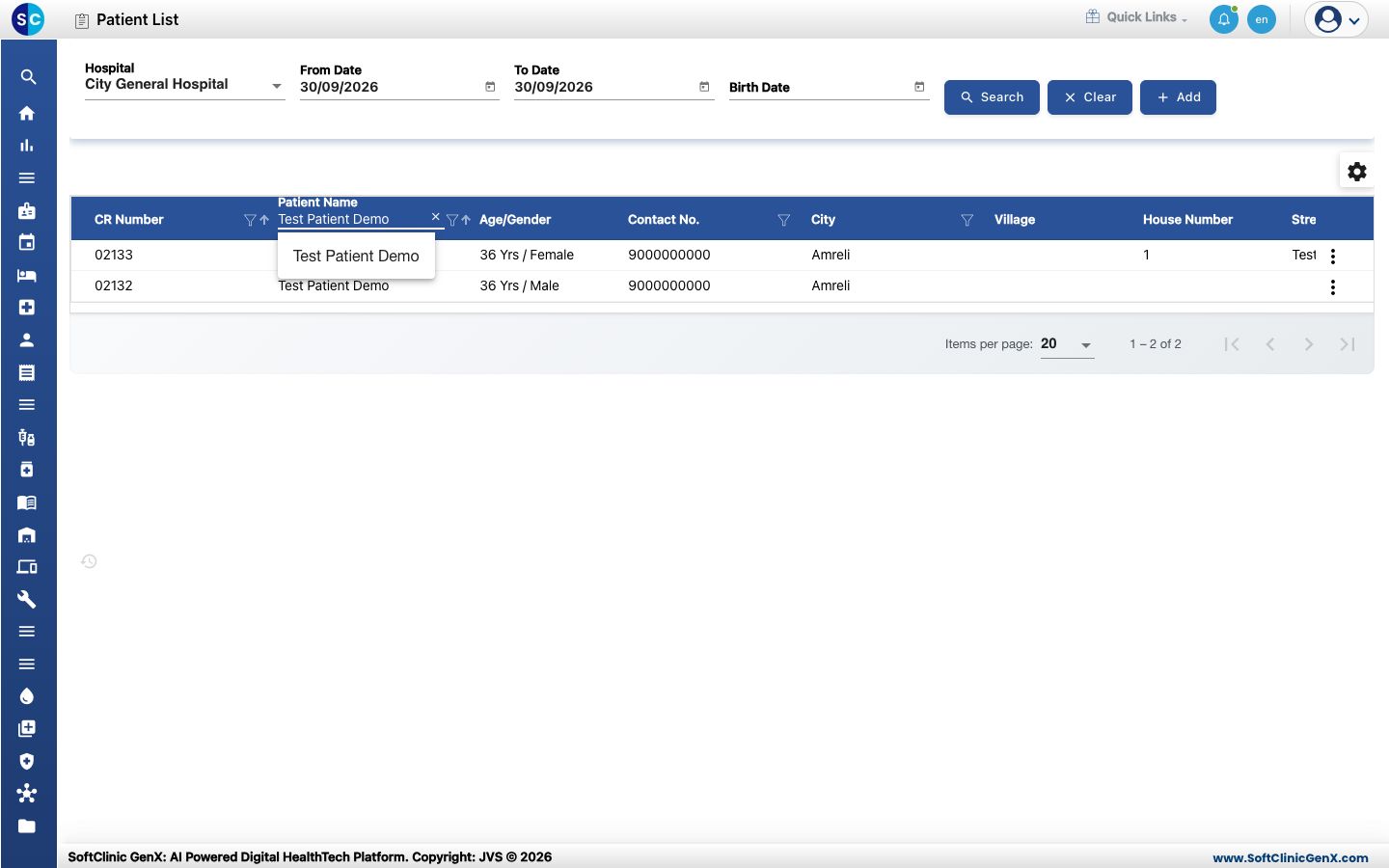
- To search by name, click the Patient Name column heading and start typing. Matching names appear as you type — click the one you want.
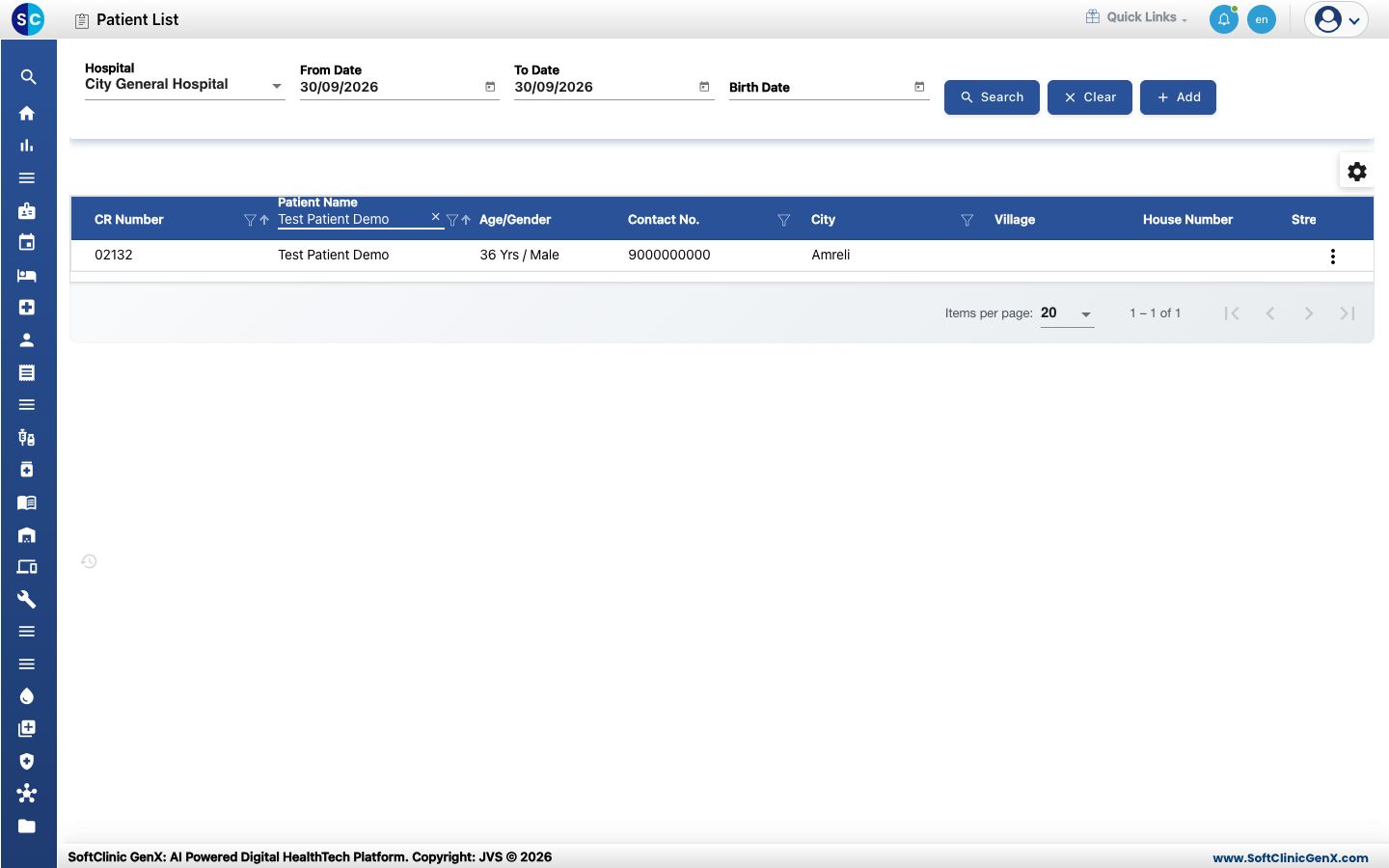
- The list now shows only that patient.
- Search the same way in the CR Number or Contact No. heading to find a patient by CR number or mobile number.
- To clear the search, click the × in the column heading, or click Clear.
Good to know
- Use the ⋮ button at the end of a row to edit the patient or print a sticker.
- Use the gear button above the list to choose which columns show.
- If you work in more than one hospital, pick it in Hospital first.
If something goes wrong
| What you see | What it means | What to do |
|---|---|---|
| The list is empty | No one was registered in the date range shown. | Widen From Date and To Date and click Search. |
| The patient's name is not suggested | The name is spelled differently, or the patient belongs to another hospital. | Try part of the name, the mobile number or the CR number, or change Hospital. |