Accept a stock transfer
Accept a transfer sent to your store so that the stock is added to your store.
When another store sends you stock, the transfer waits for your store to accept it. Accepting it confirms that the goods arrived and adds them to your store's stock.
note
Who can do this: staff of the receiving store · Where: Inventory Management › Dispense › Stock Transfer
Before you start
- The sending store has saved the transfer. See Transfer stock to another store.
- Count the goods that arrived against the transfer.
Accept the transfer
- Open Inventory Management › Dispense › Stock Transfer.
- Choose your store in Destination Store and click Search. The list shows the transfers sent to your store, newest first.
- To check what was sent, open the ⋮ menu on the transfer and click View Only Stock Transfer Items.
- Open the ⋮ menu on the transfer and click Accept Transfer.
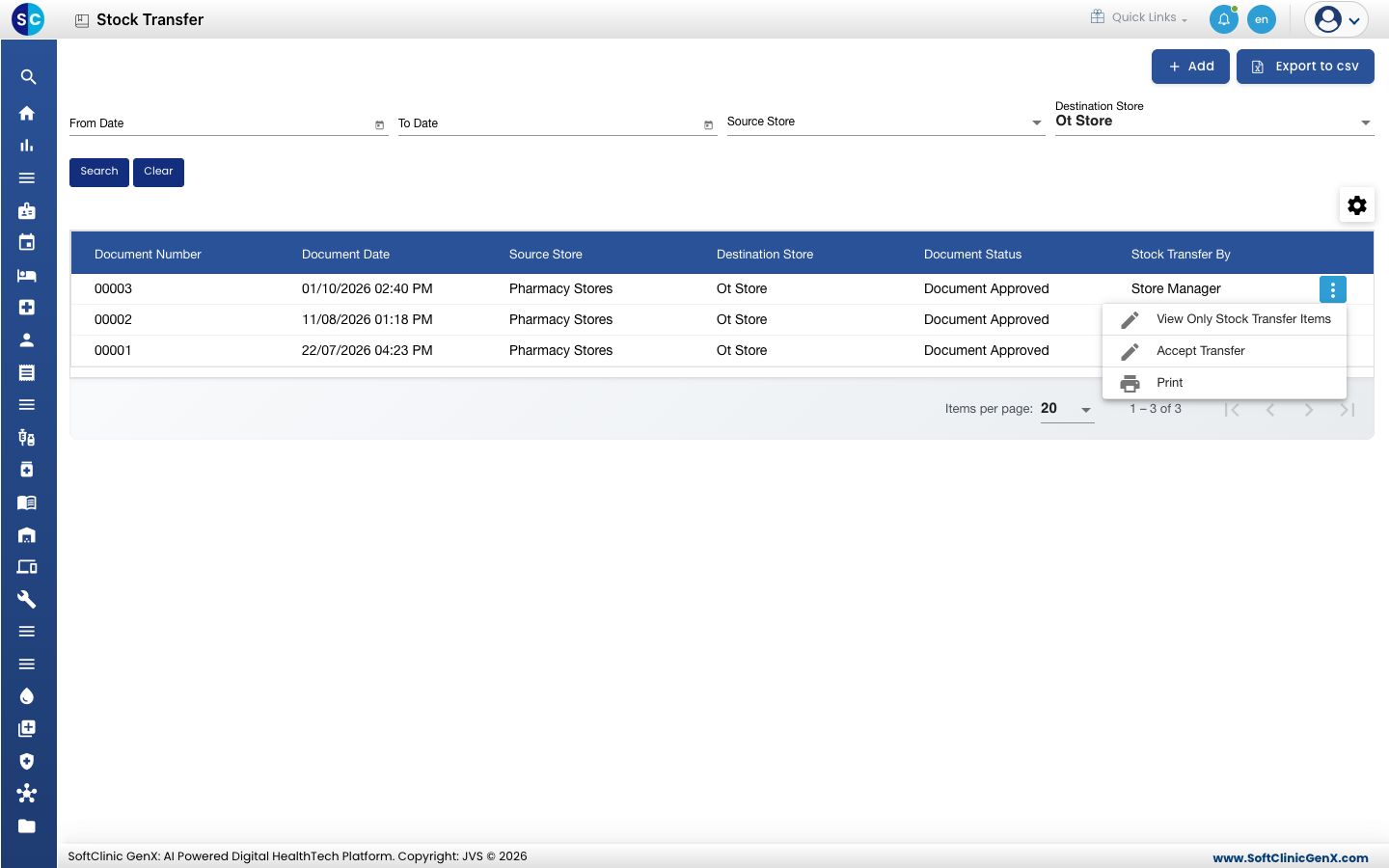
- You see Record saved successfully. The stock is now in your store.
Accept Transfer is available only for a transfer that has not been accepted yet.
Check that the stock arrived
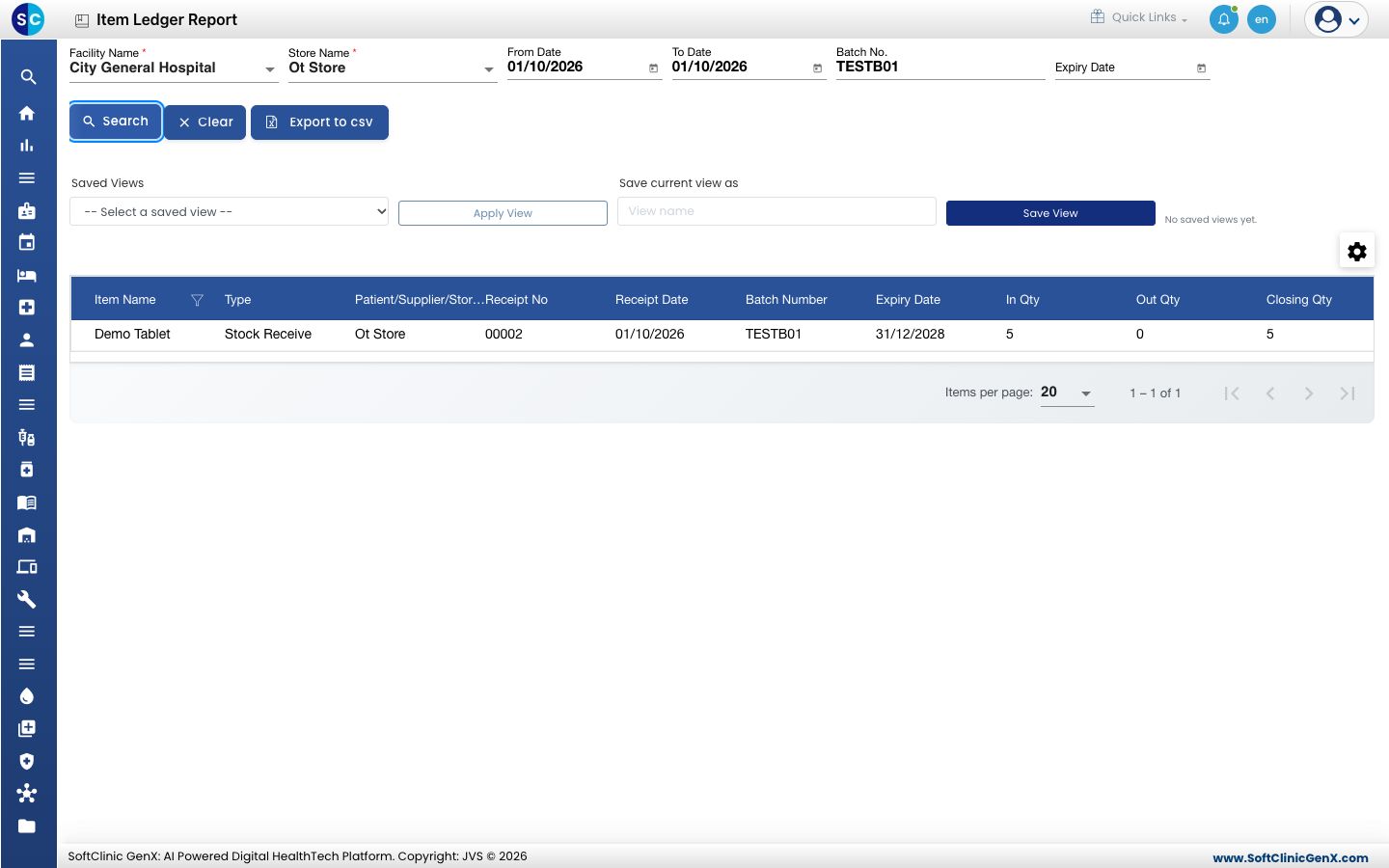
- Open Inventory Management › Stock Report › Item Ledger Report.
- Choose your store in Store Name, set the dates and, optionally, the Batch No.
- Click Search. The accepted transfer shows as a Stock Receive line with the quantity in In Qty.
Print a transfer
Open the ⋮ menu on the transfer and click Print.
Troubleshooting
| What you see | What it means | What to do |
|---|---|---|
| The transfer is not on the list | The list is filtered on another store or dates. | Check Destination Store, From Date and To Date, then click Search. |
| Accept Transfer is greyed out | The transfer was already accepted. | Check the stock in the Item Ledger Report. |
| The quantity that arrived differs from the transfer | The goods were short or damaged. | Contact the sending store before you accept. |
Related
- Transfer stock to another store: how the sending store raises the transfer.
- Check current stock and the item ledger: see stock in each store.
- Inventory Management FAQs: common questions.