Transfer stock to another store
Send items from one store to another, batch by batch, through a transit store.
A stock transfer moves items from one store to another, for example from the main pharmacy store to the OT store. You choose the batch and quantity of each item. The receiving store then accepts the transfer to take the stock in.
note
Who can do this: staff of the sending store · Where: Inventory Management › Dispense › Stock Transfer
Before you start
- Both stores and a transit store exist. See Set up Store Master.
- The sending store holds stock of the items. See Check current stock and the item ledger.
Fill in the stores
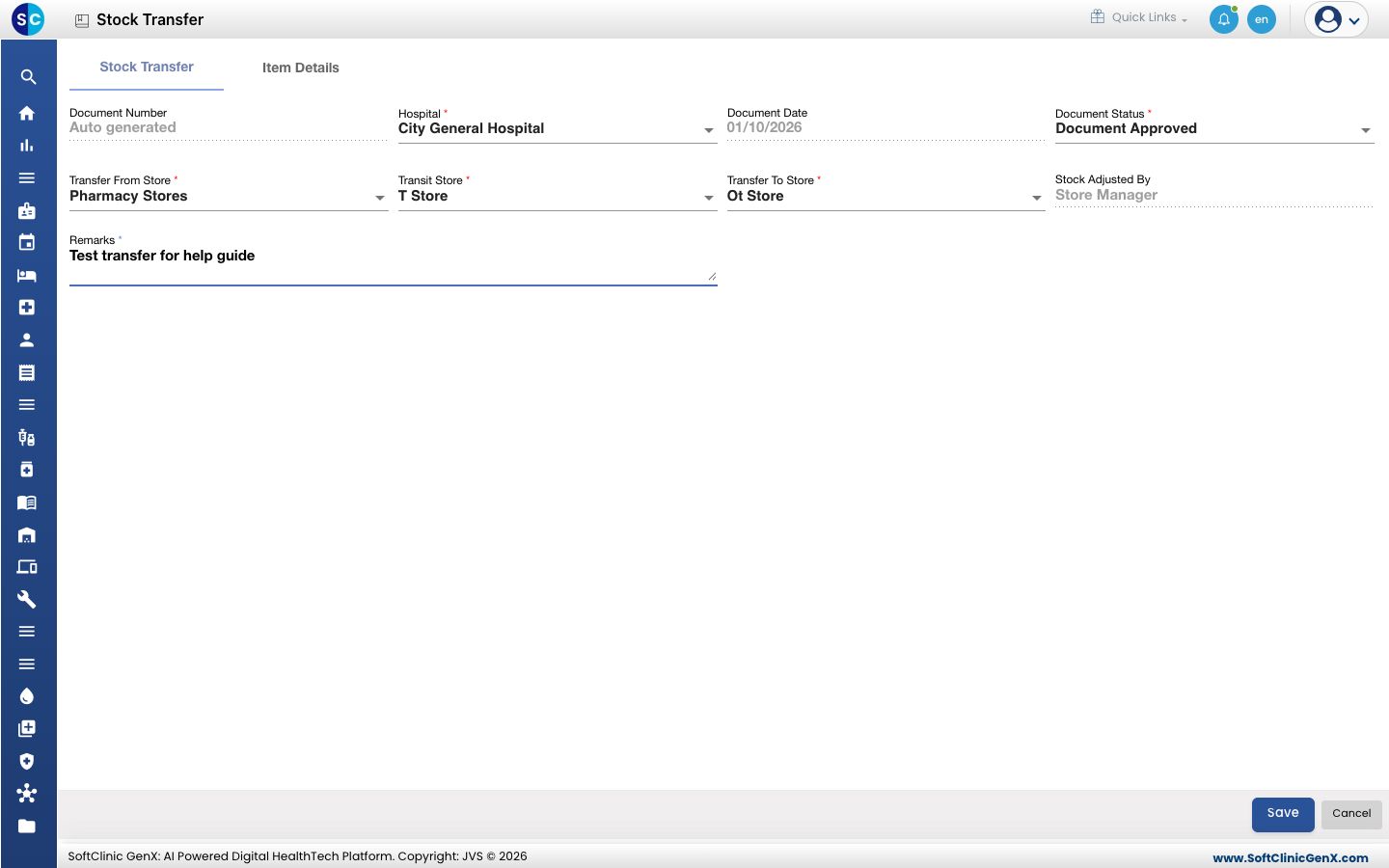
- Open Inventory Management › Dispense › Stock Transfer and click Add. The transfer opens on the Stock Transfer tab.
- Choose Transfer From Store: the store that sends the stock.
- Choose Transit Store: the store that holds the stock while it is on the way.
- Choose Transfer To Store: the store that receives it.
- Enter Remarks, for example why the stock is moved. Remarks is required. Stock Adjusted By shows your name.
Add the items
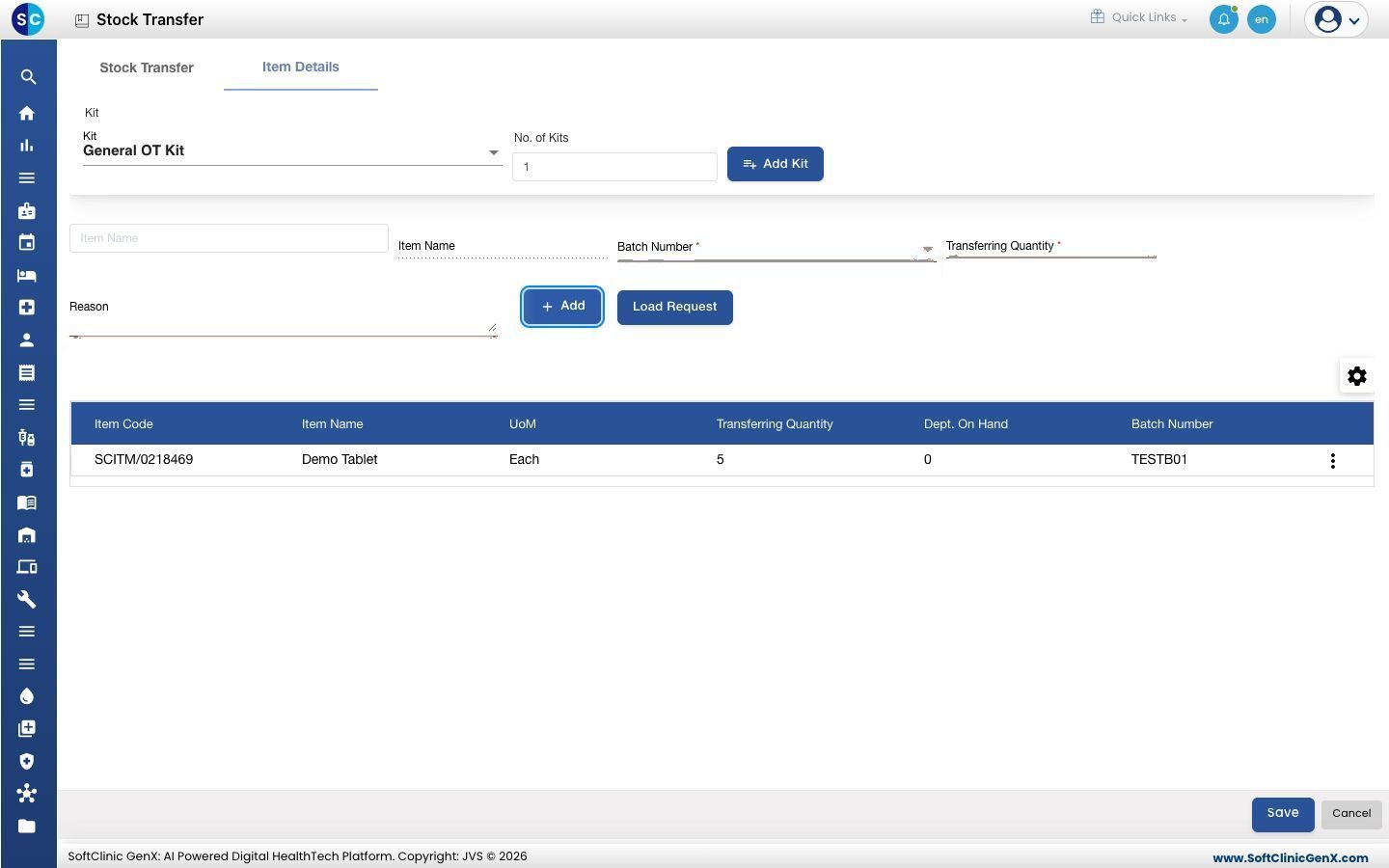
- Open the Item Details tab.
- Type the item in the Item Name box and pick it.
- Choose the Batch Number. The list shows the batches the sending store holds.
- Enter Transferring Quantity and, optionally, a Reason.
- Click Add. The line appears in the grid with its item code, UoM, quantity, batch, expiry, rate and MRP.
- Repeat for each item and batch.
- Click Save. You return to the Stock Transfer list and the transfer appears with a new Document Number.
tip
To send a ready-made set of items, choose a Kit, enter No. of Kits and click Add Kit. To send what another store asked for, click Load Request.
Troubleshooting
| What you see | What it means | What to do |
|---|---|---|
| Please add your items | You clicked Save before adding any line. | Add at least one item with Add, then save. |
| The batch is not in the Batch Number list | The sending store holds no stock of that batch. | Check the store's stock, or pick another batch. |
| The receiving store does not have the stock yet | The transfer has not been accepted. | Ask the receiving store to accept it. |
Related
- Accept a stock transfer: the receiving store's step.
- Check current stock and the item ledger: see stock in each store.
- Inventory Management FAQs: common questions.