Create and print a purchase order
Raise a purchase order to a supplier, send it for approval, approve it and print it.
A purchase order (PO) tells a supplier which items to deliver to which store, in what quantity and at what rate. An approved PO is what you receive goods against in a goods receipt note.
Who can do this: store or purchase staff; an approver approves · Where: Inventory Management › Procurement › Purchase Order Direct
Before you start
- The supplier exists. See Set up Supplier.
- The items exist and have a tax. See Set up Item and Set up Inventory Tax Configuration.
- The store exists. See Set up Store Master.
Create the purchase order
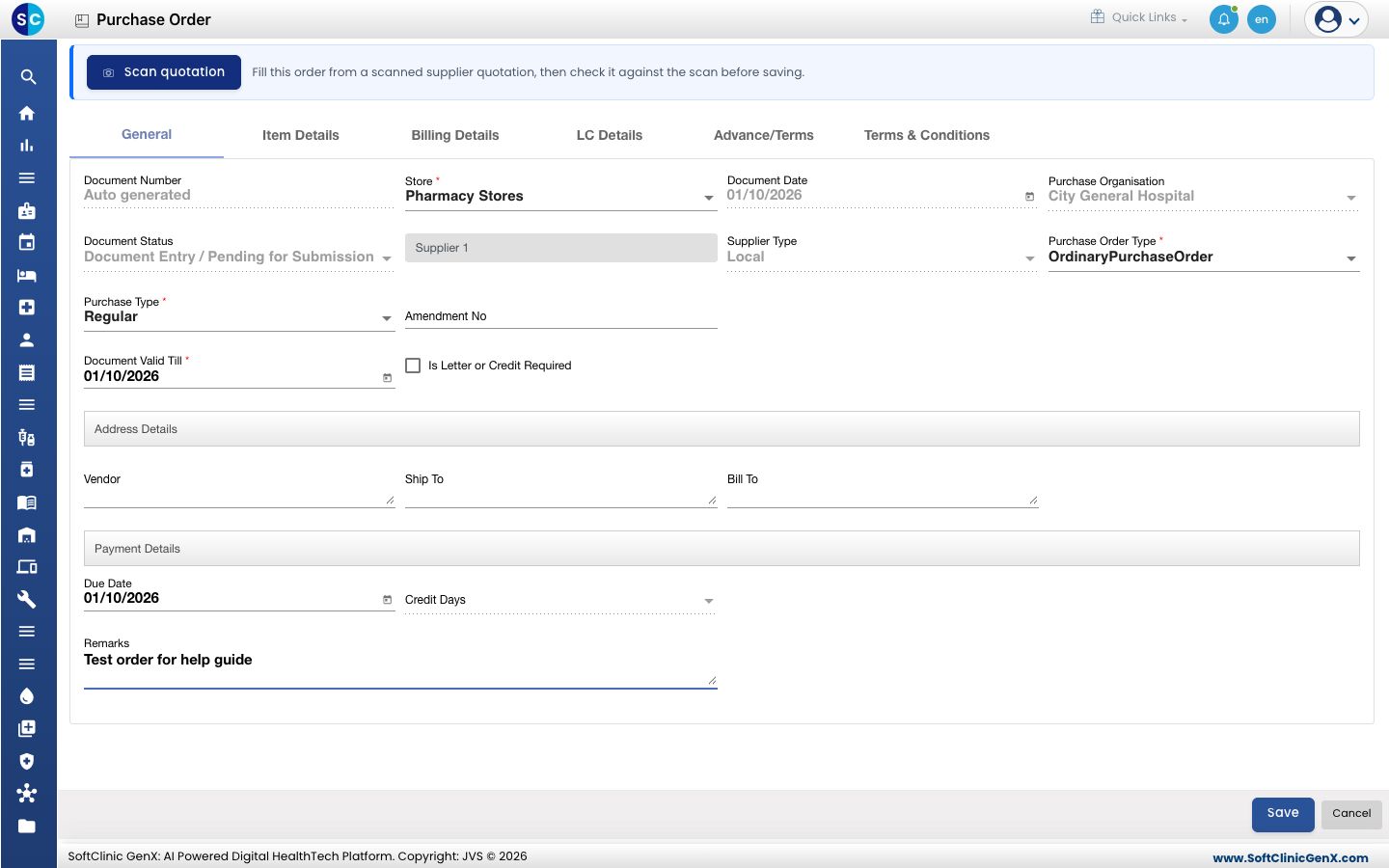
- Open Inventory Management › Procurement › Purchase Order Direct and click Add. The order opens on the General tab.
- Check Store. It is the store the goods are delivered to.
- Type the supplier name in the Vendor/Supplier box and pick it from the list. Supplier Type fills in from the supplier.
- Check Purchase Order Type, Purchase Type and Document Valid Till. All three are required. Document Valid Till starts as today's date.
- Optionally fill Address Details, Payment Details (Due Date, Credit Days) and Remarks.
- Open the Item Details tab and click Add. The Item Details panel opens.
- Type the item in Item Name and pick it. Enter Purchase Request Qty and Purchase Rate. Tax, Tax Amount and Net Amount fill in from the item.
- Optionally enter a discount in Discount One or Discount Two, then click Add. The item appears in the grid with its amount, tax and total, and a totals row below.
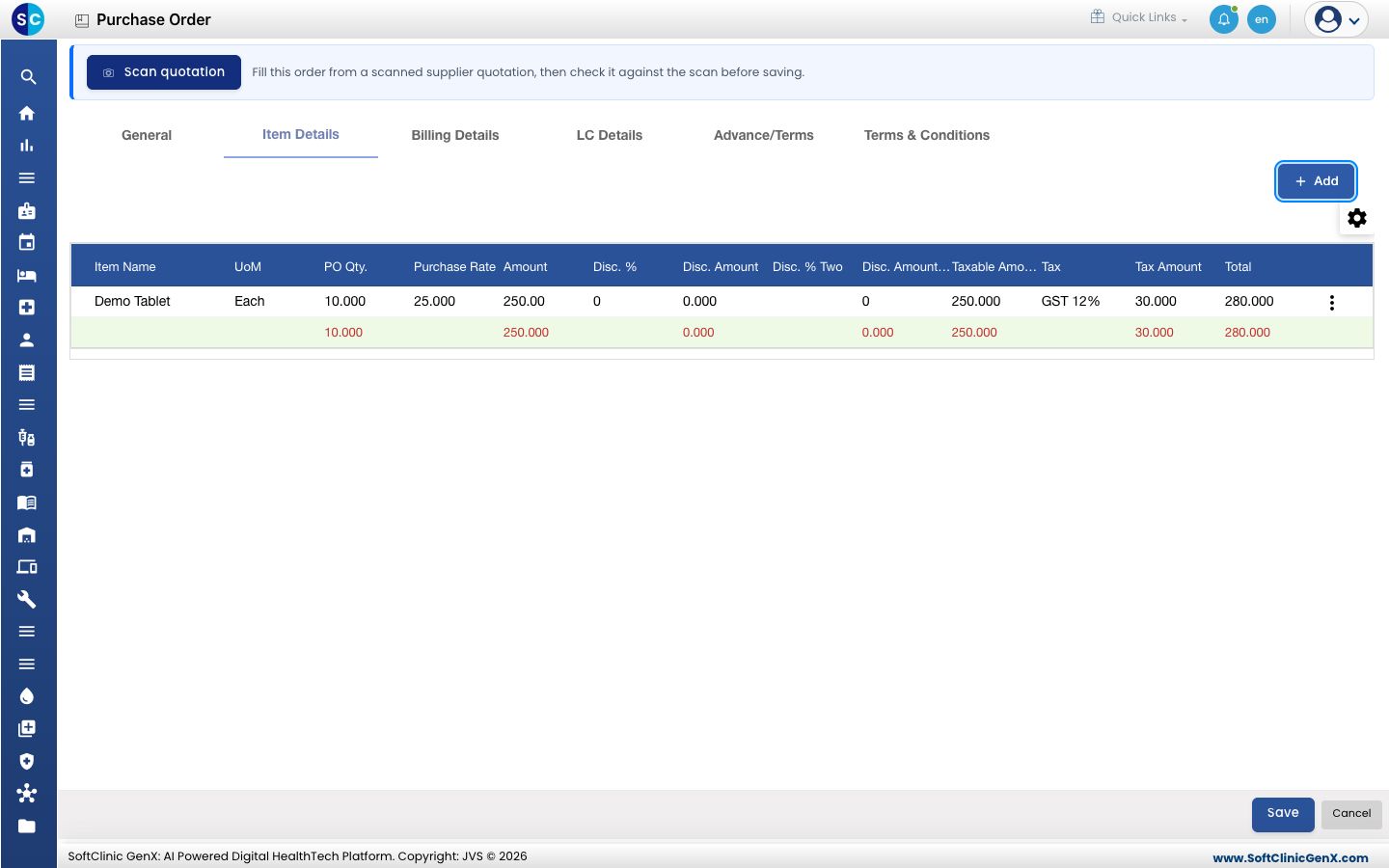
- Repeat for each item, then click Save. The order appears in the list with a Document Number and the status Document Entry / Pending for Submission.
Send it for approval and approve it
- In the list, open the ⋮ menu on the order and click Submit for Approval. You see Status updated successfully and the status becomes Document Submitted / Pending For Approval.
- The approver opens the ⋮ menu on the order and clicks Approve. The order opens read-only.
- The approver checks it and clicks Approve. The status becomes Document Approved.
Only an approved order can be received in a goods receipt note.
Print the purchase order
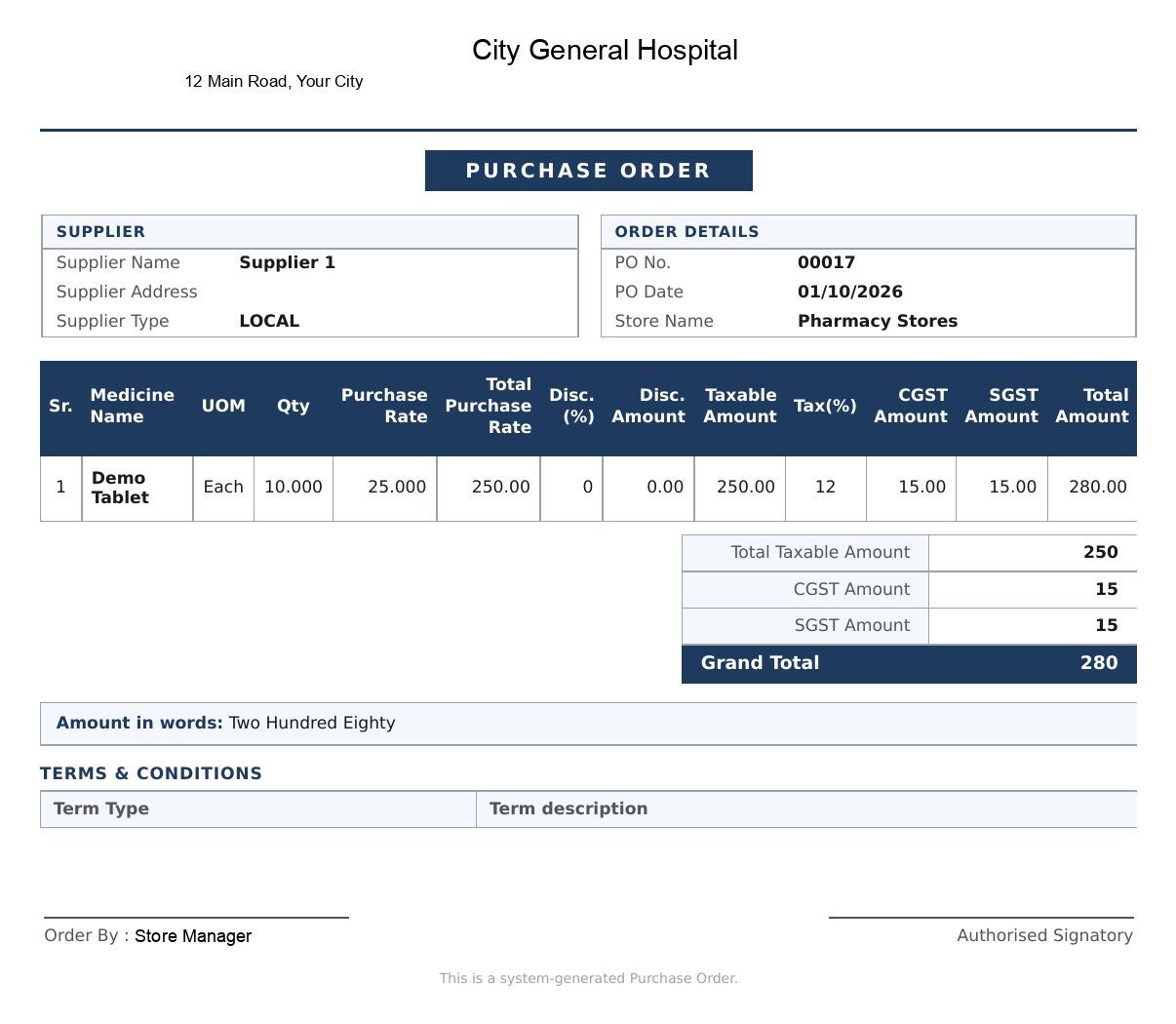
Open the ⋮ menu on the order and click Print. The printed order shows the supplier, PO number and date, store, each item with rate, discount and tax, the tax split, the grand total and the amount in words.
Other actions on an order
The ⋮ menu also offers View, Edit, Audit Trail, Cancel, Reject and Amend Purchase Order. Each is available only when the order's status allows it.
Troubleshooting
| What you see | What it means | What to do |
|---|---|---|
| Add on Item Details does not open the item panel | No supplier is chosen yet. | Pick the supplier on the General tab first. |
| The order is not on the list | The list shows one store, one status and a date range. | Set Store, Document Status, From Date and To Date, then click Search. |
| The order is not offered for goods receipt | It is not approved yet. | Submit it for approval and approve it. |
Related
- Receive goods against a purchase order: the next step when the goods arrive.
- Set up Supplier: add a supplier the order can go to.
- Inventory Management FAQs: common questions.