Check current stock and the item ledger
See how much of each item and batch a store holds, and every movement in and out of the store.
Two reports answer most stock questions. Current Stock Details Report shows what a store holds now, batch by batch. Item Ledger Report shows every movement of an item in and out of a store: receipts from suppliers, transfers and their acceptance.
note
Who can do this: store staff and managers · Where: Inventory Management › Stock Report
See current stock
- Open Inventory Management › Stock Report › Current Stock Details Report.
- Check Hospital and choose the Store, then click Search.
- To find one item, type its name in the Item column heading and pick it from the list.
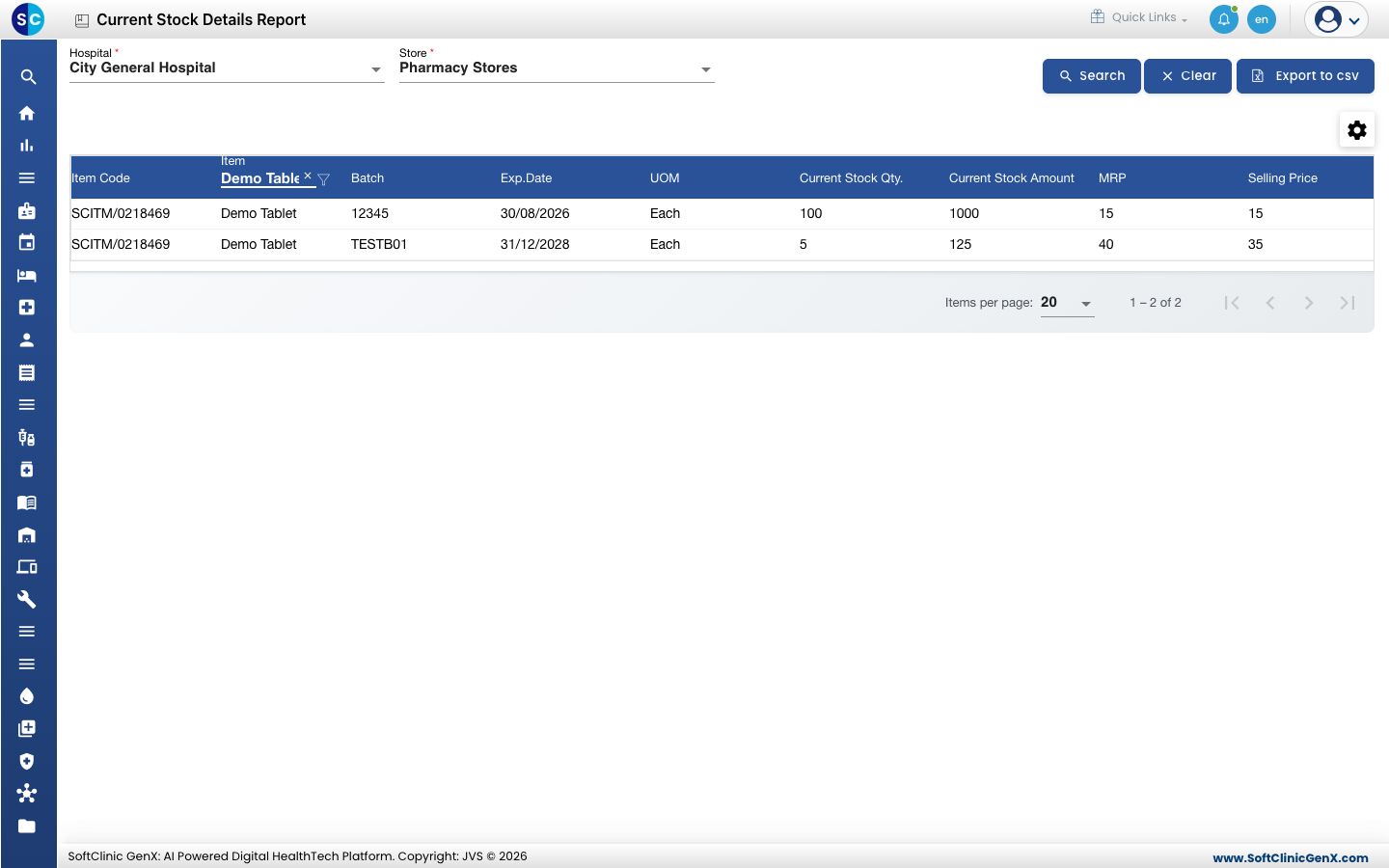
Each line is one batch, with its Exp.Date, Current Stock Qty., Current Stock Amount, MRP and Selling Price.
For one line per item instead of per batch, use Current Stock Summary Report in the same menu.
tip
Use the gear icon above the grid to choose which columns show. Export to csv downloads the list.
Trace an item's movements
- Open Inventory Management › Stock Report › Item Ledger Report.
- Check Facility Name and choose the Store Name.
- Set From Date and To Date. To follow one batch, enter its Batch No.
- Click Search. Each line is one movement.
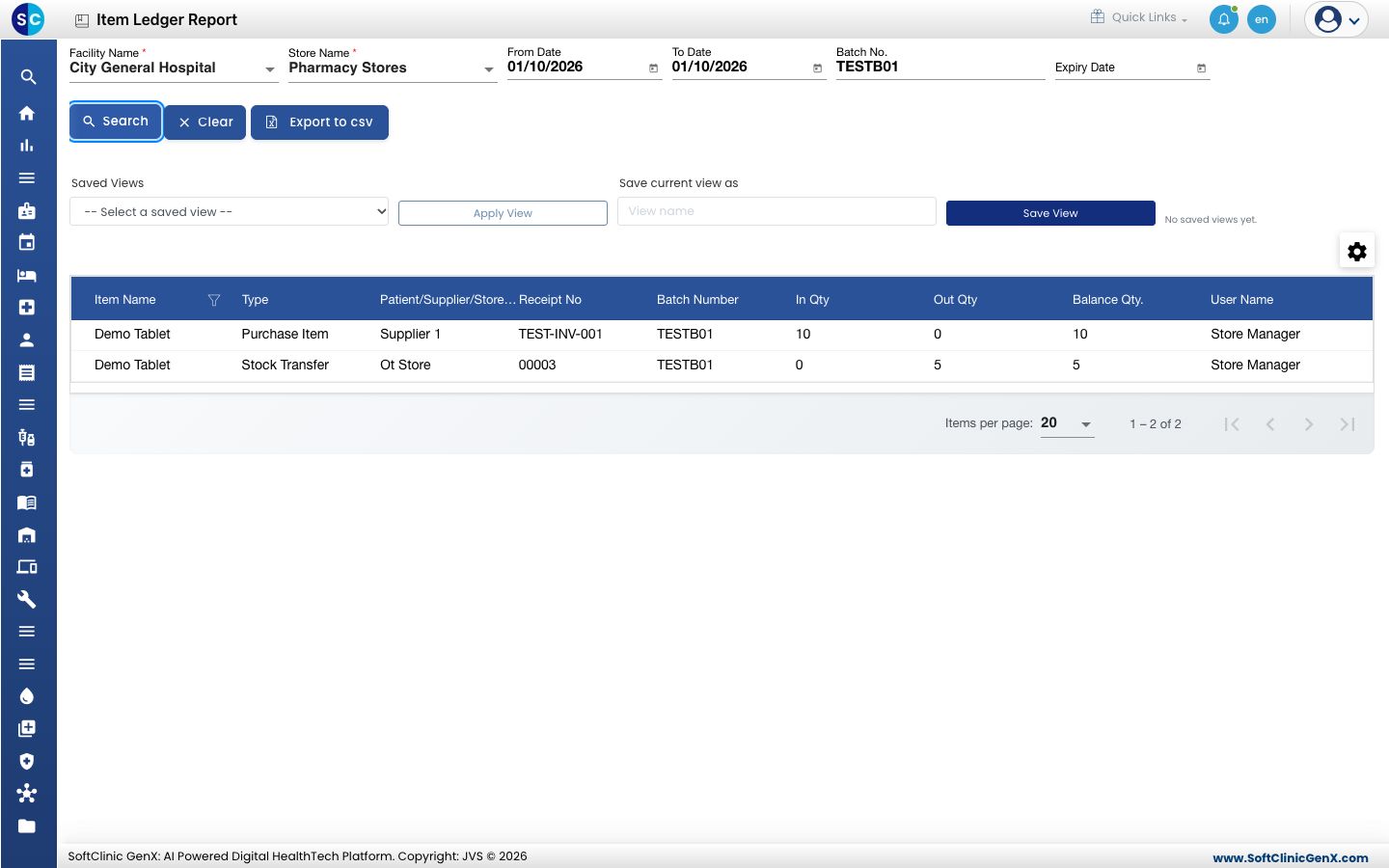
- Type: what caused the movement, for example Purchase Item (a goods receipt), Stock Transfer (sent to another store) or Stock Receive (an accepted transfer).
- Patient/Supplier/Store/Employee: who the stock came from or went to.
- Receipt No: the supplier invoice number or the transfer number.
- In Qty and Out Qty: the quantity added or removed.
- Balance Qty.: the stock left after the movement.
Troubleshooting
| What you see | What it means | What to do |
|---|---|---|
| An item is missing from current stock | The store holds none of it, or another store is chosen. | Check the Store, then the item's movements in the Item Ledger Report. |
| The item ledger is empty | No movement falls in the dates or batch you chose. | Widen From Date and To Date, or clear Batch No. |
| A transfer is not in the receiving store's ledger | The receiving store has not accepted it. | Accept the transfer first. |
Related
- Receive goods against a purchase order: how stock comes in from a supplier.
- Transfer stock to another store: how stock moves between stores.
- Inventory Management FAQs: common questions.