Set up Unit of Measurement
Who does this: hospital administrator or store manager Where: Inventory Management › Masters › Unit of Measurement
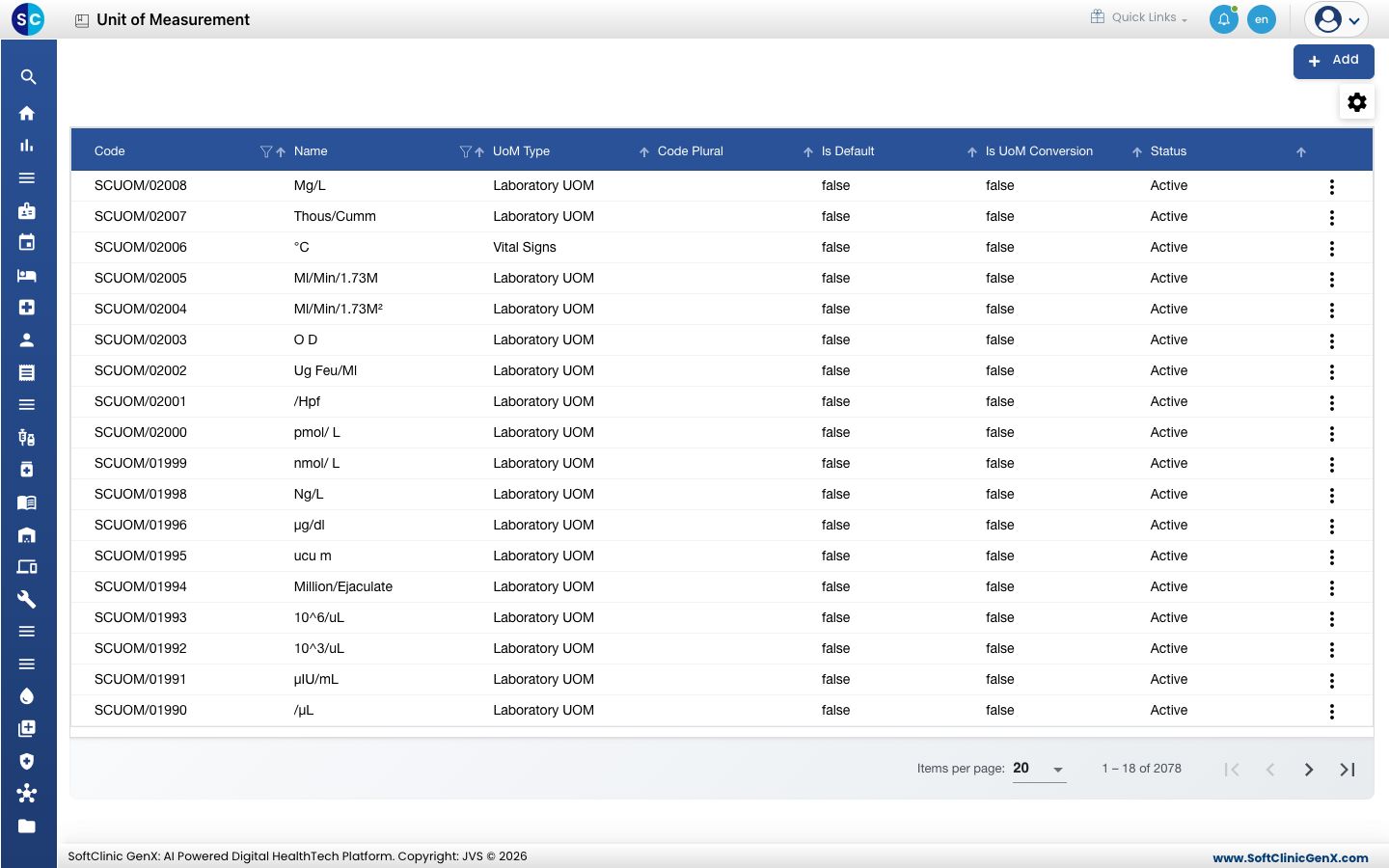
A unit of measurement (UoM) is the unit in which an item is counted, for example Nos, Box, Strip or Bottle. The same list also holds laboratory and vital-sign units, so each unit has a UoM Type. Units of type Inventory UOM are the ones you pick later for item categories, items and store dimensions.
Add a unit
-
Go to Inventory Management › Masters › Unit of Measurement.
-
Click Add. The unit form opens.
-
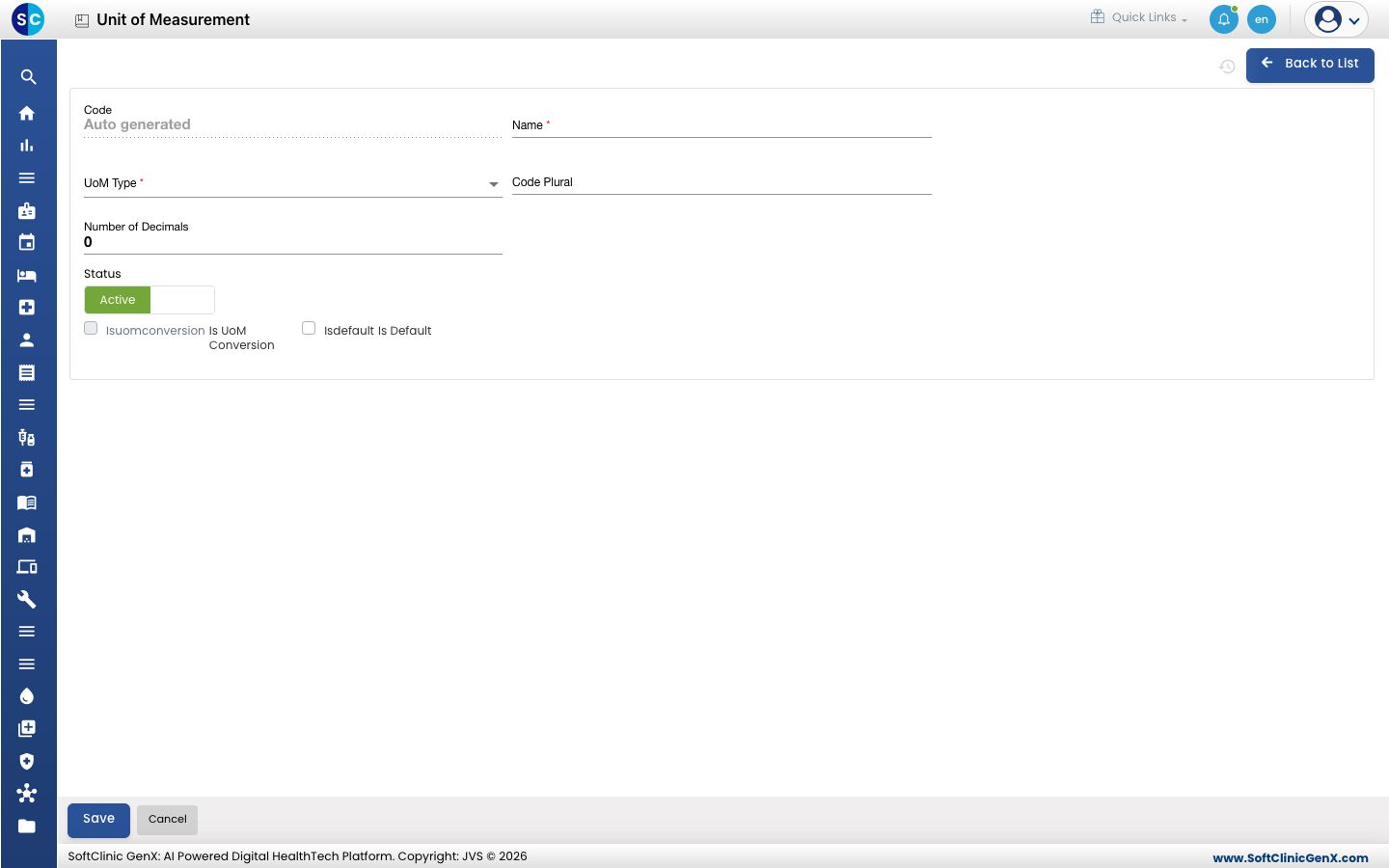
Fill in the fields:
Field What to enter Required Code Filled in automatically when you save. — Name The unit as staff will see it, for example Box. Yes UoM Type For stock items choose Inventory UOM. Yes Code Plural The plural form, for example Boxes. No Number of Decimals How many decimal places a quantity in this unit may have, from 0 to 10. Use 0 for whole units such as tablets or boxes. No Status Leave on Active. — Is Default Tick to make this the default unit of its type. Only one unit of each type can be the default. No 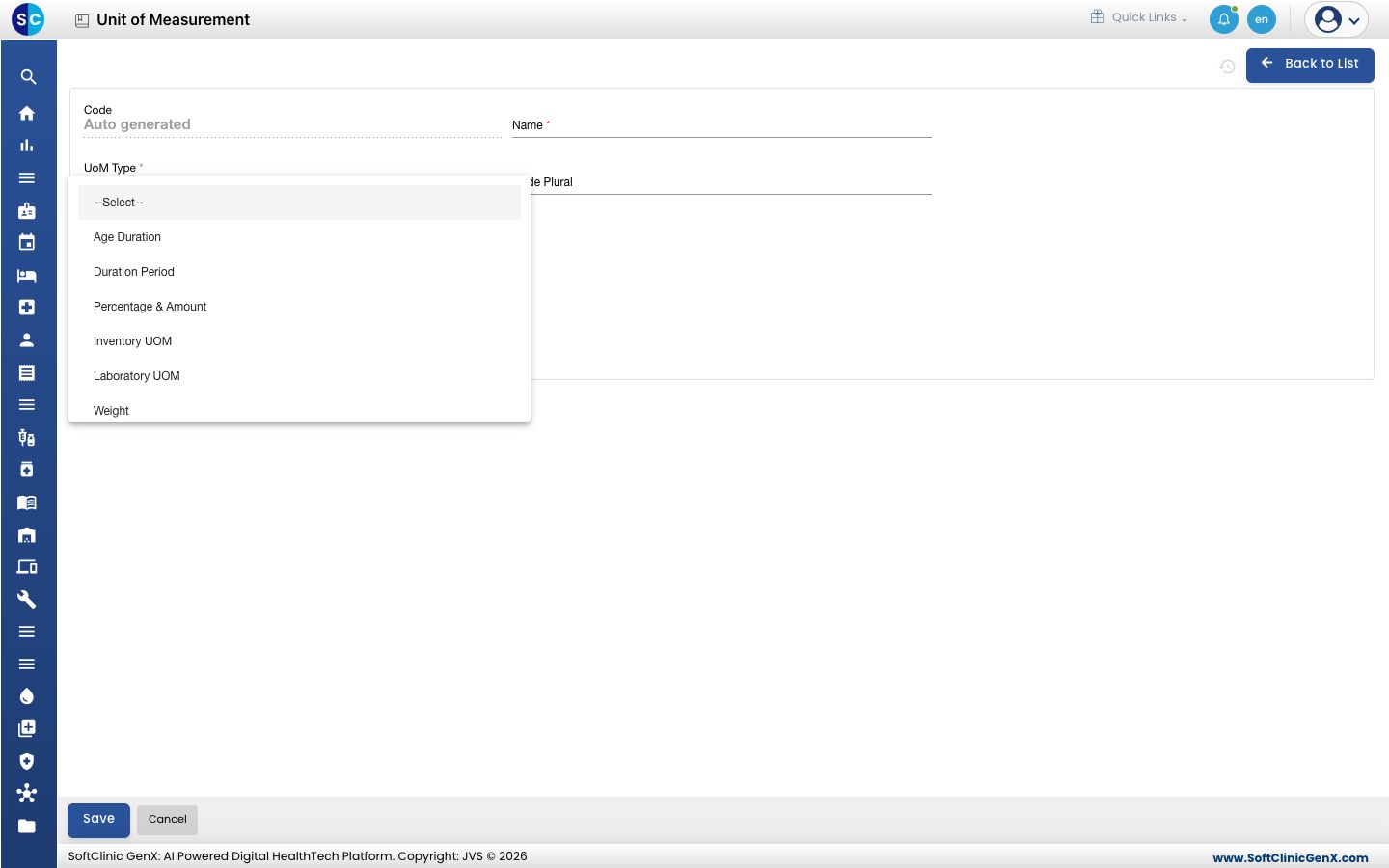
-
Click Save. You return to the list and the new unit appears in it.
Add a conversion between units
A conversion tells the system how many of one unit make up another, for example 1 Box = 10 Strips.
- Save the unit first. Conversions can only be added when you edit a saved unit.
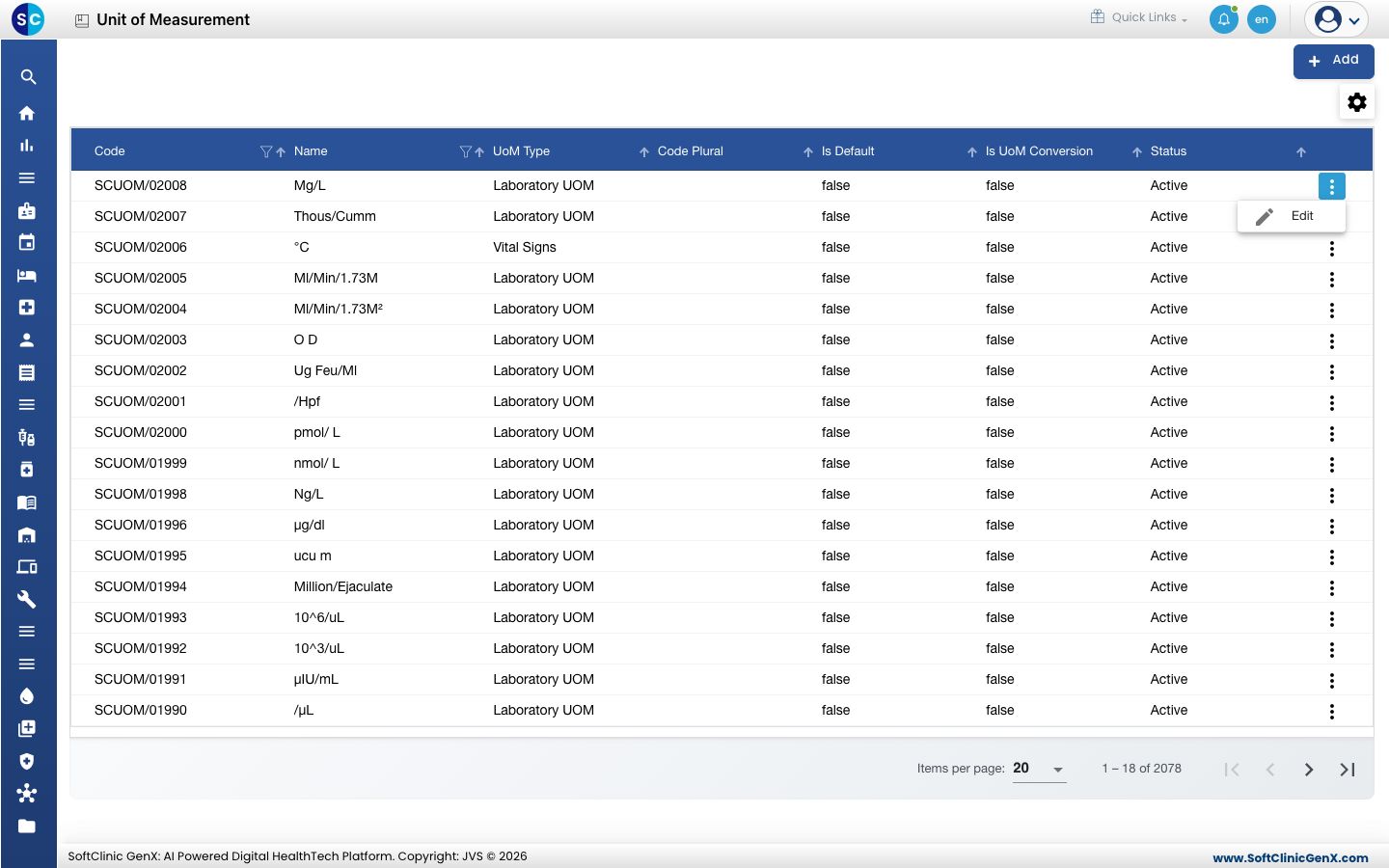
- In the list, click ⋮ at the end of the unit's row and choose Edit.
- Tick Is UoM Conversion. The conversion fields appear.
- Choose the From Unit and To Unit (units of the same type), enter the Conversion Formula, and the From Unit Value and To Unit Value.
- Click Save.
Change or deactivate a unit
- In the list, click ⋮ at the end of the row and choose Edit.
- Change the fields you need. To stop using the unit, switch Status to Inactive.
- Click Save.
Units cannot be deleted from this screen. Make a unit Inactive instead.
Good to know
- If Is Default is greyed out, another unit of the same type is already the default. Edit that unit first.
- Use the filter icons in the Code and Name column headers to find a unit quickly.
- Click Back to List or Cancel to leave the form without saving.
Related
- Next: Set up Storage Condition
- Set up Item Category — uses these units as its base, track, sales and purchase units.
- Inventory Management FAQs