Receive goods against a purchase order
Record a goods receipt note (GRN) for an approved purchase order, with the supplier invoice, batch and expiry of each item.
A goods receipt note (GRN) records what arrived from the supplier against an approved purchase order. When you save it, the quantities go into the store's stock under the batch and expiry you entered.
note
Who can do this: store staff · Where: Inventory Management › Procurement › Goods Receipt Note
Before you start
- The purchase order is approved. See Create and print a purchase order.
- Keep the supplier's invoice to hand: you need its number, date, and each item's batch, expiry and MRP.
Start the GRN from the purchase order
- Open Inventory Management › Procurement › Goods Receipt Note. The Purchase Orders List tab lists approved orders for the chosen Store.
- Find the order. Change From Date and To Date and click Search if it is older than today.
- Open the ⋮ menu on the order and click Initiate Goods Receipt Note(GRN). The GRN opens on the General tab, with the store and the order's items filled in.
Enter the invoice details
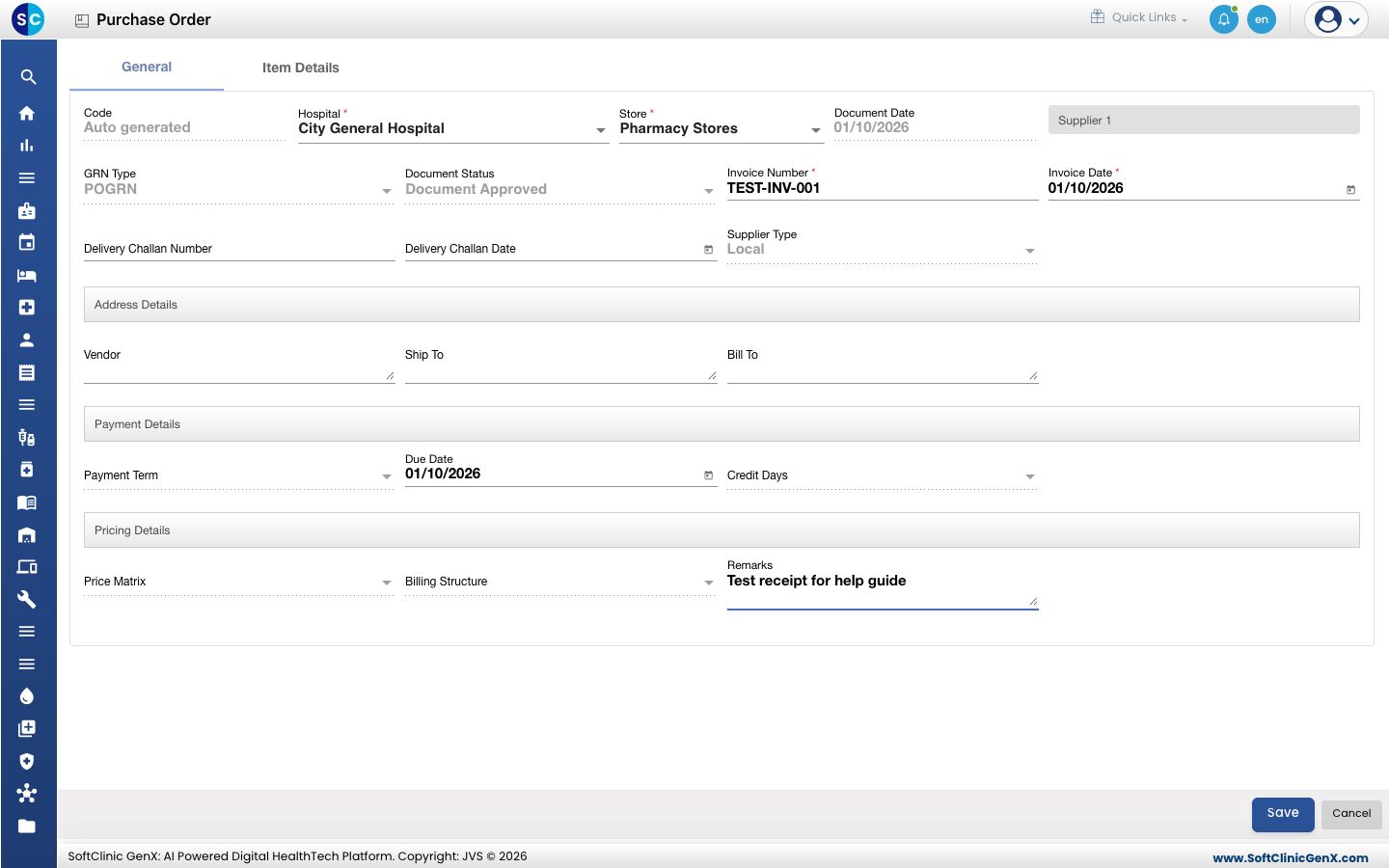
- Check the supplier in the Vendor/Supplier box. If it is empty, type the supplier name and pick it.
- Enter Invoice Number and Invoice Date from the supplier's invoice. Both are required.
- Optionally enter Delivery Challan Number and Delivery Challan Date, payment details and Remarks.
Enter batch, expiry and quantity
- Open the Item Details tab. Each line shows the PO Quantity, what is Already Received and what is Pending.
- For each line, enter Batch Number and Expiry Date as printed on the pack.
- Enter MRP and Selling Price.
- Check Quantity. It starts at the pending quantity. Change it if fewer units arrived.
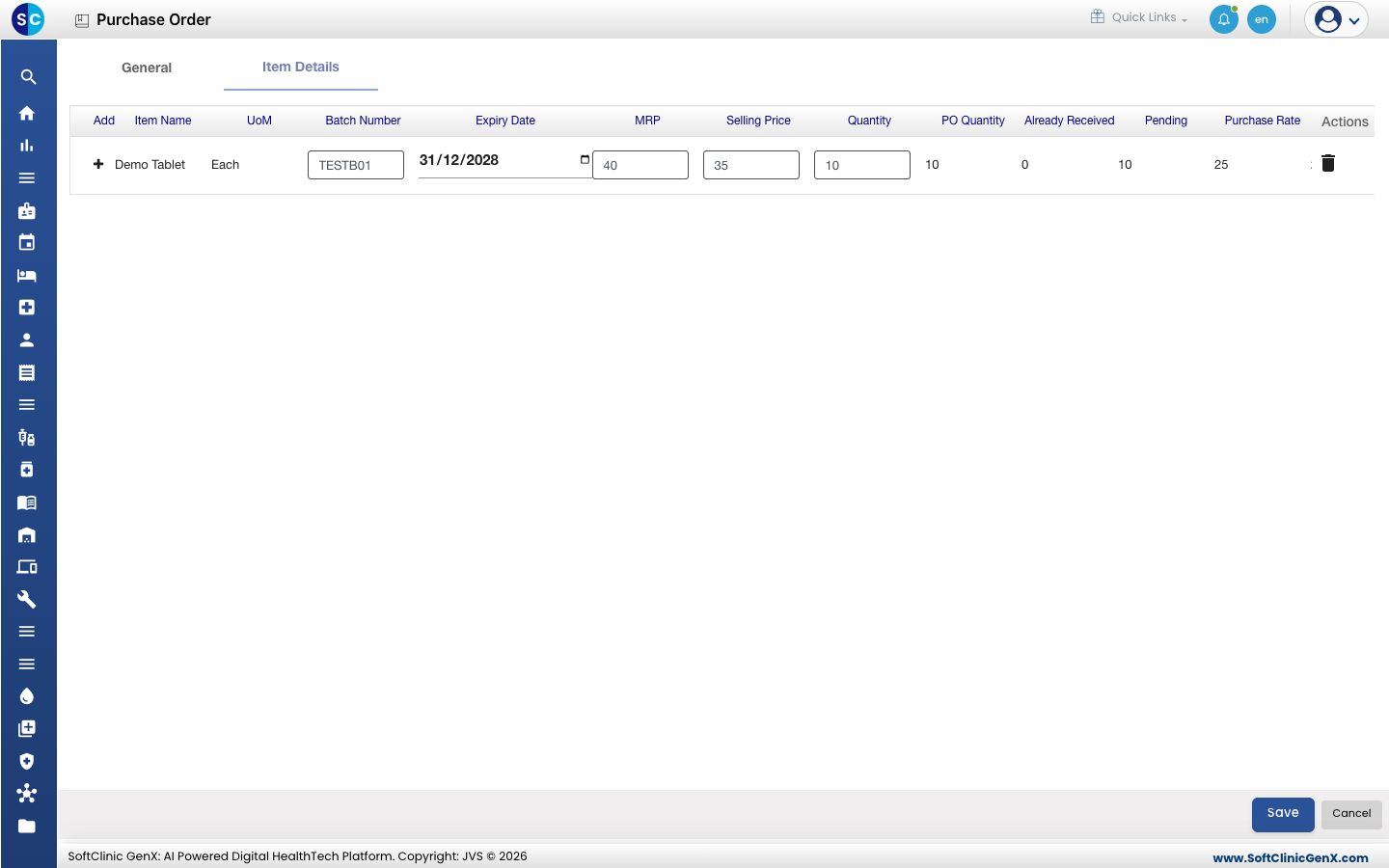
- Scroll the grid to the right to check the totals for each line: Purchase Rate, Purchase Amount, Tax Structure, the discounts and Net Amt.
- Click Save. You return to the Goods Receipt Note screen.
The quantities are added to the store's stock straight away, under the batch and expiry you entered.
Find a saved GRN
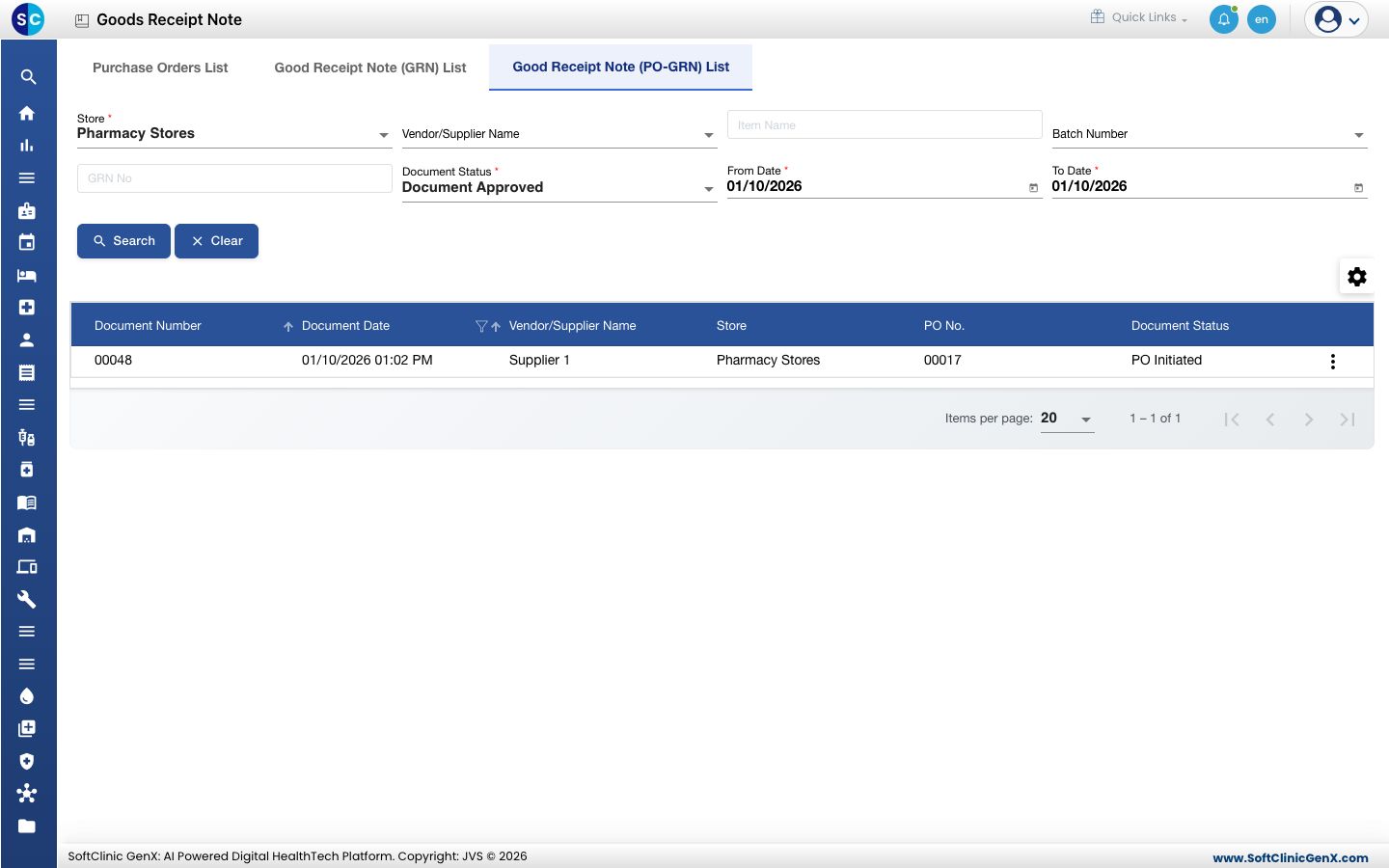
Open the Good Receipt Note (PO-GRN) List tab. It lists GRNs made from purchase orders, with the Document Number, supplier, Store and PO No.
Troubleshooting
| What you see | What it means | What to do |
|---|---|---|
| Vendor/Supplier This field is required. | The supplier box on the General tab is empty. | Type the supplier name in Vendor/Supplier, pick it, then click Save. |
| The order is not on the Purchase Orders List | It is not approved, or it is for another store or date. | Approve the order, then check Store, From Date and To Date. |
| The GRN is not on the Good Receipt Note (PO-GRN) List | The list filters by store, status and date. | Check Store, Document Status and the dates, then click Search. |
Related
- Create and print a purchase order: raise and approve the order first.
- Check current stock and the item ledger: see the received stock.
- Inventory Management FAQs: common questions.