Find and track radiology orders
Filter the radiology worklist and mark when a patient arrives and leaves the radiology room.
The Radiology Requisitions worklist lists every radiology test that has been ordered. Use it to find an order, see how far it has got, and record when the patient comes in and goes out.
Who can do this: radiology technicians and doctors · Where: Radiology › Radiology Requisitions
Find an order
-
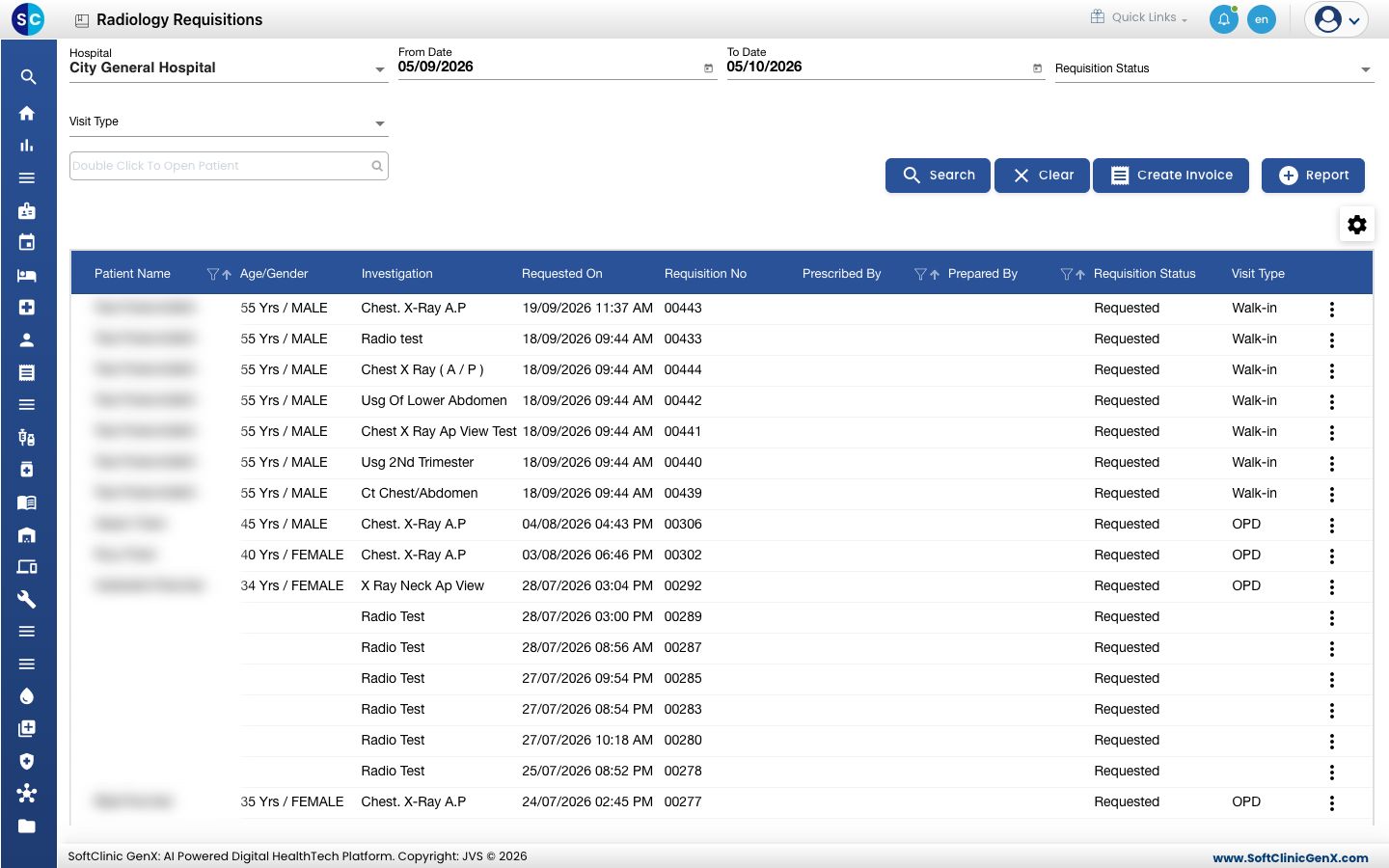
Go to Radiology › Radiology Requisitions. The list opens on the last 30 days.
-
Narrow the list with the filters at the top and click Search:
- Hospital: the facility whose orders you want.
- From Date and To Date: the order dates.
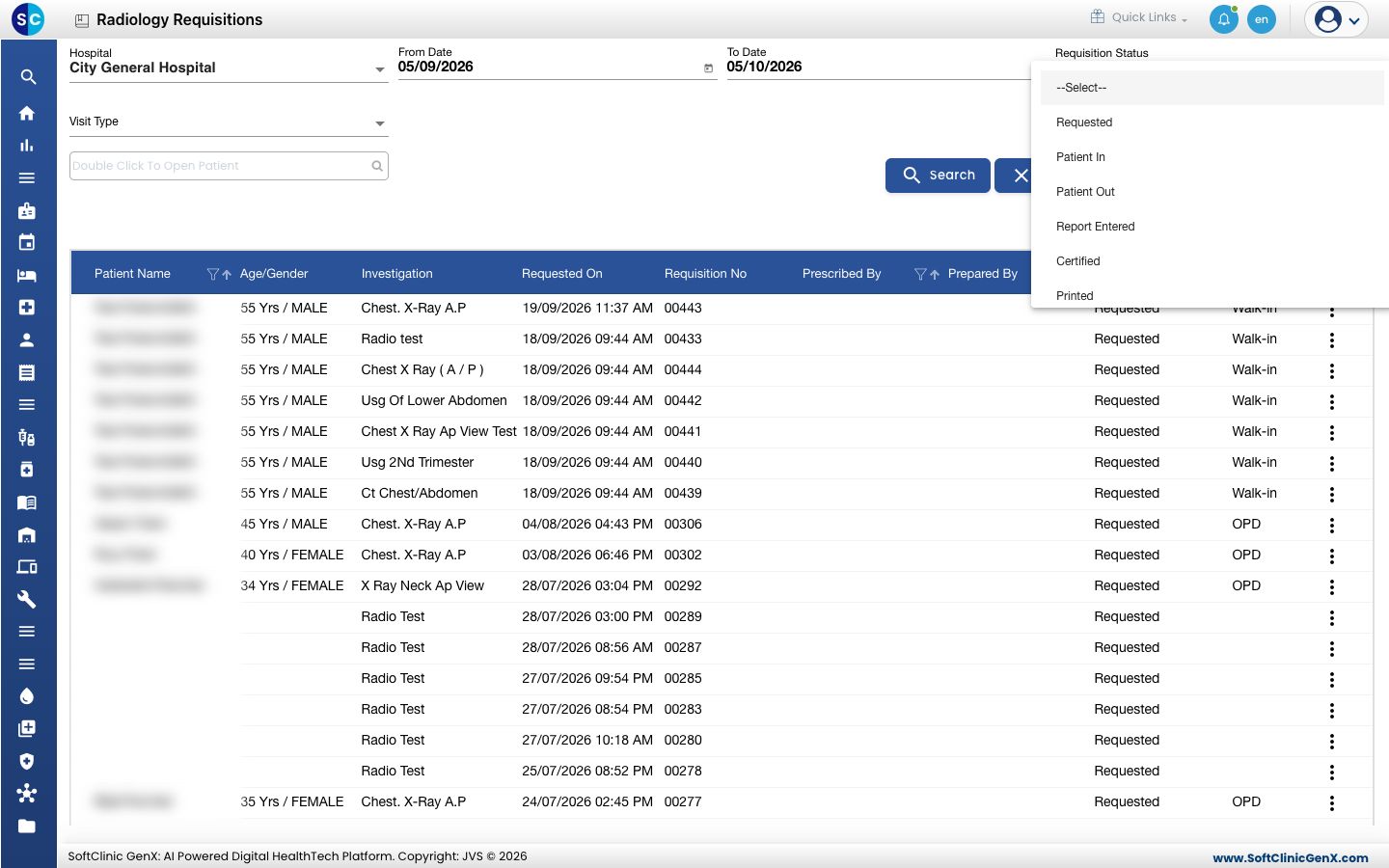
- Requisition Status: where the order has got to.
- Visit Type: OPD, IPD or Walk-in.
- The patient box: type the patient's name or number to see one patient's orders.
-
To filter by column, click the funnel in the Patient Name, Prescribed By or Prepared By heading.
-
Click Clear to go back to the last 30 days with no other filter. Confirm the question that appears.
Read the status
Requisition Status moves in this order:
- Requested: the test is billed and waiting.
- Patient In: the patient has arrived.
- Patient Out: the patient has left the room.
- Report Entered: the report is written and saved.
- Certified: the doctor has approved the report.
- Printed: the report has been printed.
- Decertified: a certified report was reopened for correction.
Record the patient coming and going
-
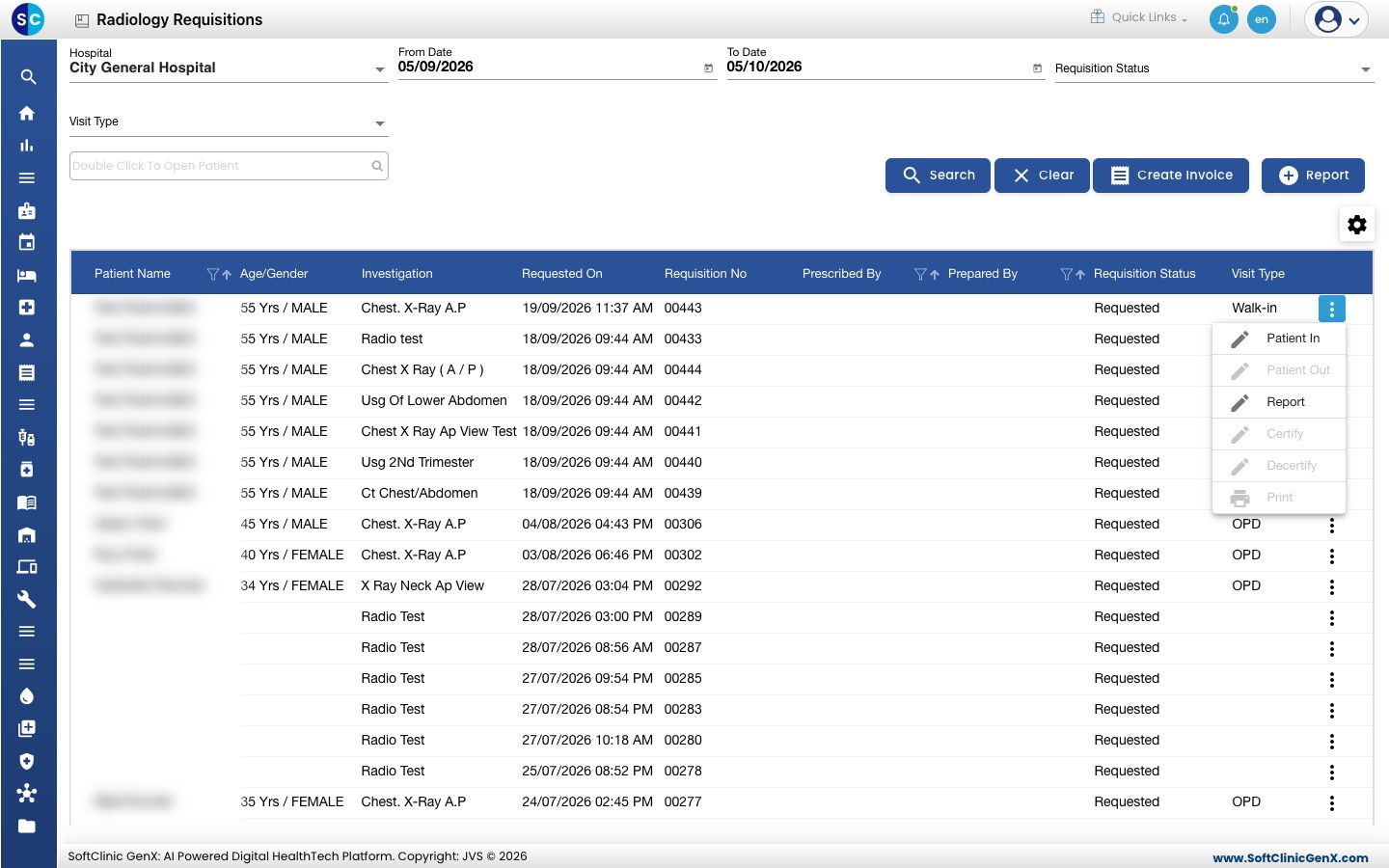
Click the three dots at the end of the row. The menu lists Patient In, Patient Out, Report, Certify, Decertify and Print.
-
Choose Patient In when the patient arrives. The status changes to Patient In.
-
Choose Patient Out when the scan is done. The status changes to Patient Out.
Patient In is active only on a Requested order, and Patient Out only after Patient In. Greyed items are not available at the current status.
Troubleshooting
| What you see | What it means | What to do |
|---|---|---|
| No Records Found | No order matches the dates and filters. | Widen the dates, set Requisition Status to --Select-- and click Search. |
| Patient In is greyed out | The patient is already marked in, or the report is further along. | Use the next active item in the menu. |
| A new order is missing | The order is dated outside your range. | Set From Date earlier and click Search. |
Related
- Write a radiology report: the next step after the scan.
- Order a radiology test: how an order reaches this list.
- Radiology FAQs: short answers.