Book a walk-in appointment
Book a patient who is at the desk without an appointment and give a token number in one step.
A walk-in is a patient who comes without a booking. The Add button opens the booking form for today at the current time and marks the patient as arrived, so the token number is issued when you save.
note
Who can do this: front desk and appointment staff
Where: Appointments › Outpatient Scheduling › Add
Before you start
- The patient must be registered. For a first-time patient, see Book an appointment for a new patient.
- The doctor needs an active calendar for today. See Set up Resource Calendar.
Book the walk-in
- Go to Appointments › Outpatient Scheduling.
- Choose the Department, the Clinic/Location and the Doctor Name.
- Click Add. The New Appointment form opens with today's date, the current time and Patient Tracking set to Arrived.
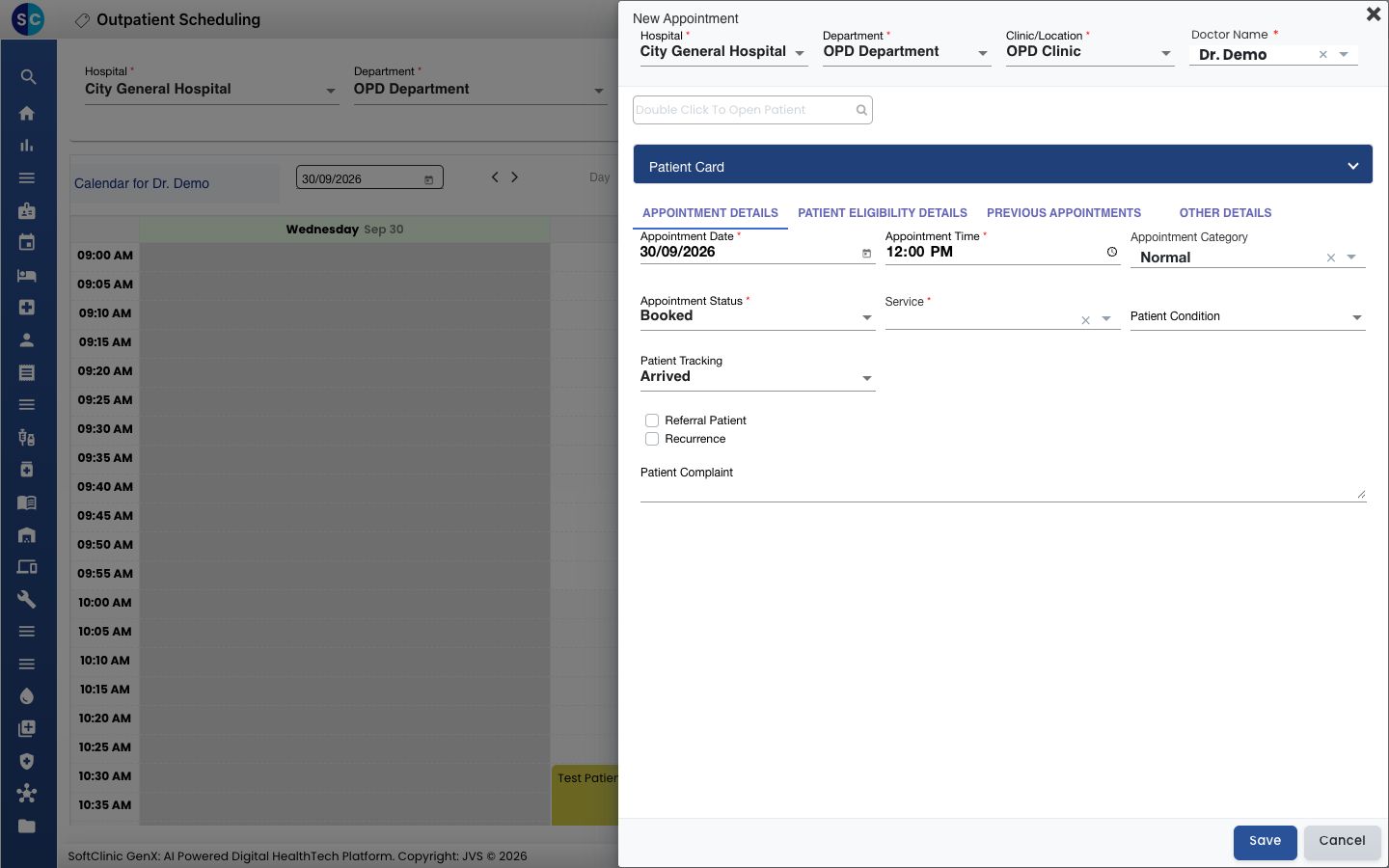
- Type at least three characters of the patient's name, CR number or mobile number in the patient box and pick the patient.
- Choose the Service.
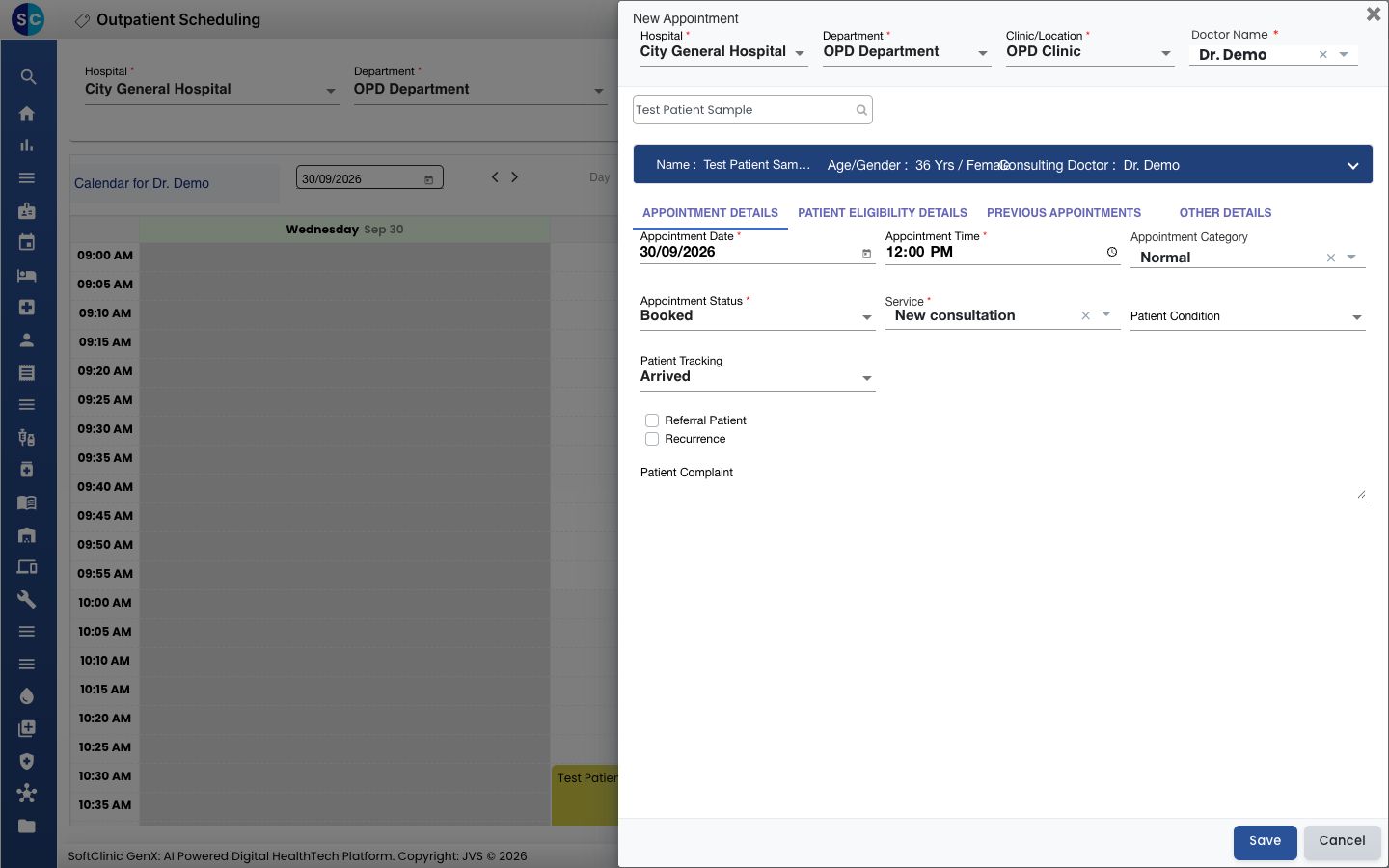
- Click Save. You see Record saved successfully.
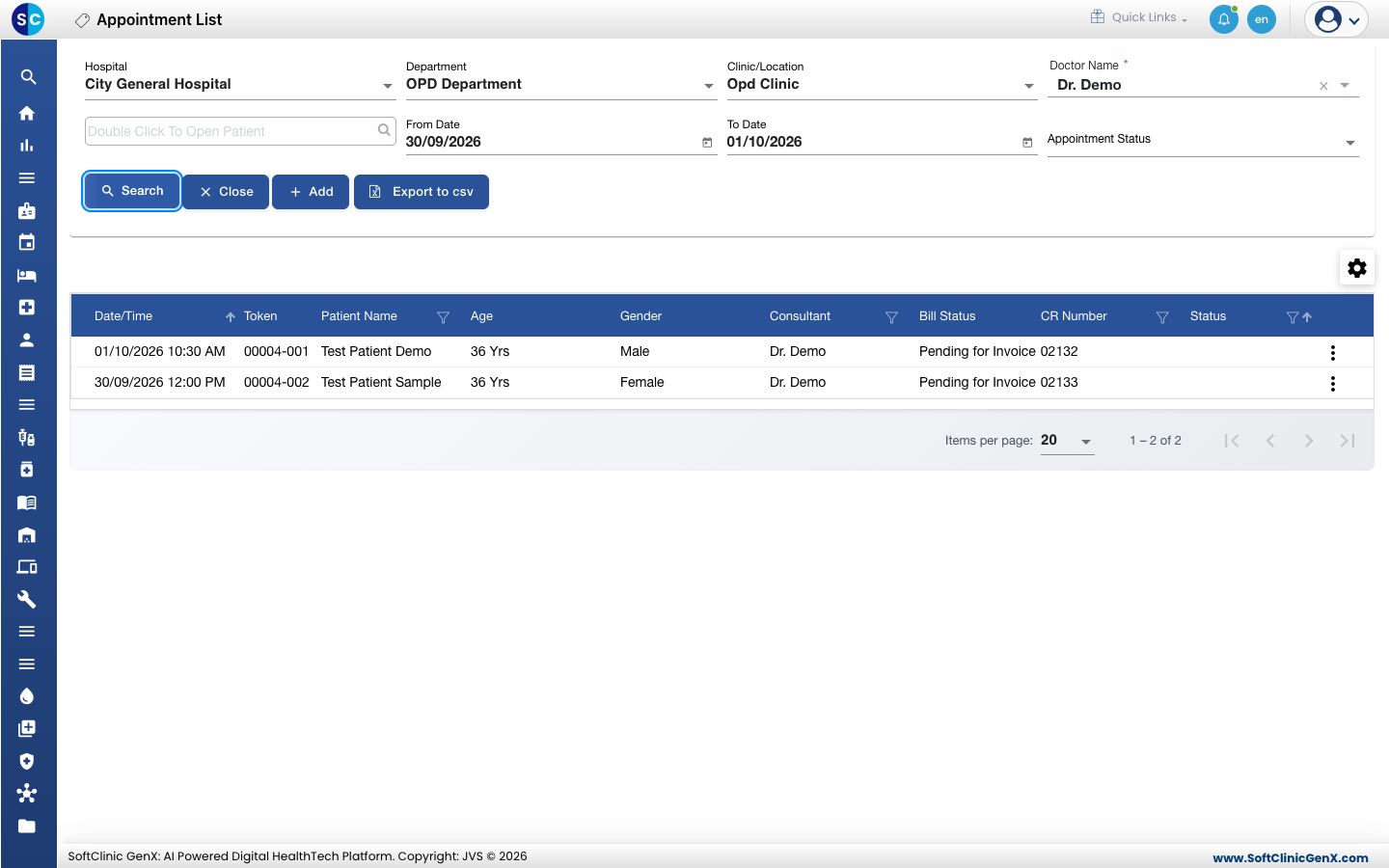
- Go to Appointments › Views › Appointment List to read the token number in the Token column.
tip
You can also click Add on Appointment List. It opens the same form.
Troubleshooting
| What you see | What it means | What to do |
|---|---|---|
| Please select patient! | No patient is chosen on the form. | Search for the patient and pick the name from the list. |
| Please select service ! | The Service field is empty. | Choose a service and save again. |
| The Token column is empty | Patient Tracking was not Arrived when the booking was saved. | Mark the patient as arrived. |
Related
- Book an appointment: book a future slot from the calendar.
- Mark a patient as arrived: give a token to a patient who booked ahead.
- Print an appointment sticker: print a label for the visit.