Book an appointment
Book an OPD appointment for a registered patient by picking a free slot on the doctor's calendar.
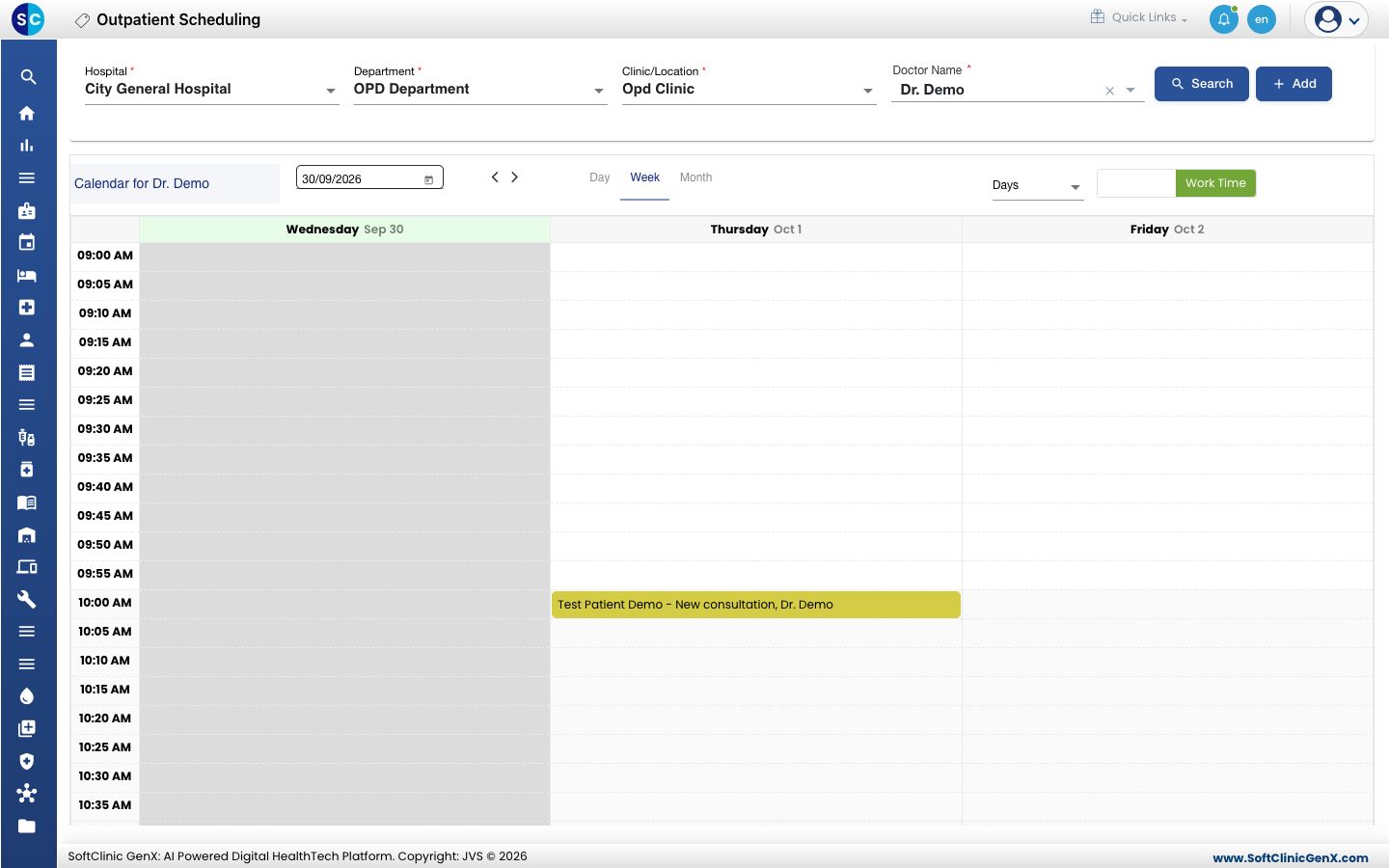
Outpatient Scheduling shows a doctor's calendar. You click a free slot, choose the patient and the service, and save. Use it for advance bookings and for patients who call ahead.
Who can do this: front desk and appointment staff
Where: Appointments › Outpatient Scheduling
Before you start
- The patient must be registered. If not, register the patient from the booking screen or use Quick Registration.
- The doctor needs an active calendar for the date. See Set up Resource Calendar.
- The clinic must exist. See Set up Clinic.
Open the doctor's calendar
- Go to Appointments › Outpatient Scheduling.
- Choose the Department, the Clinic/Location and the Doctor Name, then click Search. The heading changes to Calendar for the doctor.
- Switch All Days to Work Time to show only the doctor's working hours.
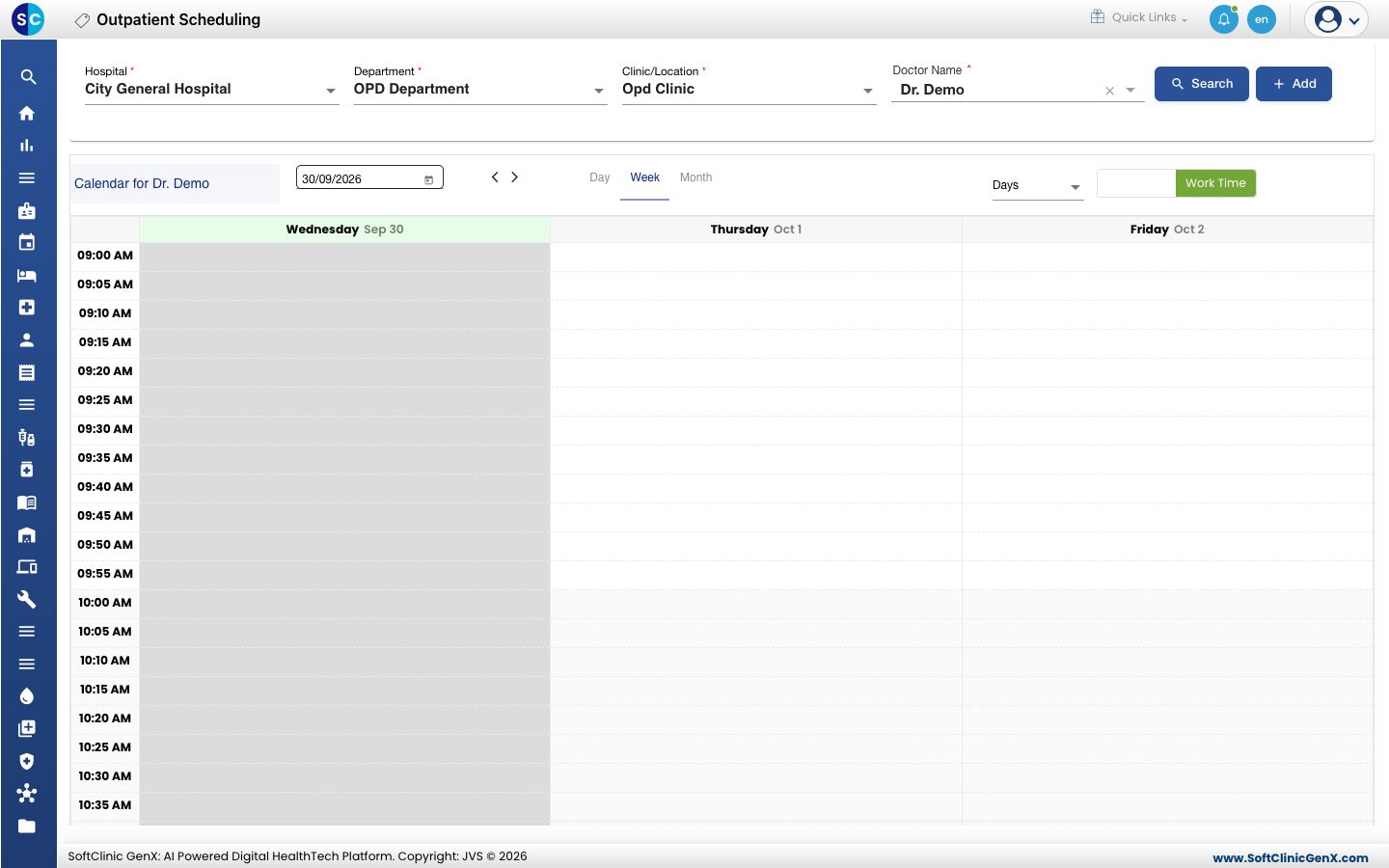
White slots are free. Grey slots are in the past or outside the doctor's working hours, and you cannot book them.
Book the slot
-
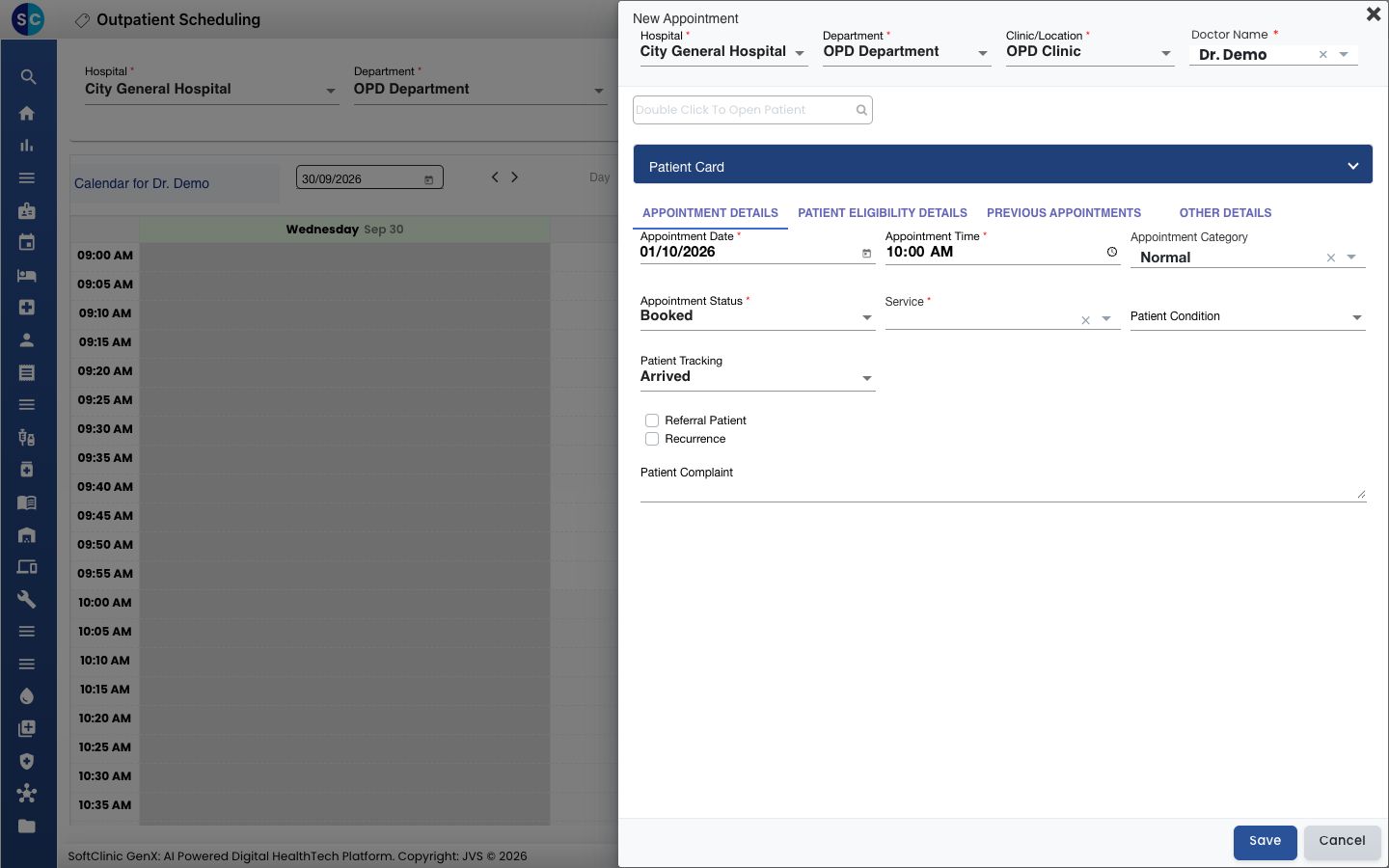
Click a free slot on the day and time the patient wants. The New Appointment form opens with the Appointment Date and Appointment Time filled in.
-
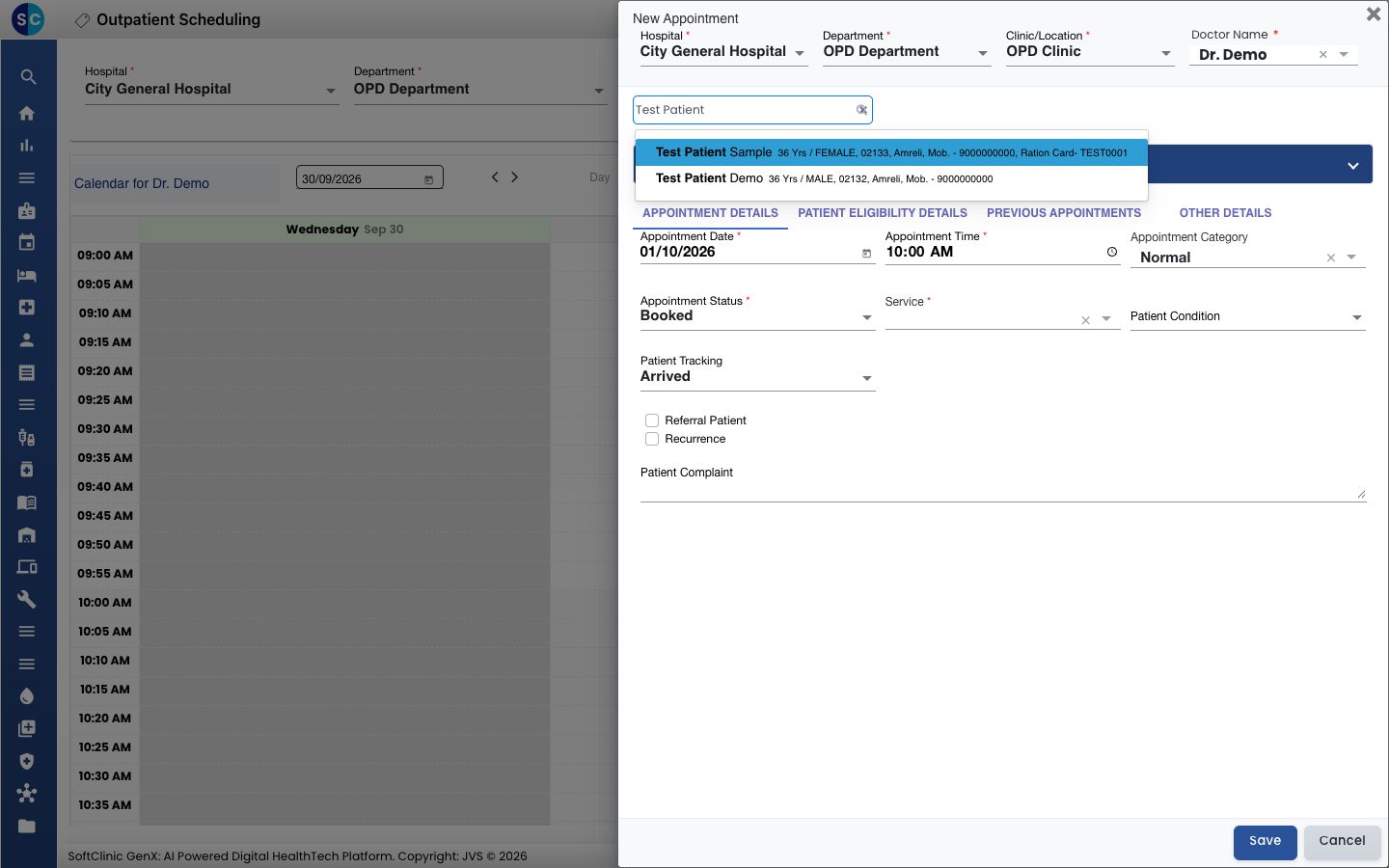
Type at least three characters of the patient's name, CR number or mobile number in the Double Click To Open Patient box, then pick the patient from the list.
-
Check the patient's name in the blue patient card.
-
Fill in the appointment details:
Field What to enter Required Appointment Date, Appointment Time Filled from the slot you clicked. Change them if needed. Yes Appointment Category The type of appointment. The default category is filled in. No Appointment Status Booked, or Confirmed if the patient has confirmed the visit. Yes Service The consultation service to bill, for example a new consultation. Yes Patient Condition The patient's condition, if your hospital records it. No Patient Tracking Arrived if the patient is at the desk now. For an advance booking choose --Select-- and mark the arrival on the day. No Referral Patient Tick to record who referred the patient. No Recurrence Tick to repeat the appointment daily or weekly. No Patient Complaint The reason for the visit, in the patient's words. No 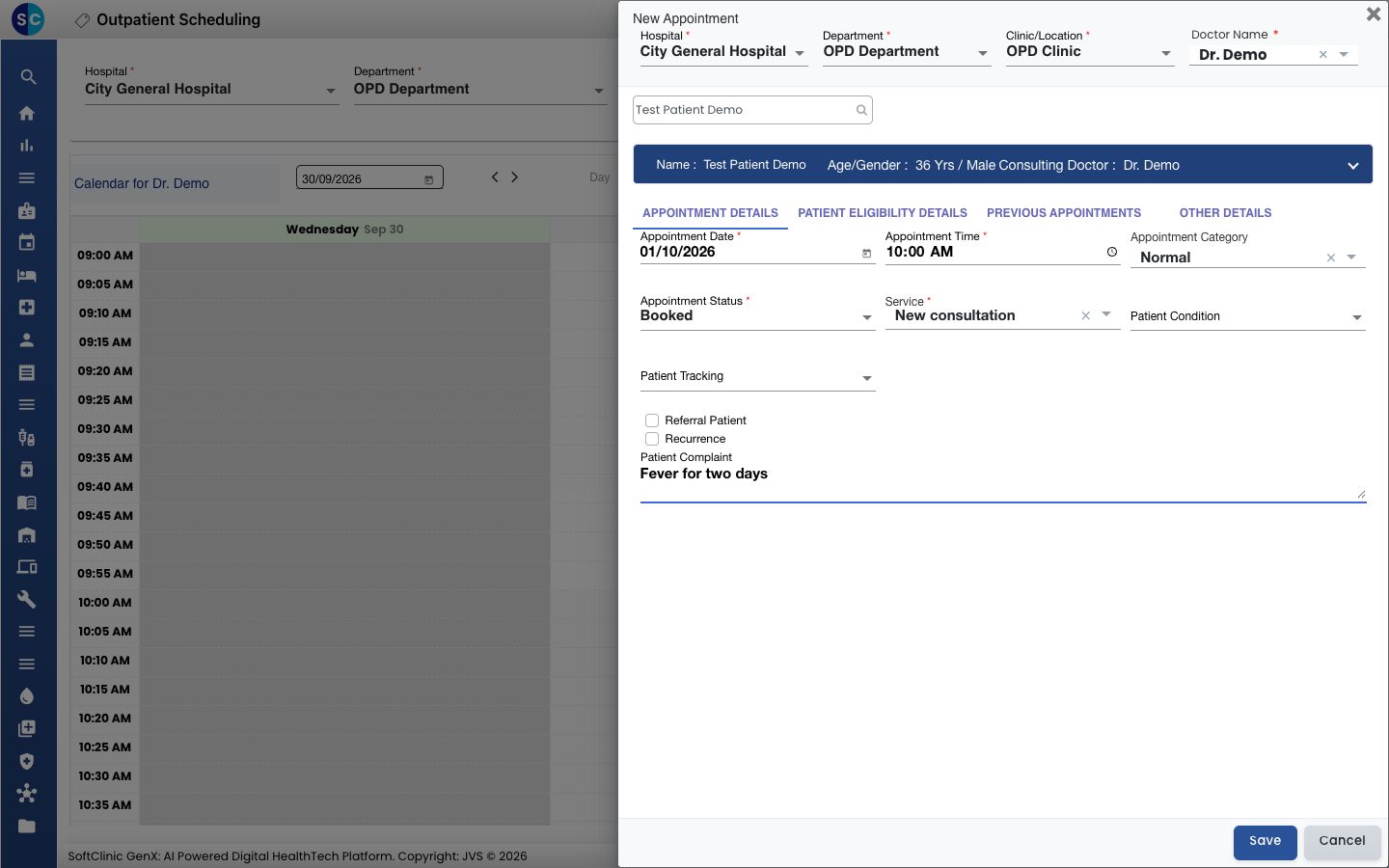
-
Click Save. You see Record saved successfully and the appointment appears on the calendar as a yellow block with the patient, service and doctor.
Saving with Patient Tracking set to Arrived gives the patient a token number straight away. See Mark a patient as arrived.
Troubleshooting
| What you see | What it means | What to do |
|---|---|---|
| Please select patient! | No patient is chosen on the form. | Search for the patient and pick the name from the list. |
| Please select service ! | The Service field is empty. | Choose a service and save again. |
| The whole day is grey | The doctor has no working hours on that day, or the day is in the past. | Pick another day, or ask your administrator to check the doctor's Resource Calendar. |
| The doctor is missing from Doctor Name | The doctor is not linked to the chosen department and clinic. | Check the Department and Clinic/Location, or ask your administrator to check Clinic. |
| The patient is not in the search results | The patient is not registered, or is registered under another spelling. | Search by mobile number, or register the patient from the booking screen. |
Related
- Book a walk-in appointment: for a patient who is at the desk without a booking.
- Reschedule an appointment: move a booking to another date or time.
- Cancel an appointment: cancel a booking with a reason.
- Appointments FAQs: common questions about booking.