View the day's appointments
See who is booked with a doctor on the calendar, or list appointments for any date range and export them.
You can look at appointments in two ways. The calendar in Outpatient Scheduling shows one doctor's day, week or month. Appointment List shows bookings as rows that you can filter, export and act on.
note
Who can do this: front desk, appointment staff and doctors
Where: Appointments › Outpatient Scheduling, and Appointments › Views › Appointment List
See a doctor's calendar
- Go to Appointments › Outpatient Scheduling.
- Choose the Department, the Clinic/Location and the Doctor Name, then click Search.
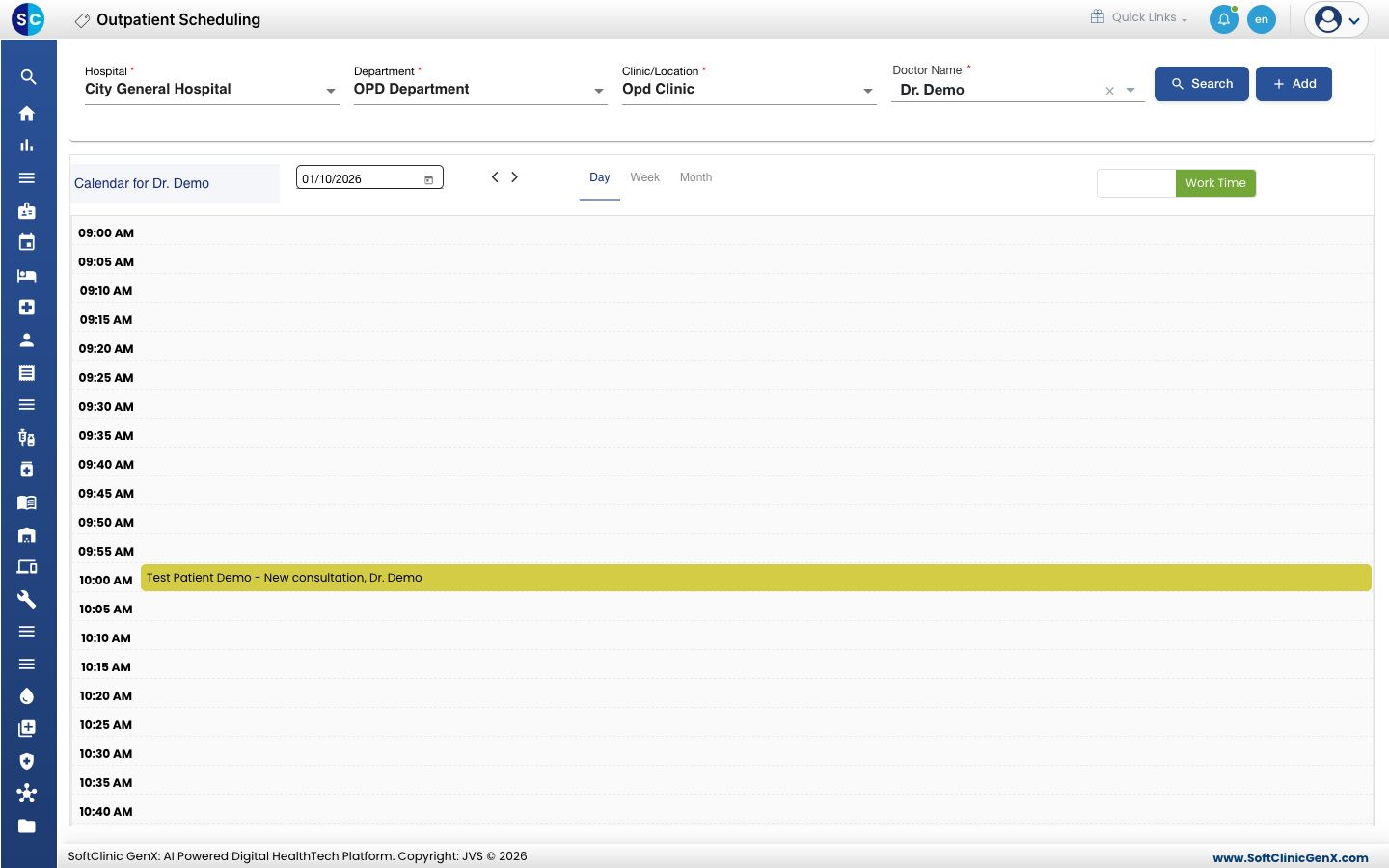
- Click Day to see one day. Use the arrows or the date box to move to another date.
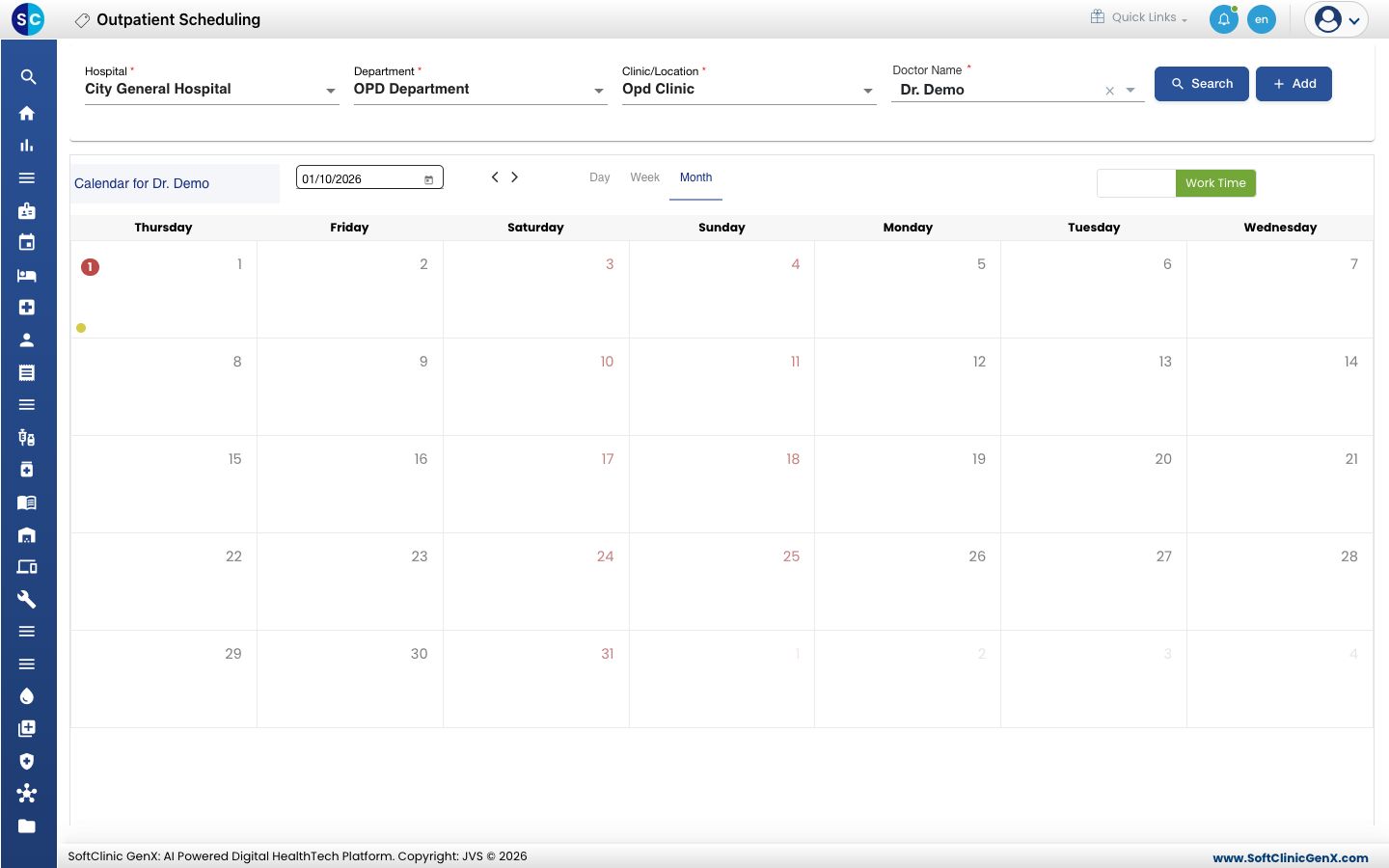
- Click Month to see the whole month. A number on a date shows how many appointments are booked. Click the date to open it in Day view.
- Click an appointment to open its menu: Edit Appointment, Reschedule Appointment, Cancel Appointment, Start Consultation and Billing.
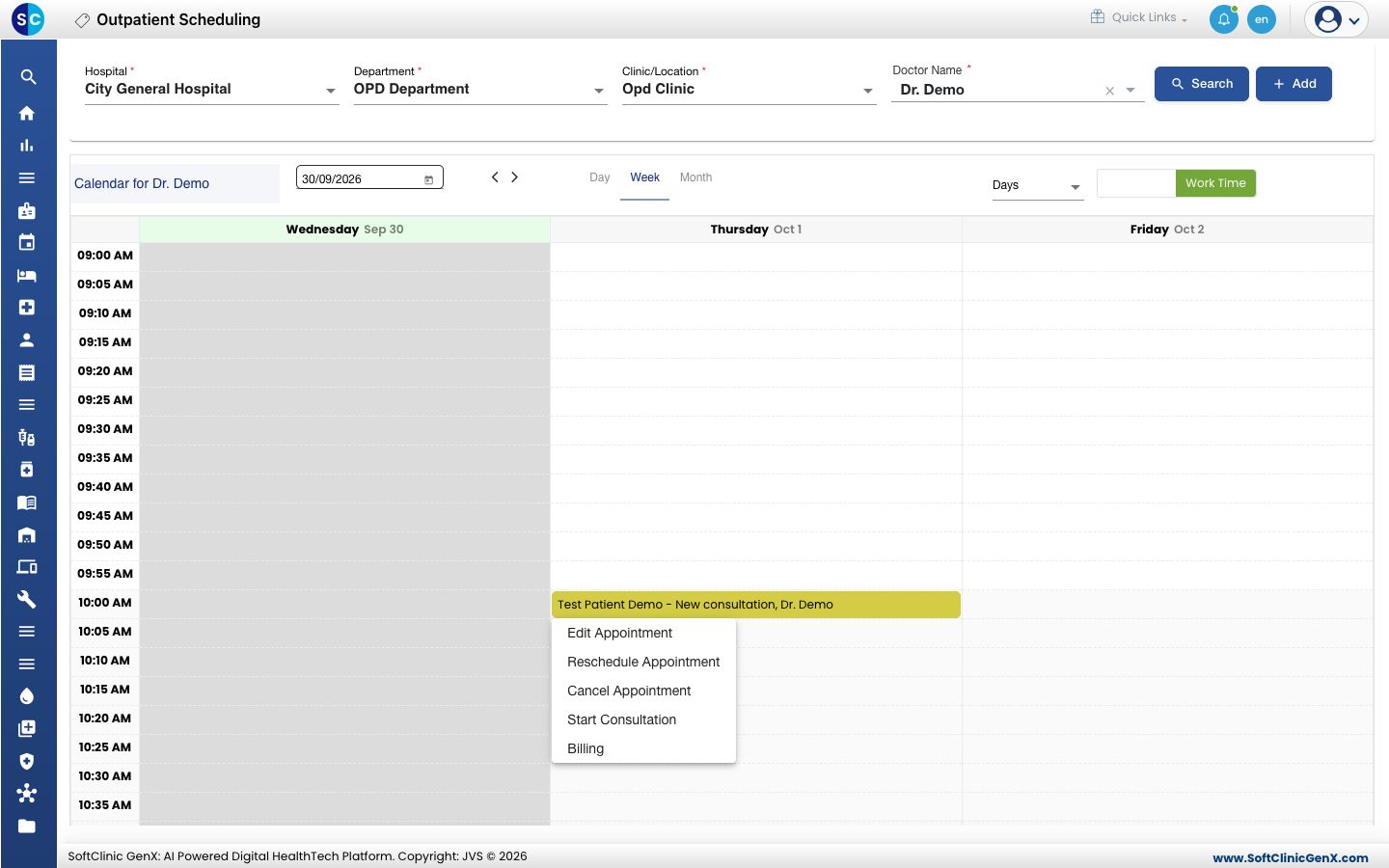
The calendar controls:
- Day / Week / Month: the period shown.
- Days: how many days Week view shows side by side, from 1 to 7.
- All Days / Work Time: the full 24 hours, or only the doctor's working hours.
- Doctor Name › All: every doctor in the clinic on one calendar.
A booked appointment is yellow, a confirmed one is light blue and a cancelled one is red.
List appointments for a date range
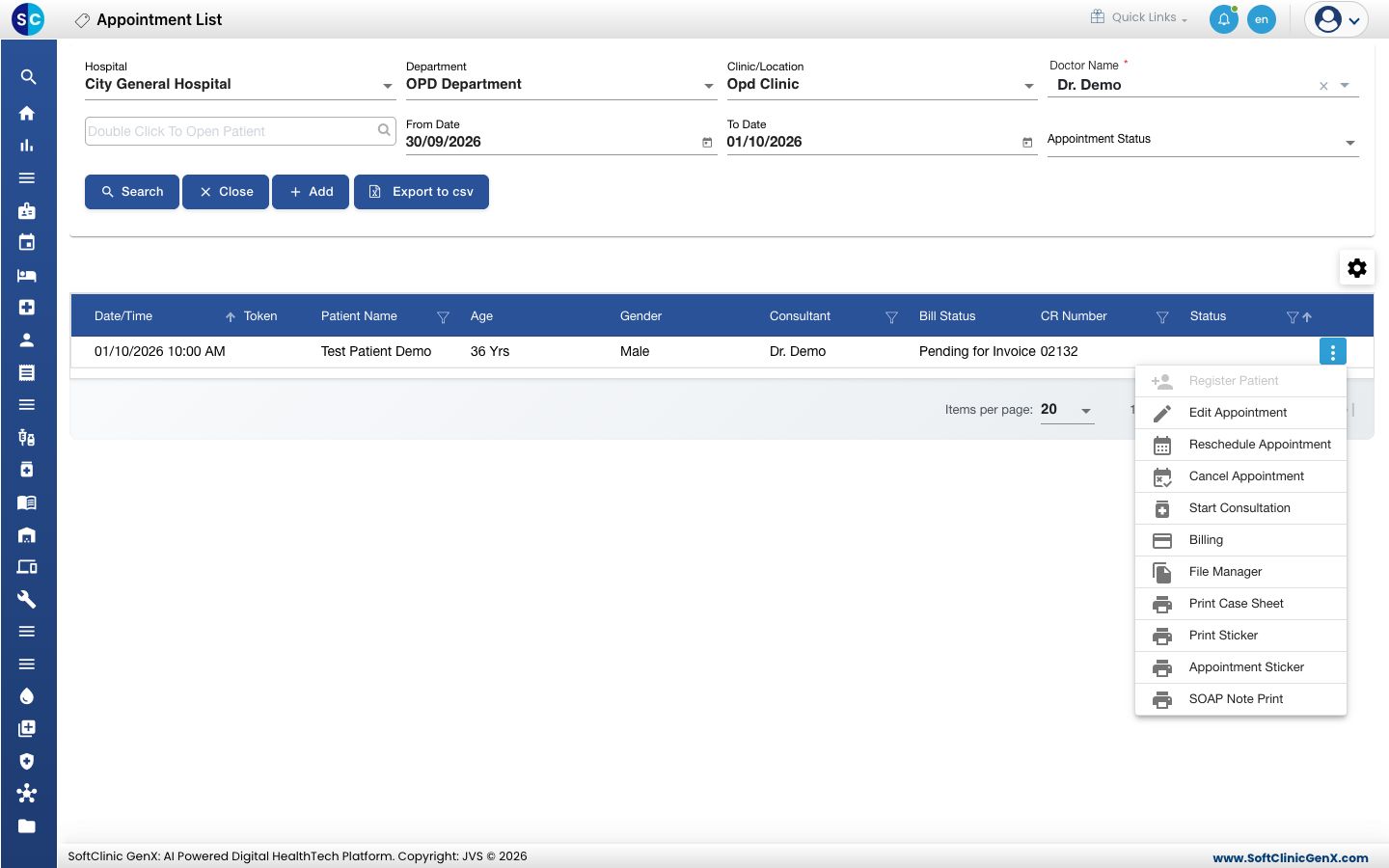
- Go to Appointments › Views › Appointment List.
- Choose the Department, Clinic/Location and Doctor Name. Choose All to include every doctor.
- Set From Date and To Date. Enter today in both for the day's list.
- Click Search. Each row shows the date and time, token, patient, consultant, bill status and CR number.
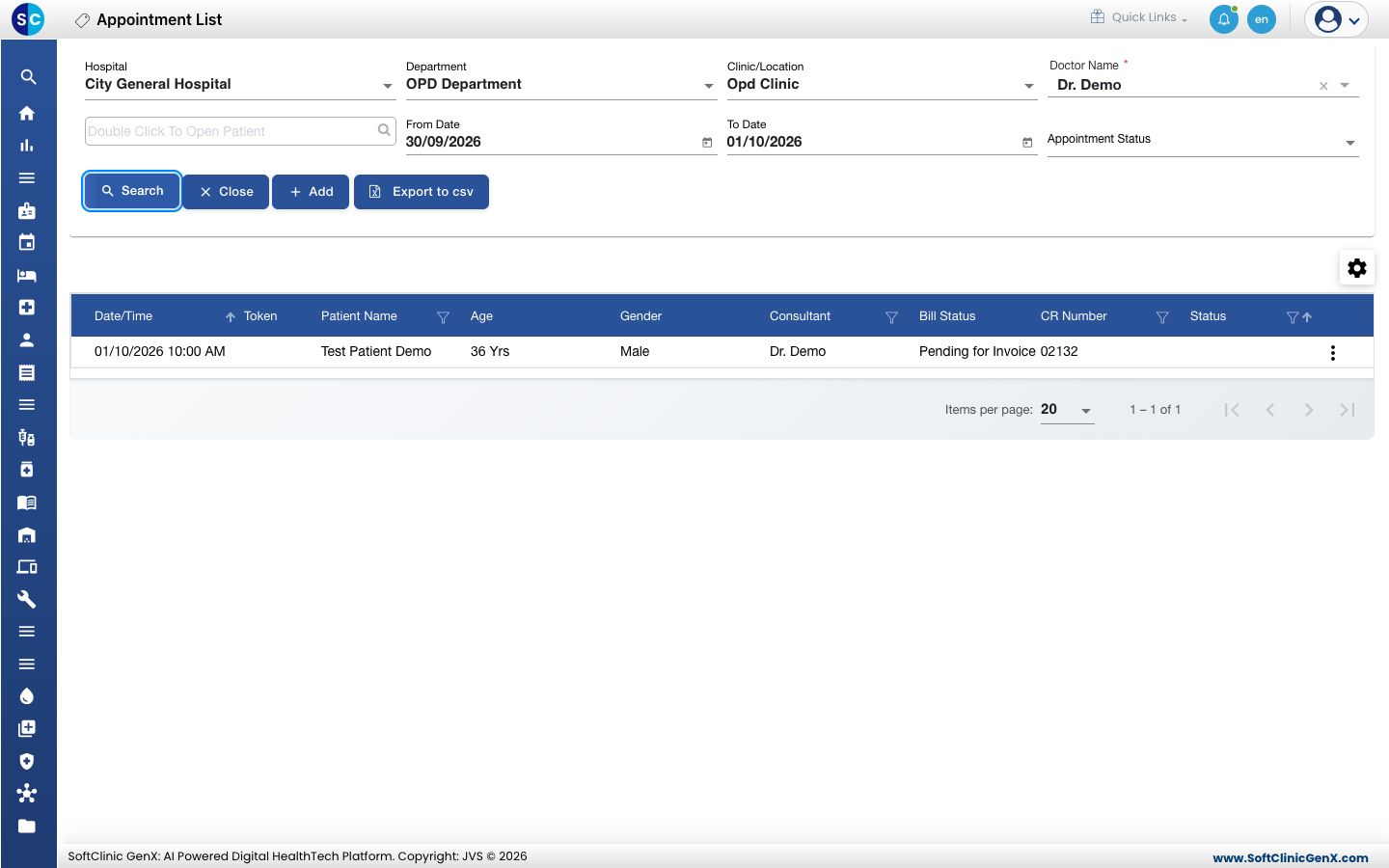
- To find one patient, type in the patient box above the dates, or type in a column heading such as Patient Name or CR Number.
- Click the three dots at the end of a row for its actions.
tip
Click Export to csv to download the list you see. Click the gear icon above the grid to choose which columns are shown.
Troubleshooting
| What you see | What it means | What to do |
|---|---|---|
| No Records Found | No appointment matches the filters. | Check the Doctor Name and the dates, then click Search again. |
| Older appointments appear in the list | From Date is empty. | Enter a From Date and click Search. |
| The calendar is all grey | The doctor has no working hours in the period shown. | Move to another date, or see Set up Resource Calendar. |
Related
- Book an appointment: add a booking from the calendar.
- Mark a patient as arrived: issue the token when the patient comes in.
- Appointments FAQs: common questions about the list.