Reschedule an appointment
Move a booked appointment to another date or time without cancelling it.
Rescheduling keeps the same appointment and changes only its date and time. Use it when the patient asks for another slot or the doctor is delayed.
note
Who can do this: front desk and appointment staff
Where: Appointments › Views › Appointment List › row menu › Reschedule Appointment
Before you start
- The appointment status must be Booked or Confirmed.
- Check the doctor's free slots on the calendar first. See View the day's appointments.
Change the date or time
- Go to Appointments › Views › Appointment List and find the appointment.
- Click the three dots at the end of the row and choose Reschedule Appointment.
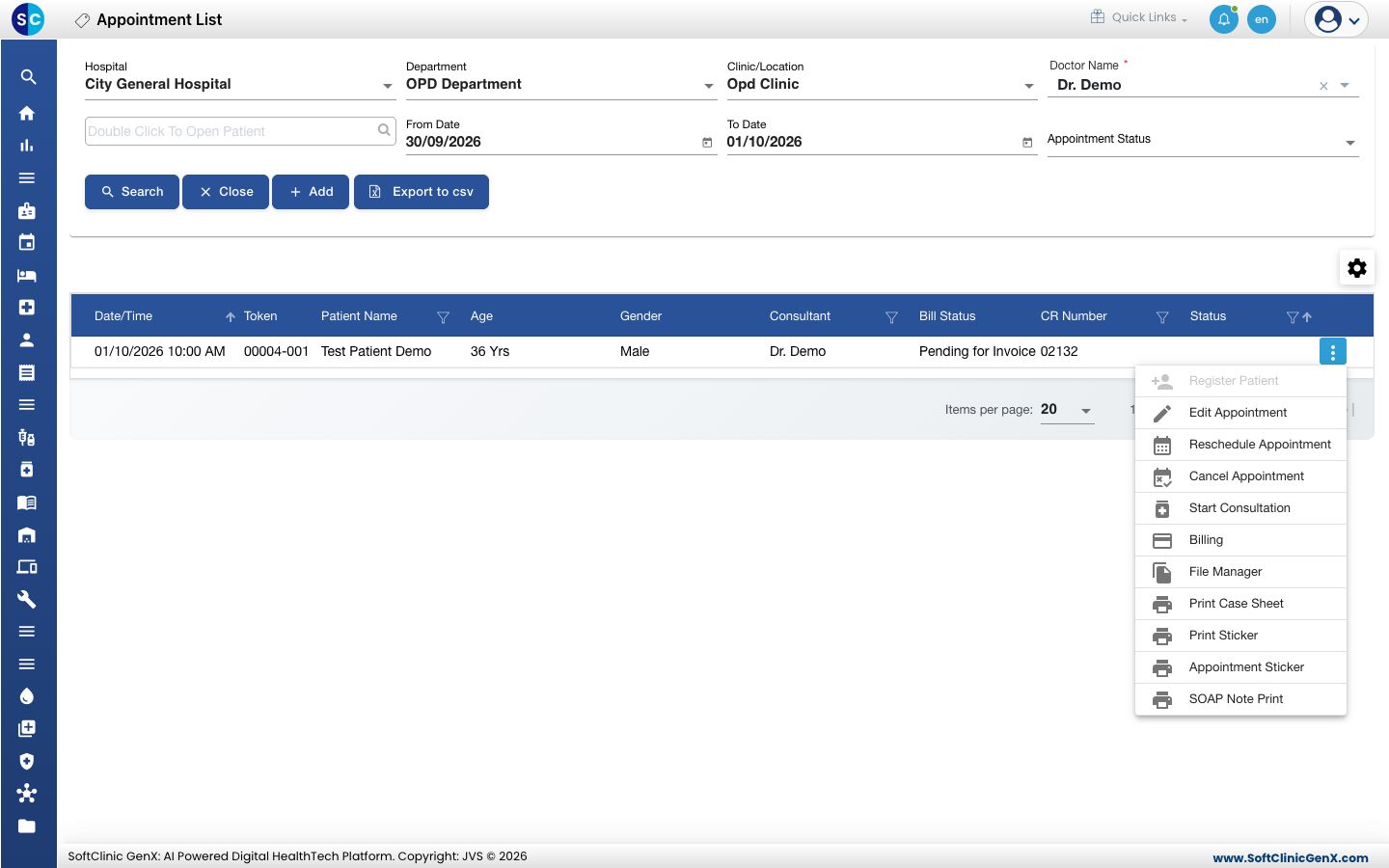
- The Reschedule Appointment form opens. Only Appointment Date and Appointment Time can be changed.
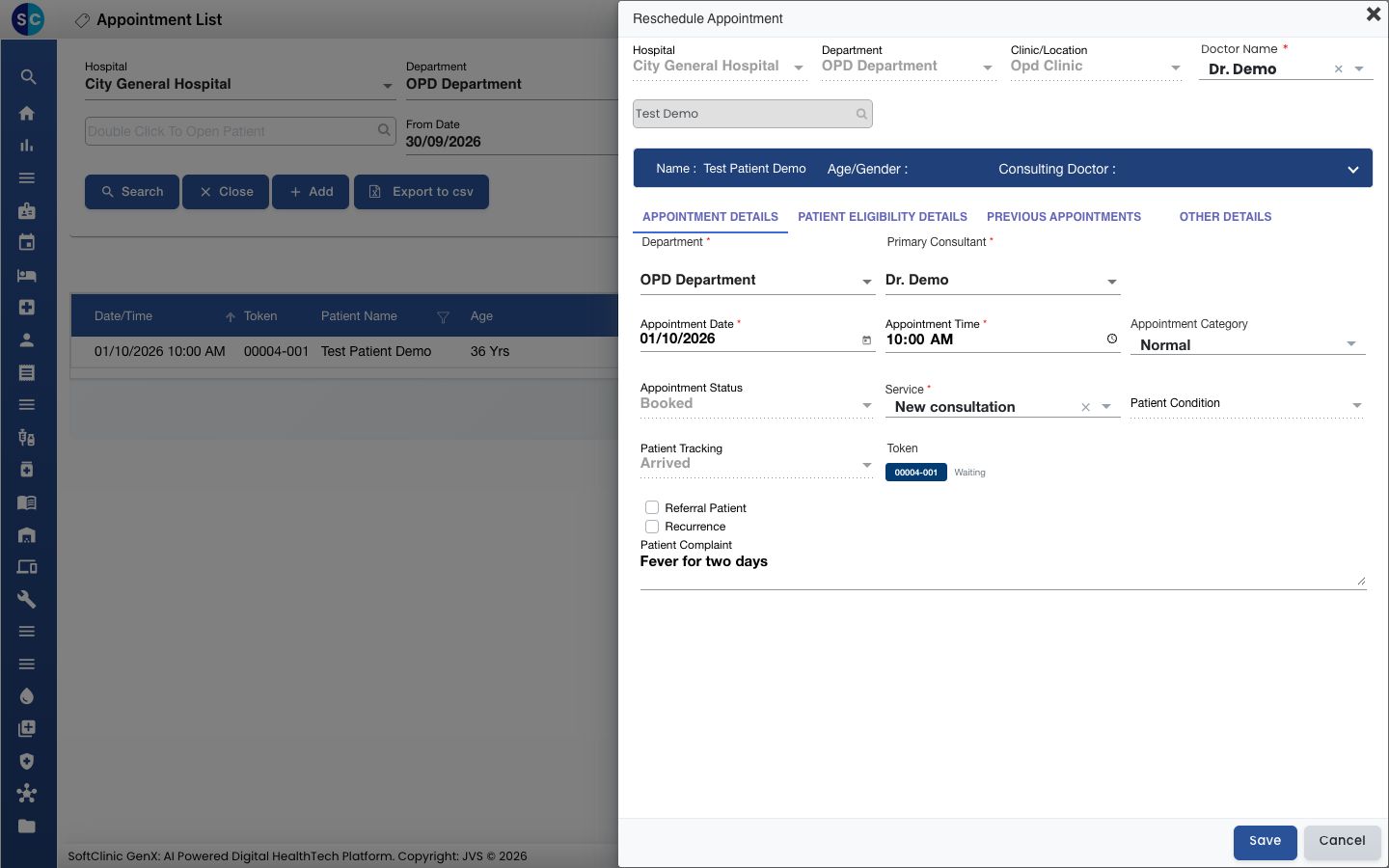
- Enter the new Appointment Date and Appointment Time.
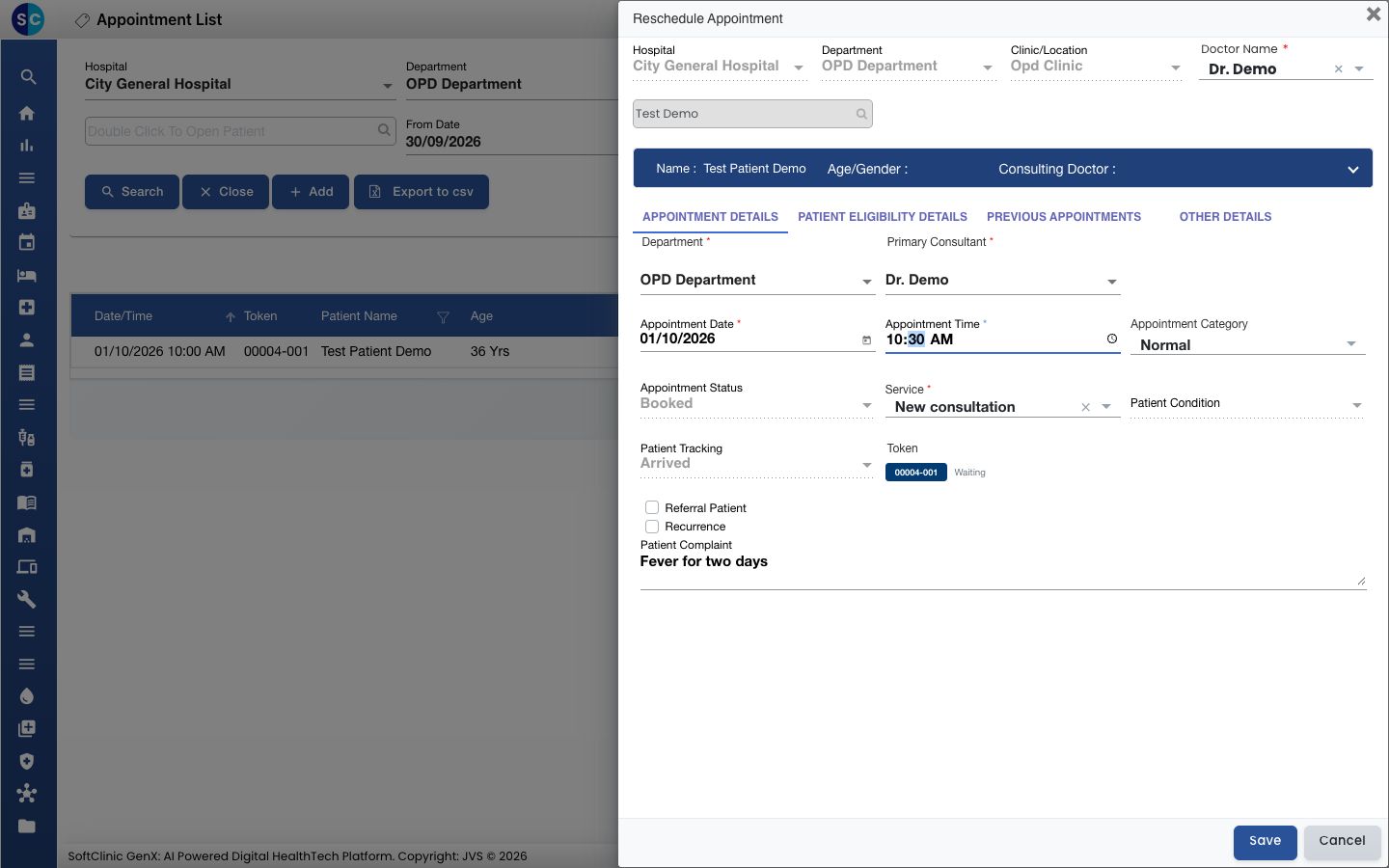
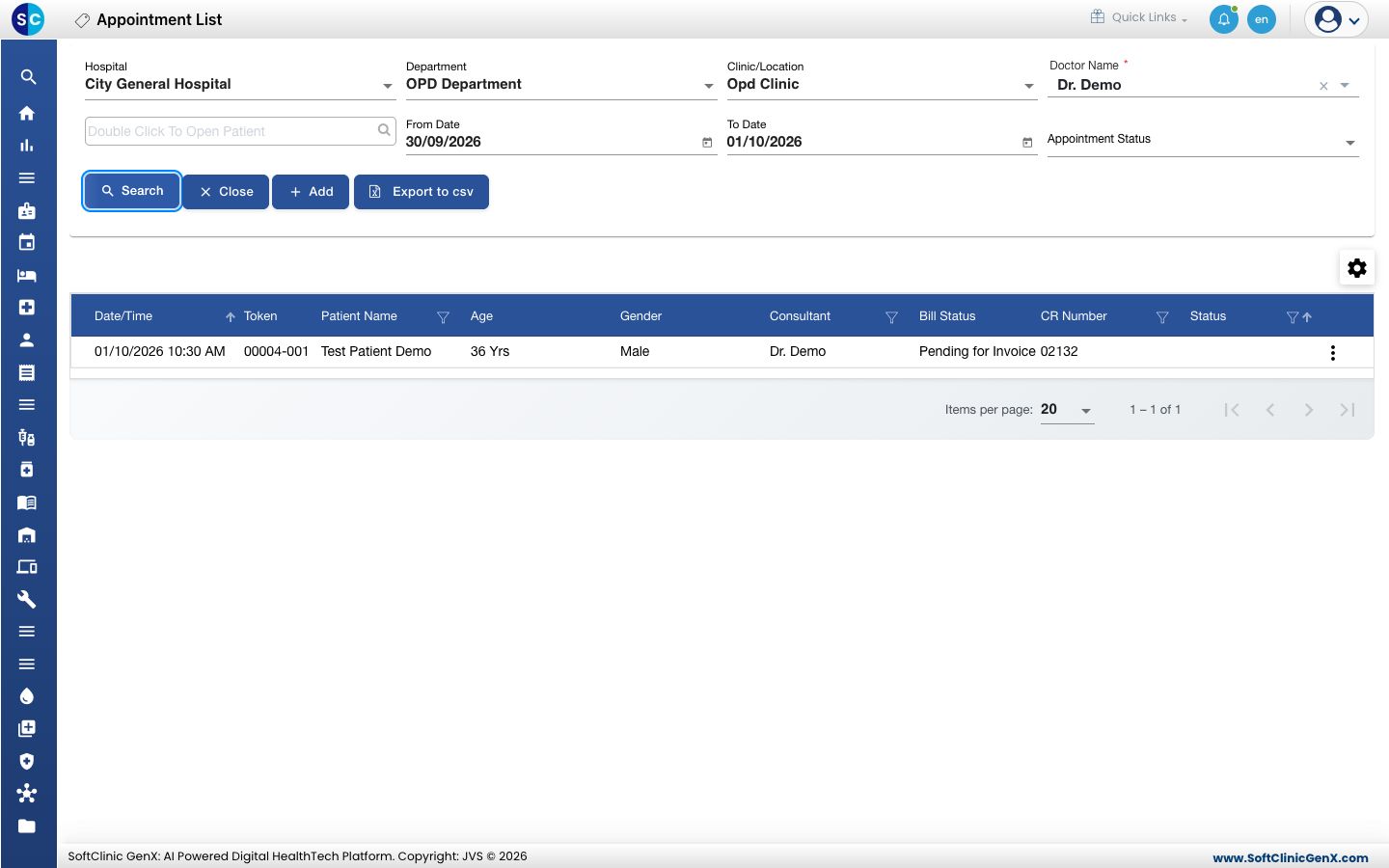
- Click Save. You see Record updated successfully, and the list and the calendar show the new time.
tip
You can also reschedule from the calendar: click the appointment in Outpatient Scheduling and choose Reschedule Appointment.
Good to know
- The patient, service and token stay the same.
- To move the appointment to another doctor, use Edit Appointment and change Primary Consultant.
Troubleshooting
| What you see | What it means | What to do |
|---|---|---|
| The date and time cannot be changed | The appointment is no longer Booked or Confirmed, for example it was cancelled or the consultation has started. | Book a new appointment instead. |
| This field is required. | The date or time is empty. | Enter both and save again. |
Related
- Cancel an appointment: when the patient is not coming at all.
- Book an appointment: add a new booking.
- Appointments FAQs: common questions about the list.