Print an appointment sticker
Print a label with the patient's name, age, visit date and CR number barcode for the visit file.
An appointment sticker is a small label for the patient's file or OPD card. It shows the patient's name, date of birth, age, the visit date and the CR number as a barcode.
note
Who can do this: front desk and appointment staff
Where: Appointments › Views › Appointment List › row menu › Appointment Sticker
Before you start
- A label printer, or a printer loaded with sticker paper, must be set up on your computer.
- The appointment must be booked. See Book an appointment.
Print the sticker
- Go to Appointments › Views › Appointment List and find the appointment. See View the day's appointments.
- Click the three dots at the end of the row and choose Appointment Sticker.
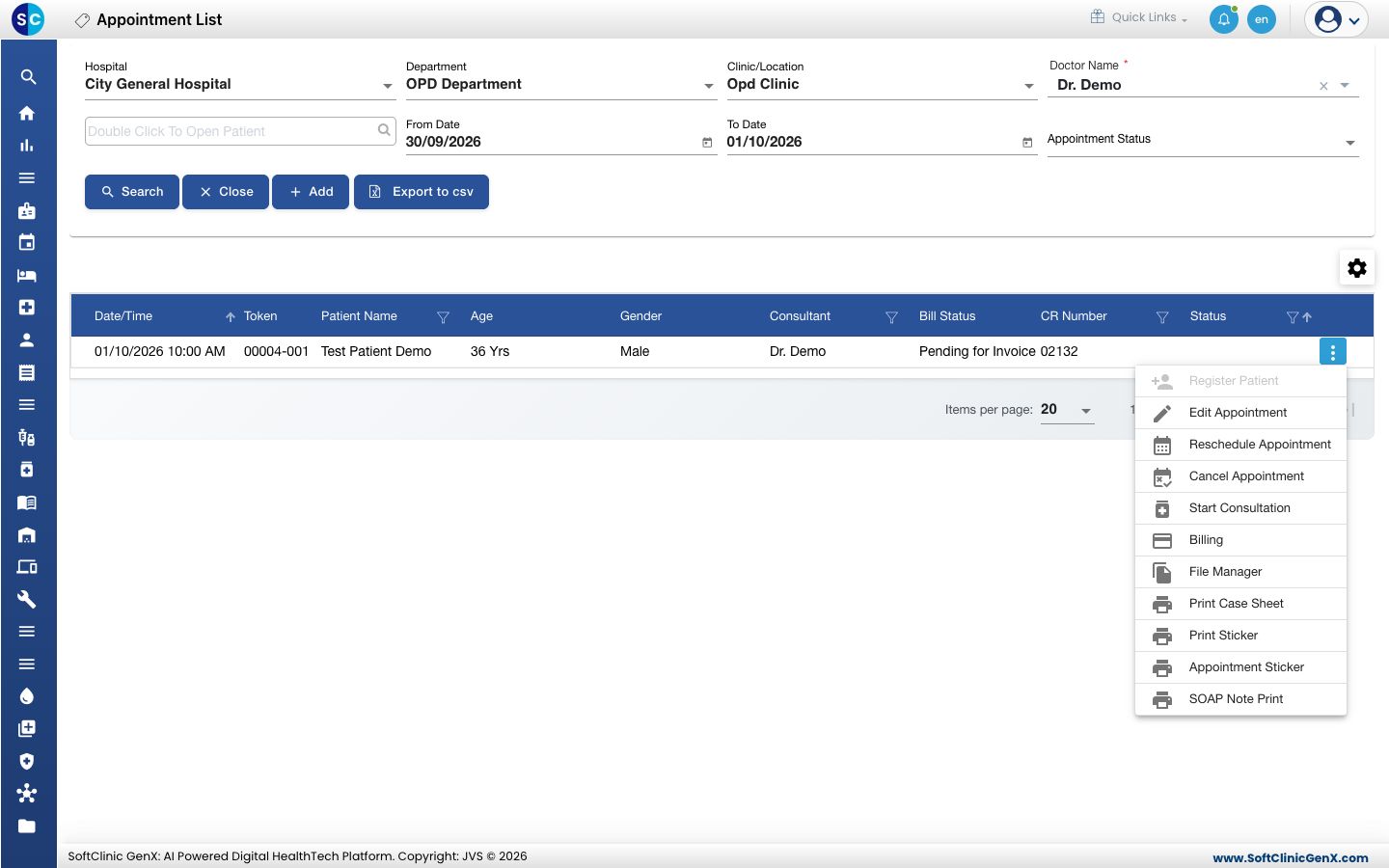
- The sticker opens in a print preview. Check the name and the visit date.
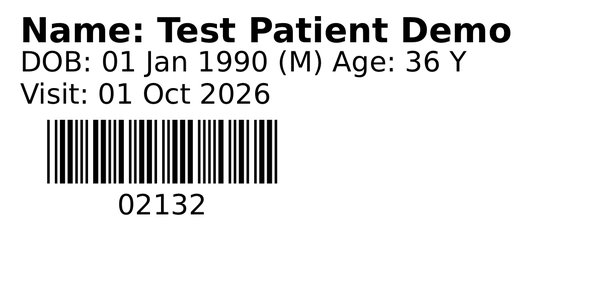
- Choose your label printer and print it, or download it. Close the preview to return to the list.
Other prints on the same menu
- Print Sticker: the patient sticker, without the visit date. See Print a patient sticker.
- Print Case Sheet: the OPD case sheet for the visit.
- SOAP Note Print: the doctor's consultation notes, once they are written.
Troubleshooting
| What you see | What it means | What to do |
|---|---|---|
| A message that the sticker could not be printed | The sticker could not be created for this appointment. | Try again after a moment. If it keeps happening, contact support with the patient's CR number. |
| The sticker prints on the wrong size of paper | The printer's paper size does not match the label. | Pick the label size in the print window before printing. |
Related
- Print a patient sticker: the label without a visit date.
- Mark a patient as arrived: issue the token before you print.
- Appointments FAQs: common questions about the list.