Cancel an appointment
Cancel a booking with a reason so that the slot is clearly marked and the record stays for reference.
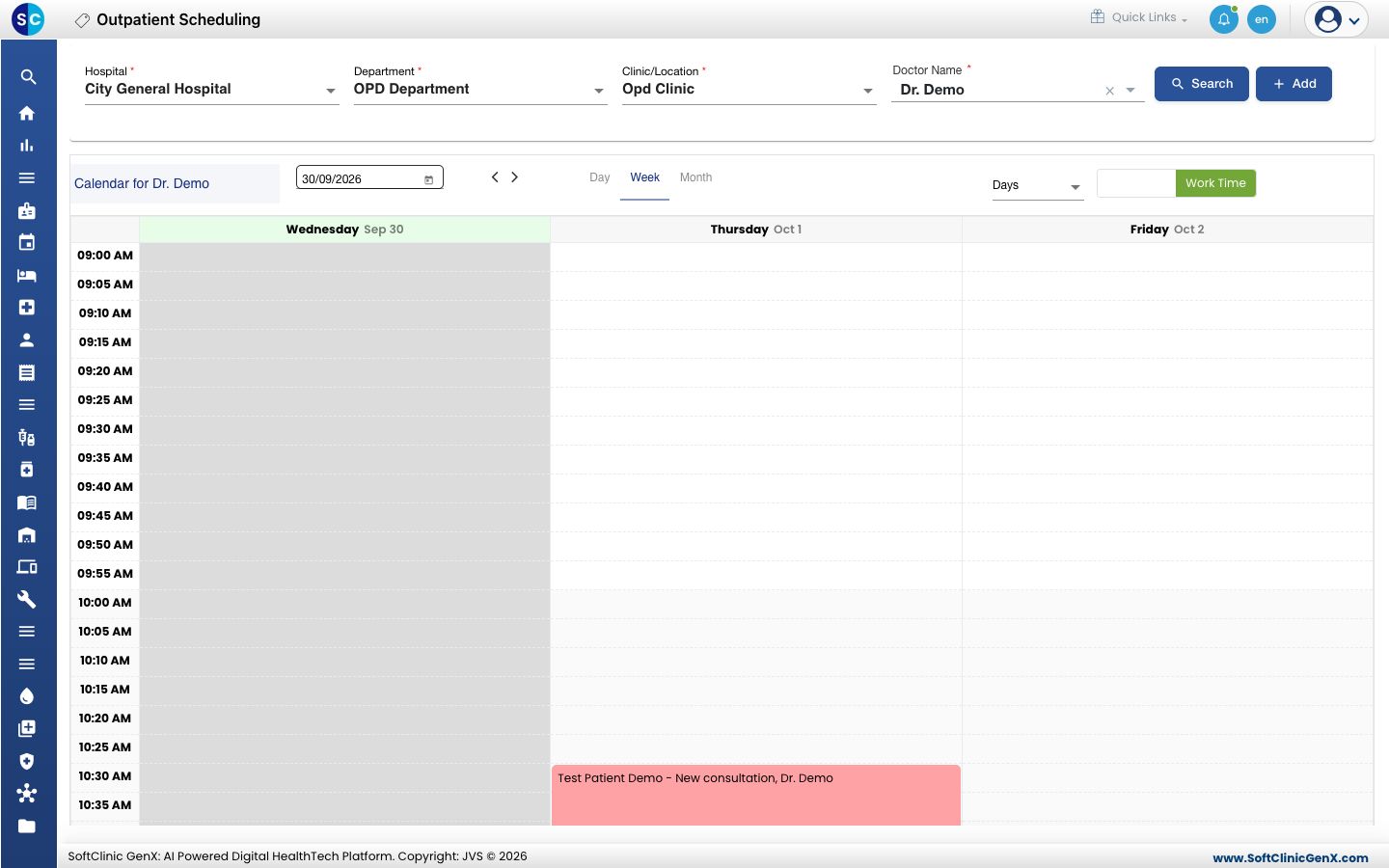
Cancelling marks the appointment as cancelled and records why. The appointment is not deleted: it stays in the list and shows in red on the calendar.
note
Who can do this: front desk and appointment staff
Where: Appointments › Views › Appointment List › row menu › Cancel Appointment
Before you start
- If the patient only wants another time, reschedule the appointment instead.
Cancel the appointment
- Go to Appointments › Views › Appointment List and find the appointment.
- Click the three dots at the end of the row and choose Cancel Appointment.
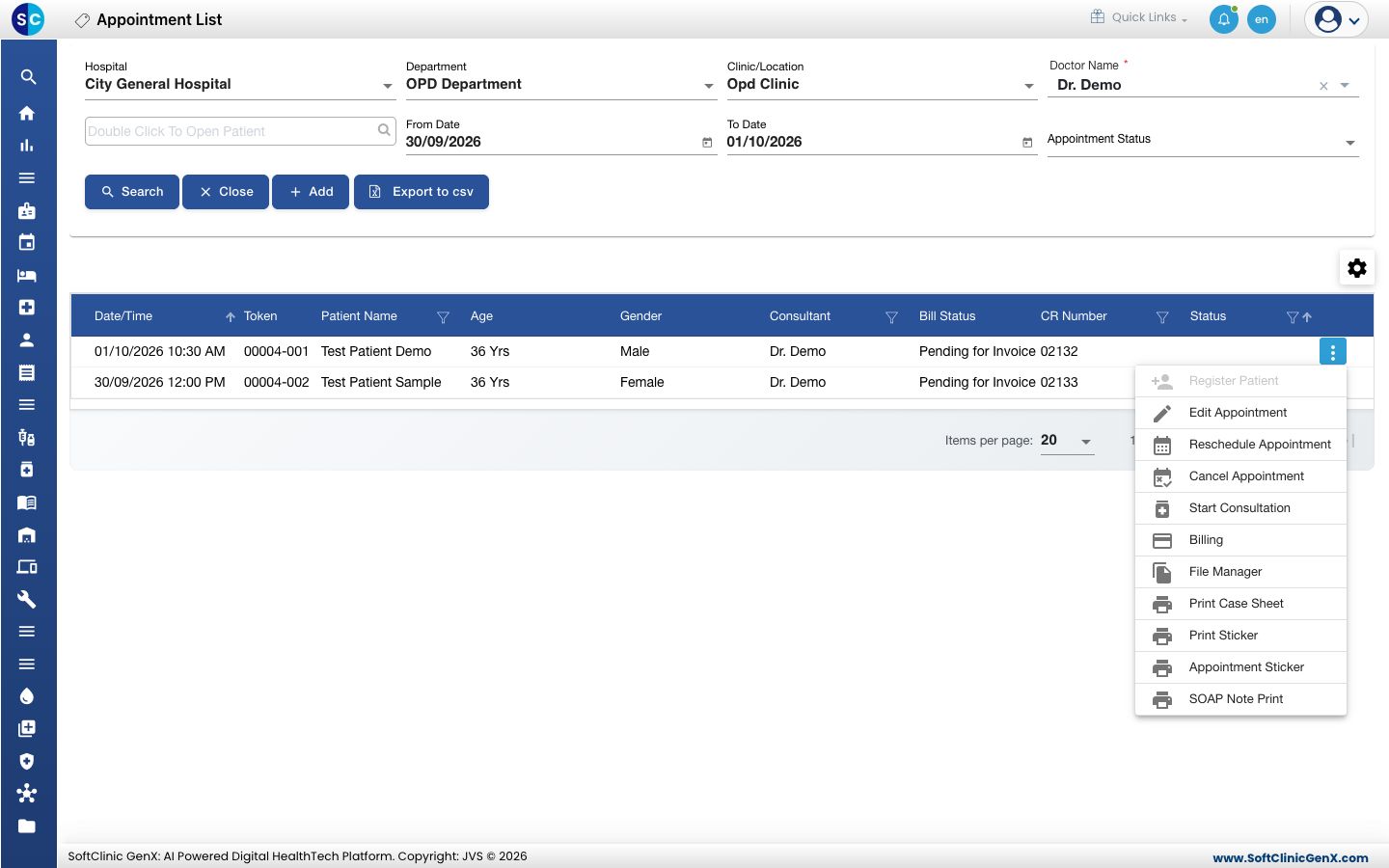
- The Cancel Appointment form opens on the OTHER DETAILS tab.
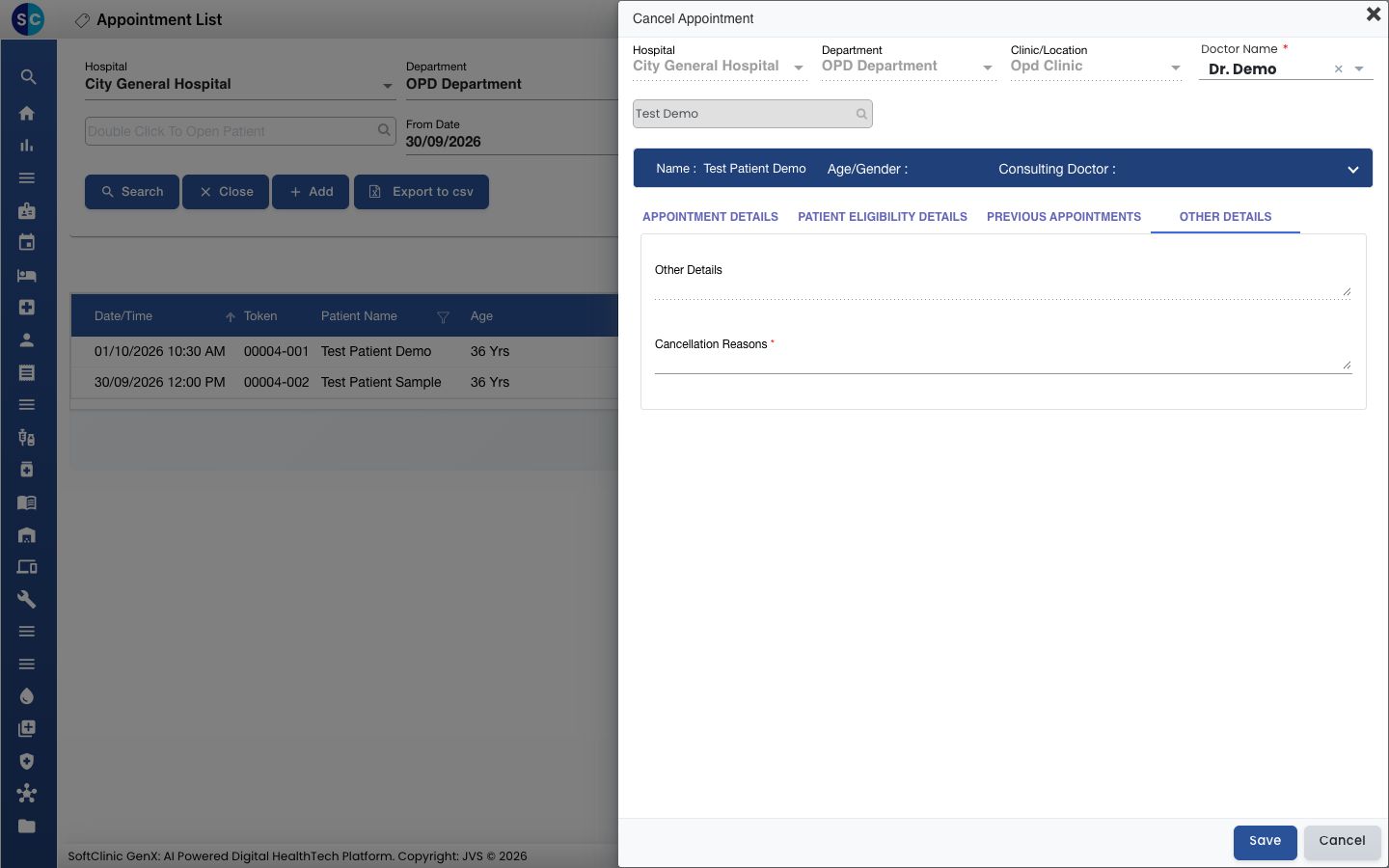
- Type the reason in Cancellation Reasons. This field is required.
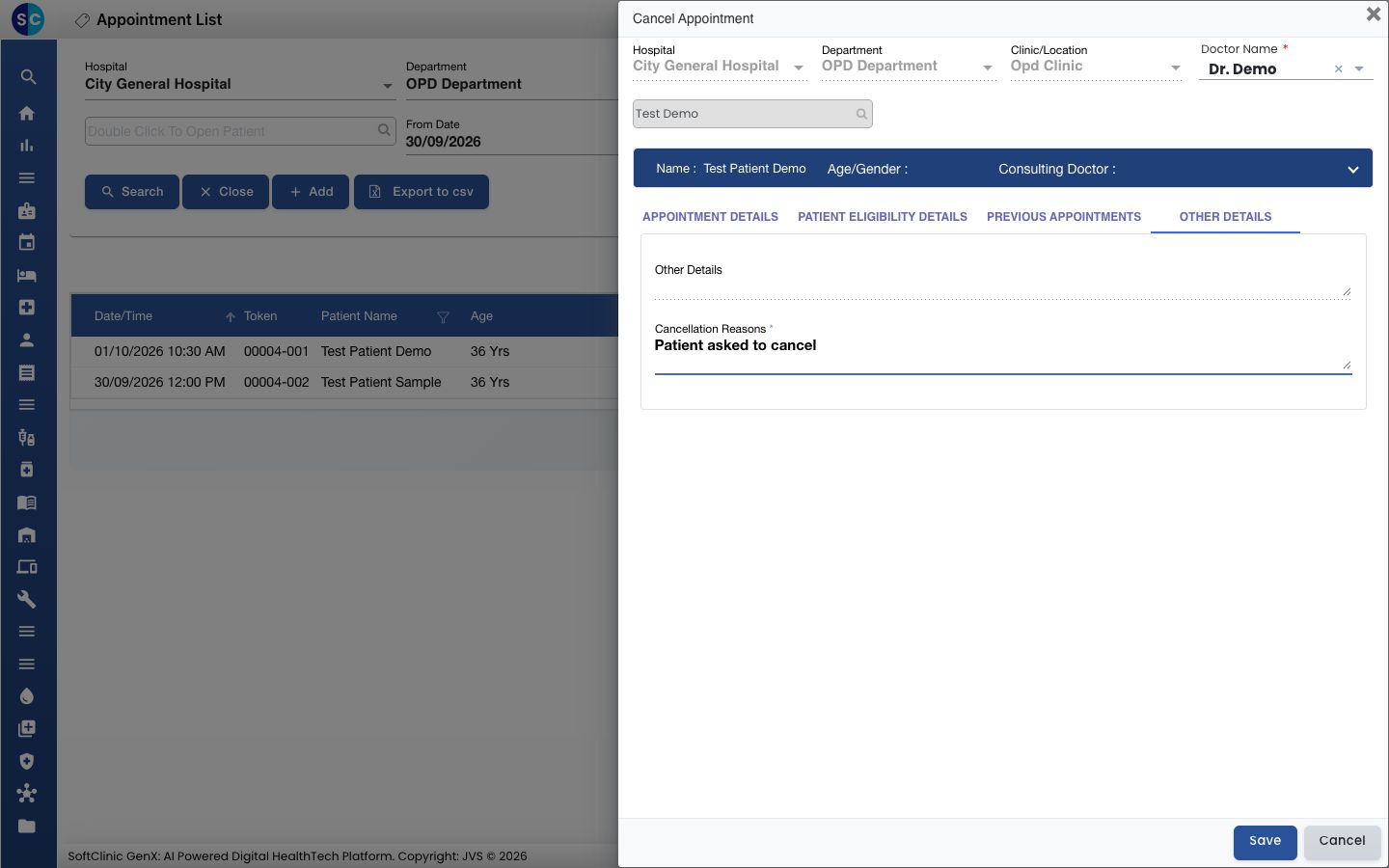
- Click Save. You see Record updated successfully.
- Open Appointments › Outpatient Scheduling to confirm. The appointment is now red.
warning
A cancelled appointment cannot be billed. If the patient comes after all, book a new appointment.
Troubleshooting
| What you see | What it means | What to do |
|---|---|---|
| This field is required. | Cancellation Reasons is empty. | Type a reason and save again. |
| Appointment is Cancelled | The appointment is already cancelled. | Nothing more to do. Book a new appointment if the patient is coming. |
Related
- Reschedule an appointment: move the booking instead of cancelling it.
- Book an appointment: add a new booking.
- Appointments FAQs: common questions about the list.