Book an appointment for a new patient
Register a first-time patient from the booking form and carry on with the appointment without leaving the screen.
A first-time patient has no record to search for. You can register the patient from the New Appointment form and finish the booking in the same place.
note
Who can do this: front desk and appointment staff
Where: Appointments › Outpatient Scheduling › New Appointment › patient box
Before you start
- Search for the patient by mobile number first, so that you do not create a duplicate record. See Find a patient.
- Open the doctor's calendar and click a free slot, as in Book an appointment.
Register the patient and book
- On the New Appointment form, double-click the Double Click To Open Patient box. The Patient List opens.
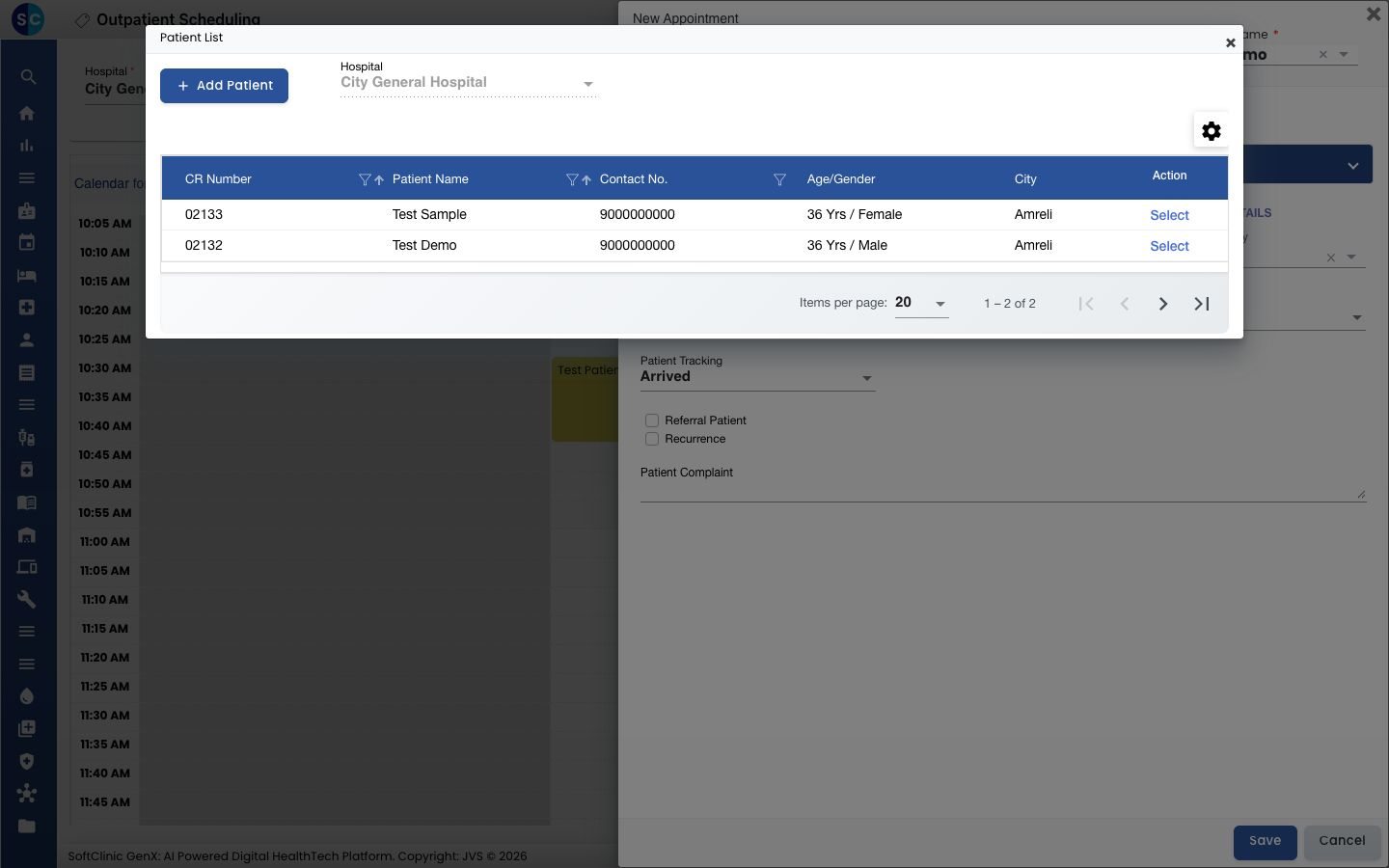
- Check that the patient is not in the list. Type in a column heading (CR Number, Patient Name, Contact No.) to filter. If you find the patient, click Select and skip to step 6.
- Click Add Patient. The Add New Patient form opens with Registration Type set to Quick Registration.
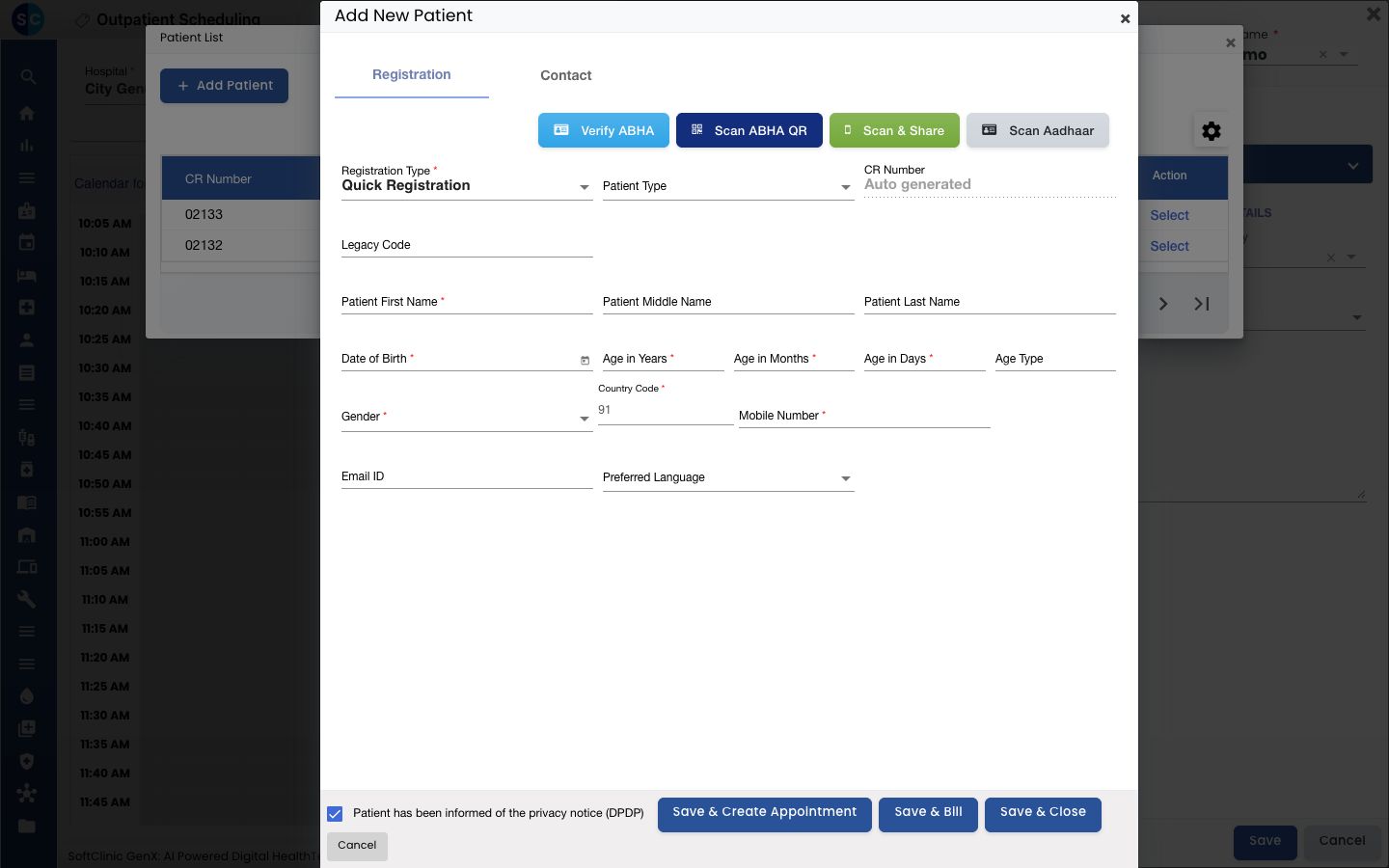
- Fill in the Patient First Name, Date of Birth (or Age in Years), Gender and Mobile Number. The fields are the same as in Register a new patient (Quick Registration).
- Click Save & Create Appointment. The patient gets a CR number and is selected on the New Appointment form.
- Choose the Service, check the Appointment Date and Appointment Time, and click Save. You see Record saved successfully.
tip
To record an ID proof, address or insurance at the same time, change Registration Type before you fill in the form. See Register a patient with full details.
Troubleshooting
| What you see | What it means | What to do |
|---|---|---|
| A Warning lists other patients | Patients with the same mobile number are already registered. | If the patient is in the list, click Cancel and select the existing record. If not, click Ok to save. |
| patient already exists | A patient with the same name, date of birth, gender and mobile number is already registered. | Close the form and select the existing patient from Patient List. |
| A field is underlined in red | A required field is empty. | Fill in the field and save again. |
Related
- Book an appointment: the full booking steps for a registered patient.
- Register a new patient (Quick Registration): every field on the quick form.
- Edit a patient's details: complete the record after the visit.