Set up Admission Type Profile
Who does this: hospital administrator Where: In-Door Management › Masters › Admission Type Profile Set up before: Facility
An admission type describes why and how a patient is admitted, for example General, Day Care or Maternity. Staff choose the admission type when they admit a patient. Each type belongs to one facility and can carry a suggested deposit amount.
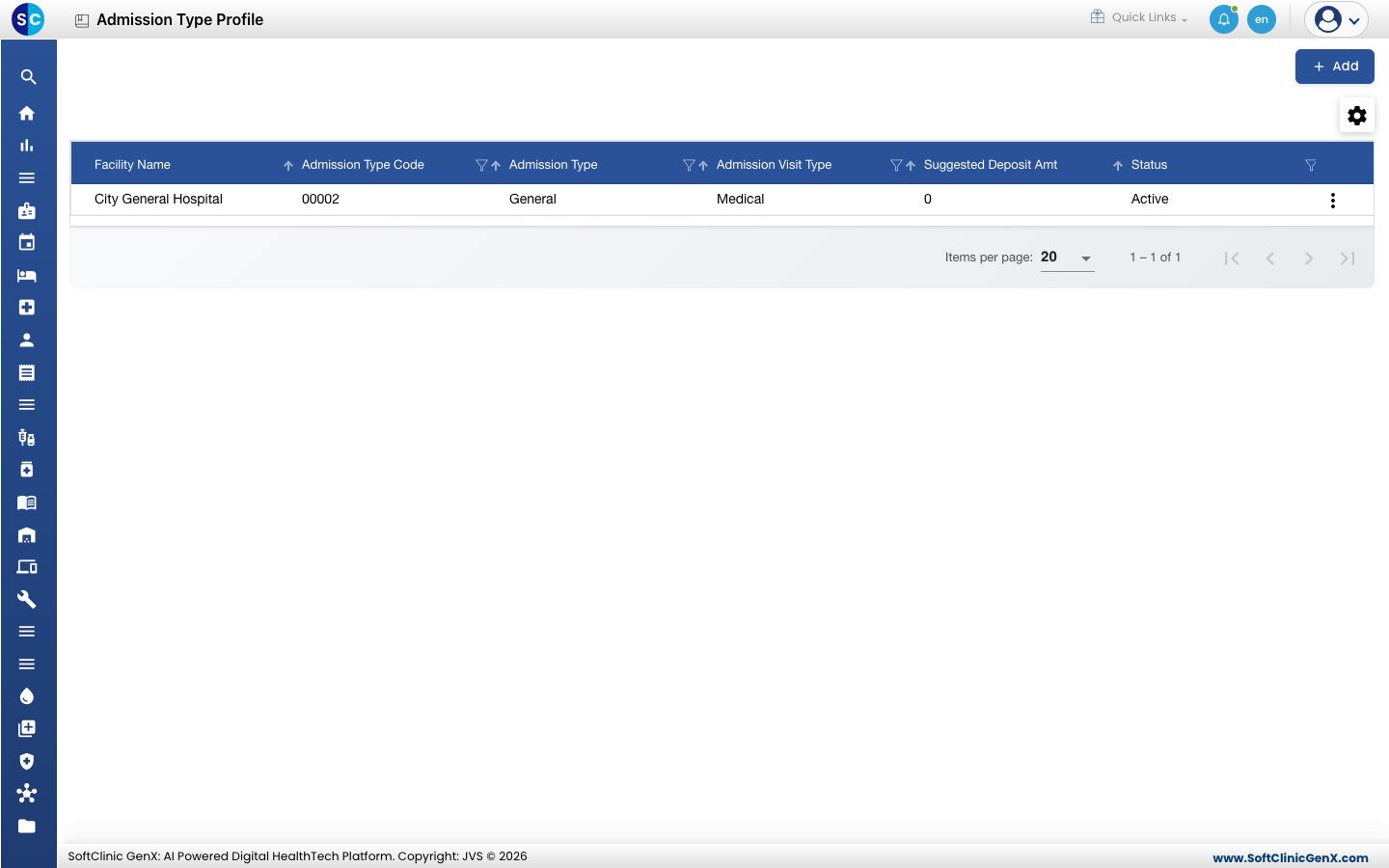
Add an admission type
-
Go to In-Door Management › Masters › Admission Type Profile.
-
Click Add. The Admission Type Profile form opens on the right.
-
Fill in the fields:
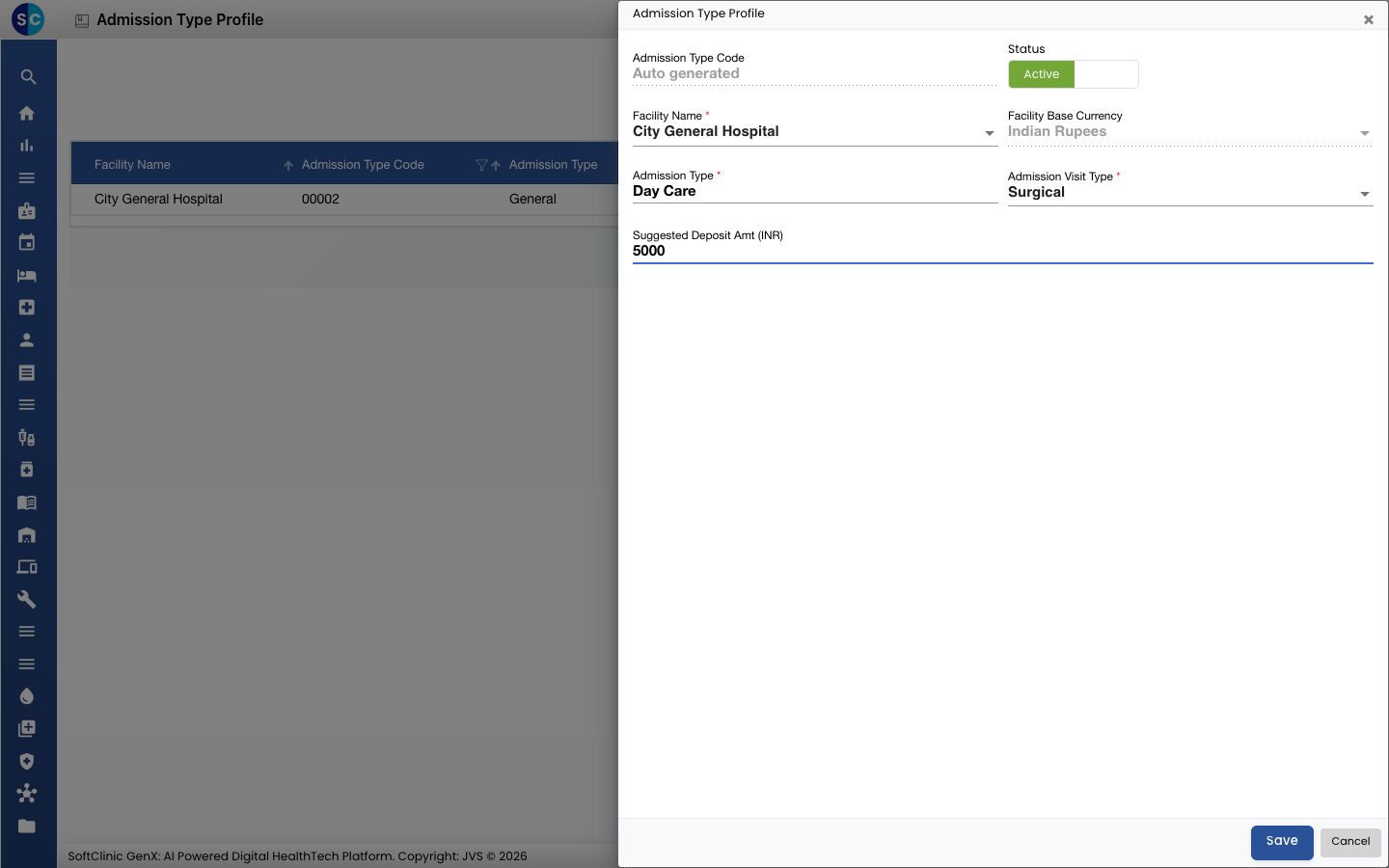
Field What to enter Required Admission Type Code Filled in automatically when you save. — Status Leave on Active. — Facility Name The facility this admission type is used in. Yes Facility Base Currency Filled in from the facility. — Admission Type The name, for example Day Care. Up to 50 characters. Yes Admission Visit Type Medical, Surgical or Both (Medical & Surgical). Yes Suggested Deposit Amt The deposit usually asked for with this type of admission, in the facility's currency. Numbers only. No -
Click Save. The form closes and the new admission type appears in the list.
Change or deactivate an admission type
- In the list, click the ⋮ button at the end of the row and choose Edit.
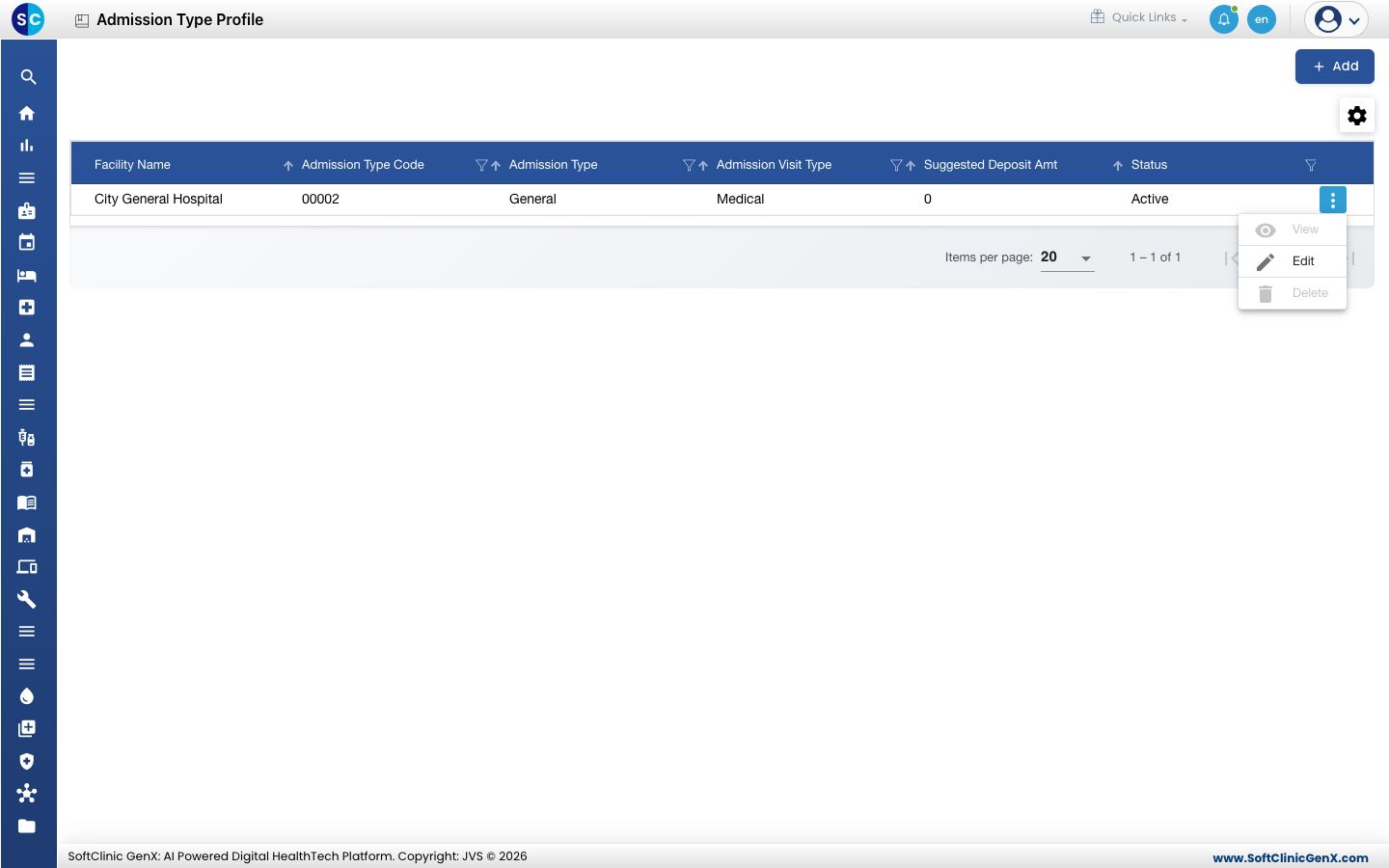
- Change the fields you need. To stop offering the type, switch Status to Inactive.
- Click Save.
Good to know
- Admission type names must be unique.
- Use the filter icons in the column headers to find an admission type by code, name, visit type or deposit.
- Click Cancel to close the form without saving.