Find and reprint a pharmacy bill
Look up pharmacy bills by date, visit type or doctor, print a bill again, and export the list or a report.
The Pharmacy Billing List shows every pharmacy bill your facility has made. Use it to find a bill, print it again, or export the list.
Who can do this: pharmacist or pharmacy counter staff · Where: Pharmacy › Views › Pharmacy Billing List
Find a bill
-
Go to Pharmacy › Views › Pharmacy Billing List.
-
Fill in the filters:
Field What to choose Required Facility Name Your facility. Yes Visit From Date, Visit To Date The dates to search. Both start on today's date. Yes Visit Type All, or one visit type. No Consultant Name Pick a doctor to see only that doctor's bills. No -
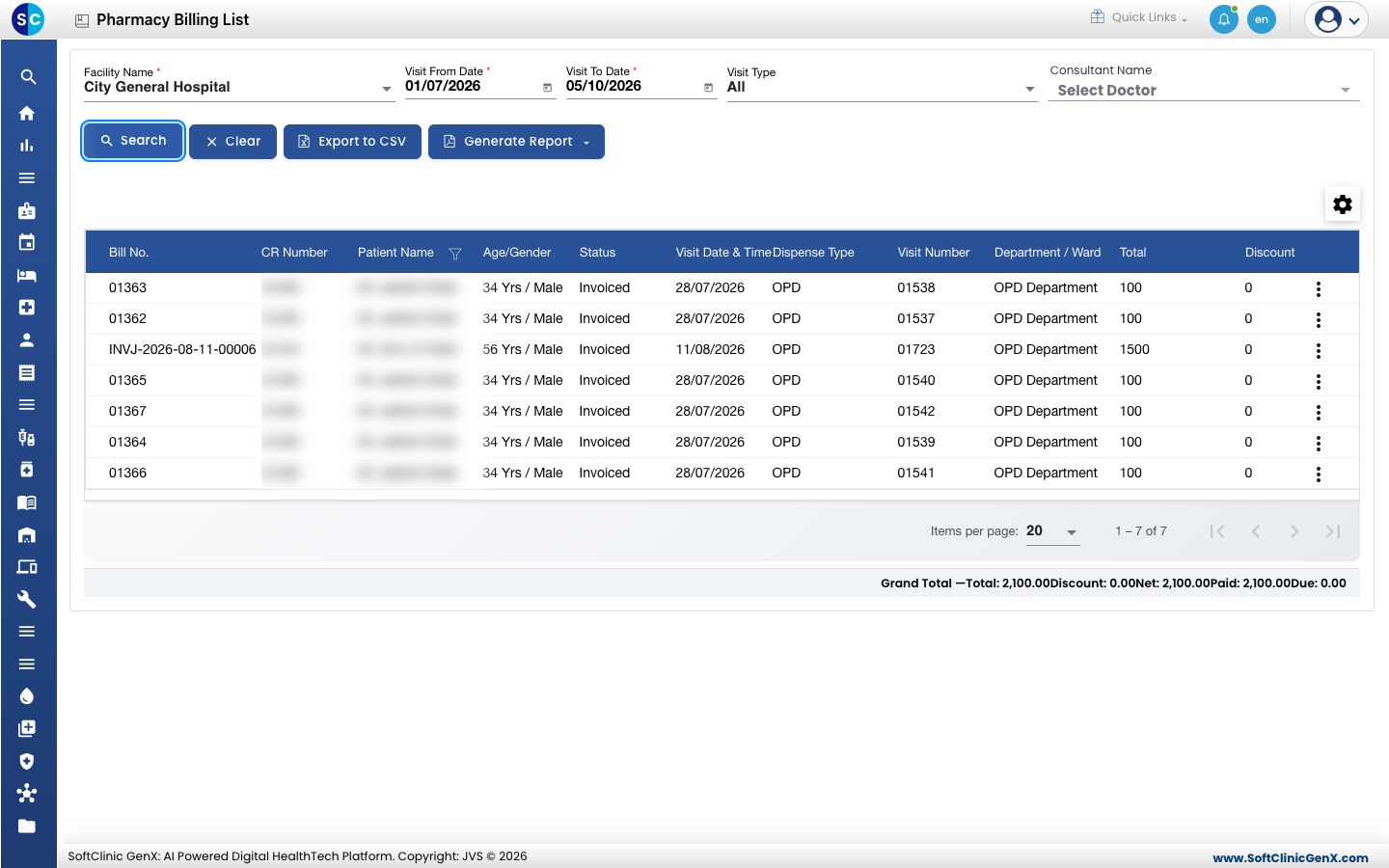
Click Search. The bills appear with the Bill No., CR Number, Patient Name, Age/Gender, Status, Visit Date & Time, Dispense Type, Visit Number, Department / Ward, Total and Discount. A Grand Total line under the list adds up the amounts.
-
To find one patient, click the filter icon in the Patient Name column.
No Records Found usually means the dates are too narrow, because both dates start on today. Move Visit From Date back and click Search again.
Print a bill again
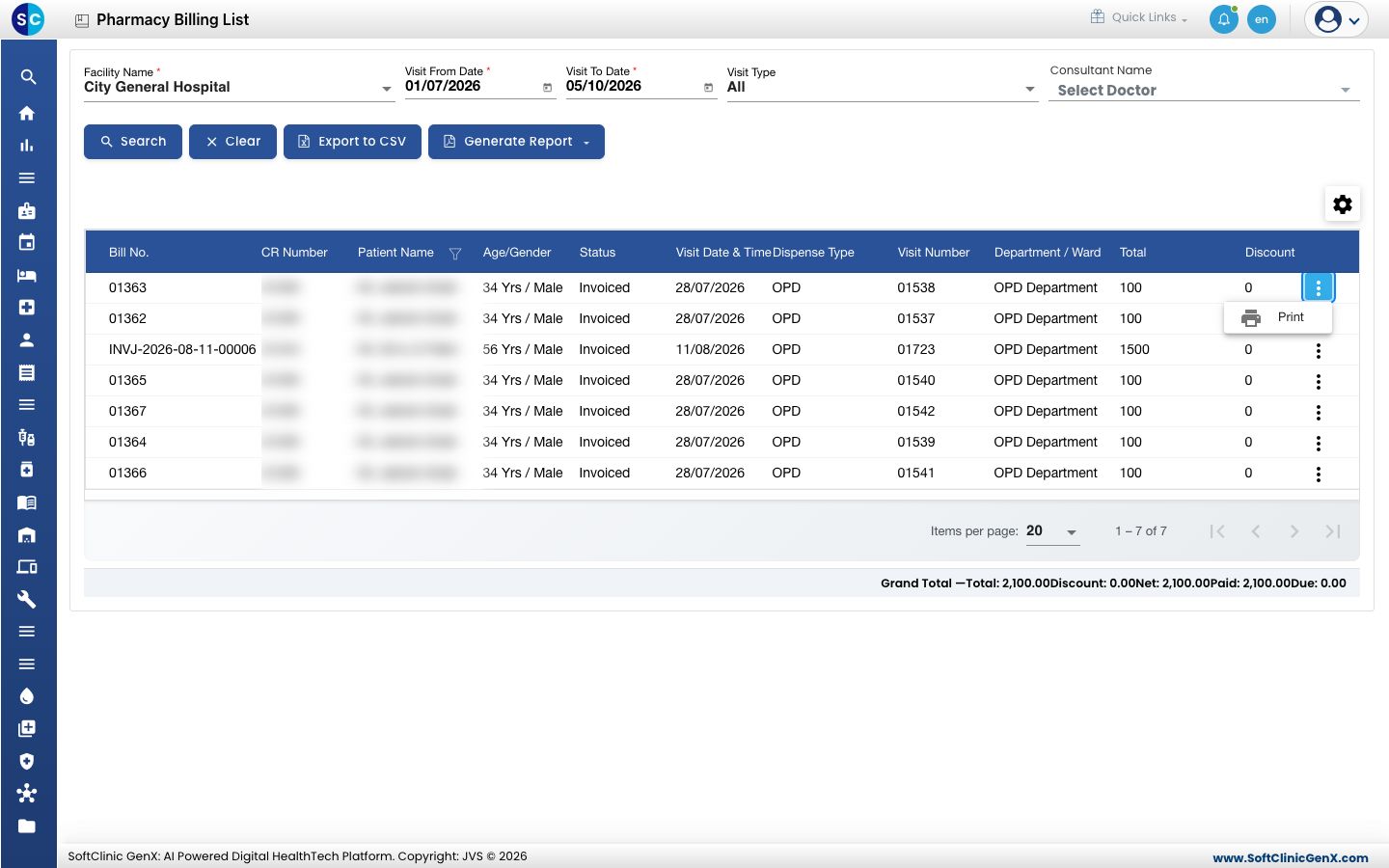
- Click ⋮ at the end of the bill's row.
- Choose Print.
 The bill opens for printing with the patient and doctor details, each medicine with its batch, expiry, quantity, rate and tax, the totals and the payment split.
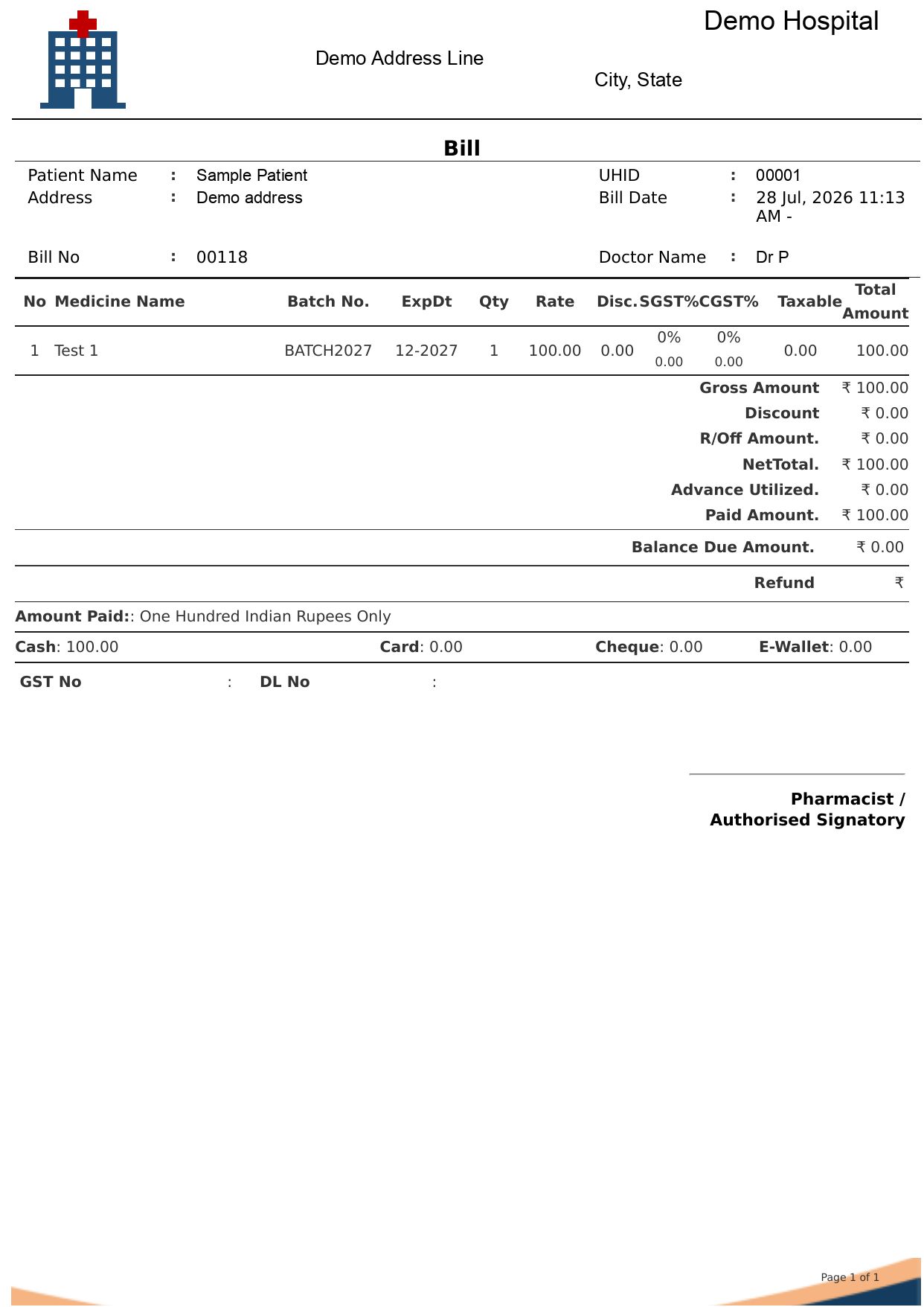
To print your drug licence numbers on the bill, see Print the pharmacy bill with your drug licence header.
Export the list or a report
- Export to CSV: saves the bills in the list to a spreadsheet file.
- Generate Report: opens a menu with Generate Summary Report and Generate Details Report.
Click Clear to reset the filters.
Related
- Take back returned medicines: use the bill number from this list
- Make a pharmacy sale
- Pharmacy FAQs