Print the pharmacy bill with your drug licence header
Print pharmacy bills that show your drug licence numbers, NDPS licence and GSTIN at the top, with manufacturer and schedule columns for every medicine.
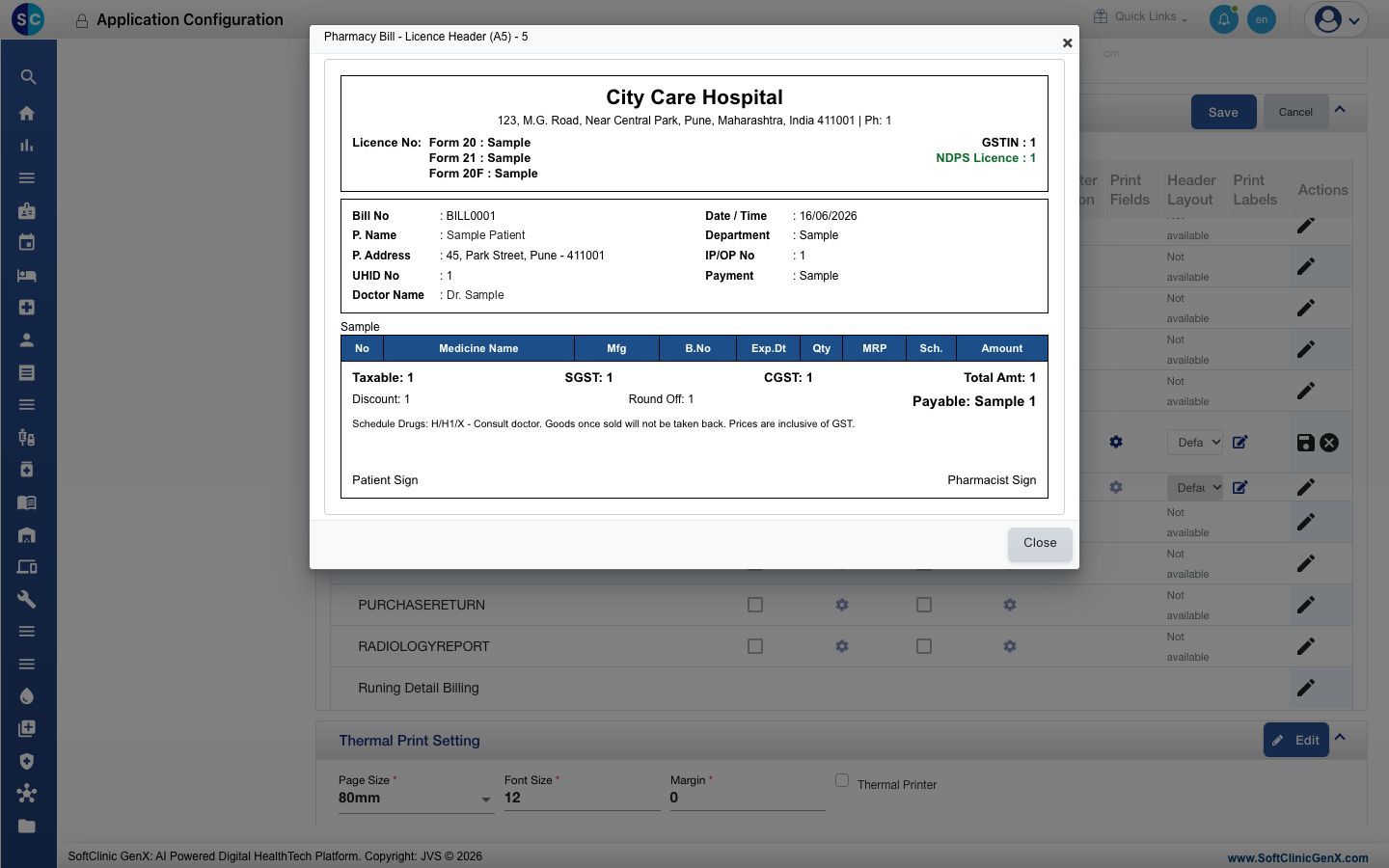
The Pharmacy Bill - Licence Header (A5) layout prints your pharmacy's name, address and phone, its Form 20, Form 21 and Form 20F drug licence numbers, NDPS licence number and GSTIN at the top of every pharmacy bill. Its medicine table has the columns No, Medicine Name, Mfg, B.No, Exp.Dt, Qty, MRP, Sch. and Amount. You set it up once per facility, and every pharmacy bill from that facility then prints in this layout.
Who can do this: hospital administrator or pharmacy in-charge · Where: General Masters › Location Masters › Facility, and Configurations › Application Configurations › General › Report Setting
Before you start
- Have your drug licence numbers, NDPS licence number and GSTIN to hand.
- Your medicines are set up as items and linked to their drug generics.
Enter your licence numbers in Facility
The licence numbers and GSTIN on the bill come from the facility's details.
-
Go to General Masters › Location Masters › Facility.
-
Click ⋮ at the end of your facility's row and choose Edit. The Facility Master panel opens on the Facility tab.
-
Fill in the licence fields:
Field What to enter Required GST No Your GSTIN. It prints as GSTIN. No Drug Licence Form 20 Your Form 20 drug licence number. No Drug Licence Form 21 Your Form 21 drug licence number. No Drug Licence Form 20F Your Form 20F drug licence number. No NDPS Licence No Your NDPS licence number. No 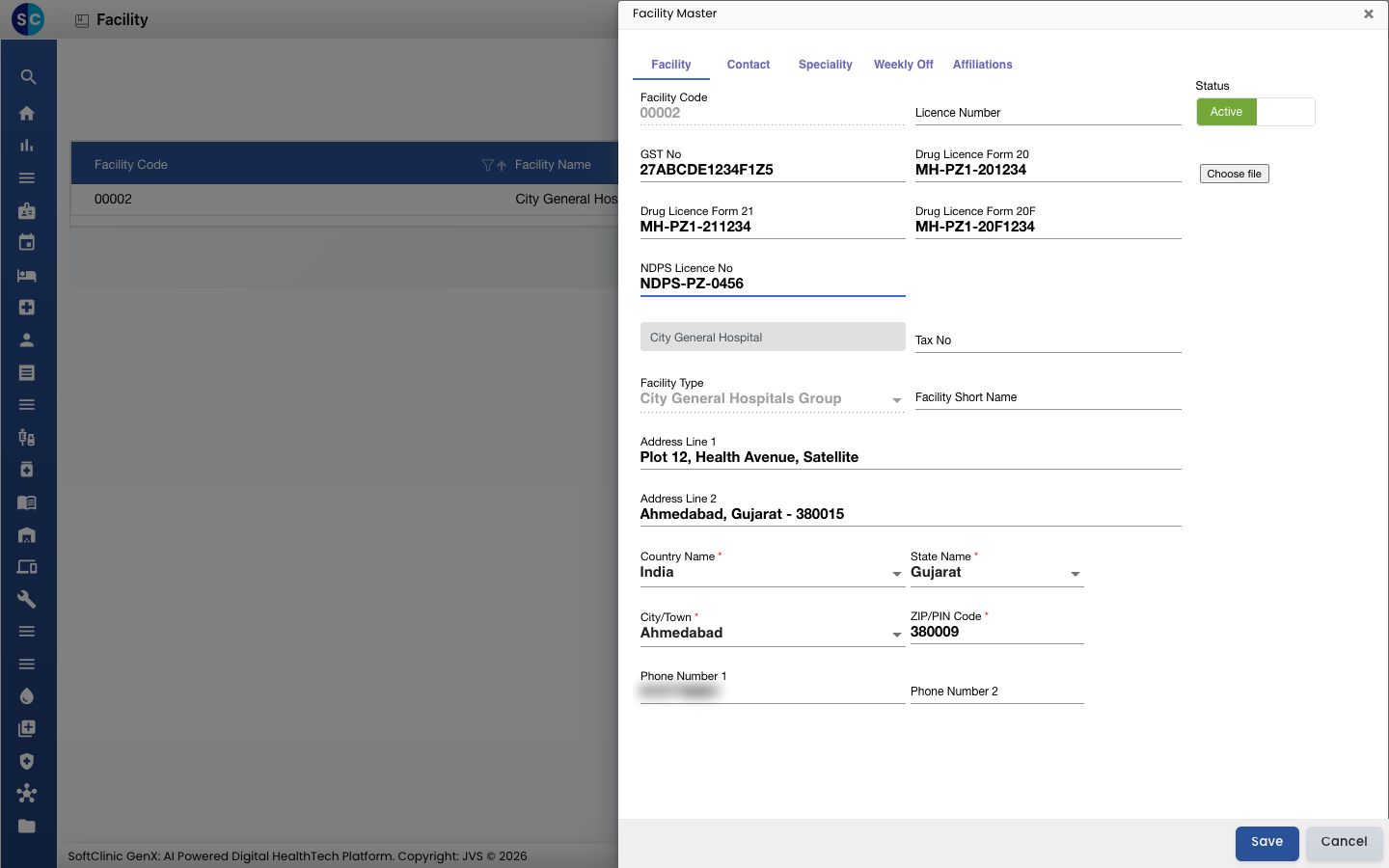
-
Click Save.
The bill also prints the facility name, address and Phone Number 1 from this form, so check that they are correct.
Choose the licence header layout
- Go to Configurations › Application Configurations. The General tab opens.
- Choose your Facility at the top of the tab.
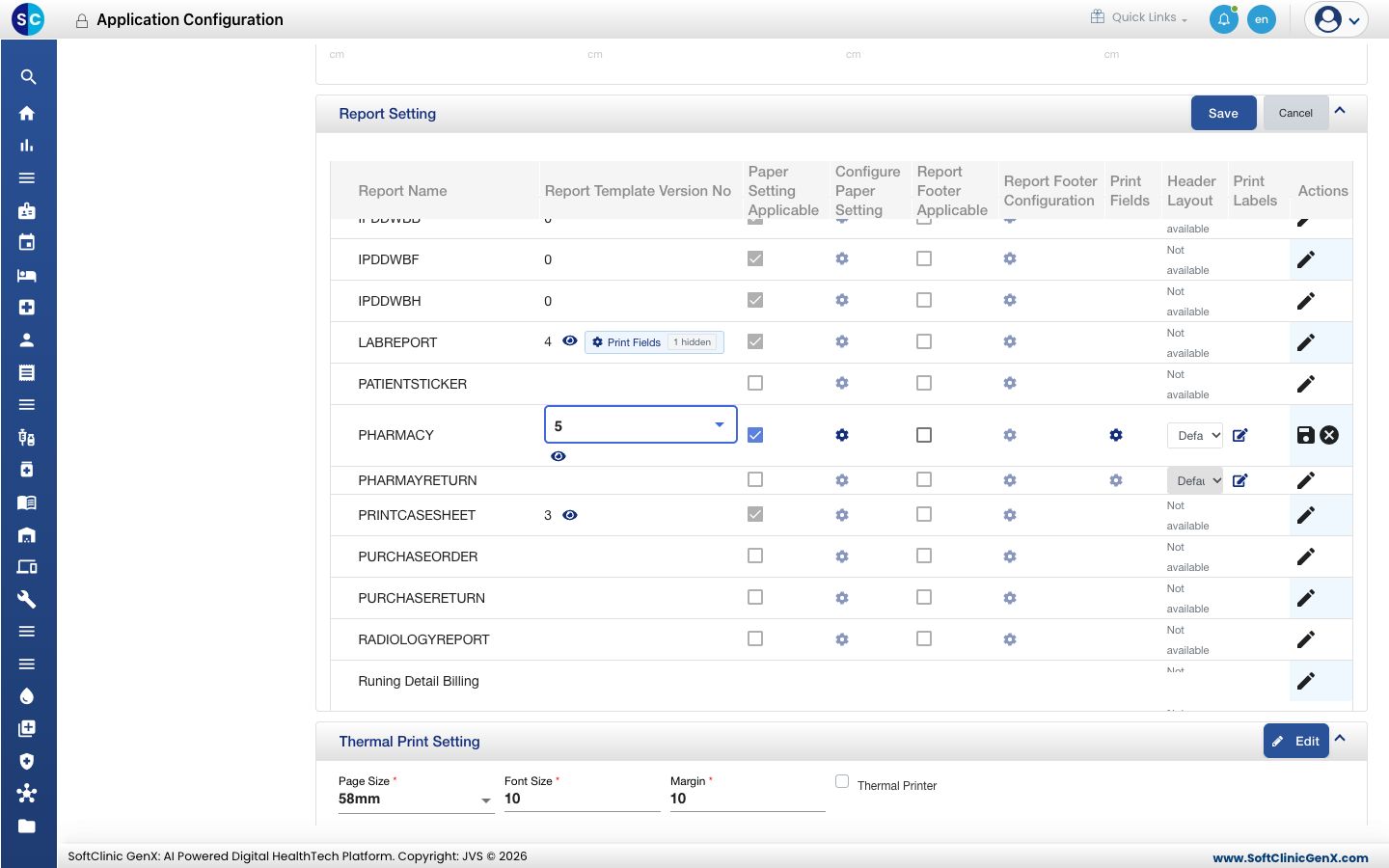
- Scroll to Report Setting and click Edit.
- On the PHARMACY row, click the pencil in the Actions column.
- In Report Template Version No, choose 5.
- Tick Paper Setting Applicable.
- Optional: click the eye below the version number to see the layout. The preview is titled Pharmacy Bill - Licence Header (A5) - 5 and shows sample data. Click Close.
Set the paper for pharmacy bills
-
On the same PHARMACY row, click the gear in the Configure Paper Setting column. The PHARMACY paper window opens.
-
Fill in the paper fields:
Field What to enter Required Letter Head Image Optional. Click Choose file to upload a header image for pharmacy bills only. Without one, the facility's letter head image is used. No Letter Head Footer Optional. A footer image for pharmacy bills. No Default(Print) Plain Paper to print the header on blank paper. Letter Head if your paper already has the header printed on it; the bill then leaves the header space blank. Yes page Type A5, the paper size this layout is designed for. Yes Page Orientation PORTRAIT. Yes Header Height, Footer Height The height of the header and footer areas, in pixels, for example 100 and 40. Yes Plain Paper › Header, Footer, Left, Right (in cm) The margins used when you print on plain paper. Yes Letter Head › Header, Footer, Left, Right (in cm) The margins used when you print on letter head paper. Make the header margin tall enough to clear your printed header. Yes 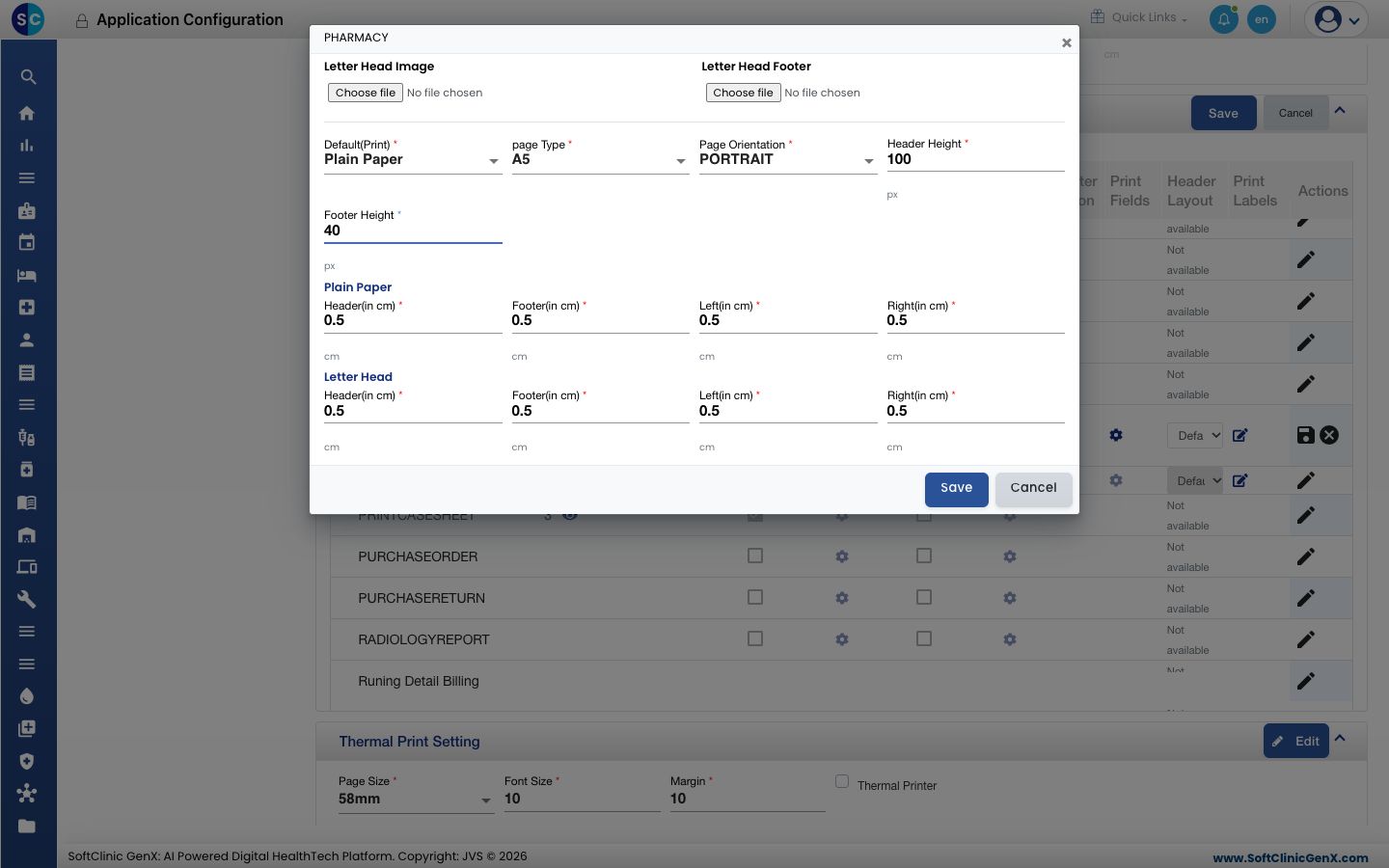
-
Click Save in the window.
-
Click the save icon at the end of the PHARMACY row. Record updated successfully appears.
The licence numbers and GSTIN print as text at the top of the bill. When a letter head image is set, either here or on the facility, the image prints in place of that text header. Use a letter head image that already shows your licence numbers and GSTIN.
Fill the Mfg and Sch. columns
These two columns are read from your masters. A medicine that has neither prints with the cells blank.
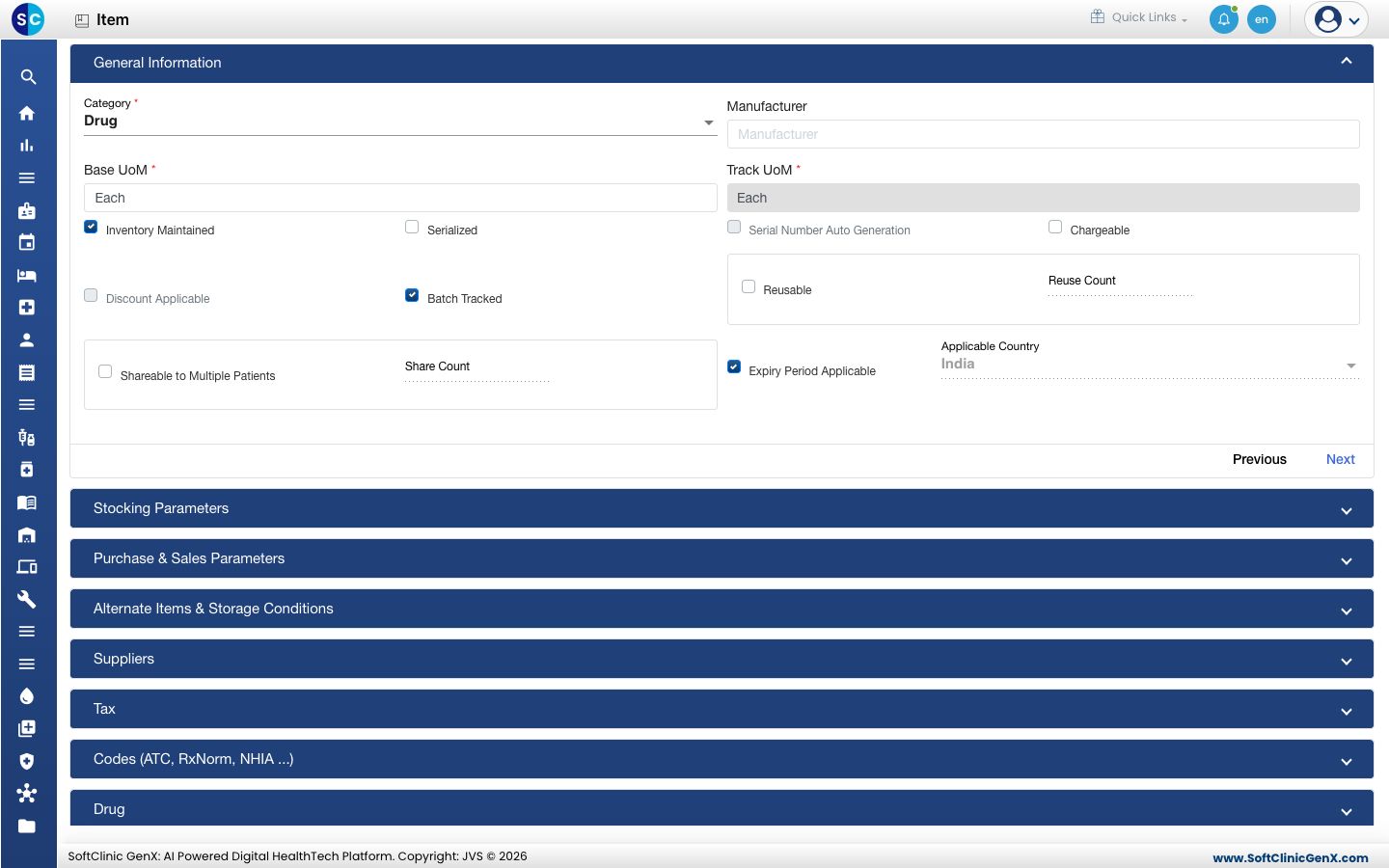
- Mfg: the Manufacturer in the item's General Information section. See Set up Item.
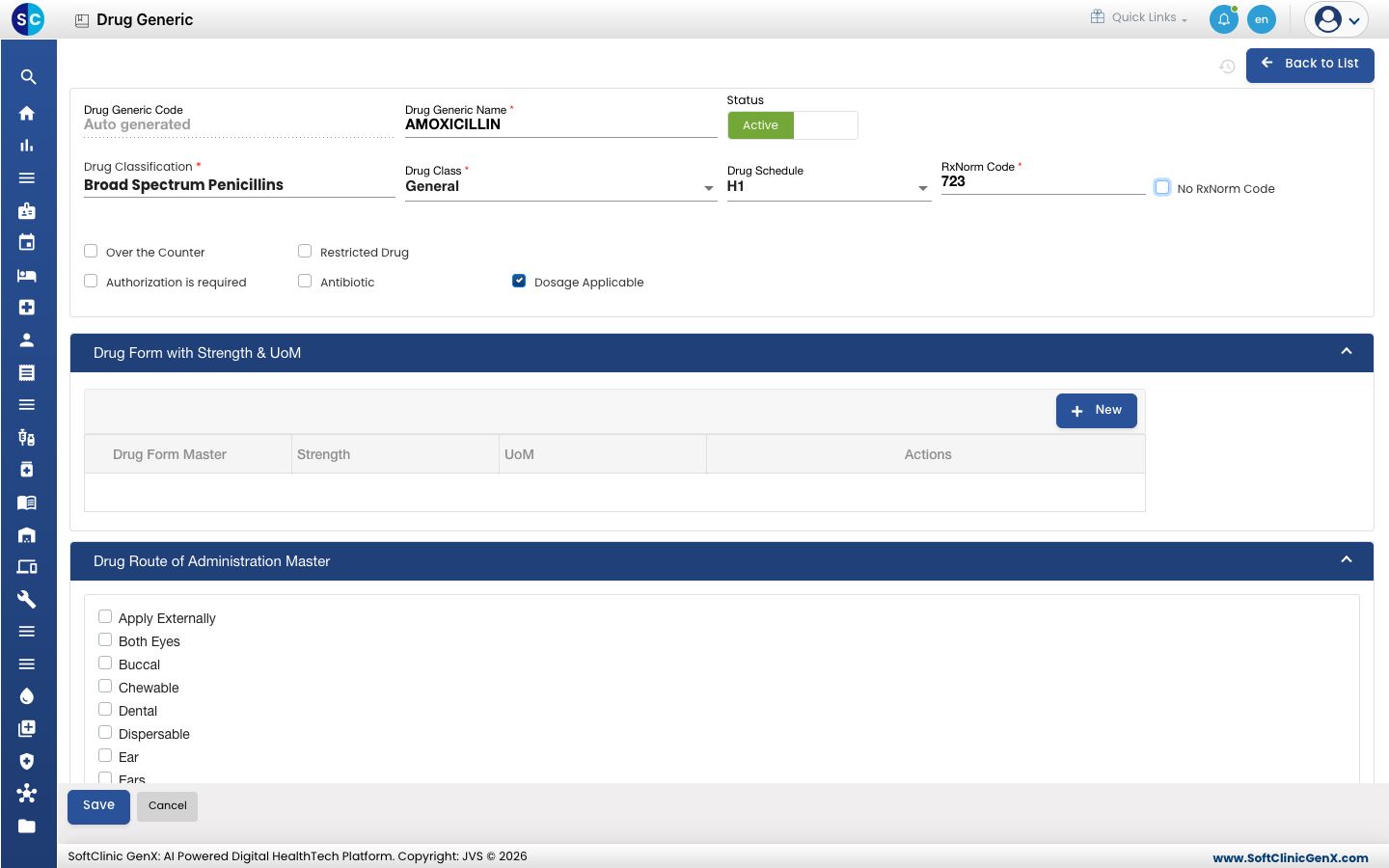
- Sch.: the Drug Schedule of the drug generic the medicine is linked to, such as H, H1 or X. See Set up Drug Generic. A medicine with more than one generic prints the strictest schedule.
Print a test bill and check it
- Go to Pharmacy › Views › Pharmacy Billing List.
- Set Visit From Date so the list includes a bill you have already made, and click Search.
- Click ⋮ at the end of the bill's row and choose Print. The bill opens in a preview.
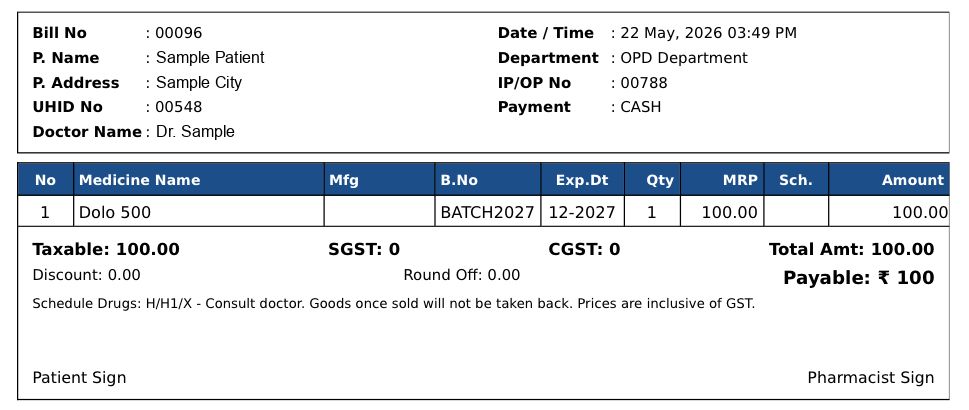
- Check the bill:
- The licence numbers and GSTIN at the top match your licences.
- IP/OP No shows the admission number for an in-patient bill and the visit number for an out-patient bill.
- MRP shows the medicine's MRP. When an item has no MRP, the rate charged prints instead.
- Mfg and Sch. are filled for the medicines you updated.
If something looks wrong
| What you see | What it means | What to do |
|---|---|---|
| A licence number or the GSTIN is blank | That field is empty in the facility's details. | Fill it in Facility and print again. |
| No licence numbers at the top of the bill | A letter head image prints in place of the text header, or Default(Print) is Letter Head. | Use a letter head image that carries your licence numbers, or print on pre-printed stationery that shows them. |
| Mfg is blank for a medicine | The item has no Manufacturer. | Pick the manufacturer on the item. |
| Sch. is blank for a medicine | The drug generic has no Drug Schedule, or the medicine is not linked to a generic. | Set the schedule on the drug generic and link the drug to it. |
| IP/OP No is blank | The bill is a counter sale with no prescription or admission. | Nothing to fix. |
| The bill still prints in the old layout | Version 5 was saved for a different facility, or the row was not saved. | On the General tab, choose the bill's facility and check the PHARMACY row shows 5. |
| The bill does not print after you change the setting | No layout is chosen in Report Template Version No. | Edit the PHARMACY row, choose a version and save the row. |
Related
- Set up Facility: all of the facility's details, including its letter head image.
- Set up Application Configurations: the other print and paper settings on the General tab.
- Set up Drug Generic: drug schedules and how generics link to medicines.
- Pharmacy FAQs: short answers about pharmacy sales, returns and reprints.