Make a pharmacy sale
Bill medicines over the counter to a walk-in customer or to a registered patient, and take payment on the same screen.
A pharmacy sale is a bill for medicines from your pharmacy store. You build the bill on the Pharmacy Bill screen, then take payment and print it.
Who can do this: pharmacist or pharmacy counter staff · Where: Pharmacy › Pharmacy Bill
Before you start
- The medicines are in stock in your pharmacy store and are set up as drugs.
- For a registered patient, the patient is already registered. A walk-in customer needs no registration.
Start the bill
-
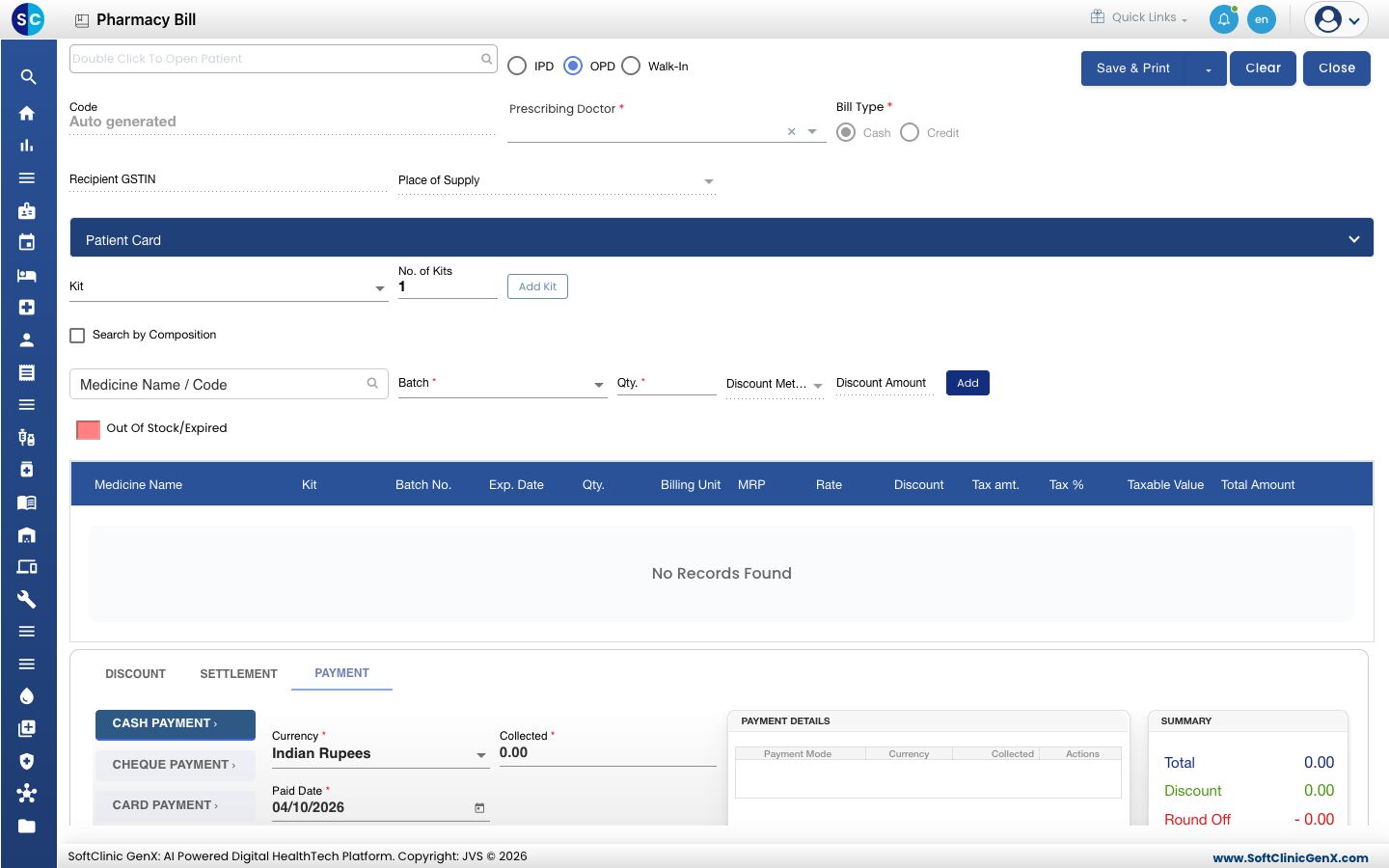
Go to Pharmacy › Pharmacy Bill. The bill opens with OPD selected.
-
Choose who the bill is for:
- Walk-In: a customer who is not registered. Go to step 3.
- OPD or IPD: a registered patient. Double-click the patient box at the top left, find the patient in the Patient List and click Select.
-
For a walk-in customer, fill in the customer details that show on the form:
Field What to enter Required Prescribing Doctor Pick the doctor who prescribed the medicines. Yes First Name The customer's first name. Yes Prefix, Middle Name, Last Name, Gender, Age In Years, Mobile Number, Email Id, Address The customer's details. No Doctor Reg. No The prescribing doctor's registration number. No Recipient GSTIN, Place of Supply Fill in when you bill a business customer. No Extra Charges, Cash Tendered, Bill Remark Add any extra charge, the cash handed over, or a note for the bill. No
Add the medicines
- Click the Medicine Name / Code box and type at least three letters of the name, or the code. A list of matching medicines opens.
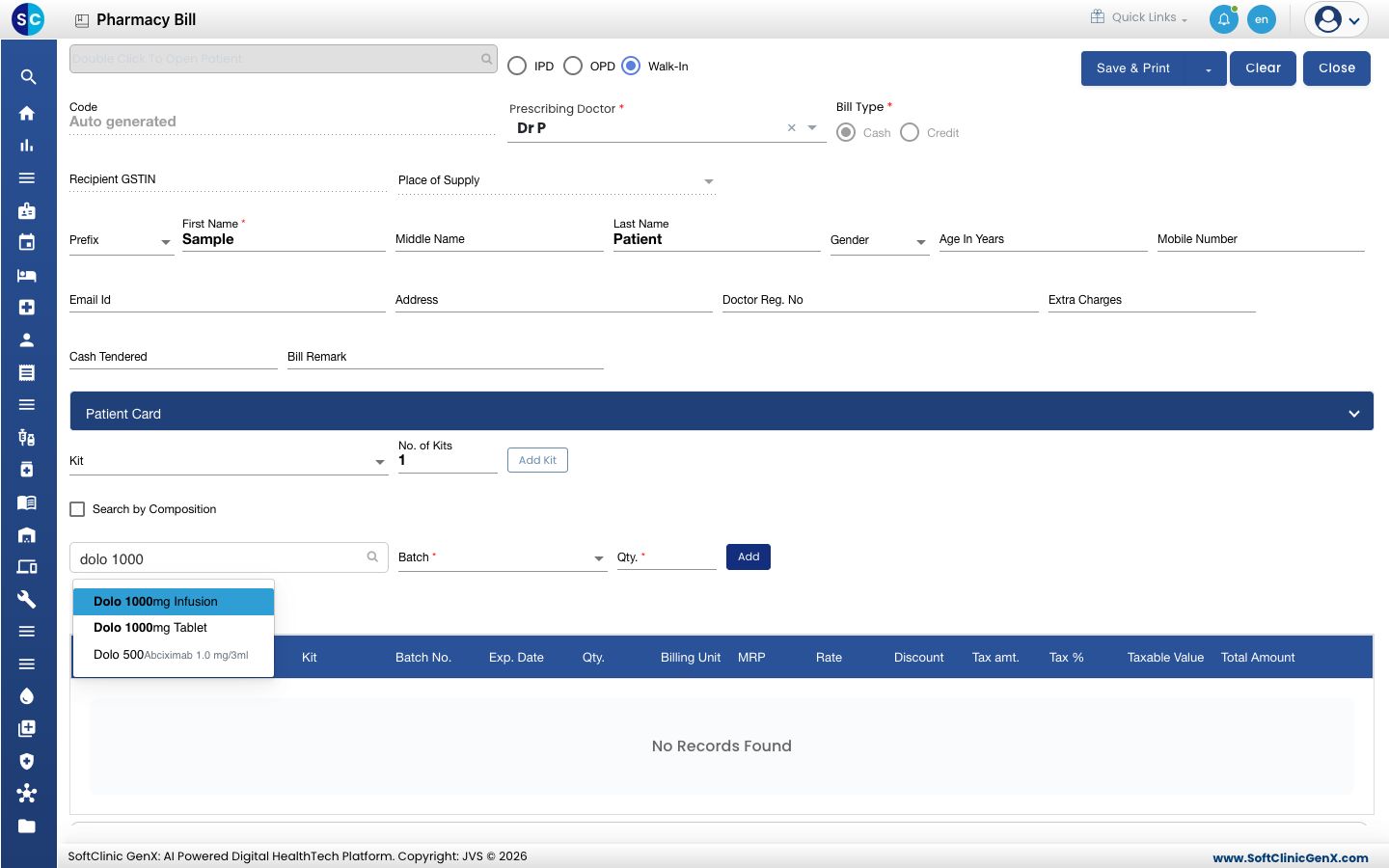
- Click the medicine you want.
- Open Batch and choose the batch. Each choice shows the batch number, its expiry month and the quantity left, for example BATCH2027-Dec/2027 (1000).
- Type the quantity in Qty.
- Click Add. The medicine appears in the bill table with its batch, expiry, quantity, MRP, Rate, Discount, tax and Total Amount.
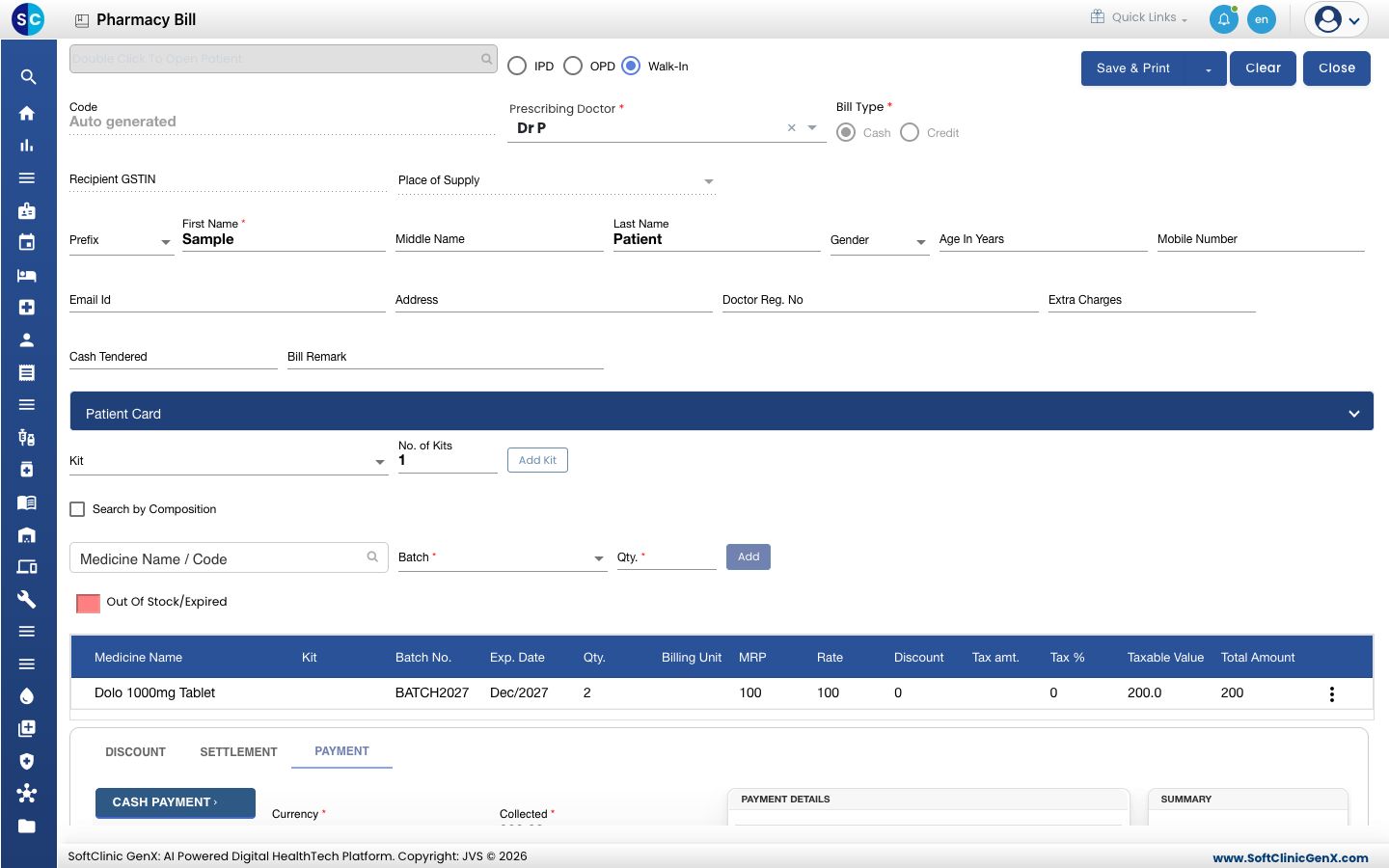
- Repeat steps 1 to 5 for each medicine.
To find a medicine by what it contains, tick Search by Composition before you type. If your pharmacy has medicine kits set up, pick a kit in Kit, set No. of Kits and click Add Kit to add its medicines in one go.
Take payment
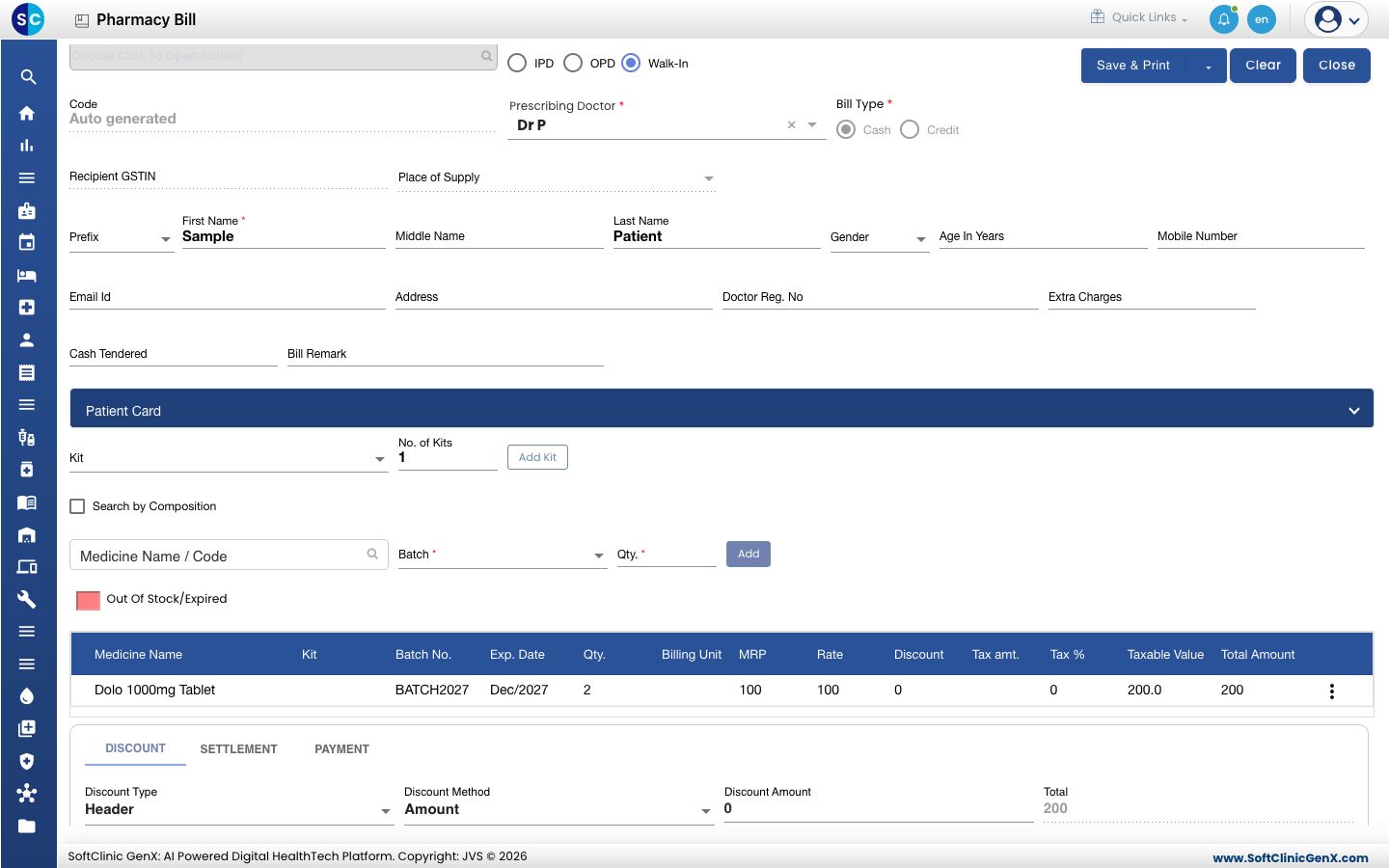
- Scroll down to the payment section. It has three tabs: DISCOUNT, SETTLEMENT and PAYMENT.
- To give a discount, open DISCOUNT, choose the Discount Type and Discount Method, and type the Discount Amount.
- Open PAYMENT and choose how the customer pays: CASH PAYMENT, CHEQUE PAYMENT, CARD PAYMENT or E-WALLETS.
- Check the Currency, type the amount in Collected and check the Paid Date. Click Add.
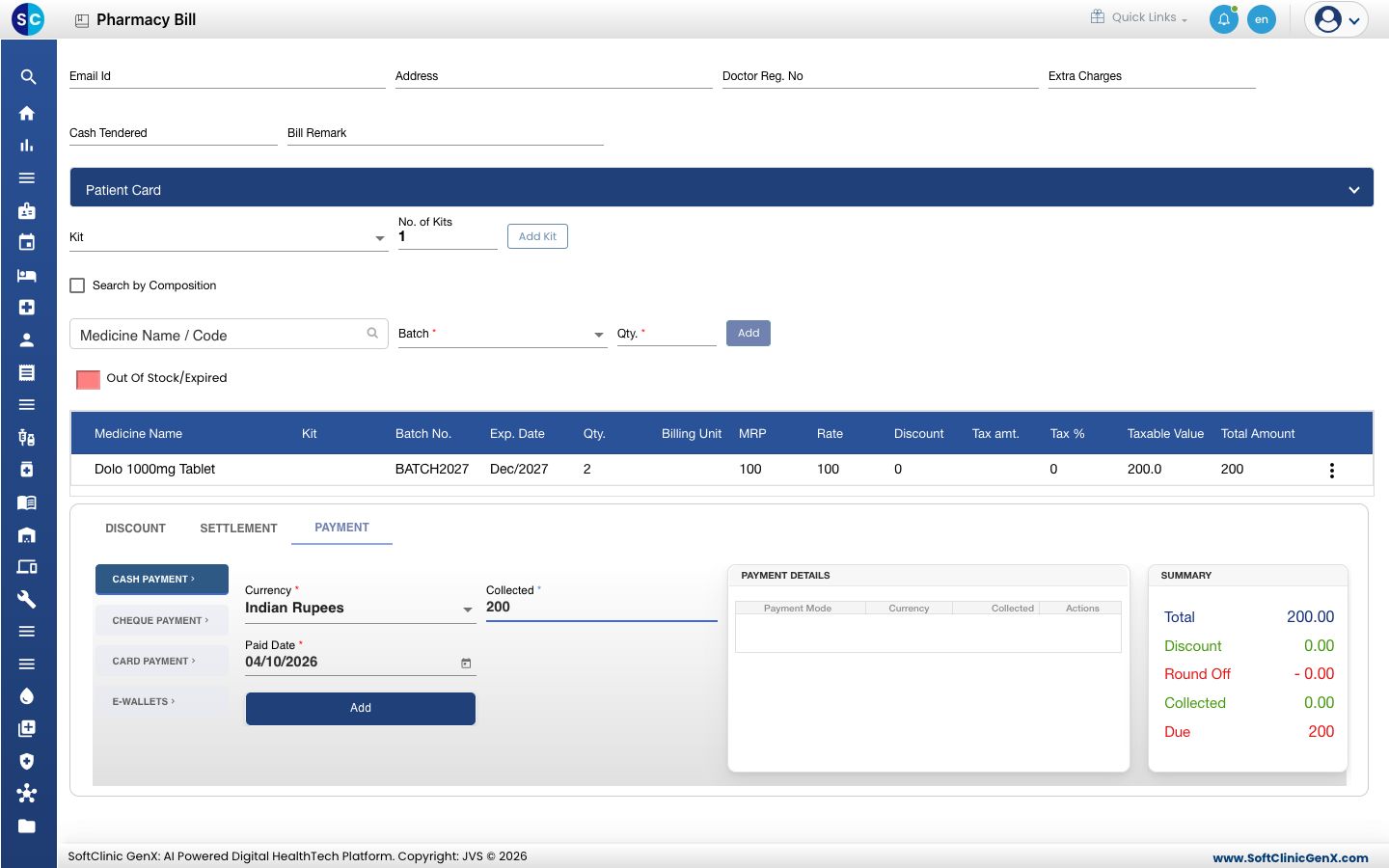
- Check the SUMMARY box. It shows Total, Discount, Round Off, Collected and Due.
- Click Save & Print.
To start again without saving, click Clear. To leave the screen, click Close.
Troubleshooting
| What you see | What it means | What to do |
|---|---|---|
| Stock not available in store after you pick a medicine | Your pharmacy store has no stock of that medicine. | Receive the stock into the store, or check that you are on the right facility and store. |
| A medicine does not appear in the search list | The name has fewer than three letters, or the medicine is not set up as a drug. | Type at least three letters. If it still does not appear, see Set up Drug. |
| The Batch list has only --Select-- | The medicine has no usable batch in the store. | Check the stock of the medicine in the store. |
| A row is shaded red | The batch is out of stock or expired. | Choose another batch. |
Related
- Fill a pharmacy requisition: bill the medicines a doctor or ward has requested
- Take back returned medicines: return medicines from a bill
- Find and reprint a pharmacy bill: print an old bill again
- Pharmacy FAQs