Show the queue on a waiting-room screen
Pair a TV or LED screen with its code so it shows the token being called.
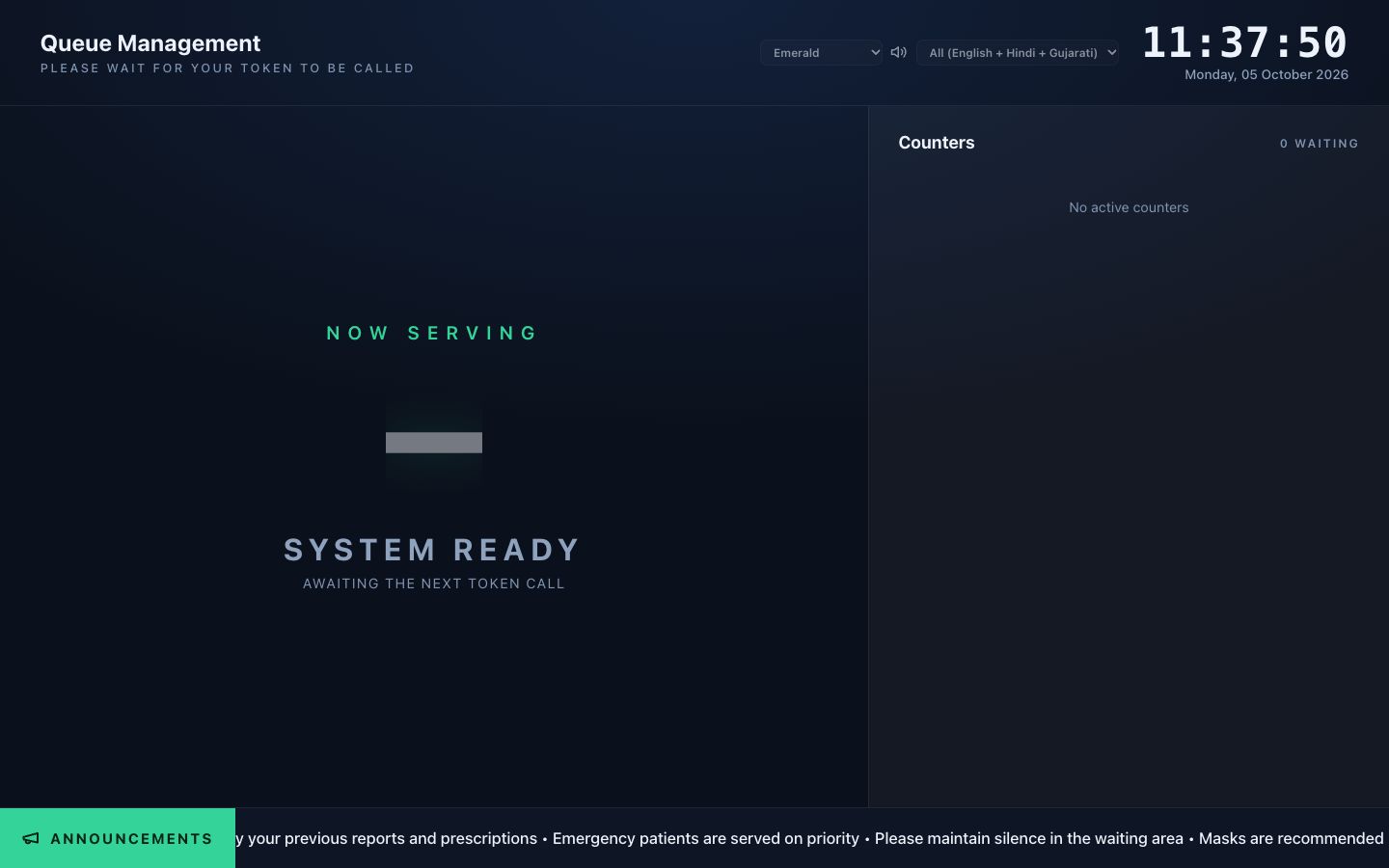
A waiting-room screen shows the token being served, the counters and your announcements. You pair each screen once with a code from SoftClinic GenX.
Who can do this: hospital administrator · Where: Queue Management › Masters › Display Devices, then Views › Display Activate on the screen
Before you start
- Set up Display Device for the screen and note its pairing code.
Pair the screen
-
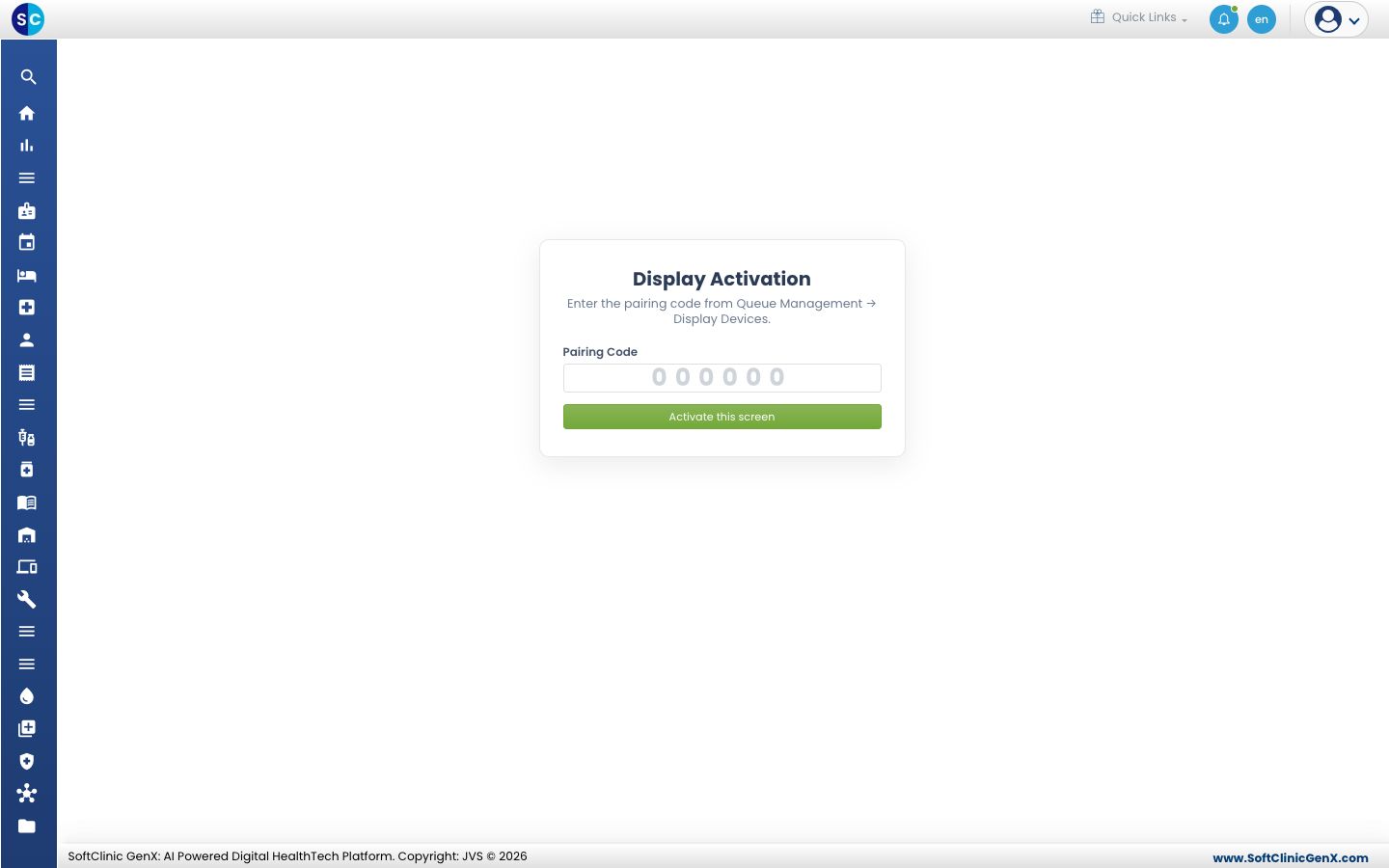
On the TV's browser, open Queue Management › Views › Display Activate.
-
Enter the Pairing Code shown in Display Devices, or scan the QR shown there.
-
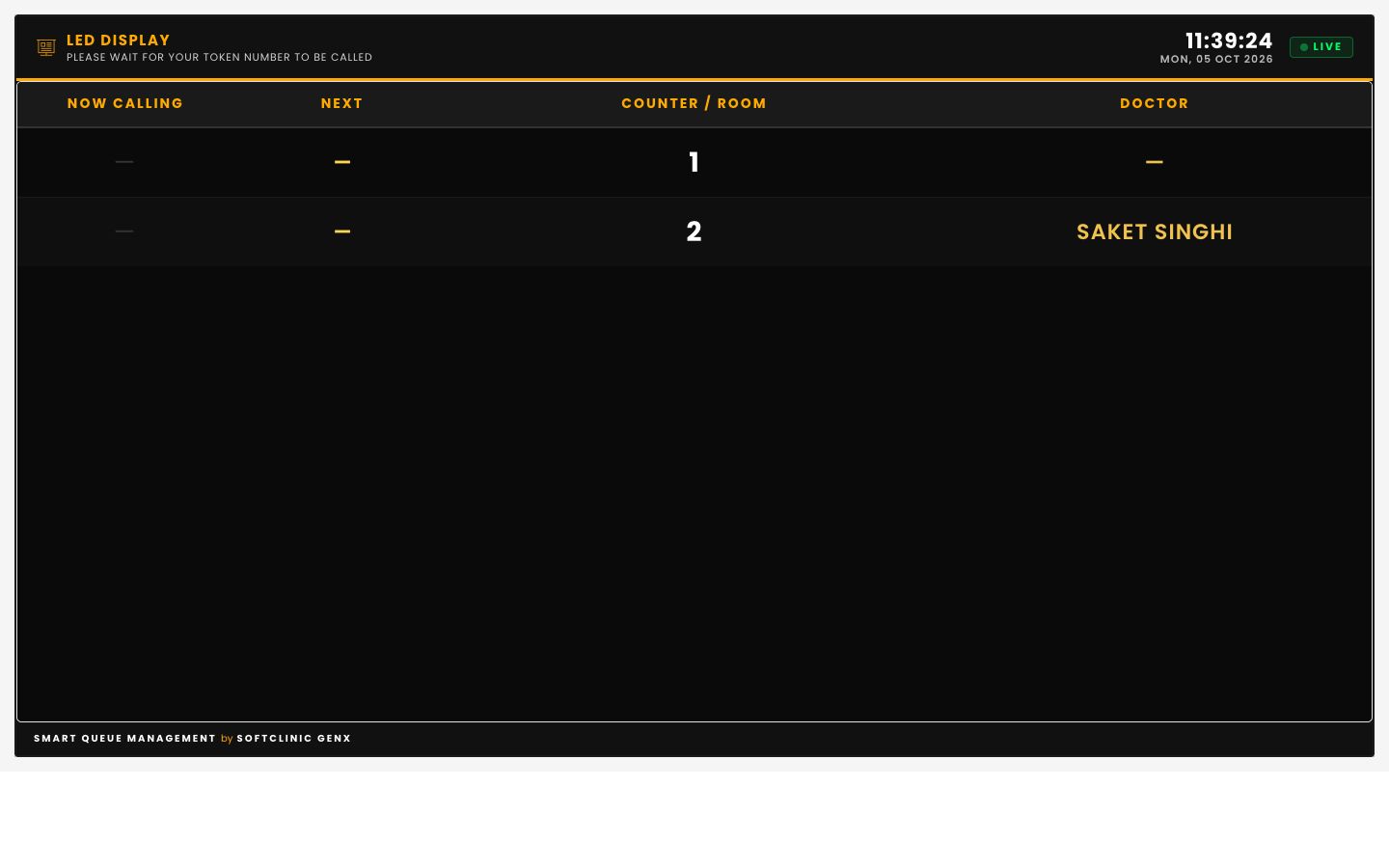
Click Activate this screen. A TV device opens the TV board, and an LED device opens the LED board.
Open a board without pairing
Under Queue Management › Views you can also open TV Waiting Display, LED Display and Doctor Room Display directly, for example on a staff computer.
Troubleshooting
| What you see | What it means | What to do |
|---|---|---|
| Enter the pairing code shown in Display Device settings. | The code box is empty. | Type the code. |
| Invalid or expired pairing code. | The code is wrong or was replaced. | In Display Devices, click Edit / Pair then Re-pair (new code), and enter the new code. |
| Never connected in Display Devices | The screen has not been paired. | Pair it with the steps above. |
Related
- Set up Display Content: choose the announcements shown.
- Queue Management FAQs: short answers about screens.