View the queue token list
See every patient waiting for a doctor, filter by doctor and date, and call the next token.
The queue token list shows the tokens of one doctor's queue for a day, in the order they are expected to be called. Front-desk staff use it to follow the queue and call the next patient.
Who can do this: front desk and queue staff · Where: Queue Management › Queue Token List
Before you start
- Set up Queue Prefix so tokens have numbers.
- Make sure the doctor has a counter.
Read the list
-
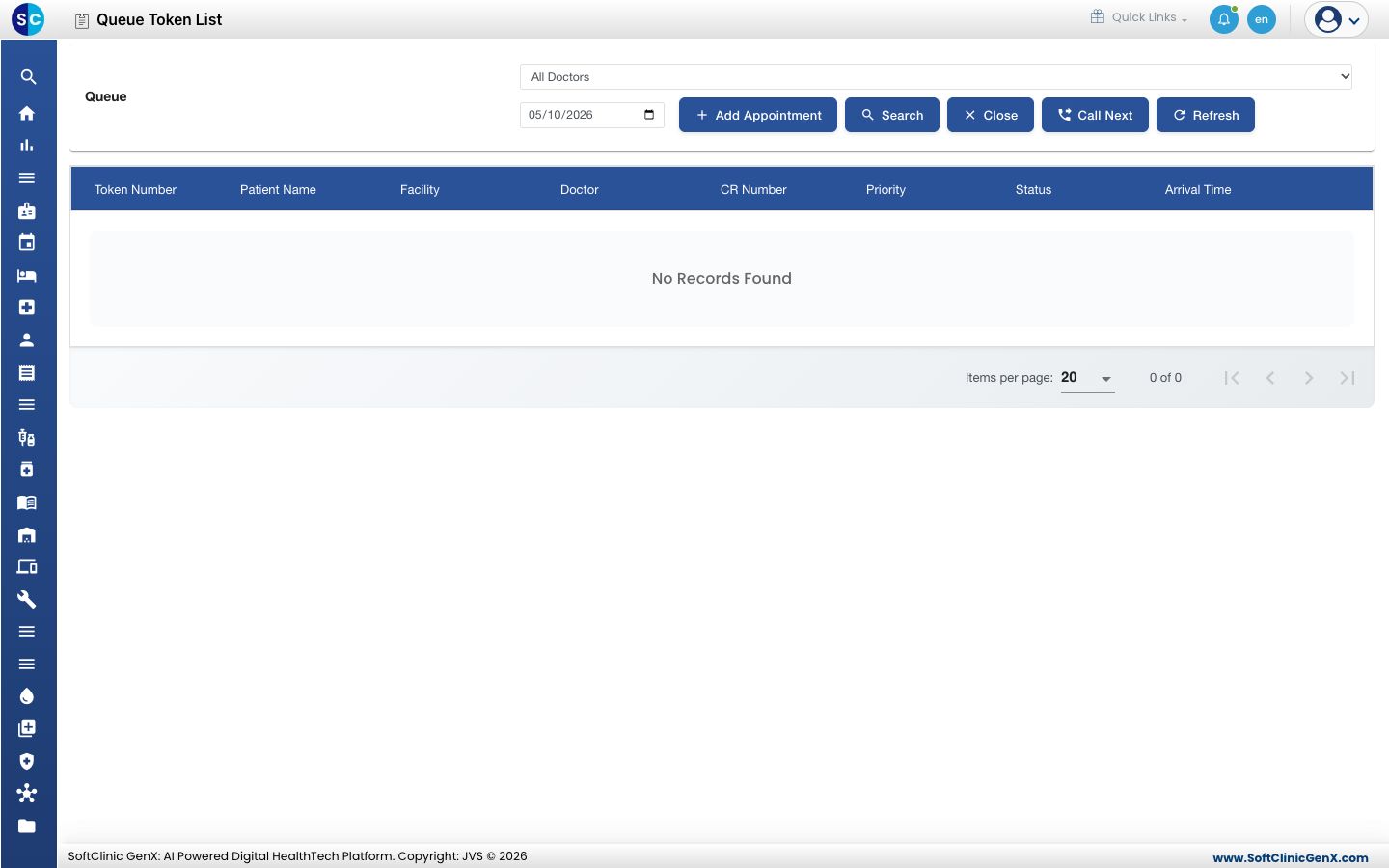
Open Queue Management › Queue Token List.
-
Choose a doctor in the first box, or keep All Doctors.
-
Change the date to look at another day. The list shows the token number, patient, facility, doctor, CR number, priority, status and arrival time.
-
Click Refresh to load the latest tokens.
Call the next token
Click Call Next. The message shows the token number and the patient. If nobody is waiting, the message says no waiting tokens were found.
Call Next needs a doctor chosen in the doctor box.
Add an appointment from the queue
Choose a doctor, then click Add Appointment to book a patient for that doctor. If your preferences have no facility, department and clinic, a message asks you to set them first in User Preferences.
Troubleshooting
| What you see | What it means | What to do |
|---|---|---|
| No Records Found | No tokens exist for that doctor and date. | Check the doctor and date, then click Refresh. |
| No doctor selected. | You clicked Call Next without a doctor. | Choose a doctor and try again. |
| Please select a doctor in the Doctor filter before adding an appointment. | Add Appointment needs a doctor. | Choose a doctor first. |
Related
- Call the next patient: the doctor's own screen.
- Queue Management FAQs: short answers about tokens.