Upload an outside lab's report
Attach the outside laboratory's PDF report to an outsourced test and open it again from the test line.
When an outside lab sends back its report, attach that PDF to the test with Outsource Report. The uploaded file is the report for that test. You do not type the outside lab's results in or print them on your hospital's letterhead.
note
Who can do this: laboratory staff · Where: Laboratory › Lab Requisitions › Outsource Report icon
Before you start
- The test is marked as sent to an outside lab. See Send a sample to an outside lab.
- You have the outside lab's report as a file, ideally a PDF, under 50 MB.
Upload the report
- Open Laboratory › Lab Requisitions and expand the patient's order card.
- Click the Outsource Report icon (a cloud with an upward arrow) on the test line. The Outsource Report page opens with the patient's details at the top.
- Click the upload box, or drag the file onto it. The file appears in the box.
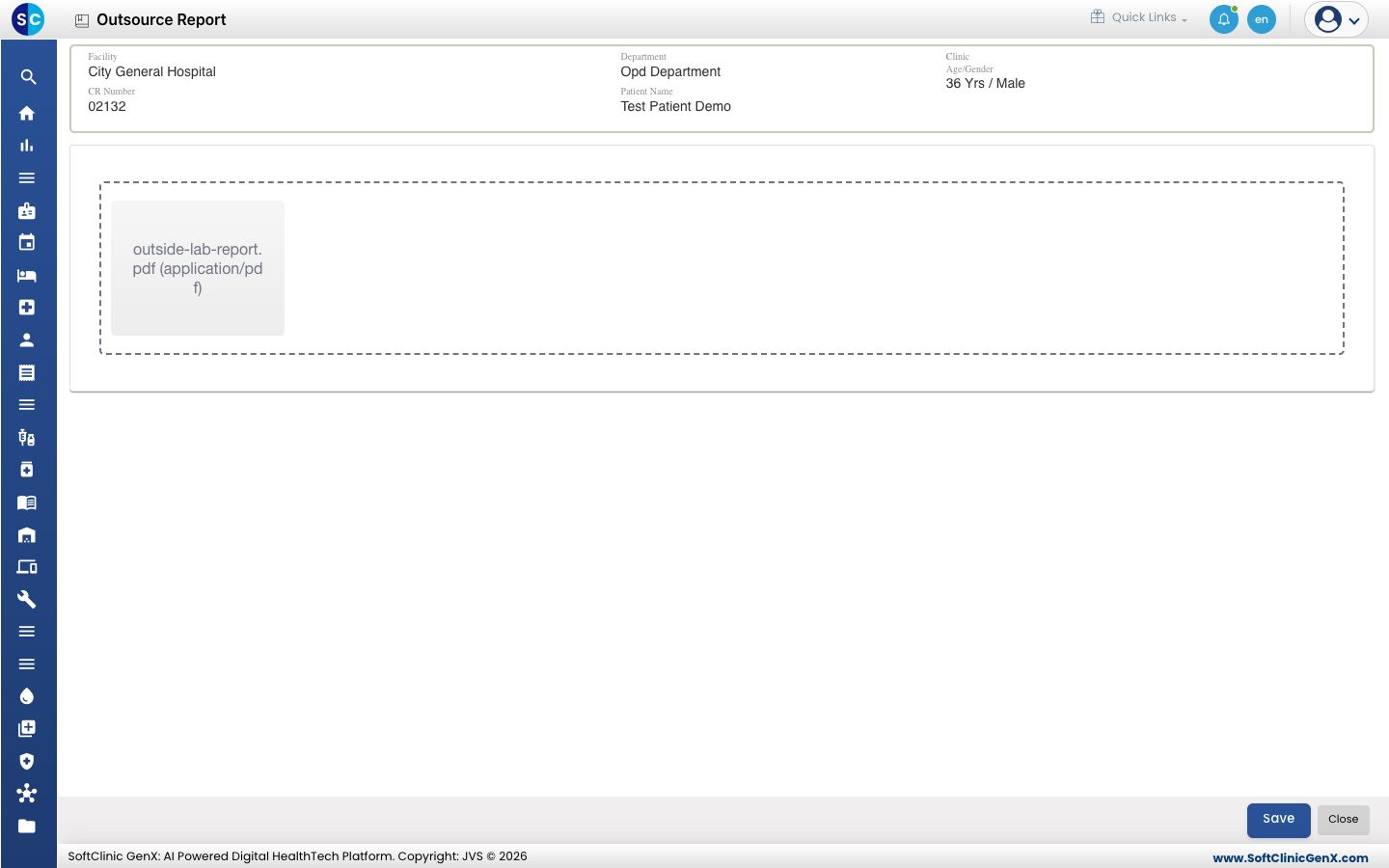
- Click Save. The message Your File Uploaded appears, and the file is listed under Uploaded Files.
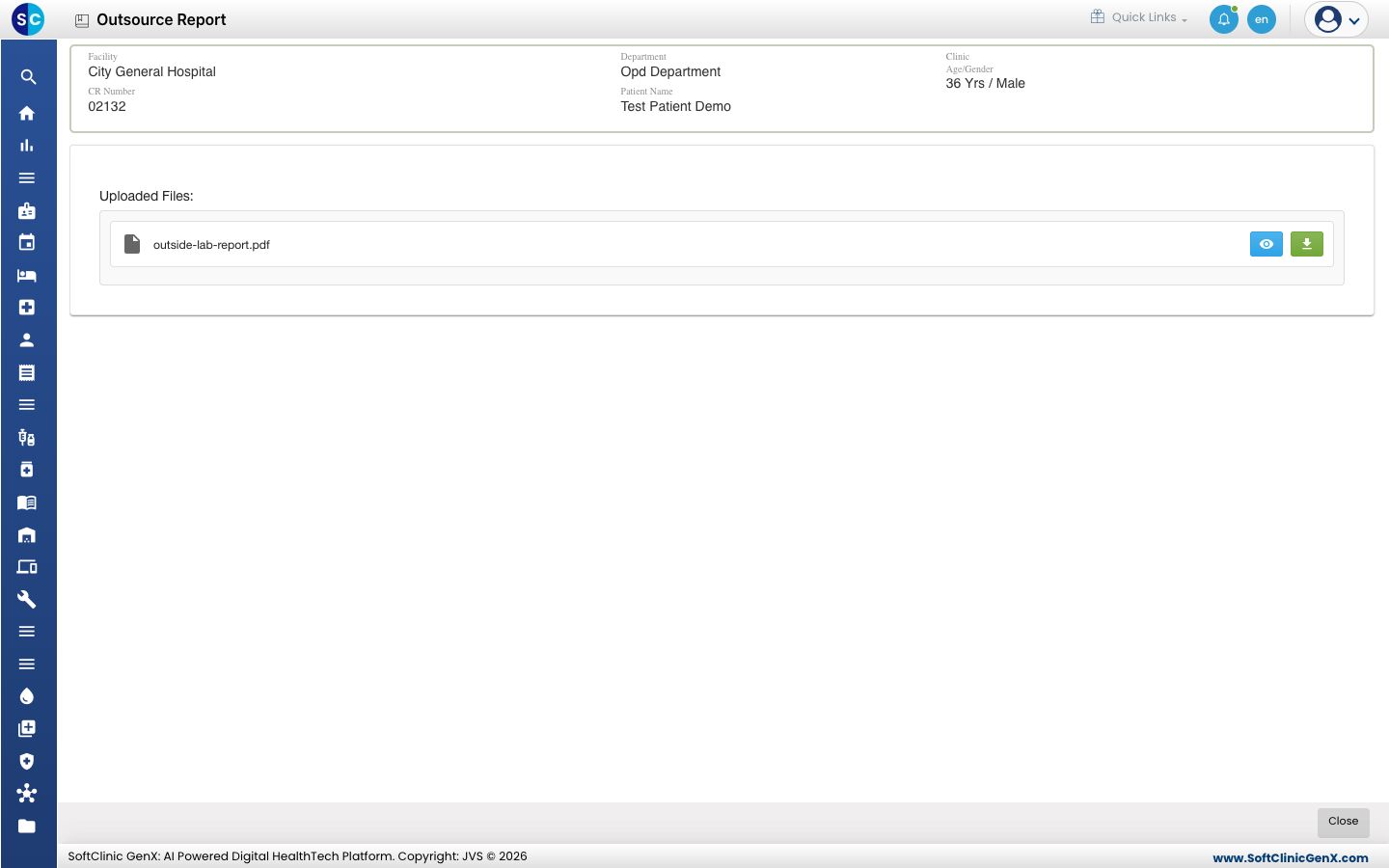
- Click Close to go back to Lab Requisitions.
If an order has several tests sent out, each test line has its own Outsource Report icon. Upload each lab report on its own line.
Open the uploaded report
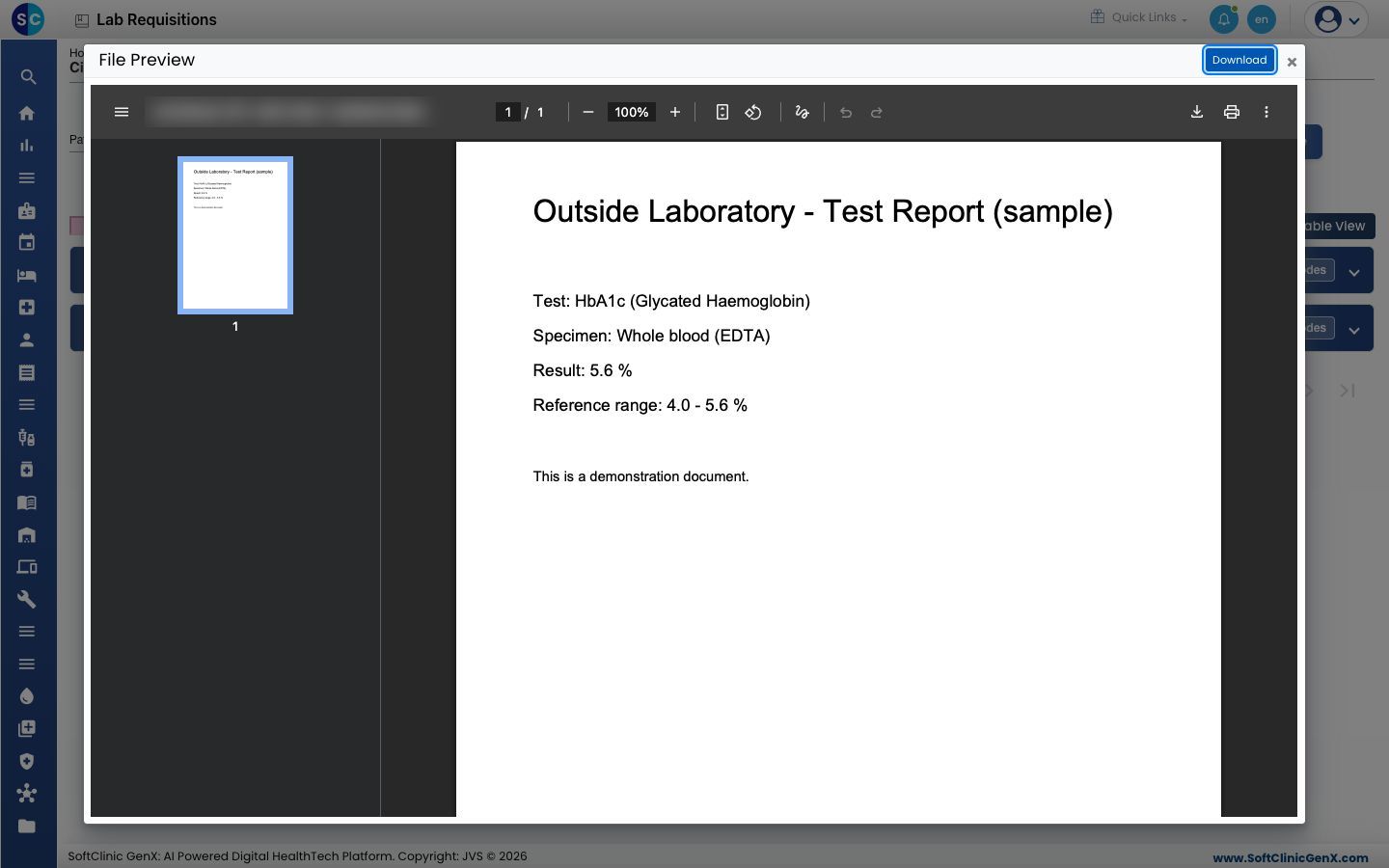
- On the test line, click the Print icon.
- File Preview opens with the report you uploaded for that test line. Click Download to save a copy.
note
A lab order marked as sent to an outside lab is not sent to the patient automatically on WhatsApp. Download the report and share it with the patient the way your hospital usually does.
Troubleshooting
| What you see | What it means | What to do |
|---|---|---|
| Please select files to upload | You clicked Save before adding a file. | Add the file to the upload box, then click Save. |
| The file is not added to the upload box | The file is 50 MB or larger, or its name is too long. | Use a smaller file or a shorter file name. |
| This report is not yet certified. when you click Print | No report has been uploaded for this test line yet. | Upload the outside lab's report with Outsource Report. |
Related
- Send a sample to an outside lab: the step before this one.
- Handle tests sent to an outside lab: how outsourced tests work.
- Laboratory FAQs: common questions.