Send a sample to an outside lab
Record which outside laboratory a sample went to, when it was sent and who sent it.
When your lab sends a sample to another laboratory for testing, record it on the SEND TO (LABORATORY) tab of the Sample Collection panel. The test line then offers Outsource Report, where you later attach the outside lab's report.
note
Who can do this: laboratory staff · Where: Laboratory › Lab Requisitions › Sample Collection icon
Before you start
- The outside lab is set up as a location of type Laboratory. See Set up Location.
- Find the order in Lab Requisitions. Search by Patient Name, then expand the order card.
Record the sample as sent
- Open Laboratory › Lab Requisitions and expand the patient's order card.
- Click the Sample Collection icon (the red dropper) on the test line. The Sample Collection panel opens.
- On REQUISITION OR INVESTIGATION ORDER DETAILS, tick the test and choose Collected By, as for any sample.
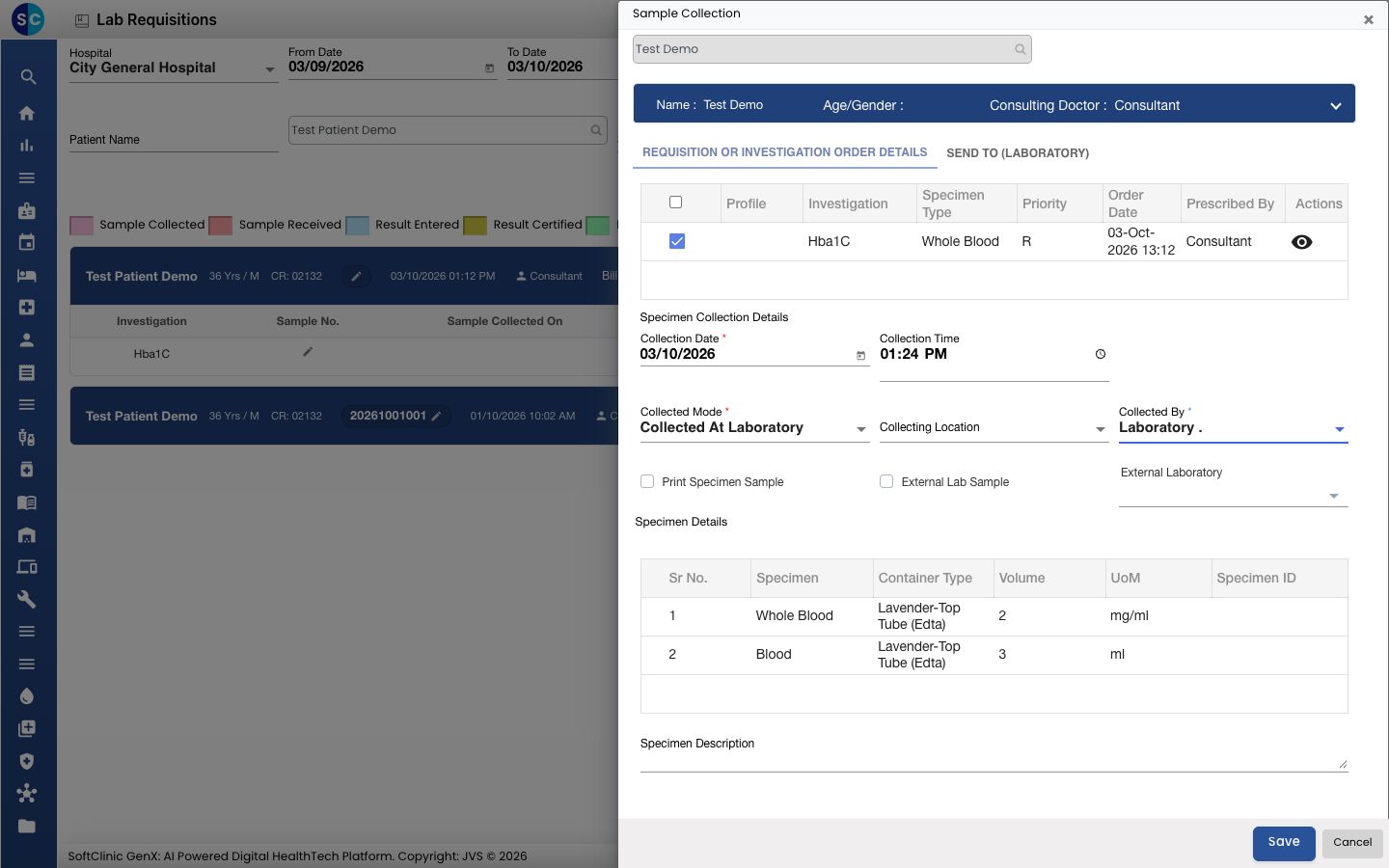
- Click the SEND TO (LABORATORY) tab.
- Choose the lab in Send To (Laboratory). Send Date, Send Time and Send By then become required.
- Pick the Send Date, enter the Send Time, and choose who sent the sample in Send By.
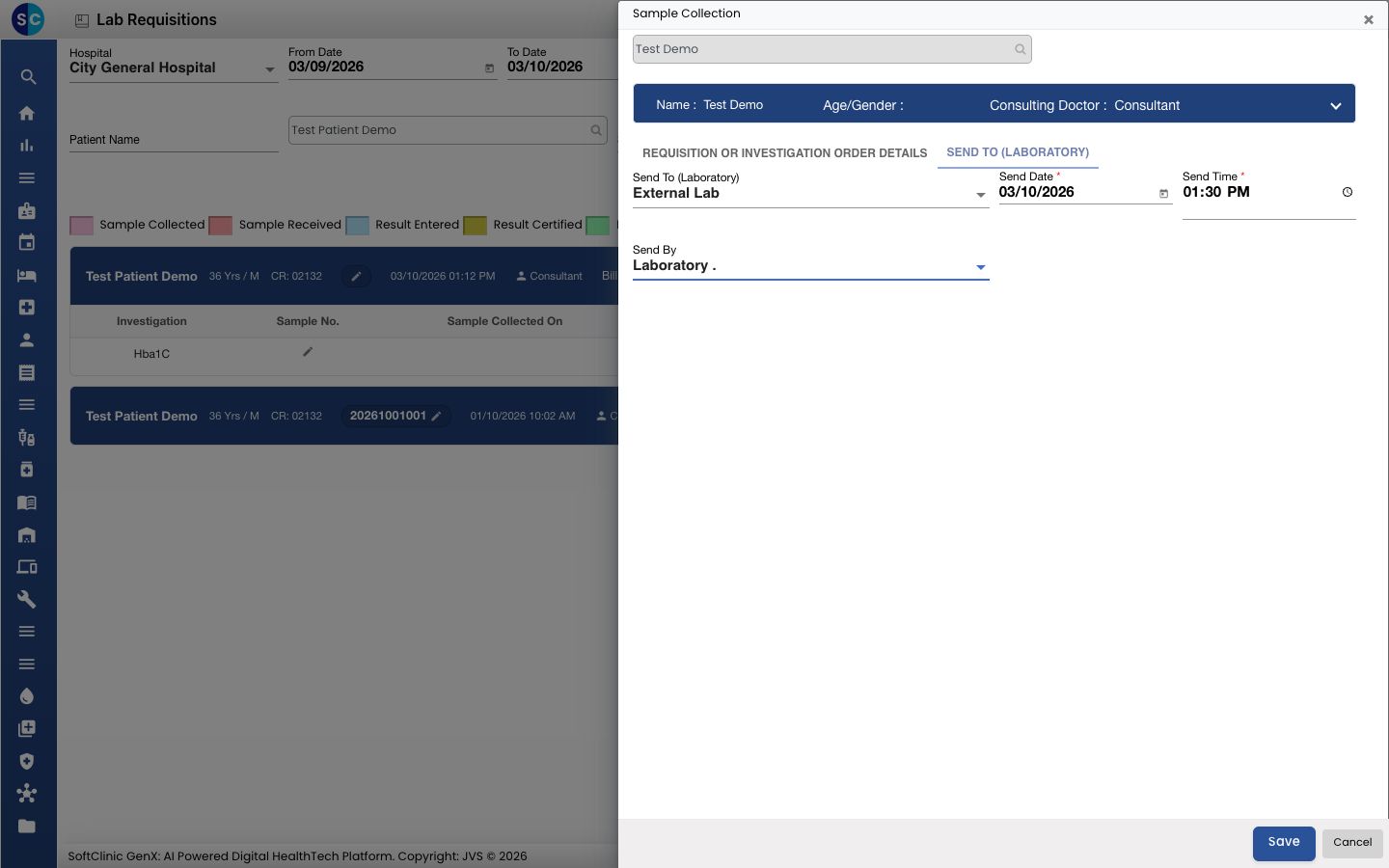
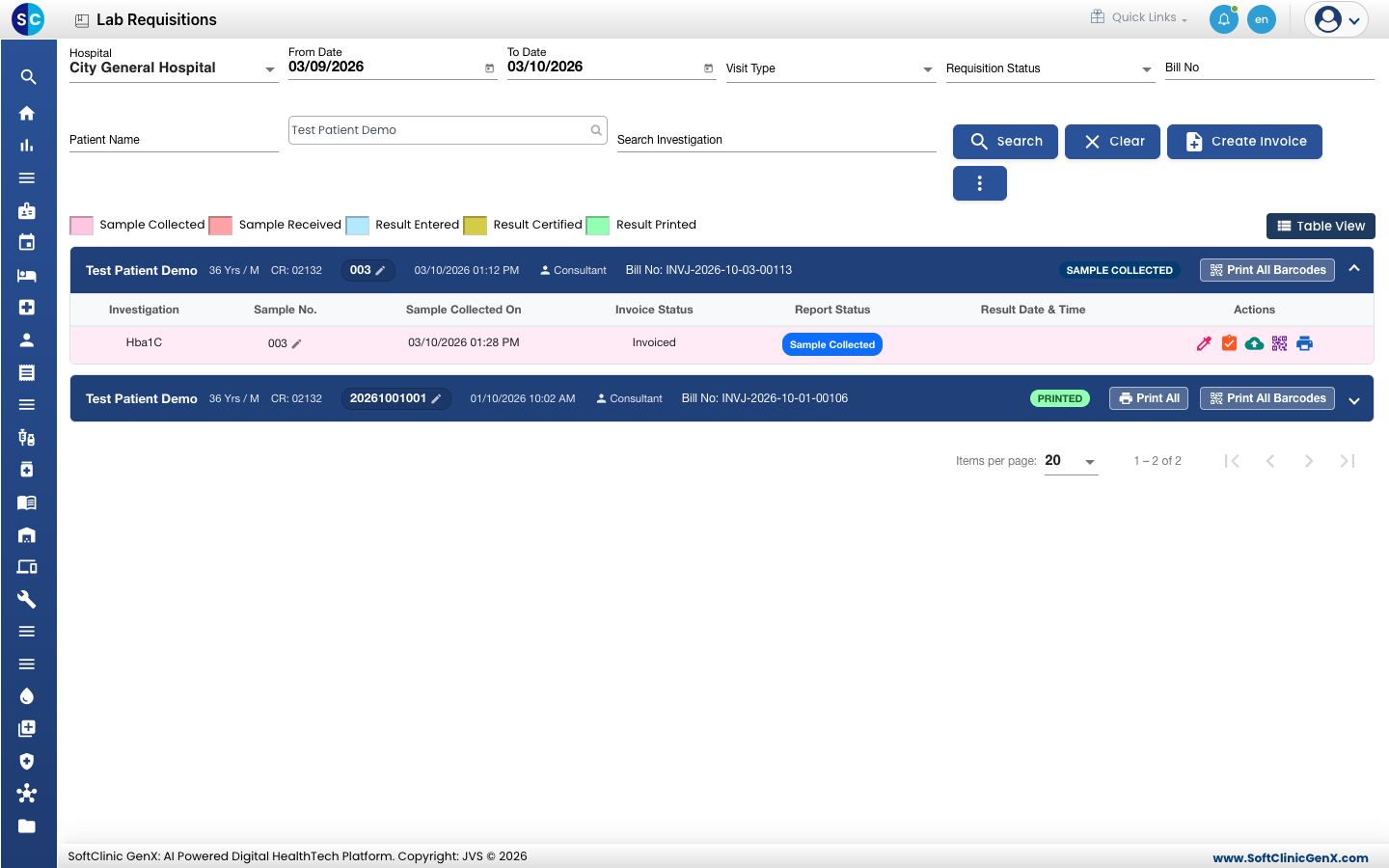
- Click Save. The panel closes and the test line shows Sample Collected.
The test line now shows the Outsource Report icon (a cloud with an upward arrow). Result Entry is no longer offered for this test, because its result comes from the outside lab.
tip
When the outside lab's report arrives, upload it from the same test line.
Troubleshooting
| What you see | What it means | What to do |
|---|---|---|
| Please fill required field(s) | A required field is empty, such as Collected By, Send Date, Send Time or Send By. | Check both tabs, fill the field, then click Save. |
| The lab you need is not in Send To (Laboratory) | The lab is not set up as a Laboratory location. | Ask your administrator to add it in Location. |
| No Outsource Report icon on the line | The test was saved without a lab in Send To (Laboratory). | Open Sample Collection again, choose the lab on the SEND TO (LABORATORY) tab and save. |
Related
- Upload an outside lab's report: the next step.
- Handle tests sent to an outside lab: how outsourced tests work.
- Collect a sample: sample numbers and labels.