Find lab orders on the Lab Dashboard
Find a patient's lab order, filter by date, visit type or status, and read where each test stands.
The Lab Dashboard lists every lab order (requisition) for your hospital. Each order is a card with the patient, the sample number, the ordering doctor and the bill number. You start sample collection, result entry, certification and printing from here.
Who can do this: laboratory staff · Where: Laboratory › Lab Dashboard
Before you start
- The test is billed or ordered for the patient. To bill a test from this screen, click Create Invoice. See Create an OPD bill.
- The test is set up in Investigation Masters.
Find an order
- Open Laboratory › Lab Dashboard. Orders from the last 30 days for your hospital are listed, newest first.
- Narrow the list with the filters at the top:
- Hospital: the facility whose orders you see.
- From Date / To Date: the order date range.
- Visit Type: OPD, IPD or Walk-in.
- Requisition Status: where the order stands, for example Sample Collected, Result Entered or Printed.
- Bill No, Patient Name (at least 3 letters) or Search Investigation for one test.
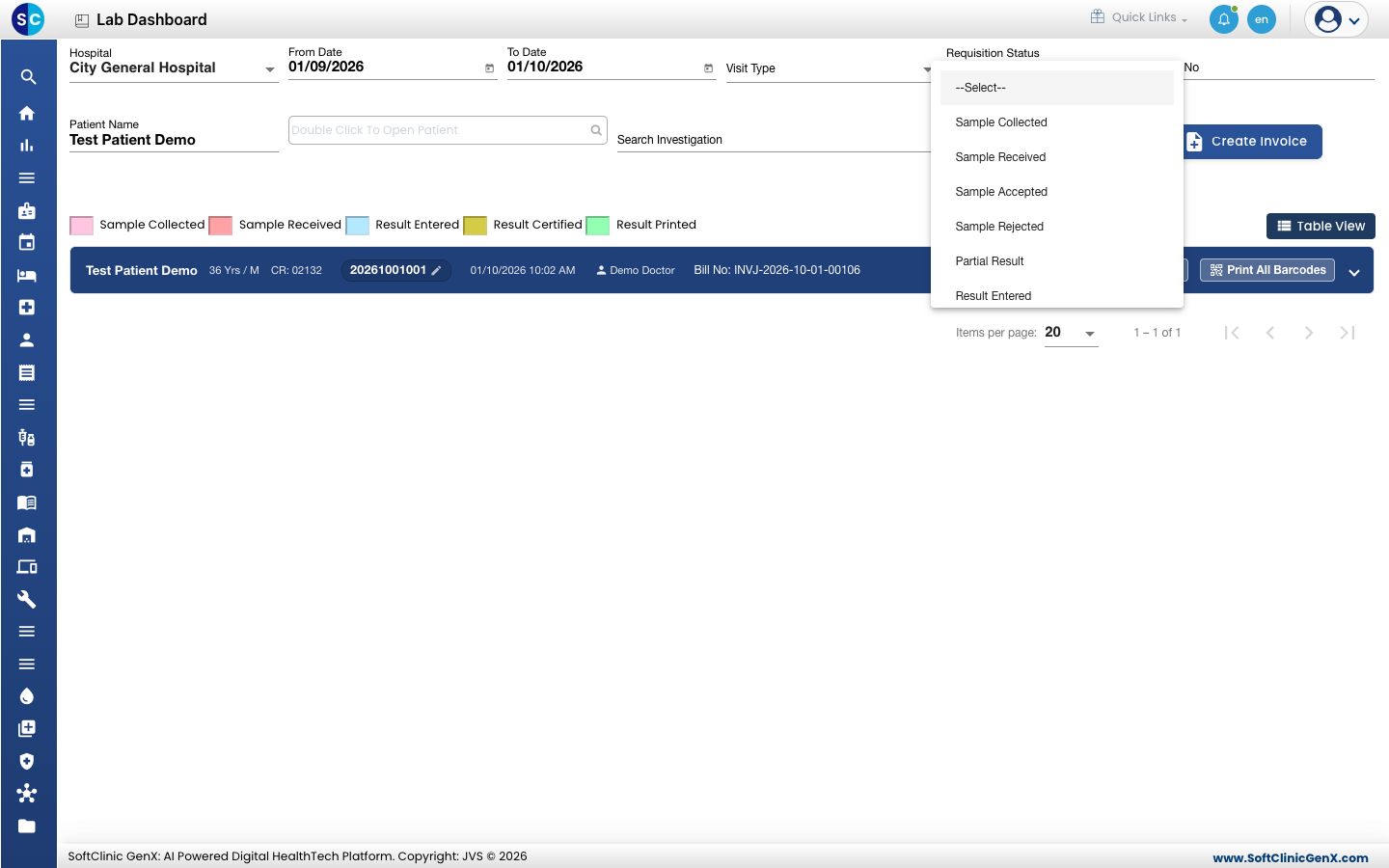
- Click Search. Clear resets the filters.
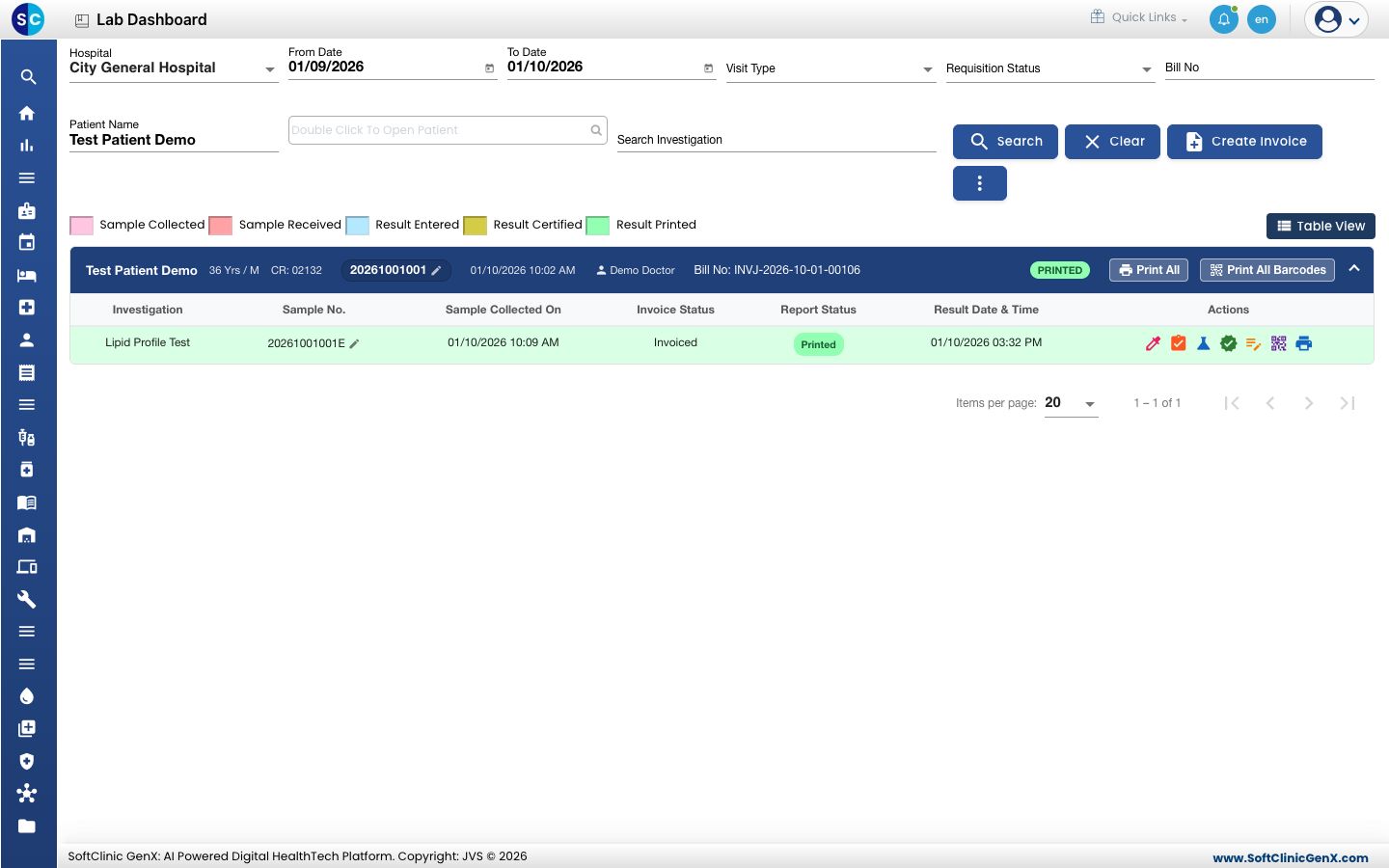
- Click the arrow at the right of a card to open it. Each test in the order is one line with its sample number, collection time, invoice status, report status and action icons.
Read the status
The badge on the card shows the whole order. The colour of each test line shows where that test stands:
| Colour | Meaning |
|---|---|
| Pink | Sample Collected |
| Red | Sample Received |
| Light blue | Result Entered |
| Yellow | Result Certified |
| Green | Result Printed |
A line with no colour is still pending: no sample has been collected.
Use the actions on a test line
Hover over an icon to see its name. An icon appears only when its step is allowed.
- Sample Collection: collect the sample and generate the sample number. See Collect a sample.
- Sample Receive Acceptance: record that the lab received and accepted the sample.
- Result Entry: type the results. See Enter test results.
- Certification: approve the results. See Certify test results.
- Result Rectification: correct a result after it is certified.
- Barcode: print the sample label for this test.
- Print: open the lab report. See Print a lab report.
Switch to the table
Click Table View to see one row per test, with columns such as Sample Number, Certified, Prescribed By and Bill No. Click Card View to go back.
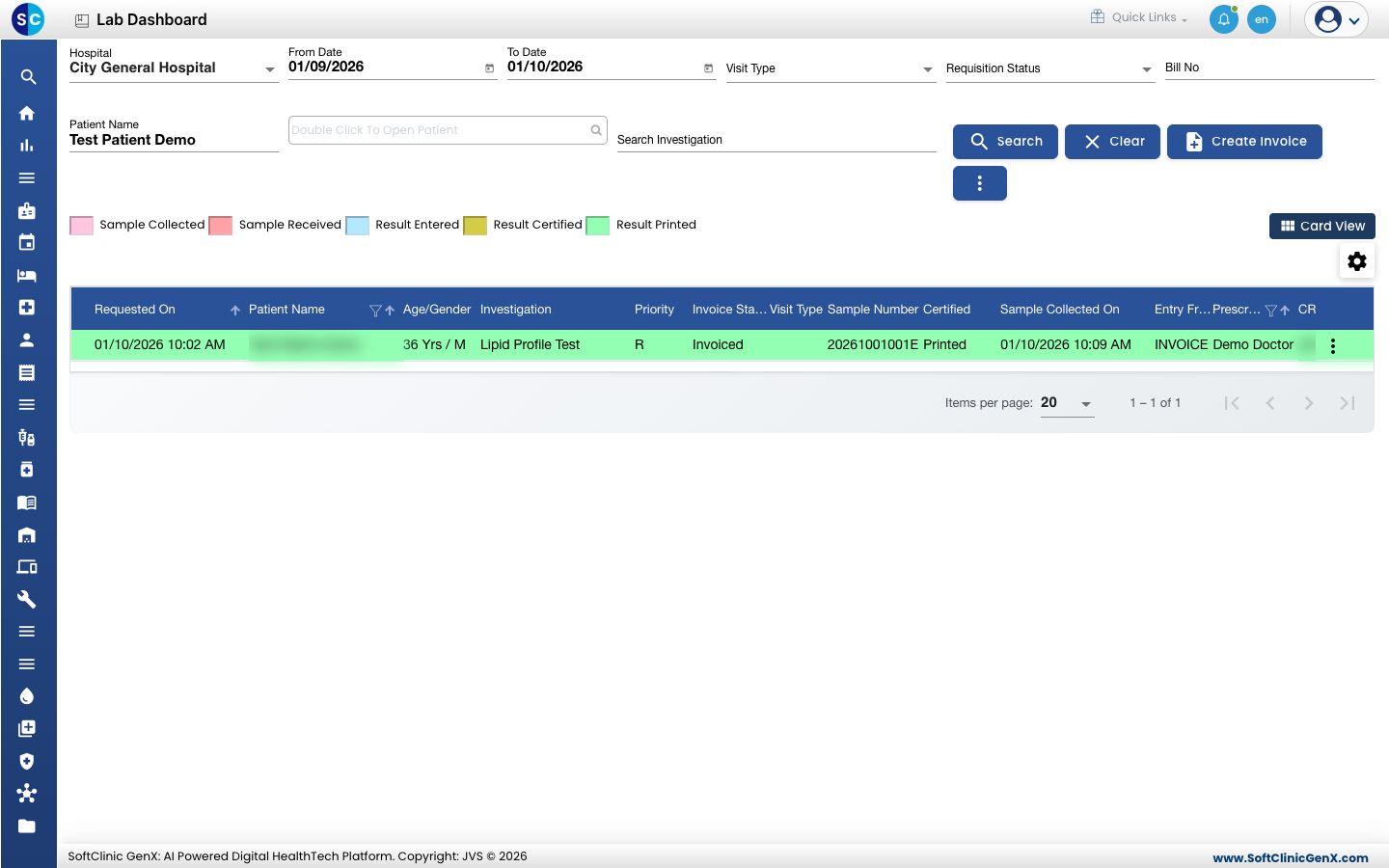
The ⋮ button next to Search has Export to csv, which downloads the list as it is filtered.
Troubleshooting
| What you see | What it means | What to do |
|---|---|---|
| Enter at least 3 letters of the patient name | The name filter needs three or more letters. | Type more of the name, or search by Bill No. |
| The order is not in the list | It is outside the date range or another filter hides it. | Widen From Date / To Date, clear Requisition Status, and check Hospital. |
Related
- Collect a sample: the first step on a new order.
- Laboratory FAQs: common questions about this screen.