Work through a patient's nursing to-do list
Use SC Nursing at the bedside to see your patients, acknowledge new orders and see what is due for each patient.
SC Nursing is the nurse's bedside screen, built for a phone or tablet. My Patients lists the admitted patients. Opening a patient shows a to-do list: new orders, vitals, doses and treatments that are due, and intake and output.
note
Who can do this: nurses with Ward Management rights
Where: Nursing Work Bench › SC Nursing
Before you start
- The patient is admitted to a bed. See Admit a patient.
Find your patient
- Go to Nursing Work Bench › SC Nursing. My Patients opens with one card per admitted patient: bed, ward, name, UHID, age and gender, IP number and day of stay.
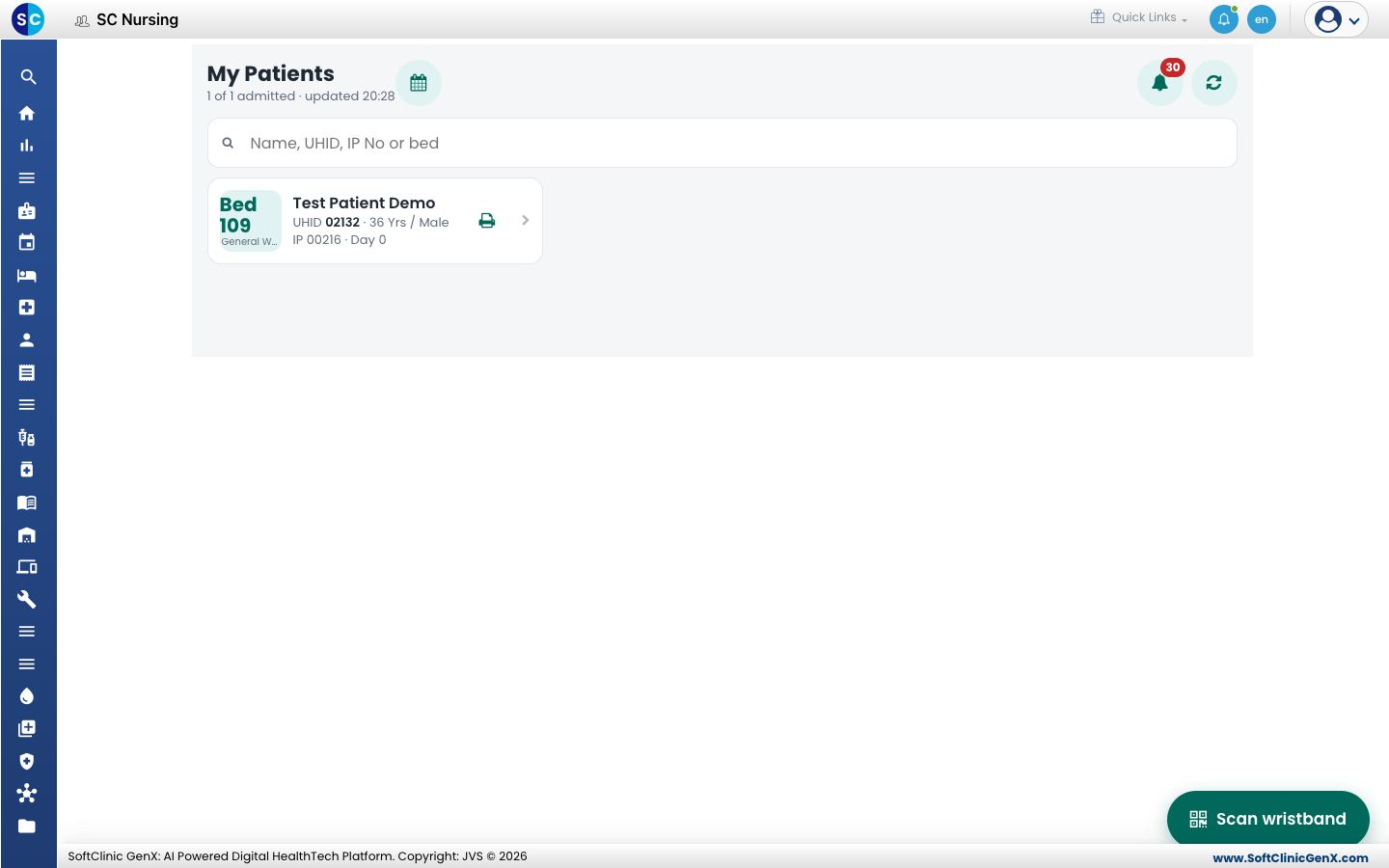
- Type a name, UHID, IP number or bed in the search box. Or tap Scan wristband and point the camera at the barcode or QR code on the wristband.
- When you are on duty, tap My beds to see only your beds, or All for every patient. When the hospital has more than one ward, tap a ward name to filter.
- Tap the patient card. The patient's to-do list opens.
Read the to-do list
- Check the name, UHID, IP number and bed at the top before you do anything for the patient.
- Read the four counters: Overdue, Due now, Next 4 h and Done 12 h.
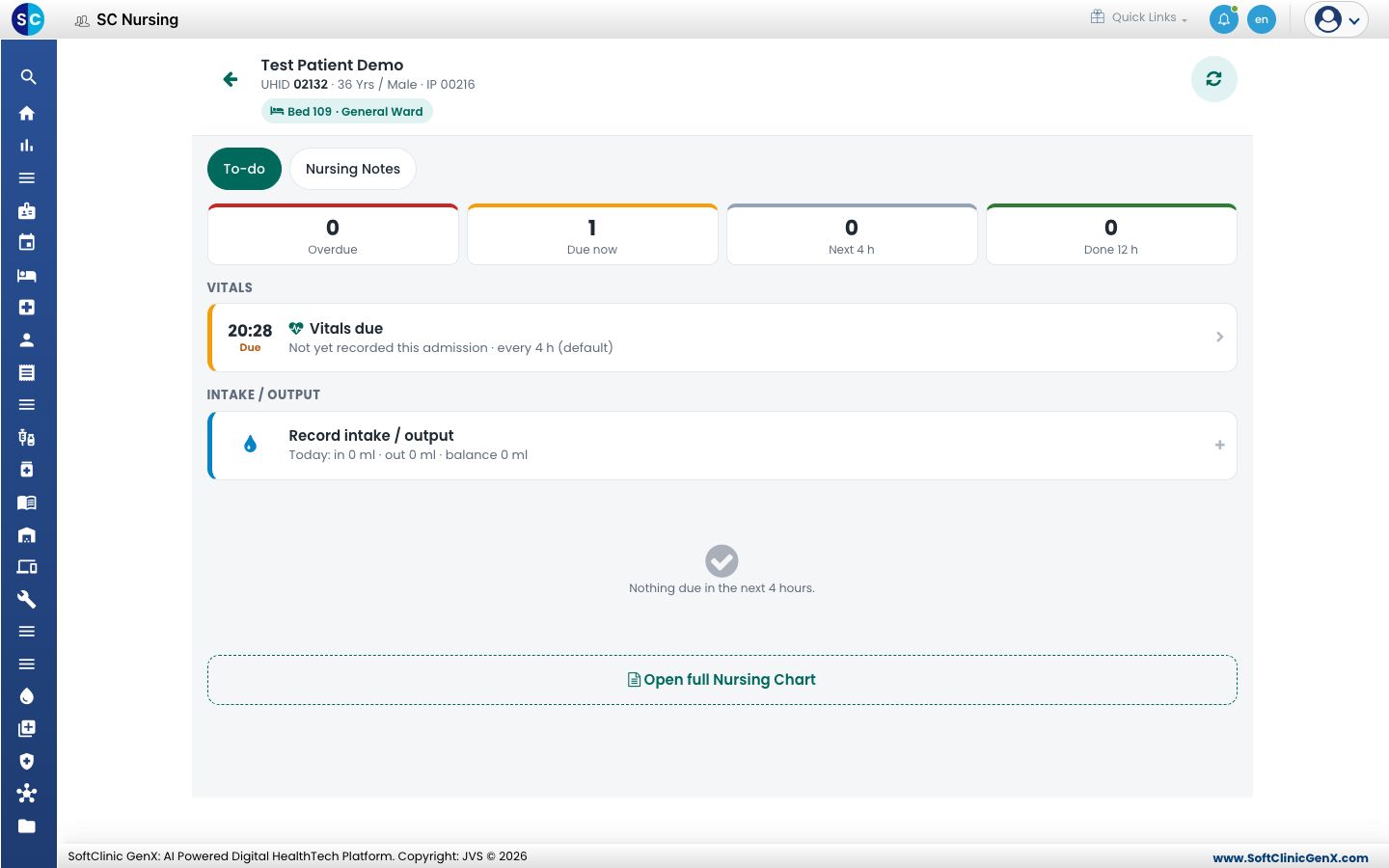
- Work down the sections:
- New orders: a medicine or treatment ordered since you last looked.
- Vitals: when vitals are next due. See Record vitals.
- Due now and Next 4 hours: doses and treatments by time.
- Intake / Output: today's totals. See Record intake and output.
- Tap Nursing Notes at the top to write a note. See Write nursing notes.
- Tap Open full Nursing Chart for the full chart with history.
Acknowledge a new order
- Read the order under New orders.
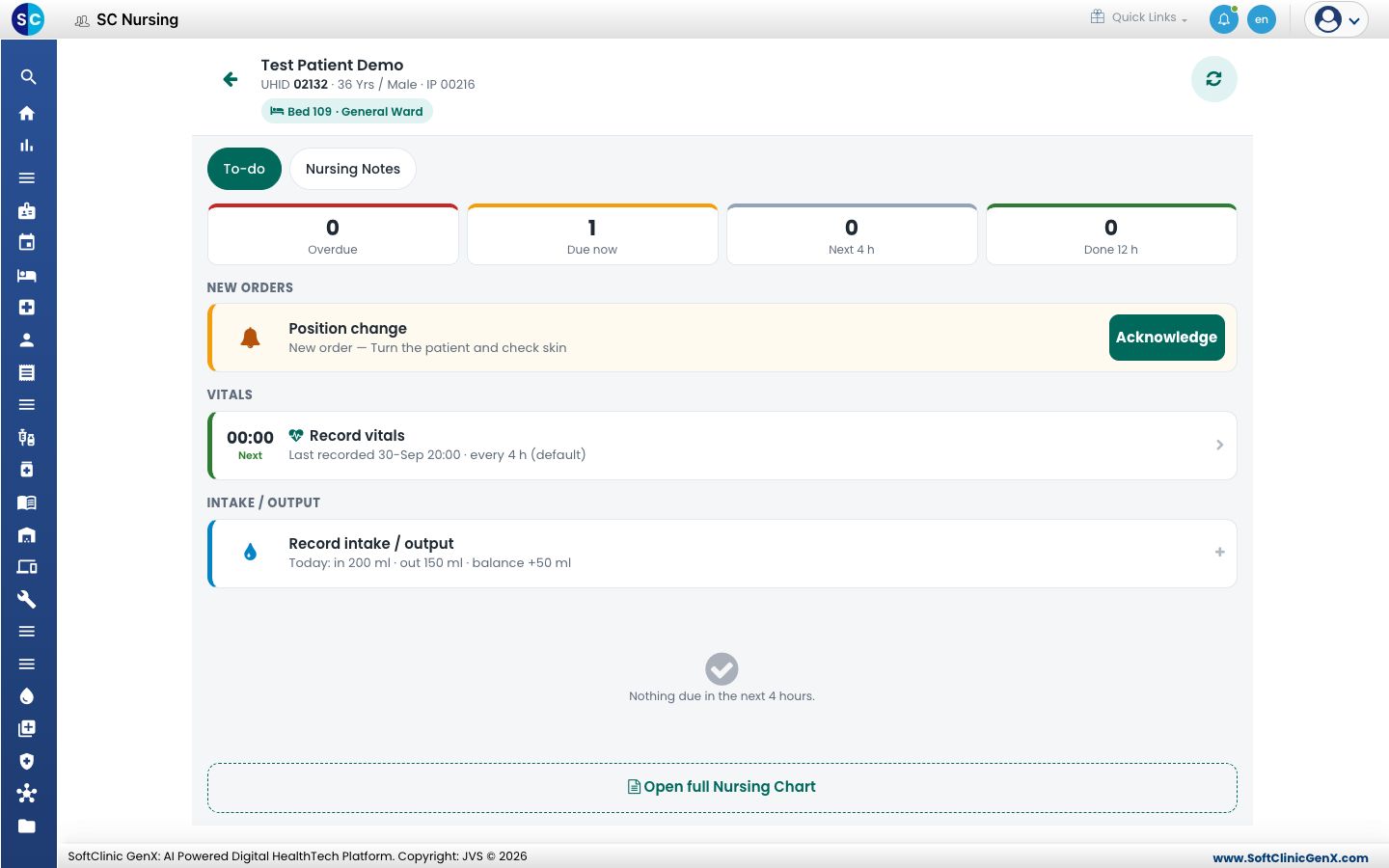
- Tap Acknowledge. The order leaves New orders, and the Due now counter drops by one.
Other things on My Patients
- Calendar icon: opens My roster, your published shifts for the next 14 days.
- Bell icon: shows your notifications.
- Printer icon on a card: prints the patient's wristband.
- Take this bed: appears on a bed of your ward that no nurse has. Tap it to take the bed for your shift.
Troubleshooting
| What you see | What it means | What to do |
|---|---|---|
| No admitted patients in this facility. | No patient is admitted to a bed. | Check the Admission List. |
| No patient matches your search. | The search text or the ward filter hides the patient. | Clear the search box and tap All. |
| Camera not available. Type the UHID or IP No in the search box. | The device has no camera, or the browser is not allowed to use it. | Type the UHID or IP number. |
| Offline — showing the last loaded list | The device has no connection. | Carry on. Entries are saved on the device and sent when the connection returns. |
| The To-Do list could not be loaded. Check the connection and tap refresh. | The list did not load. | Tap the refresh icon at the top right. |
Related
- See the patients in your ward: the ward board on a desktop.
- Add a treatment to the treatment plan: where treatment orders come from.
- Nursing Work Bench FAQs: common questions on SC Nursing.