Find an admitted patient
Search the Admission List by date, ward, doctor, status or patient and open the actions for an admission.
The Admission List shows every admission with its ward, bed, status and consultant. Use it to see who is admitted right now and as the starting point for anything you do on an admission.
Who can do this: staff with Admission List rights
Where: In-Door Management › Admission List
Search the list
- Go to In-Door Management › Admission List. The list opens with Admission Status set to Admitted.
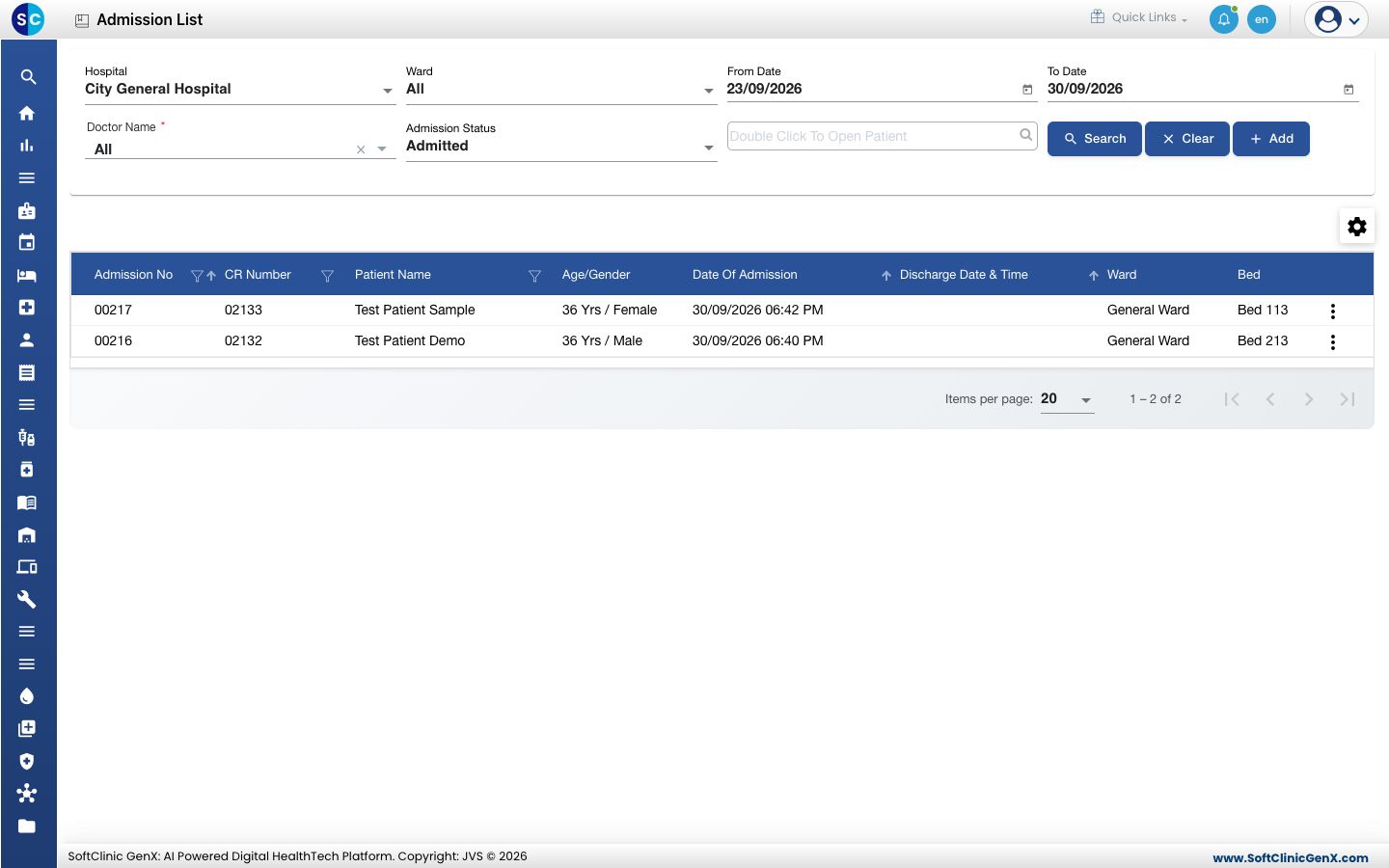
- Set the filters you need:
- Hospital and Ward: limit the list to one facility or ward.
- From Date and To Date: the admission dates to look in.
- Doctor Name: one doctor, or All.
- Admission Status: Admitted, Cancelled, Physical Discharge or ALL.
- Double Click To Open Patient: type the name, CR number or mobile number and pick one patient.
- Click Search. Click Clear to reset the filters.
Each row shows Admission No, CR Number, Patient Name, Age/Gender, Date Of Admission, Discharge Date & Time, Ward, Bed, Admission Status, Admitting Consultant, TPA and Admission Type. Scroll the grid sideways to see the last columns.
To find an older admission, move From Date back and set Admission Status to ALL.
Open the actions for an admission
Click the three dots at the end of the row.
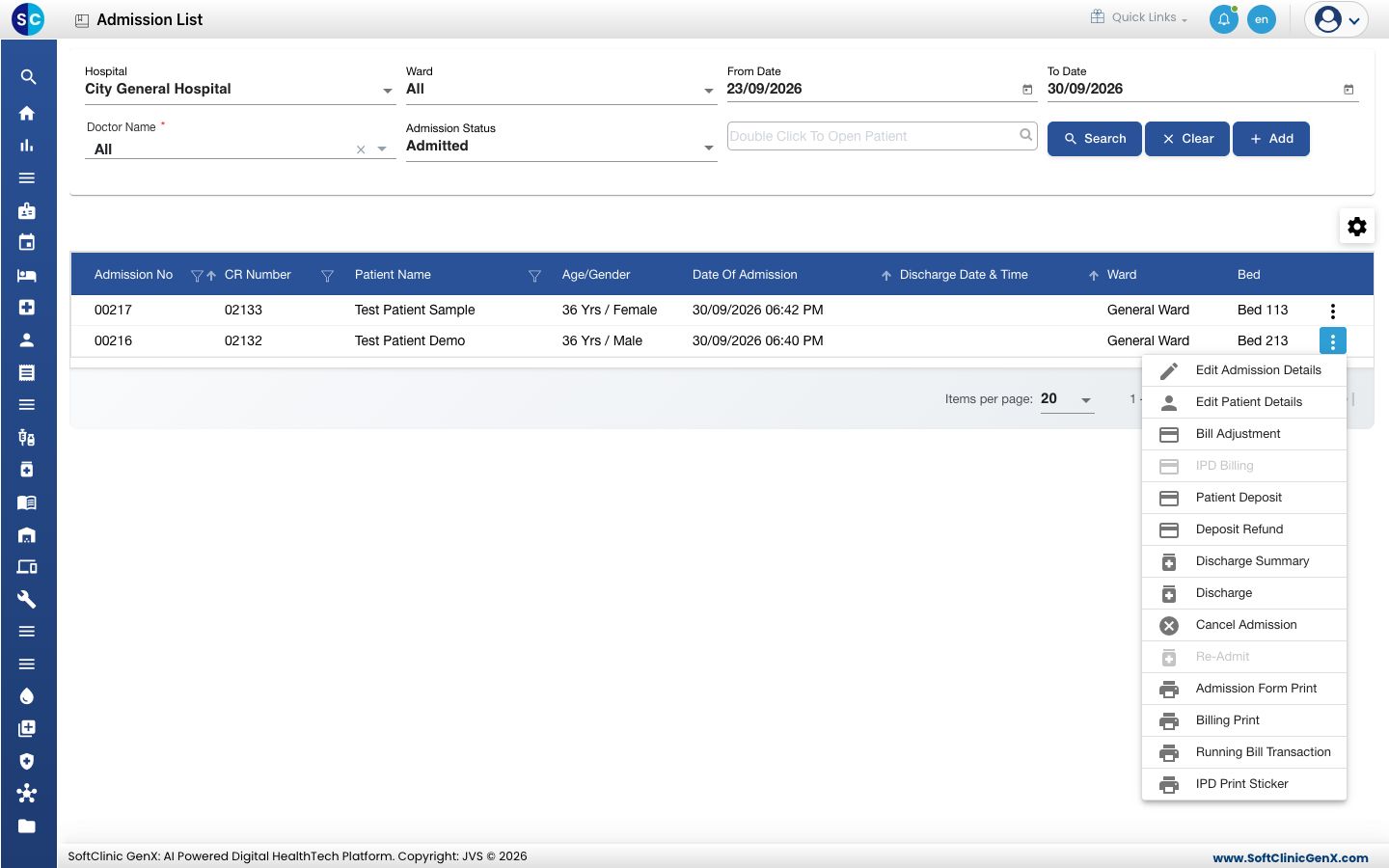
| Action | What it does |
|---|---|
| Edit Admission Details | Opens the admission form. See Change admission details. |
| Edit Patient Details | Opens the patient's registration. See Edit a patient. |
| Bill Adjustment, IPD Billing | Open the in-patient bill. IPD Billing is available once the bill adjustment is complete. |
| Patient Deposit, Deposit Refund | Take or return an advance. See Take an admission deposit. |
| Discharge Summary, Discharge | Start the discharge of the patient. |
| Cancel Admission | Cancels an admission made by mistake. See Cancel an admission. |
| Re-Admit | Reopens an admission that is no longer Admitted. |
| Admission Form Print, IPD Print Sticker | Print the admission papers. See Print the admission form and stickers. |
| Billing Print, Running Bill Transaction | Print the bill and the running bill. |
An action that does not apply to the admission is greyed out.
Troubleshooting
| What you see | What it means | What to do |
|---|---|---|
| The patient is not in the list | The admission is outside the dates, or its status is not Admitted. | Widen the dates and set Admission Status to ALL. |
| Please select patient! | You typed in the patient box but did not pick a patient. | Pick the patient from the list, or empty the box. |
| You are not allowed to perform this operation | Your role does not have the right for that action. | Ask your administrator for the right. |
Related
- Admit a patient: create a new admission.
- See free and occupied beds: the same patients, shown by bed.
- In-Door Management FAQs: common questions on the Admission List.