Send a message to all patients
Write one general message, such as a health camp notice or a festival greeting, and send it to every patient at once.
Patient Engagement Messages lets you write one message and send it to all your patients, now or at a time you choose. Use it for a health camp notice, new clinic timings or a festival greeting. Your hospital's wallet pays for the messages, so check the balance first.
Who can do this: hospital administrator or the person who manages patient communication
Where: Patient Relationship Management › Patient Engagement Messages
Before you start
- Your hospital's wallet has enough balance. See the section Check your wallet before you send on this page.
- You have access to the Patient Relationship Management menu. If you do not see it, ask your administrator to give you access.
Send the message
- Go to Patient Relationship Management › Patient Engagement Messages. The Create & Schedule tab opens.
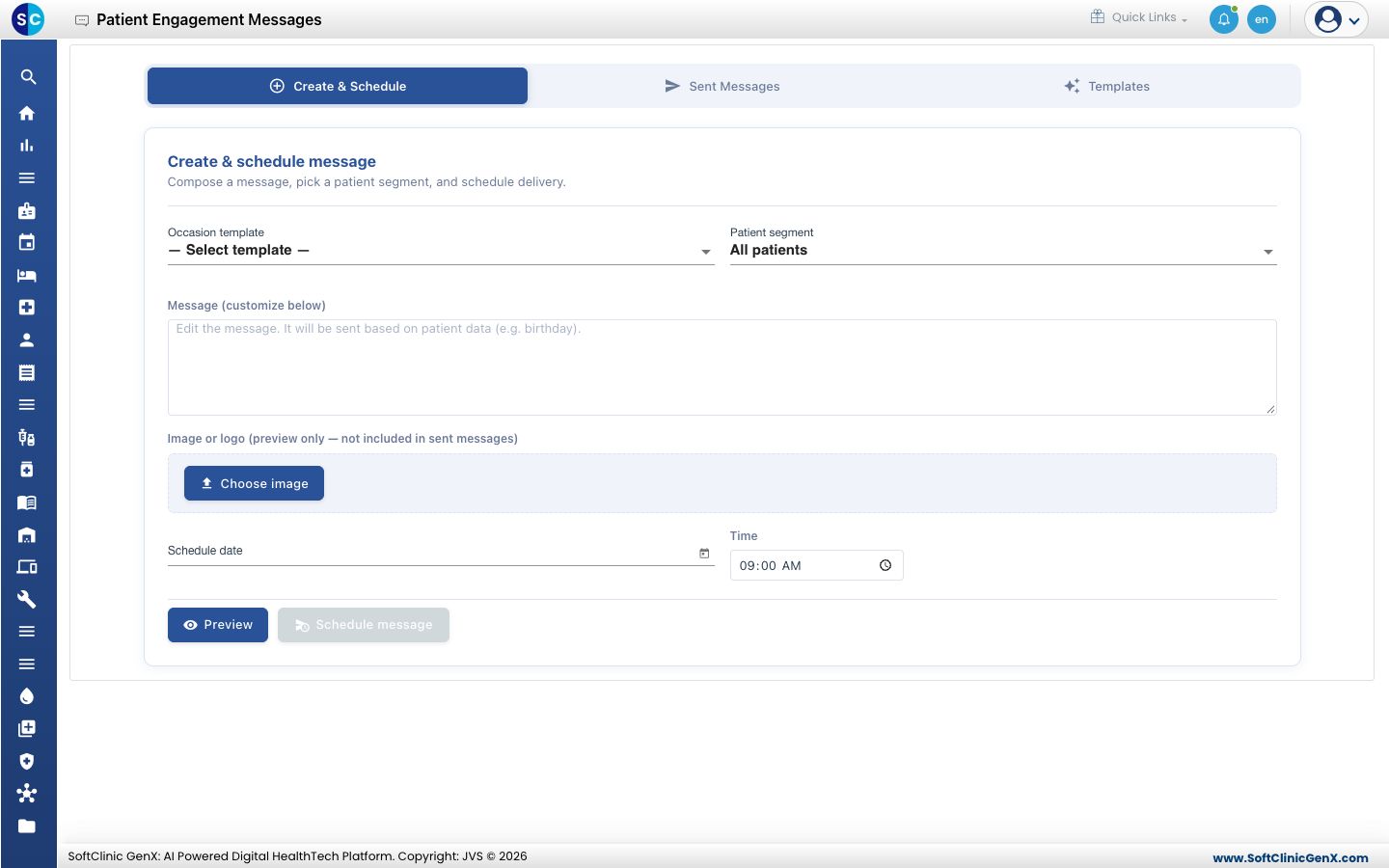
- Optional: to start from ready-made wording, open Templates, find a message such as Birthday Wishes or New Year Greetings, and click Use. The wording appears in the message box and you can change it.
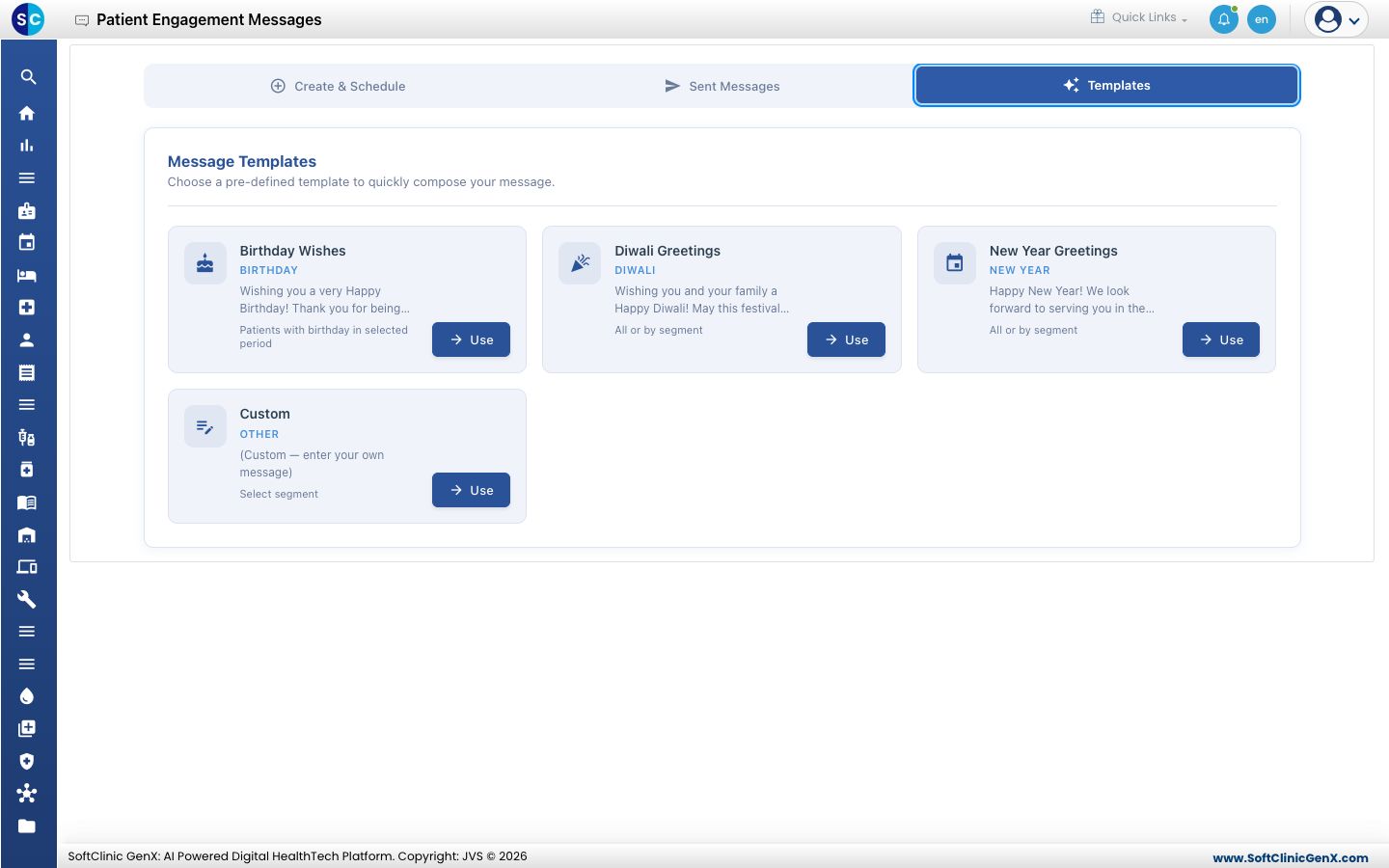
- Open the Patient segment list. Keep All patients to reach every patient.
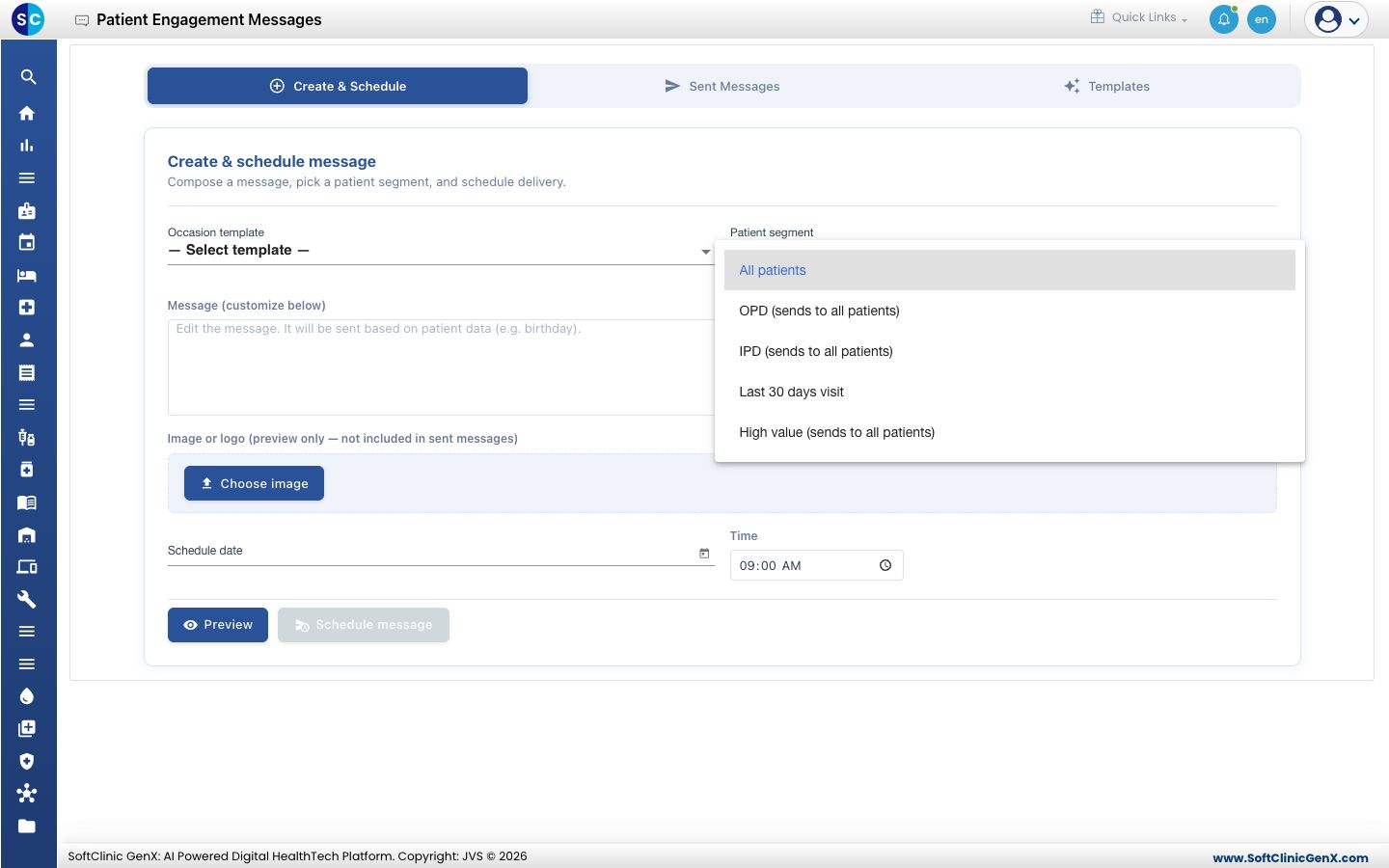
- Type your message in Message (customize below). Keep it short and put the date, time and place in the first lines.
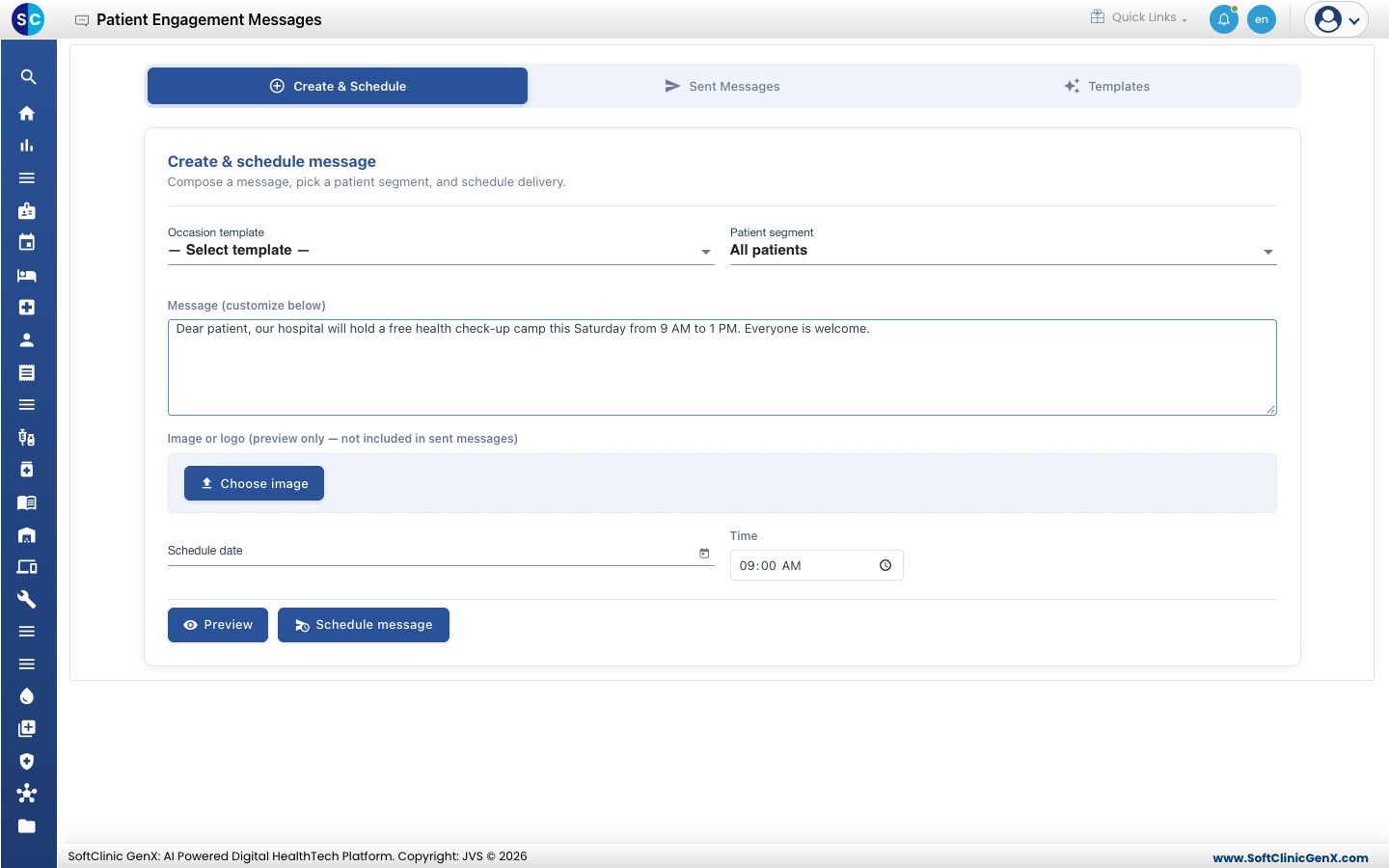
- Click Preview. The Message Preview shows the message exactly as you typed it. Read it once more before you go on.
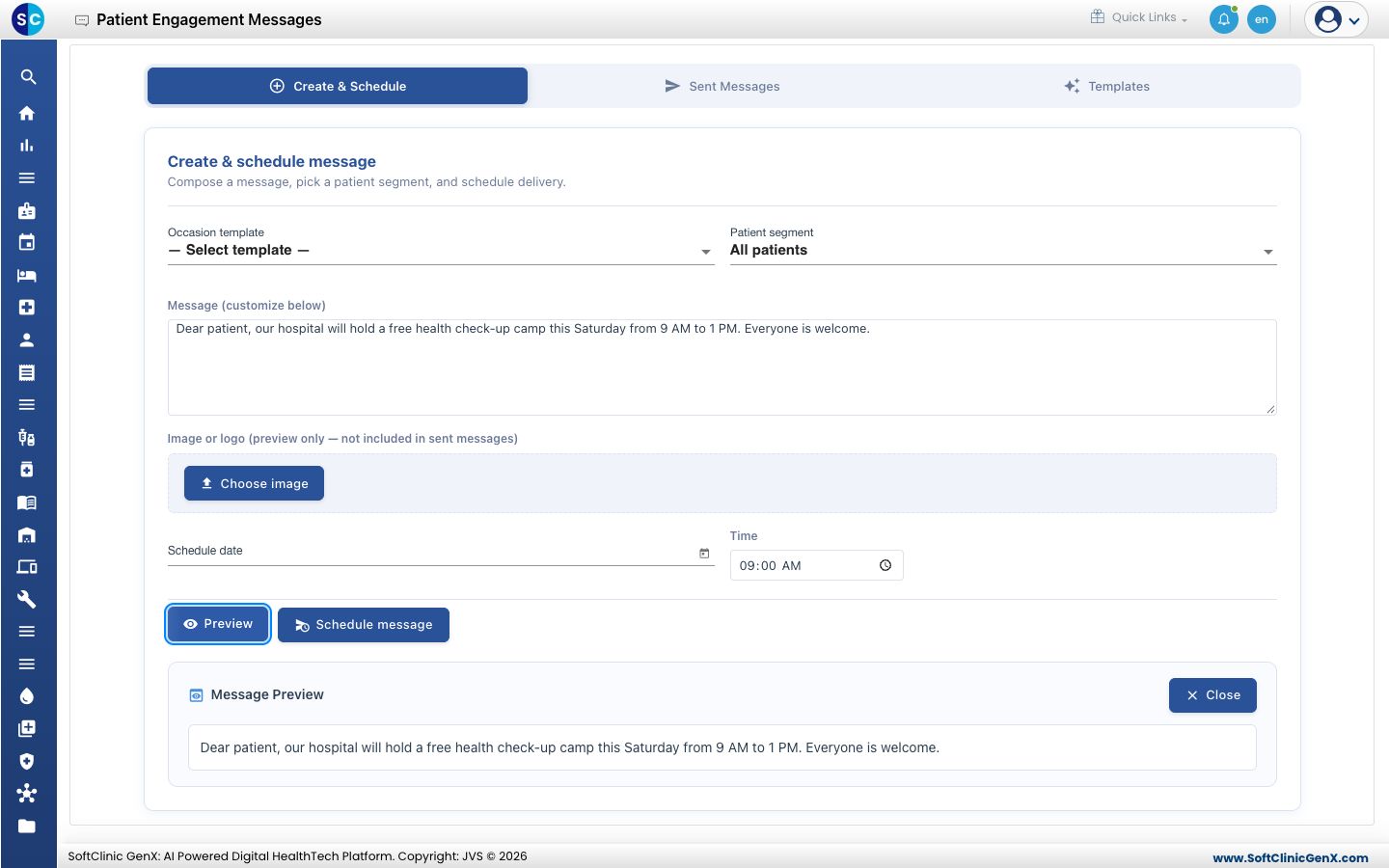
- To send later, choose a Schedule date and a Time. Leave Schedule date empty to send the message now.
- Click Schedule message. A box asks if you are sure.
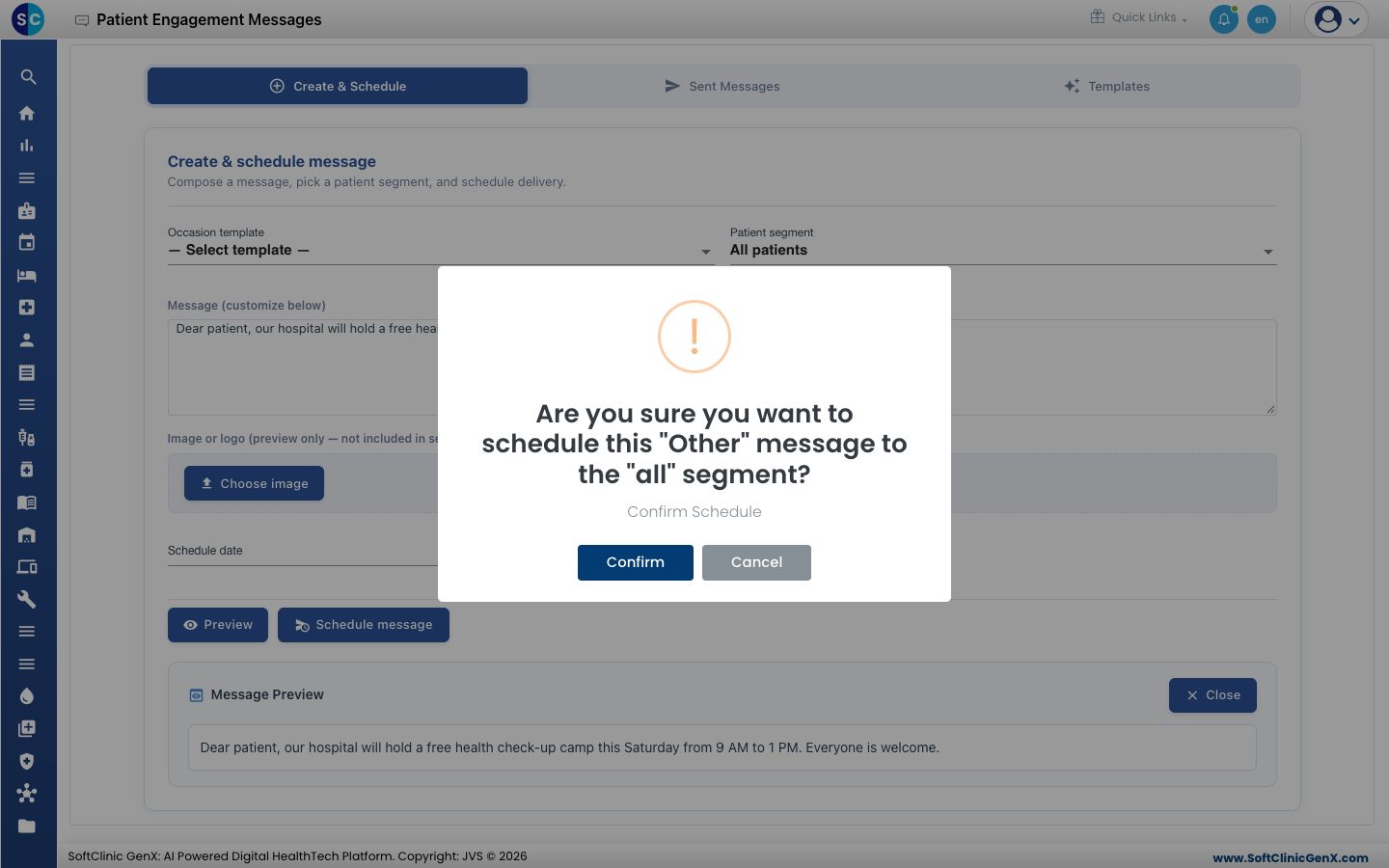
- Click Confirm. You see Message scheduled successfully.
- Open the Sent Messages tab to follow the message. Scroll the list to the right to read Status. It moves from Pending to Sent or Delivered. A message that could not go out shows Failed.
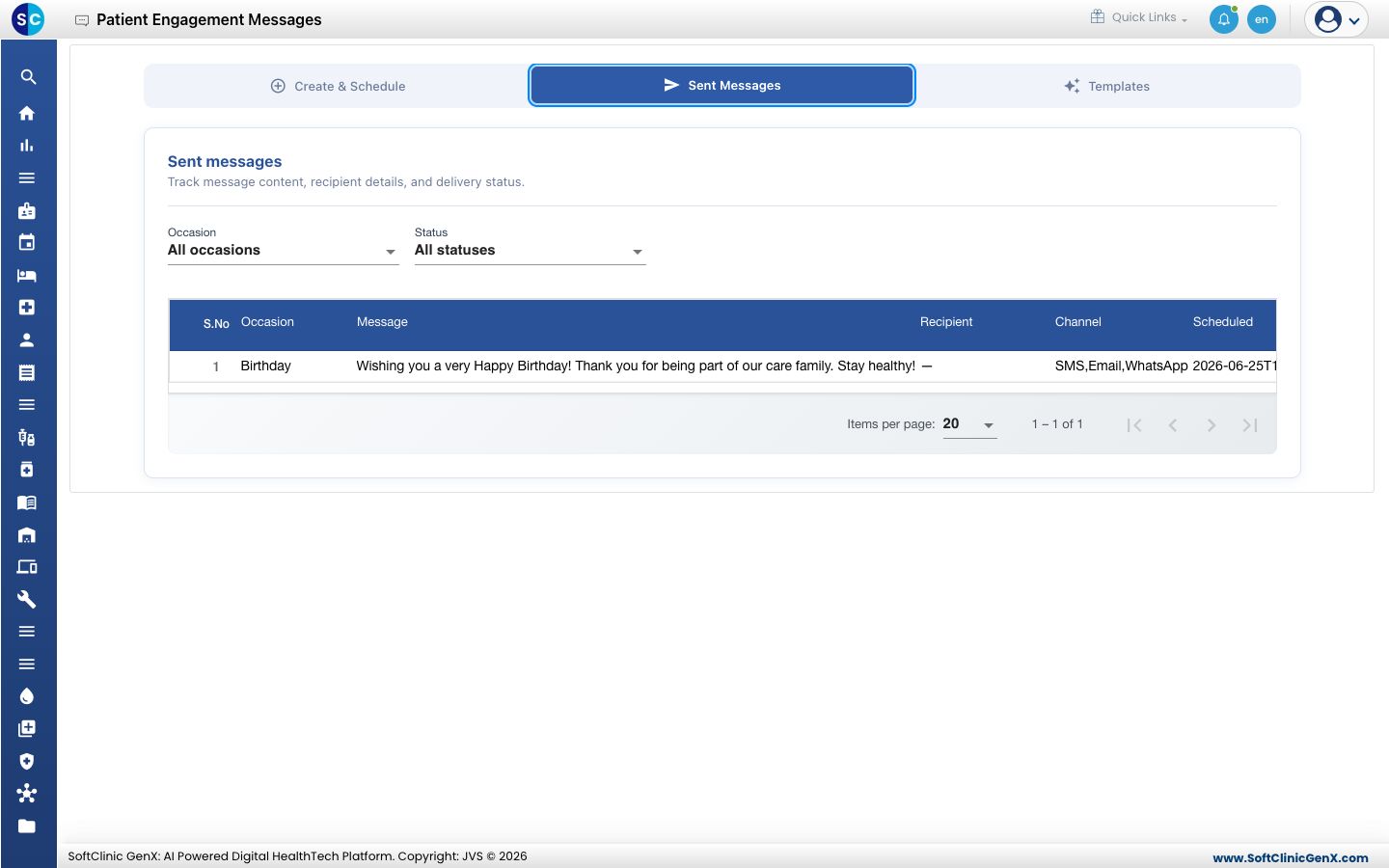
Use the Occasion and Status lists on Sent Messages to find one message among many, for example every Failed message.
Check your wallet before you send
Messages are paid from your hospital's prepaid wallet. A message to all patients uses more balance than a message to a few.
- Go to Configurations › Application Settings › My Wallet.
- Read Available Balance. CURRENT MONTH USAGE shows how many SMS, email and WhatsApp messages the hospital used this month.
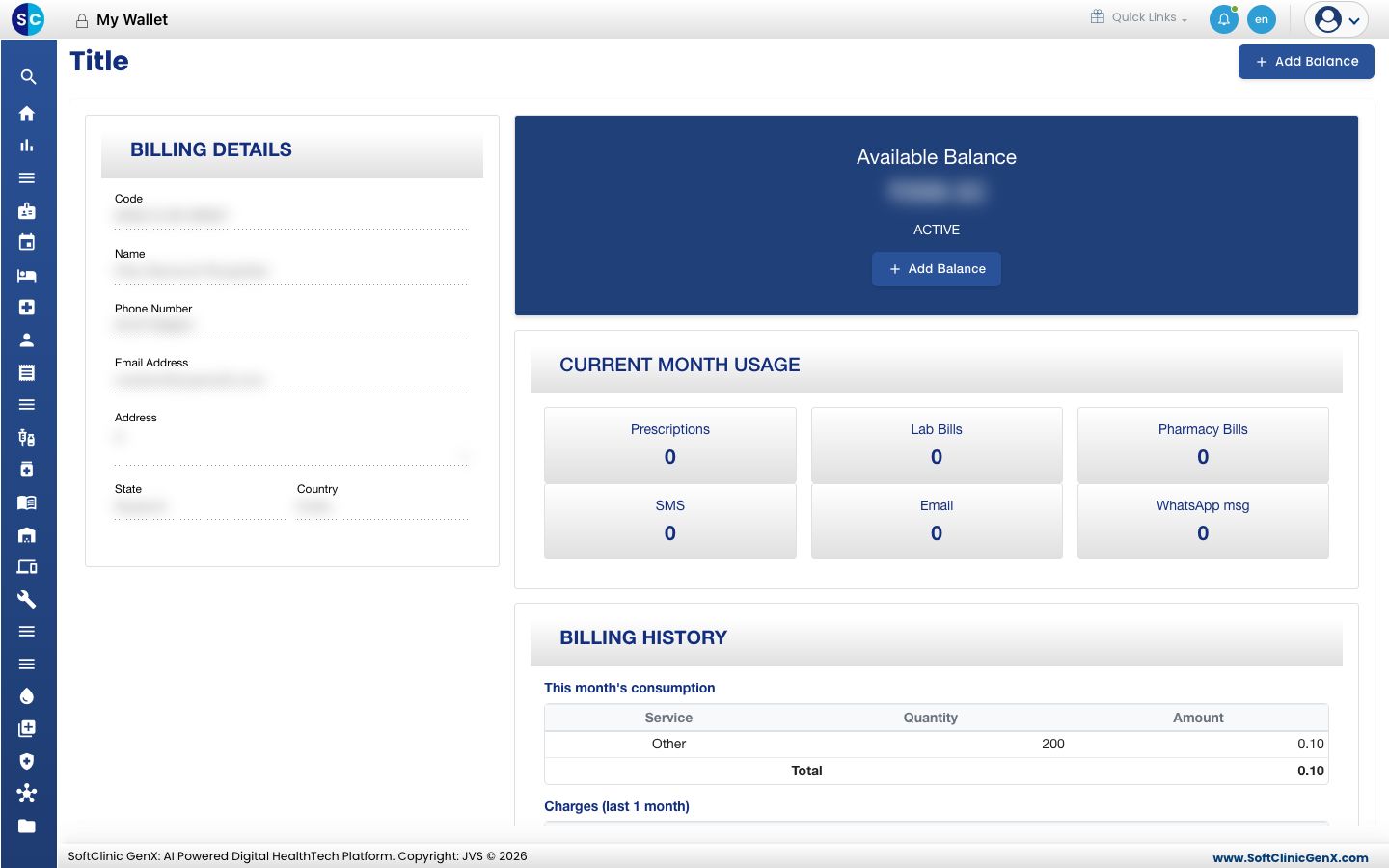
- If the balance looks low for the number of patients you have, add balance before you schedule the message.
Add balance to the wallet
- On My Wallet, click Add Balance.
- Type the amount in the box. The box names your wallet's currency, for example Enter amount (USD).
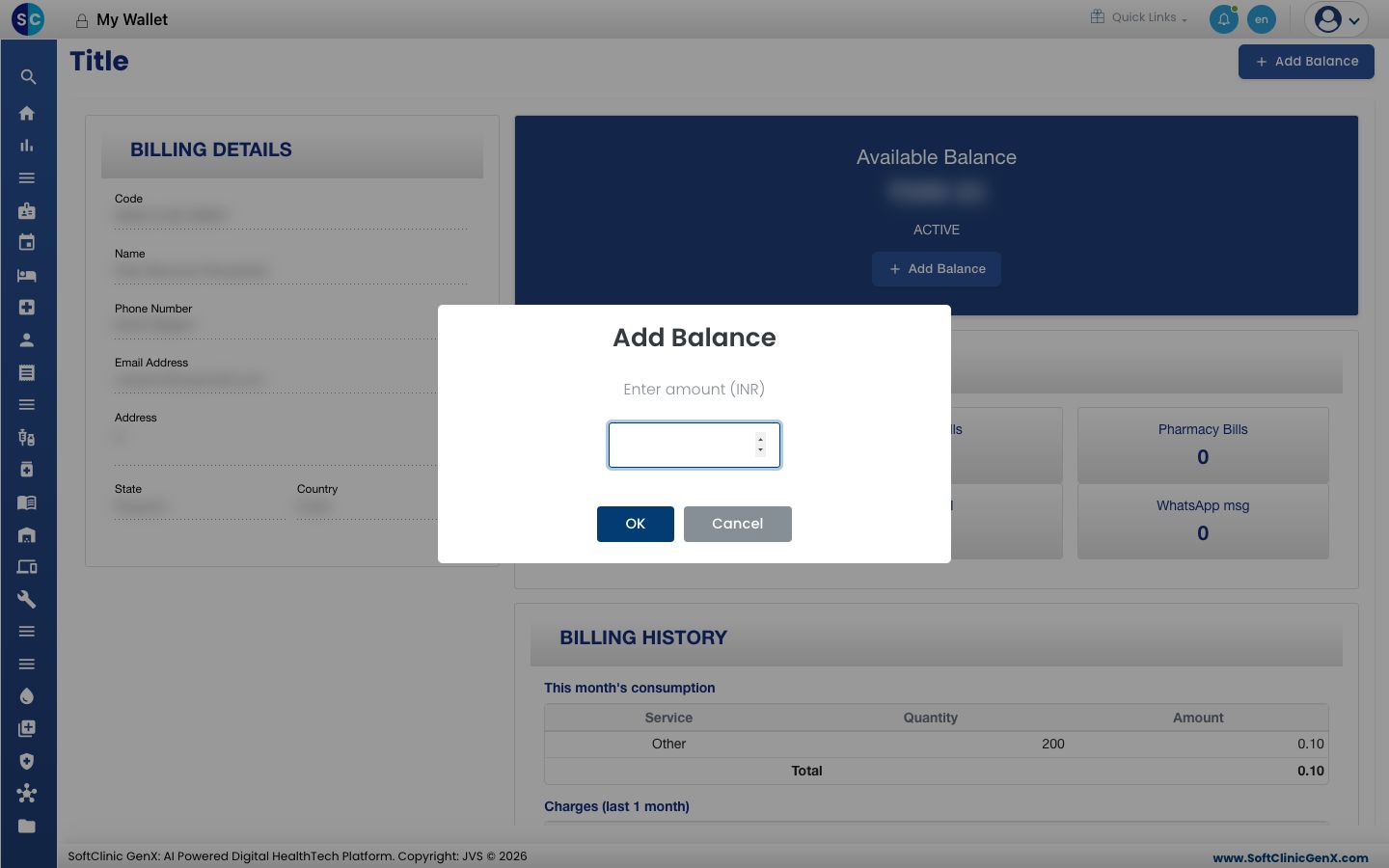
- Click OK.
- Complete the payment on the secure payment page.
- Return to My Wallet. The new amount appears in Available Balance.
Troubleshooting
| What you see | What it means | What to do |
|---|---|---|
| Schedule message is grey | The message box is empty | Type your message. The button turns blue. |
| Message body is required before scheduling. | You clicked Schedule message with no message | Type your message and click Schedule message again. |
| A message shows Failed on Sent Messages | The message did not go out | Check the wallet balance, add balance if it is low, and send the message again. |
Good to know
- Messages go out on your hospital's message channels: SMS, WhatsApp and email. You do not pick a channel on this screen.
- Image or logo is for your own preview. It is not included in the messages patients receive.
- Last 30 days visit reaches patients who visited in the last 30 days. The other segments send to all patients.
Related
- My Wallet: the wallet screen, billing details and every recharge
- Patient Relationship Management FAQs: common questions about messages and charges