Set up Drug Class
Define the classes your medicines fall into, such as General, Schedule H or a narcotic class, so every drug generic carries the right one.
Who does this: hospital administrator or pharmacy in-charge Where: General Masters › Drug Masters › Drug Class Set up before: none
A drug class is the legal or handling category of a medicine, for example General, Schedule H or Schedule X. You pick a class on every drug generic, and a class marked Narcotic flags its medicines as narcotic drugs.
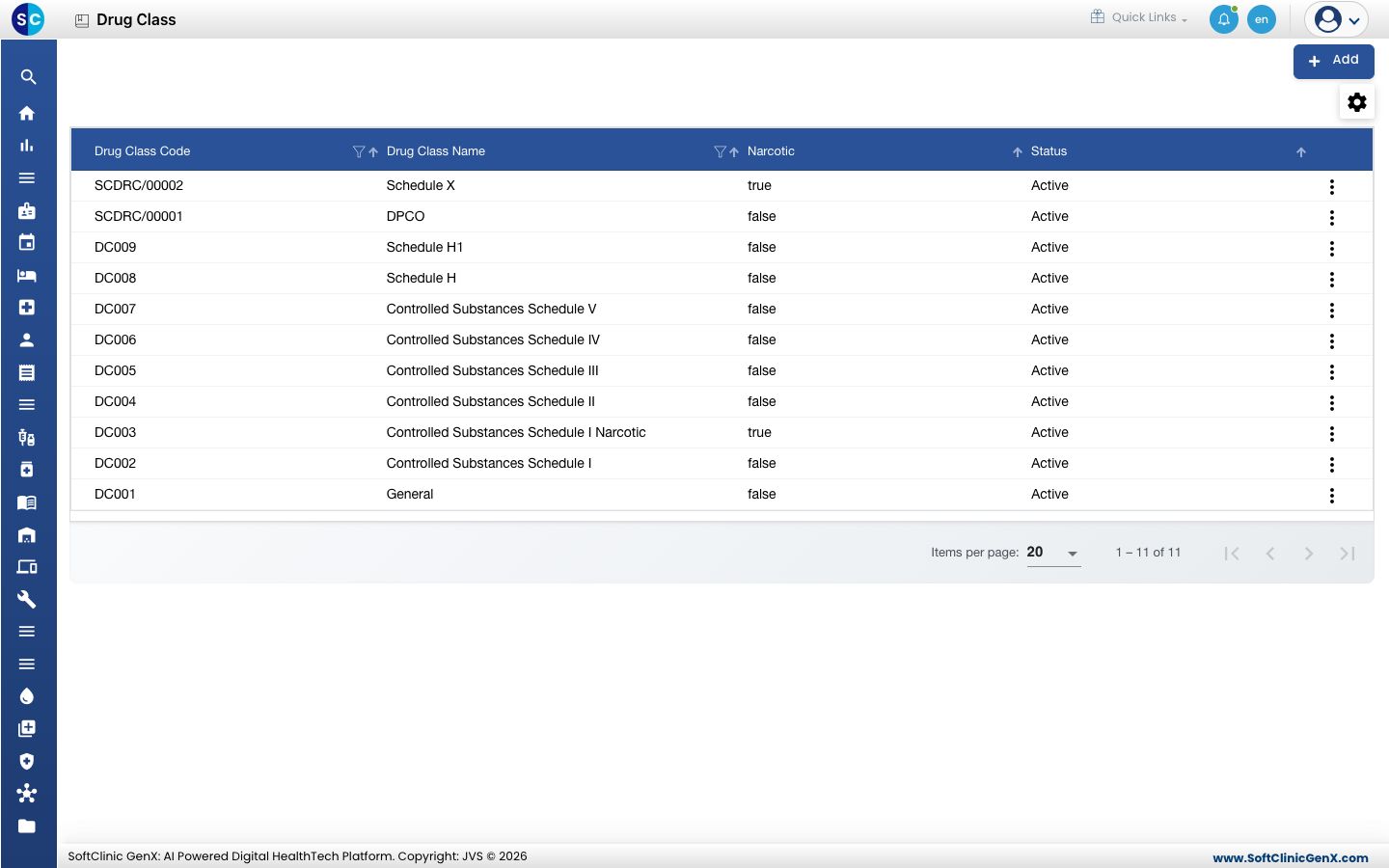
The list comes with the usual classes already set up. Check it before you add a new one.
Add a drug class
-
Go to General Masters › Drug Masters › Drug Class.
-
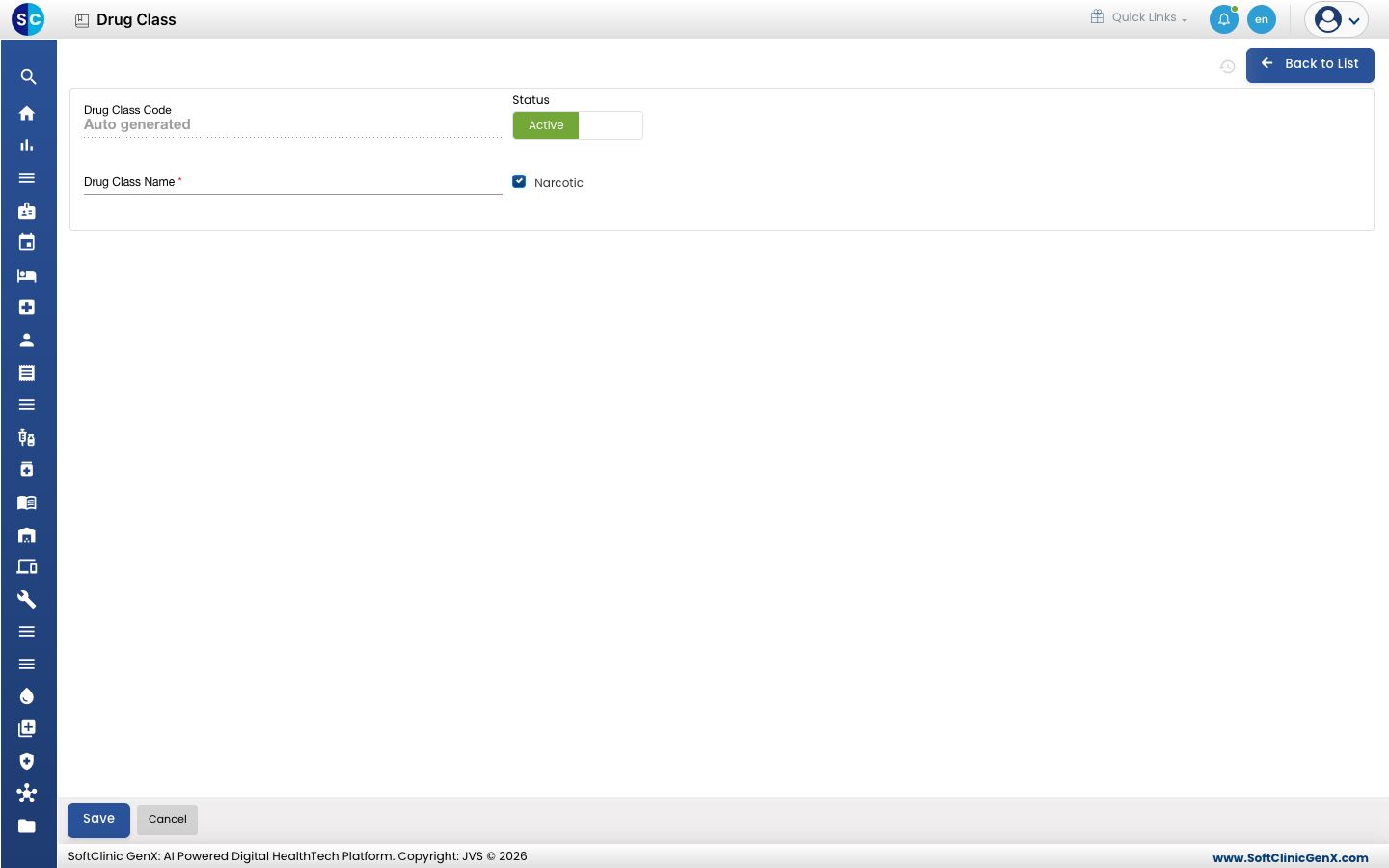
Click Add. The drug class form opens.
-
Fill in the form:
Field What to enter Required Drug Class Code Filled in automatically when you save. — Drug Class Name The class name, for example Schedule H. Up to 50 characters. Yes Status Leave on Active. — Narcotic Tick this when the class covers narcotic drugs. It is ticked when the form opens, so clear it for a class that is not narcotic. No -
Click Save. You return to the list and the new class appears in it.
Change or deactivate a drug class
- In the list, click ⋮ at the end of the row and choose Edit.
- Change the name or the Narcotic tick. To stop using the class, switch Status to Inactive.
- Click Save.
Drug classes cannot be deleted from this screen. Make a class Inactive instead.
Good to know
- The Narcotic column in the list shows true or false for each class.
- Each drug generic must have a drug class, so set the classes up before you add generics.
Related
- Next: Set up Drug Form
- Set up Drug Generic: where you pick the class
- Pharmacy FAQs