Set up Route of Administration
Define the ways a medicine can be given, such as oral, injection or topical, so each drug generic and drug can offer the right routes.
Who does this: hospital administrator or pharmacy in-charge Where: General Masters › Drug Masters › Route of Administration Set up before: none
A route of administration is the way a medicine enters the body, for example Intravenous, Injection or Topical. You tick the routes on each drug generic, and each drug then offers only those routes.
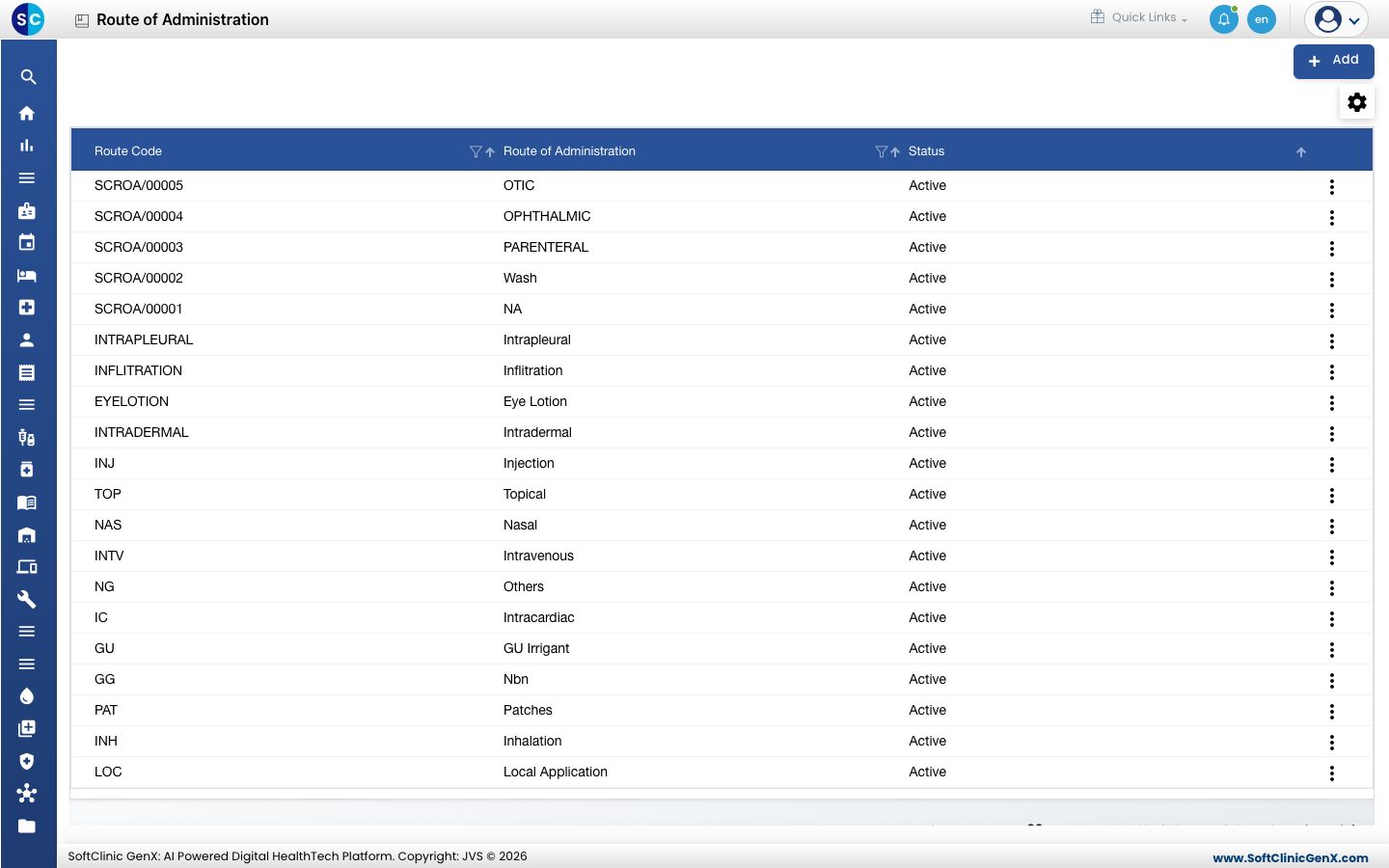
The list already holds the common routes. Check it before you add a new one.
Add a route
-
Go to General Masters › Drug Masters › Route of Administration.
-
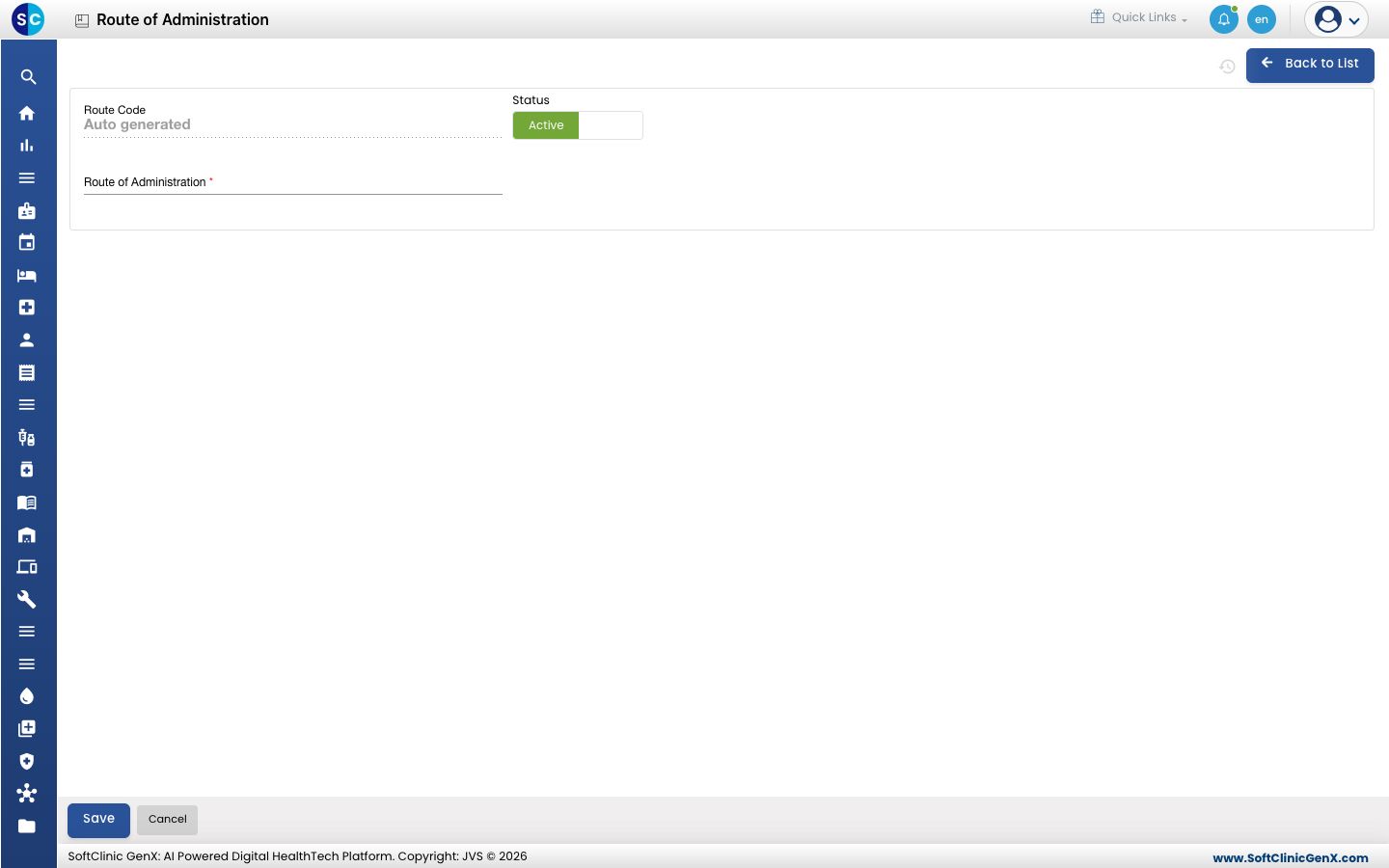
Click Add. The route form opens.
-
Fill in the form:
Field What to enter Required Route Code Filled in automatically when you save. — Route of Administration The route name, for example Sublingual. Up to 100 characters. Yes Status Leave on Active. — -
Click Save. You return to the list and the new route appears in it.
Change or deactivate a route
- In the list, click ⋮ at the end of the row and choose Edit.
- Change the name. To stop using the route, switch Status to Inactive.
- Click Save.
Routes cannot be deleted from this screen. Make a route Inactive instead.
Good to know
- A new route is not available on a drug until you tick it on the drug's generic.
- Use the filter icon in the Route of Administration column to search the list.
Related
- Previous: Set up Drug Form
- Set up Drug Generic: where you tick the routes
- Pharmacy FAQs