Set up Doctor Share or Rewards
Who does this: hospital administrator or finance manager Where: Billing › Masters › Doctor Share or rewards Set up before: Service, Class Master, Organization Master
A doctor share is the part of a service's fee that the hospital pays to the doctor who performed it. You set the share once per doctor, for each service, bed class and paying organisation, as an amount or a percentage. The shares are then used when doctor payouts are posted.
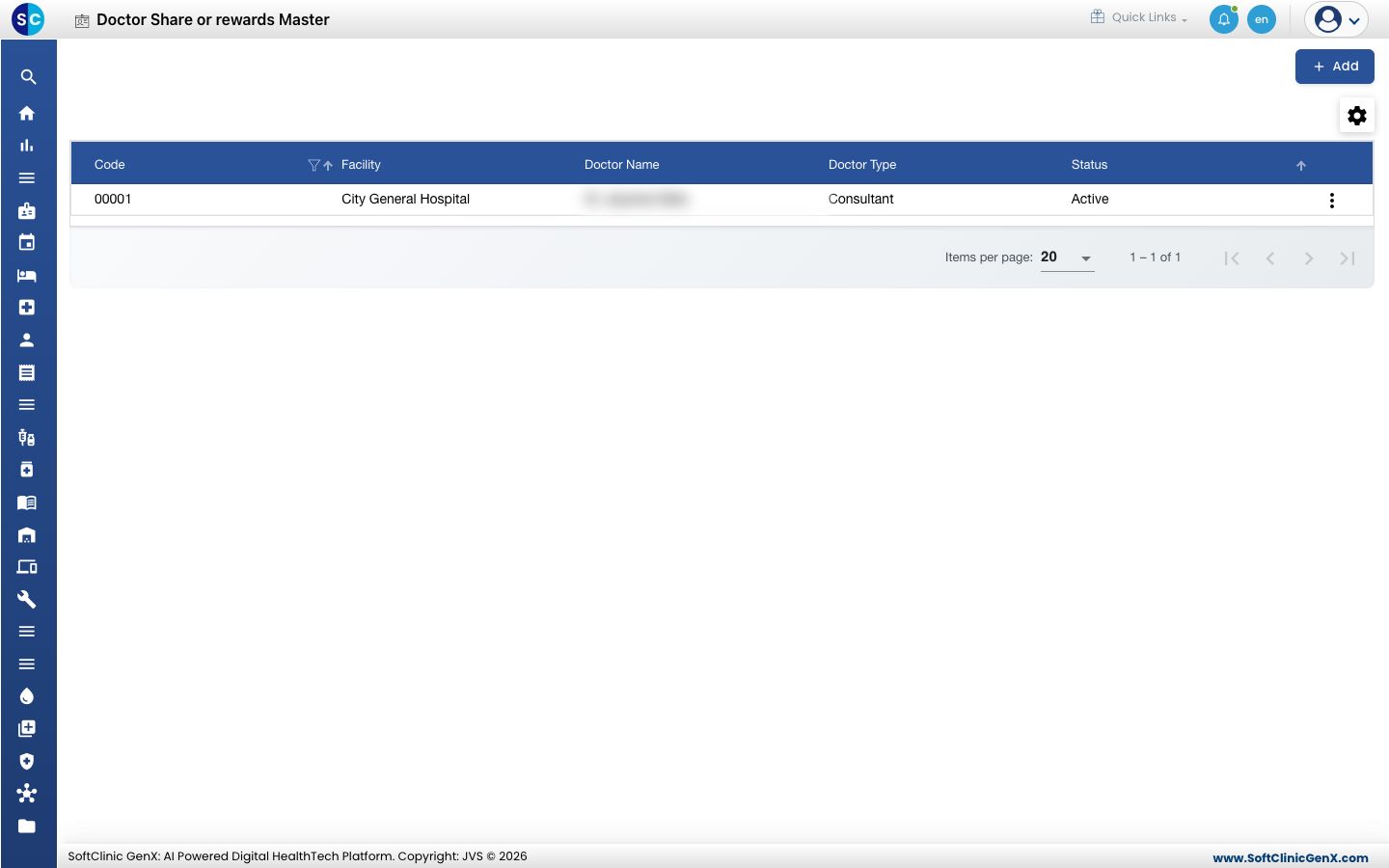
Add a doctor's share
-
Go to Billing › Masters › Doctor Share or rewards.
-
Click Add. The doctor share form opens.
-
Fill in the fields:
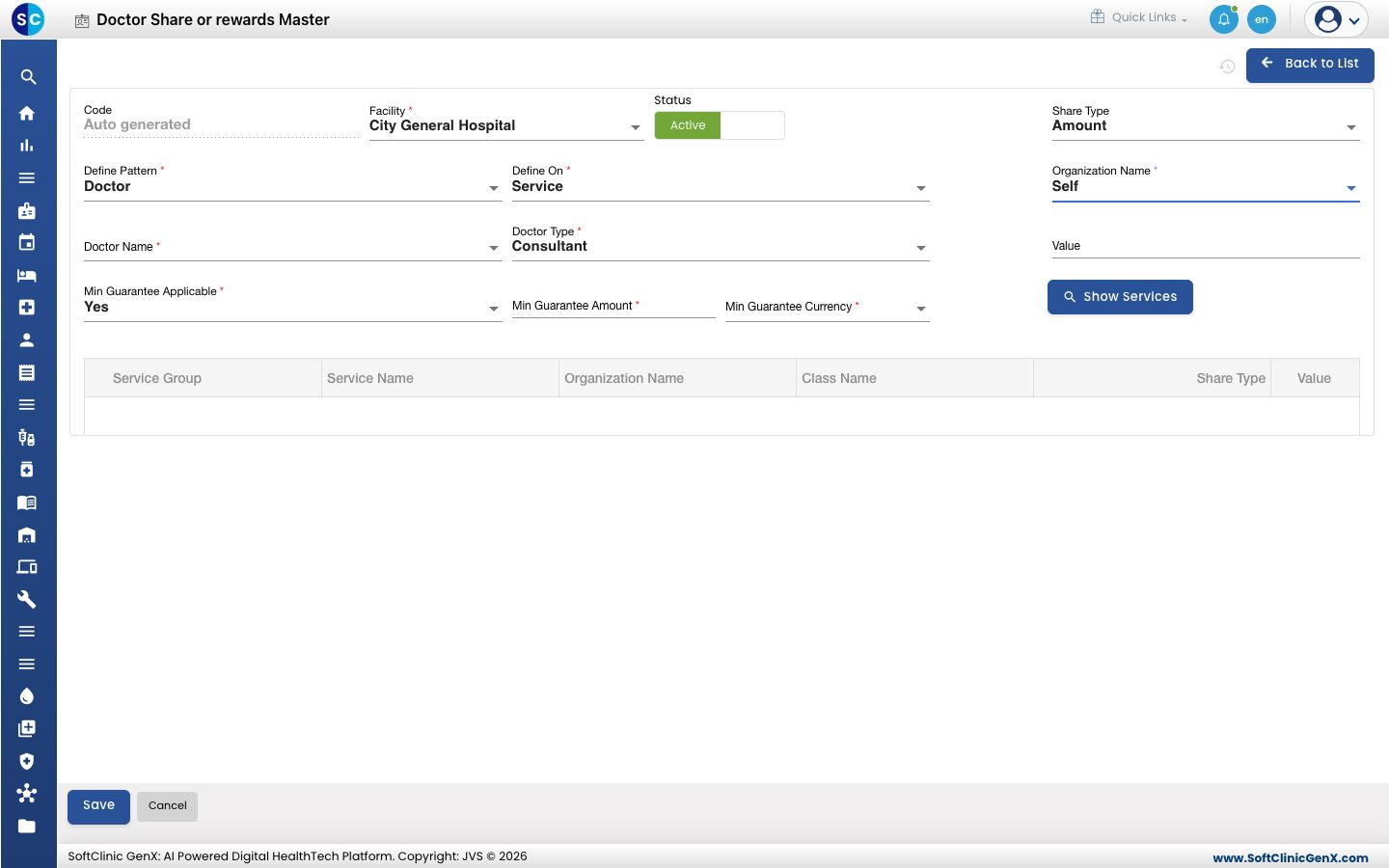
Field What to enter Required Code Filled in automatically when you save. — Facility The facility the doctor works at. Yes Status Leave on Active. — Define Pattern Doctor to set shares for one doctor, or Doctor Type. Yes Define On Service for service fees, or Item for drugs and consumables. Yes Doctor Name The doctor. Yes Doctor Type For example Consultant or Anaesthetist. Yes Min Guarantee Applicable Yes if the doctor is guaranteed a minimum payout, otherwise No. Yes Min Guarantee Amount, Min Guarantee Currency The guaranteed minimum and its currency. Yes Share Type Amount or Percentage. Copied to the rows when you click Show Services. No Organization Name The paying organisation these shares apply to, for example Self. Yes Value The share amount or percentage to copy to the rows. No -
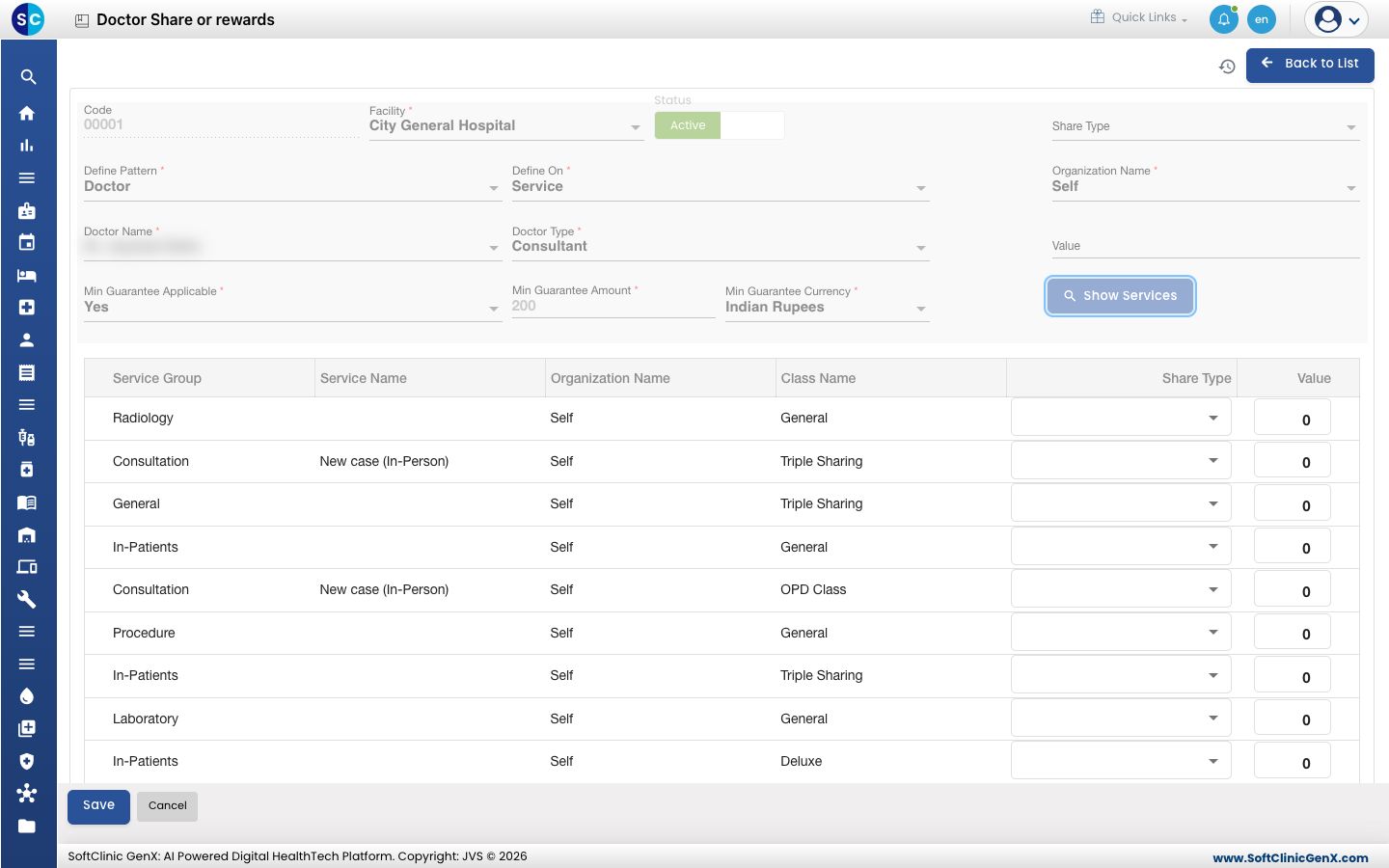
Click Show Services. The list fills with each service and bed class, and the fields above lock.
-
In each row, check the Share Type and enter the Value. Leave 0 where the doctor gets no share.
-
To set different shares for another paying organisation, save, edit the record again, choose the other Organization Name and click Show Services.
-
Click Save. The doctor appears in the list.
Change or deactivate a doctor's share
- In the list, click the ⋮ button at the end of the row and choose Edit.
- Choose the Organization Name, click Show Services, and change the values you need.
- To stop paying shares, switch Status to Inactive.
- Click Save.
Good to know
- A percentage share cannot be more than 100.
- Each doctor has one doctor share record. If the doctor already has one, edit it instead of adding a new one.
- Show Services needs every required field above it filled in first. A message tells you which one is missing.
- Click Cancel or Back to List to leave without saving.
Related
- Previous: Set up Package Master
- Billing FAQs