Set up Discount Master
Who does this: hospital administrator or billing manager Where: Billing › Masters › Discount Master
A discount reason records why a bill was reduced, for example Concession, Charity Concession or Bad Debt Written Off. Billing staff pick a reason each time they give a discount, so discount reports show where the money went. Each reason is offered only on bills for the visit types you choose.
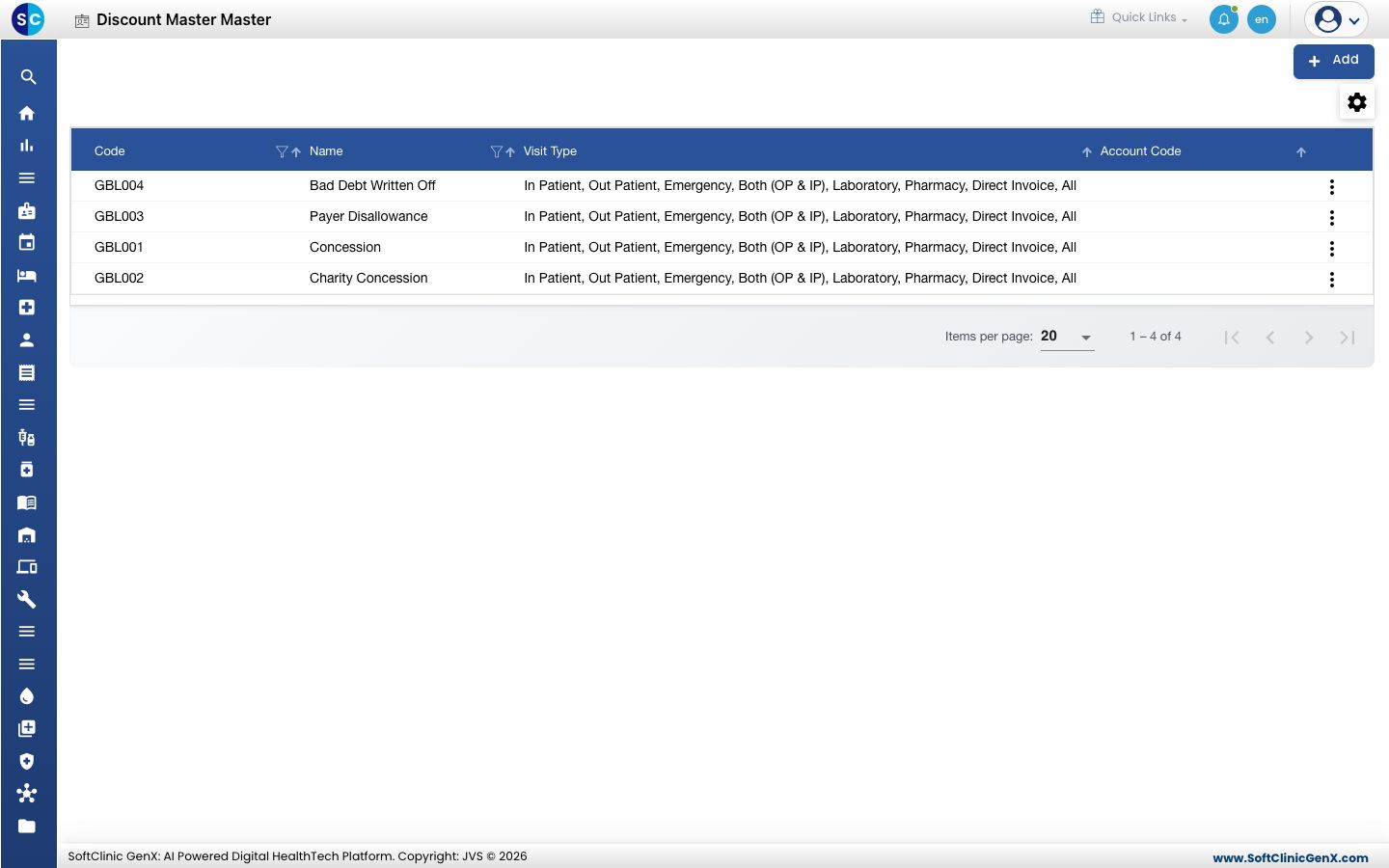
Add a discount reason
-
Go to Billing › Masters › Discount Master.
-
Click Add. The discount form opens.
-
Fill in the fields:
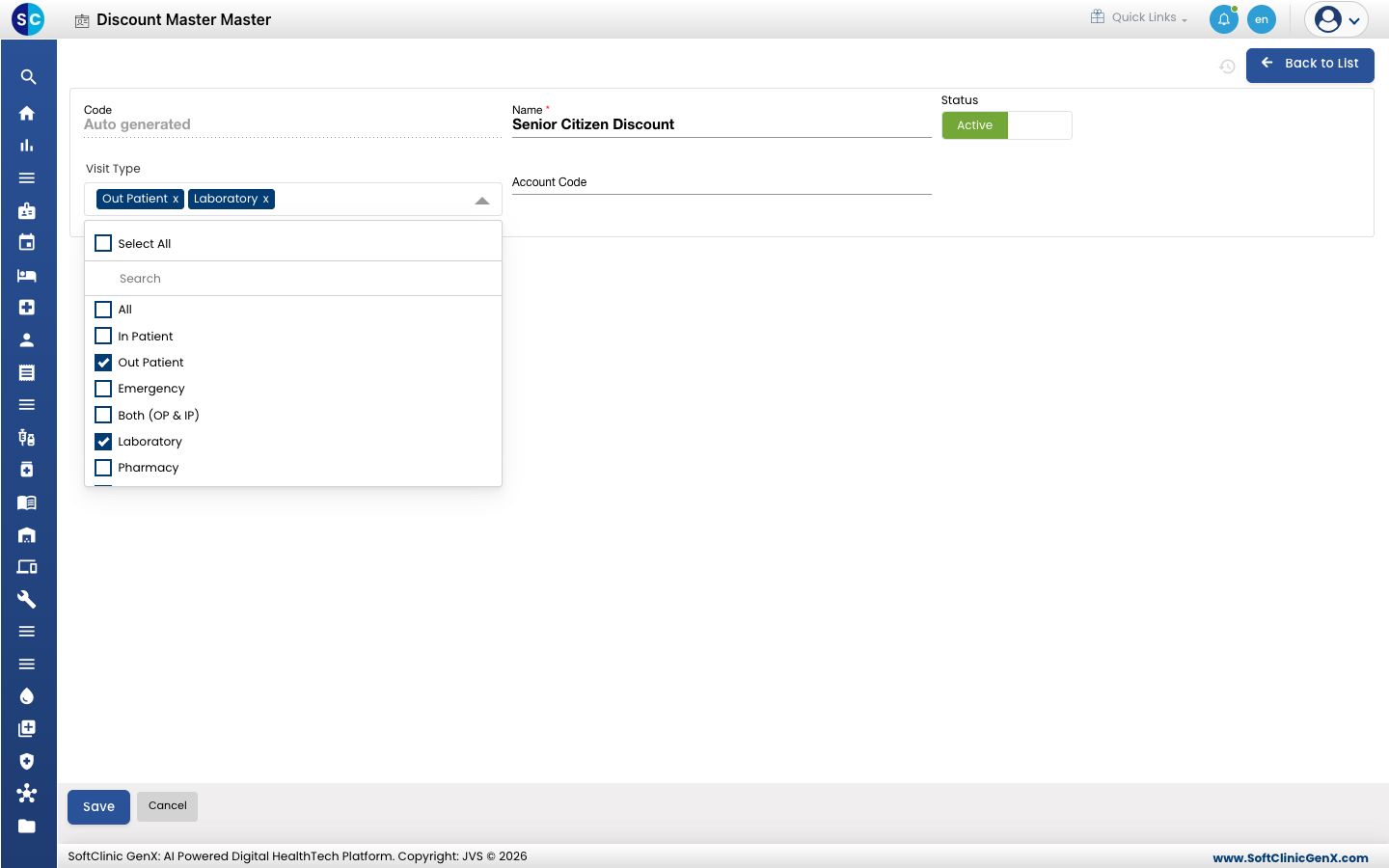
Field What to enter Required Code Filled in automatically when you save. — Name The reason as staff will see it, for example Senior Citizen Discount. Yes Status Leave on Active. — Visit Type Tick every kind of bill this reason may be used on, such as Out Patient, In Patient, Laboratory or Pharmacy. Select All ticks them all. No Account Code The accounting ledger the discount is posted to, if your accountant uses one. No -
Click Save. The reason appears in the list.
Change or deactivate a discount reason
- In the list, click the ⋮ button at the end of the row and choose Edit.
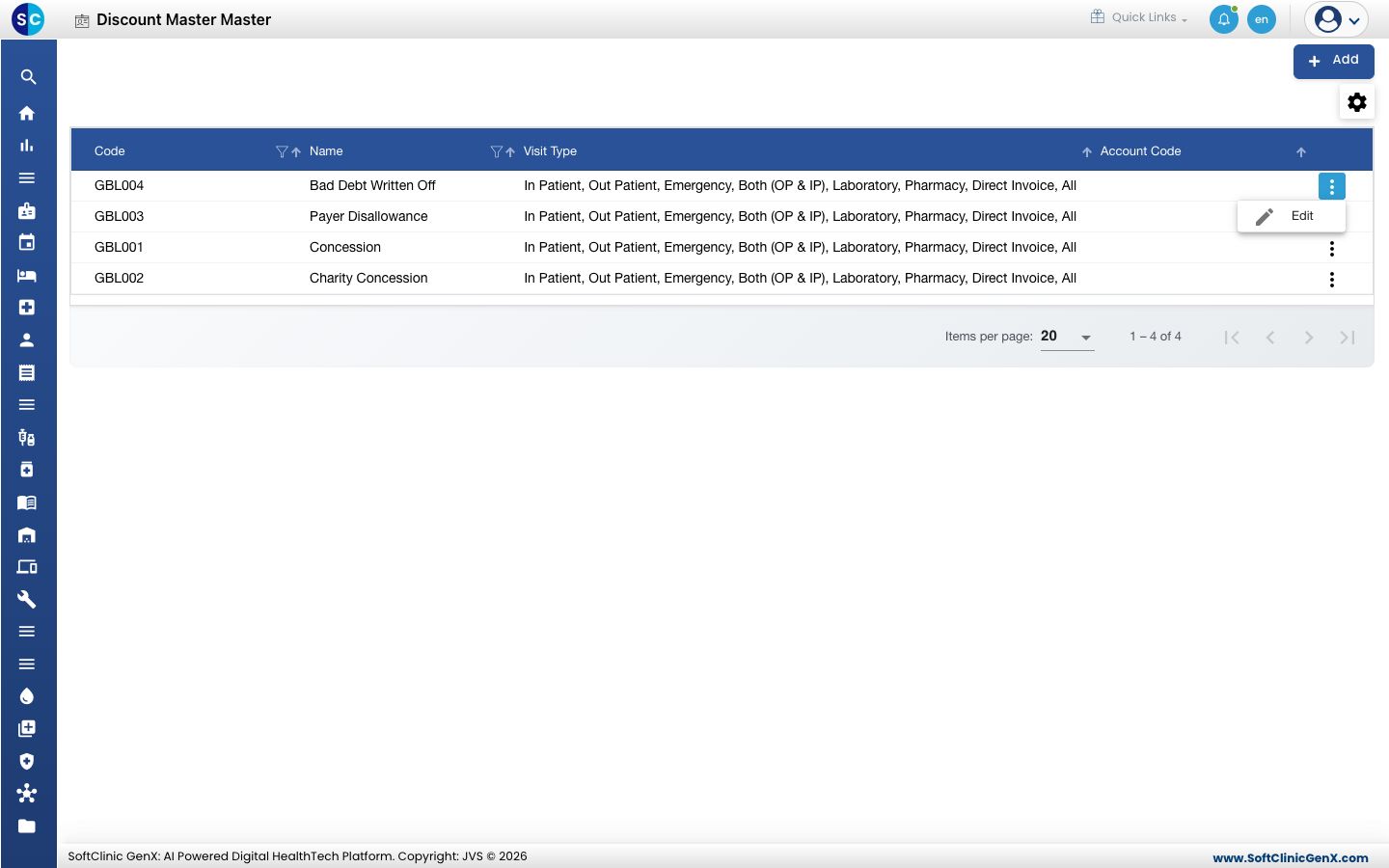
- Change the fields you need. To stop offering the reason, switch Status to Inactive.
- Click Save.
Good to know
- If a reason is missing when you give a discount on a bill, check that its Visit Type includes that kind of bill.
- Click Cancel or Back to List to leave without saving.
Related
- Next: Set up Package Type Master
- Previous: Set up Organization Master
- Billing FAQs